

How to set the zoom range a layer is visible at
Show a layer only between the zoom levels you choose, so detail layers stay hidden at world view and summary layers drop out at street level.
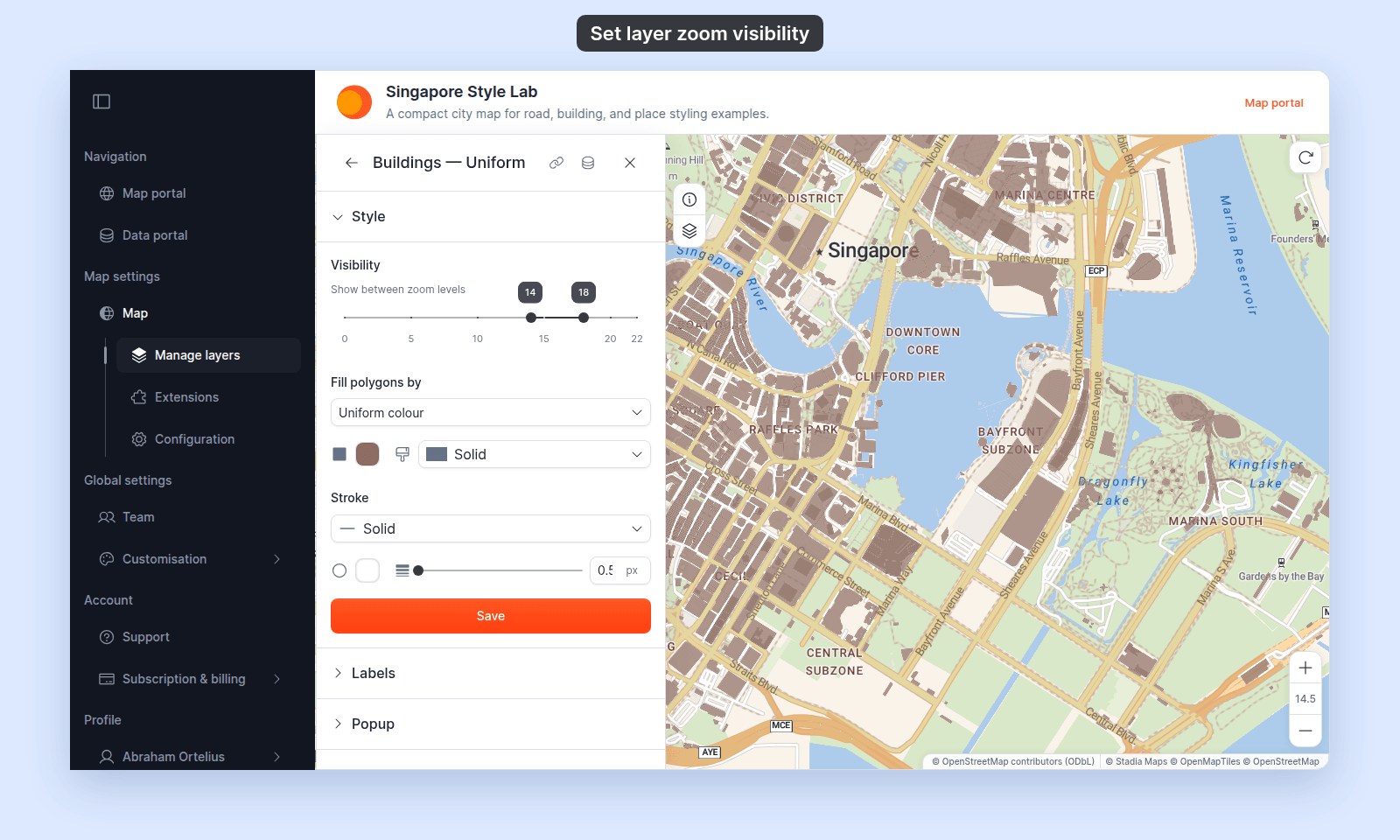
Open the layer’s Style tab, set the Visibility slider, and click Save or Save Style. The layer shows at both ends of the range and stays hidden outside it. The same control works for every layer type — point, line, polygon, raster, WMS.
See it on an example map
Open the Singapore Style Lab. Zoom out a few levels. Buildings — Uniform hides below zoom 14. Roads — Uniform hides below zoom 11.
Use this to hide layers that only make sense at certain zoom levels — neighbourhood detail at zoom 14+, country-level summaries at zoom 5 and below, anything in between.
Before you start
- You need edit access to the map.
- Some idea of the zoom range you want. Common ranges:
- 0–5 — country-and-region overviews. Country polygons, major rivers, capital cities.
- 6–10 — country-to-region detail. Major cities, main roads, large administrative boundaries.
- 11–14 — city-and-neighbourhood. Streets, parks, blocks, points of interest.
- 15–22 — building-and-feature detail. Building footprints, parcels, addresses.
Open the Style tab
Click the layer in the layer panel to open its settings, then switch to the Style tab. The Visibility slider is at the top of the tab.
Drag the slider
The control has the label Visibility and helper text Show between zoom levels. The slider is a two-handle range: drag the left handle for the minimum zoom and the right handle for the maximum.
The range includes both ends. With a range of 14 to 18, the layer shows at zoom 14 and at zoom 18. It hides above zoom 18 and below zoom 14.
Save
The slider doesn’t take effect until you click the save button (Save for vector layers or Save Style for raster and WMS) at the end of the Style section.
If you close the layer settings or switch tabs before you save, your zoom-range change is lost — the same as any other style change.
Verify the result
Zoom in and out past each end of the range to check the layer shows and hides.
The layer’s feature labels follow the same range, and so does the legend.
Tips for picking a range
- Start broad, then narrow — set a generous range first, see where the layer reads well, then tighten. Layers that look fine at a wide range usually don’t need restriction.
- Detail layers want a higher minimum — building footprints, minor roads, and shop points rarely make sense below zoom 14. Restricting them stops the map slowing down at world-view zooms.
- Summary layers want a lower maximum — a country choropleth or a major-rivers layer doesn’t need to draw at street-level zooms. Restrict it to keep the map clean.
- Don’t hide layers viewers expect to see — if the layer is part of the map’s purpose, change how it looks at different zooms instead of hiding it:
- Point layers with
Circlemarkers can change marker size or colour by zoom. See How to vary marker size by zoom level and How to change marker colour by zoom level. - Line and polygon layers have no zoom styling. Use the
Duplicate Layeraction to make a second layer from the same dataset. Give each layer its own style. Start one layer’s range at the zoom where the other’s ends, such as0–10and10–22, so both layers draw only at zoom 10. With0–10and11–22, neither layer draws between zoom 10 and 11. See Layer panel controls.
- Point layers with
The chart shows the common ranges above, and two layers made from one dataset with Duplicate Layer. A dot marks each end of a range, and the layer shows at both.
The default range is the full 0–22, meaning the layer is always visible.
What this doesn’t cover
- Hiding the layer for the current session only — that’s the legend’s eye icon, a per-session override that doesn’t save. See How the layer panel works in MangoMap for the persistent vs. per-session distinction.
- Hiding the layer from the legend — see How to hide a layer from the legend.
- Restricting the basemap to a zoom range — basemap zoom is controlled by the basemap source, not by the Style tab.
- Changing a layer’s look with zoom — zoom stops change a point layer’s marker size or colour while the layer stays visible. They work on point layers with
Circlemarkers only. See How to vary marker size by zoom level and How to change marker colour by zoom level.