

How to upload a custom point icon
Use your own PNG, JPG, or SVG image as the marker on a point layer. PNG and JPG files over 50 px are shrunk; SVGs are kept as uploaded.
Open a point layer’s Style tab, choose Custom Icon, click Select icon, and upload an image. Choose the image in the drawer, then click Save.
See it on an example map
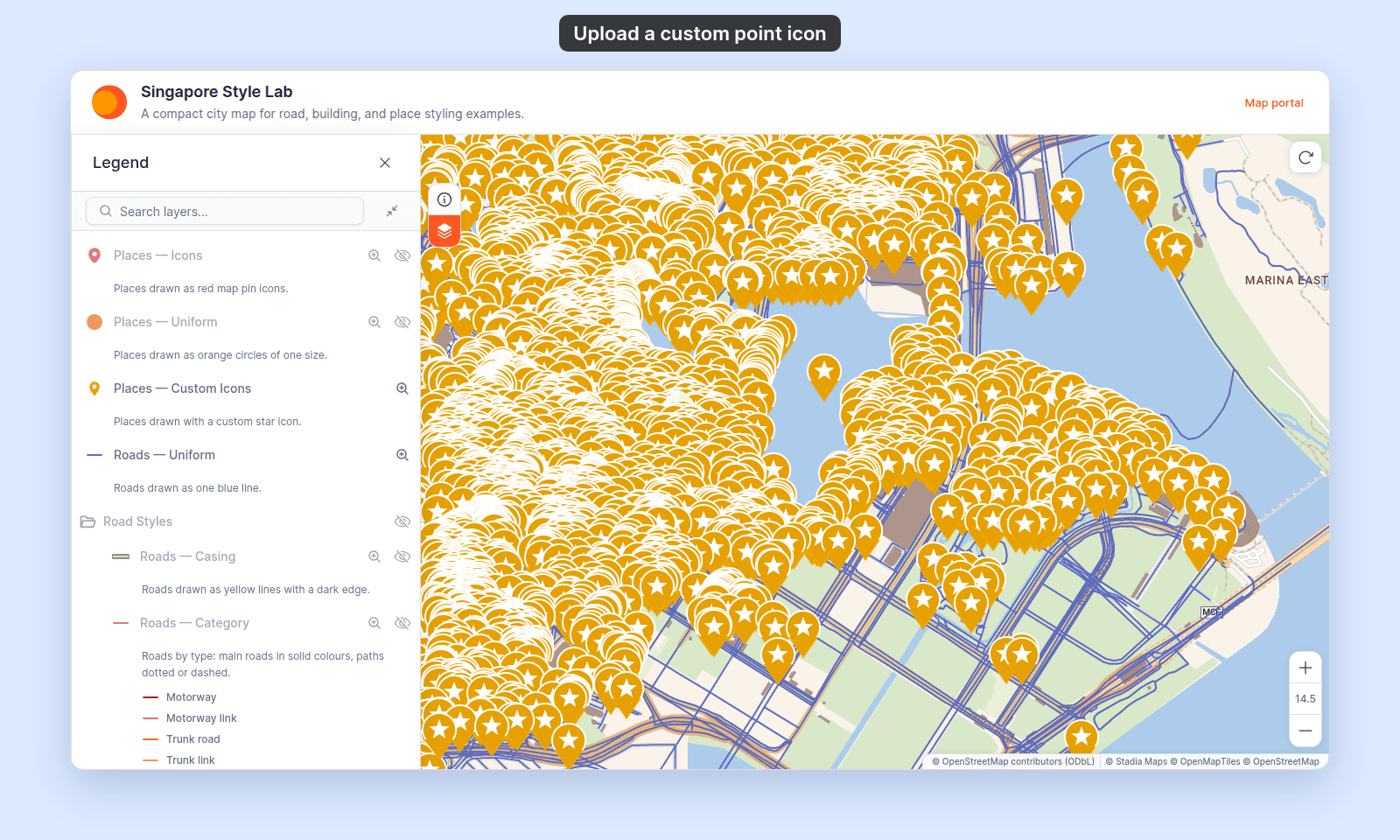
Open the Singapore Style Lab. In the legend, turn on Places — Custom Icons. Turn off Places — Icons. Each place shows a custom star icon.
See one custom icon per category
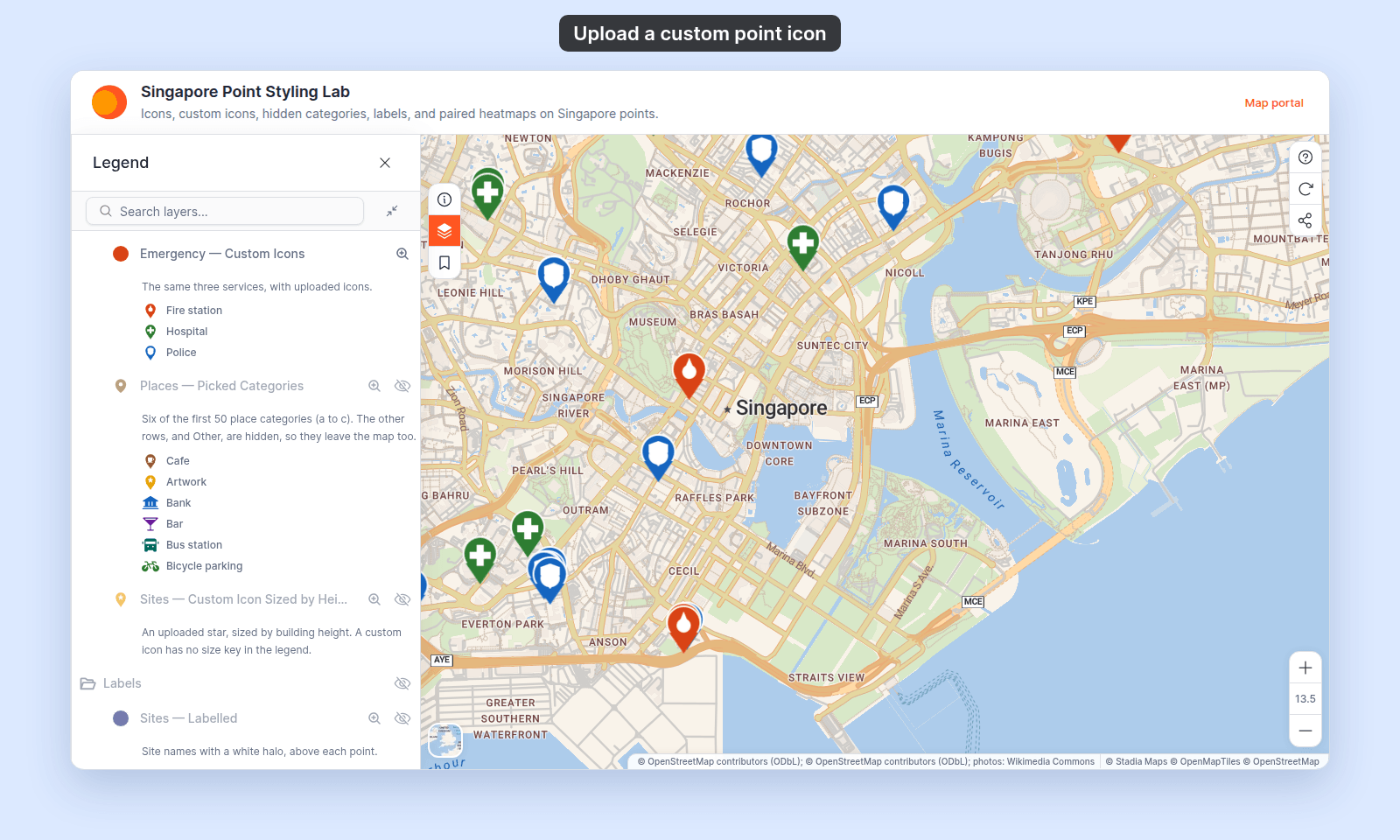
Open the Singapore Point Styling Lab. See Emergency — Custom Icons in the legend.
MangoMap stores custom icons in your account. You can reuse them on point layers. Replacing or deleting an icon changes every layer that uses it.
Before you start
- You need edit access to the map.
- An image file ready to upload:
- Format:
.png,.jpg,.jpeg, or.svg. A PNG with a transparent background works best. The file extension must match the real file type. - File size: up to 10 MB.
- Pixel size: icons display at up to 50 × 50 px. A larger PNG or JPG is shrunk to fit 50 × 50 px when you upload it. An SVG is kept exactly as uploaded and is never resized.
- Shape: square is best. A non-square icon keeps its own proportions inside the marker area.
- SVG content: plain shapes only, with a
viewBoxor awidthandheight. MangoMap refuses any other SVG.
- Format:
- A point layer to apply it to. Custom icons are point-only — they aren’t available on line or polygon layers (those don’t have a marker-type picker).
Open the Style tab
Click the point layer in the layer panel to open its settings, then switch to the Style tab.
Switch the marker type to Custom Icon
In the Marker type dropdown, pick Custom Icon. A Select icon button appears next to the dropdown.
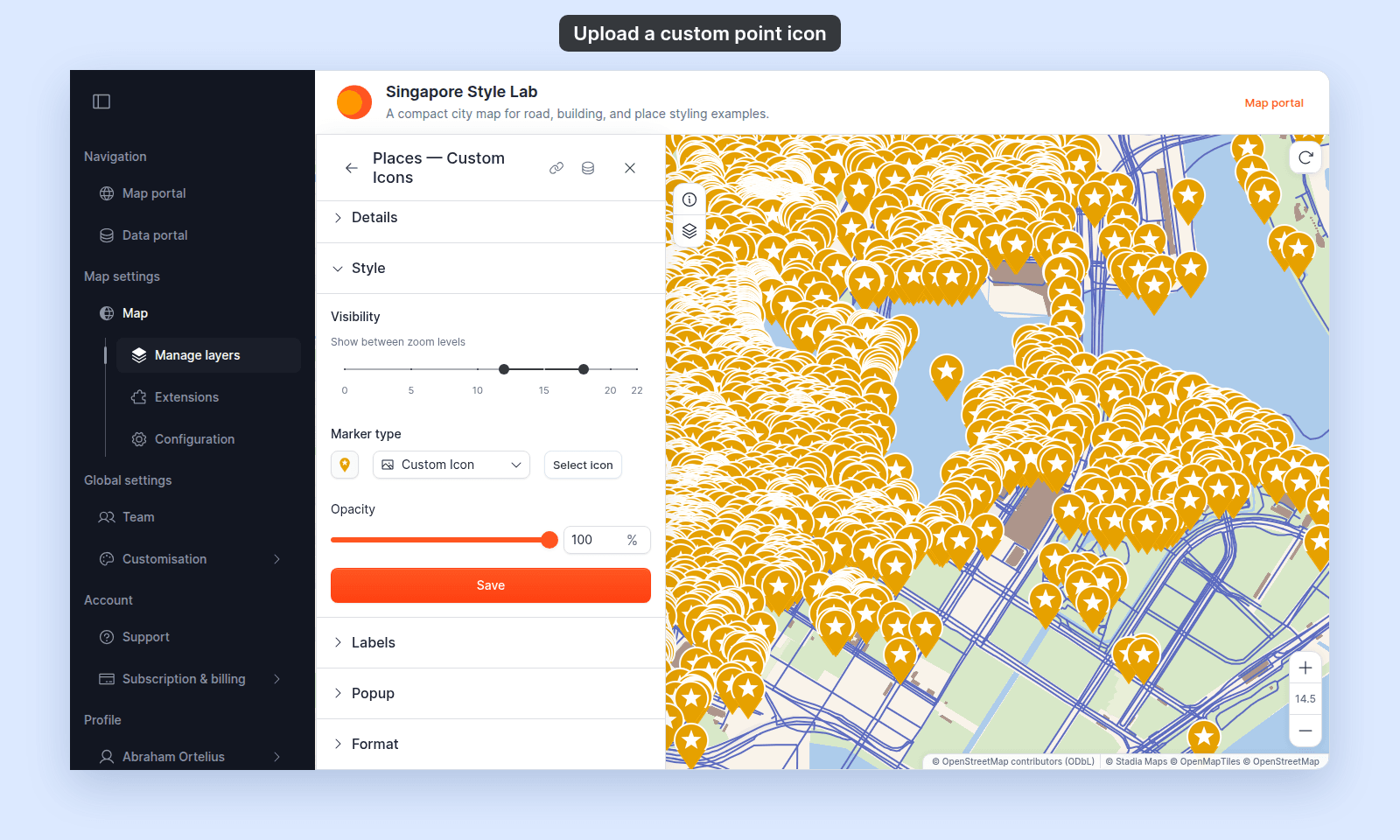
The fill, outline, rotation, and size controls are hidden for Custom Icon — the image you upload supplies the appearance.
An Opacity slider and number box show below Marker type, from 0 to 100%. They set how see-through the icon is, on the map and in the legend. Switching to Custom Icon sets the opacity to 100%. If you switch back to Circle or Icon later, the old transparency does not come back.
Open the custom-icon drawer
Click Select icon. The Select Custom Icon drawer opens. It lists every custom icon in your account, with the upload area above the list.
Upload a new icon
Click the upload area, then choose the image file.
Pick an icon
Click the icon you want to use. The drawer closes, the marker preview updates, and the map preview redraws.
(Optional) Replace or delete an icon
Each icon in the drawer has a More actions menu (the ⋮ button at the end of its row):
Update from file— opens a file picker to upload a new image; every layer using it picks up the new image.Delete— removes the icon from your account, after you confirm withDelete Icon.
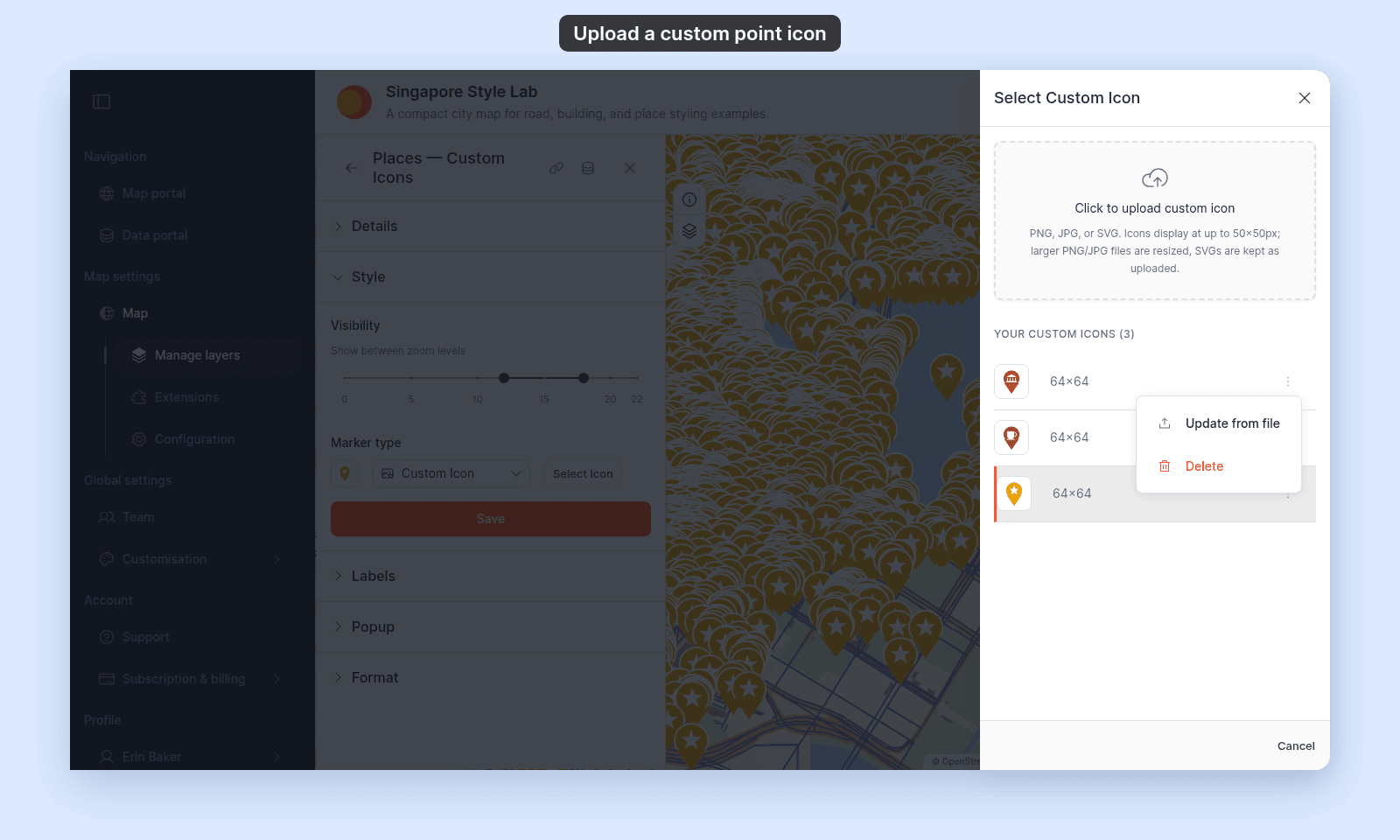
Deleting an icon that’s in use leaves the consuming layers without a marker; pick a different icon for those layers afterwards.
Set marker size
Size controls are hidden while Custom Icon is selected. To change the size, switch temporarily to Circle or Icon, set a uniform size or choose a numeric field under Size markers by, then switch back to Custom Icon. The size setting remains applied.
A category or class break that uses a custom icon cannot set its own fixed pixel size. It follows the layer’s global size or size-by setting.
Save
Click Save at the bottom of the panel.
If you close the layer settings or switch tabs without clicking Save, your changes are lost.
Verify the result
The map redraws once the save completes. Open the legend to confirm that the uploaded icon appears for the layer.
Use a custom icon per-category or per-break
Once an icon is uploaded, it’s available everywhere a marker can be picked. To use different icons per category or per class break (for example, a different icon per land-use type):
- Pick a field in
Colour markers by. A text field gives a category style. A numeric field gives a quantity style, or a category style withStyle asset toCategories. - Open the per-row customisation collapsible (see How to customise category and class break symbology).
- On each row, switch the marker to
Custom Iconand pick the uploaded icon for that row — the custom-icon picker is exposed in the per-row marker-override controls.
A row with a custom icon has its own Opacity control in its swatch settings. The layer’s opacity slider does not change it.
The result, with one uploaded icon per row:
Troubleshooting
MangoMap checks the file before it uploads anything. If the file fails a check, an error message names the problem, and nothing is uploaded. The same checks run when you replace an icon.
| Message | What to do |
|---|---|
Unsupported file type. Upload a PNG, JPG or SVG file. |
Export the image as PNG, JPG, or SVG. |
The file is empty. Choose a PNG, JPG or SVG image. |
Export the image again. |
The file is larger than 10 MB. Upload a smaller image. |
Reduce the image size, then upload it again. |
This file contains … data but is named …. |
The file extension doesn’t match the real file type. Rename the file as the message says, or export it again in the right format. |
This file isn't a valid … image. It may be corrupt — export it again and retry. |
Export the image again from your design tool. |
This image couldn't be read. It may be corrupt — export it again and retry. |
Export the image again from your design tool. |
SVGs containing embedded HTML (<foreignObject>) can't be used as map markers. Export the icon as plain SVG shapes. |
Export the SVG again with text and effects converted to shapes. |
SVGs containing scripts can't be used as map markers. Remove the scripts and retry. |
Remove the scripts, or export the SVG again from a design tool. |
This SVG has no size. Add a viewBox or width and height attributes and retry. |
Add a viewBox, or width and height, to the SVG’s root element. |
Upload failed. Please try again. or Update failed. Please try again. |
The file passed the checks, but the upload didn’t finish. Try again. |
What this doesn’t cover
- Built-in icon library (the
Iconmarker type) — pickIconinstead ofCustom Iconfor the built-in glyph set. See How to set a uniform style on a point layer. - Style varies by category or quantity — see How to style features by category and How to style features by quantity.
- Heatmap rendering — see How to make a heatmap from a point layer.