

How to set a uniform polygon style
Give every polygon on a layer the same fill colour, transparency, pattern, and outline, set once on the layer's Style tab.
A uniform polygon style gives every polygon the same fill colour, opacity, fill pattern, and outline. Open the layer’s Style tab, leave Fill polygons by on Uniform colour, pick a fill colour and pattern, configure the outline (stroke style / colour / width), then click Save.
See it on an example map
Open the Singapore Style Lab. Buildings — Uniform is on when the map opens. Every building has the same brown fill. Zoom to level 14 or closer if you do not see them.
Before you start
- The layer must be a polygon layer. For points and lines, see How to set a uniform style on a point layer and How to set a uniform style on a line layer.
- You need edit access to the map.
Open the Style tab
In the layer panel, select your polygon layer. Click the Style tab.
Leave the colour driver on Uniform colour
Fill polygons by is the first dropdown. Default is Uniform colour — leave it there for a uniform fill. The fill and stroke controls are below it:
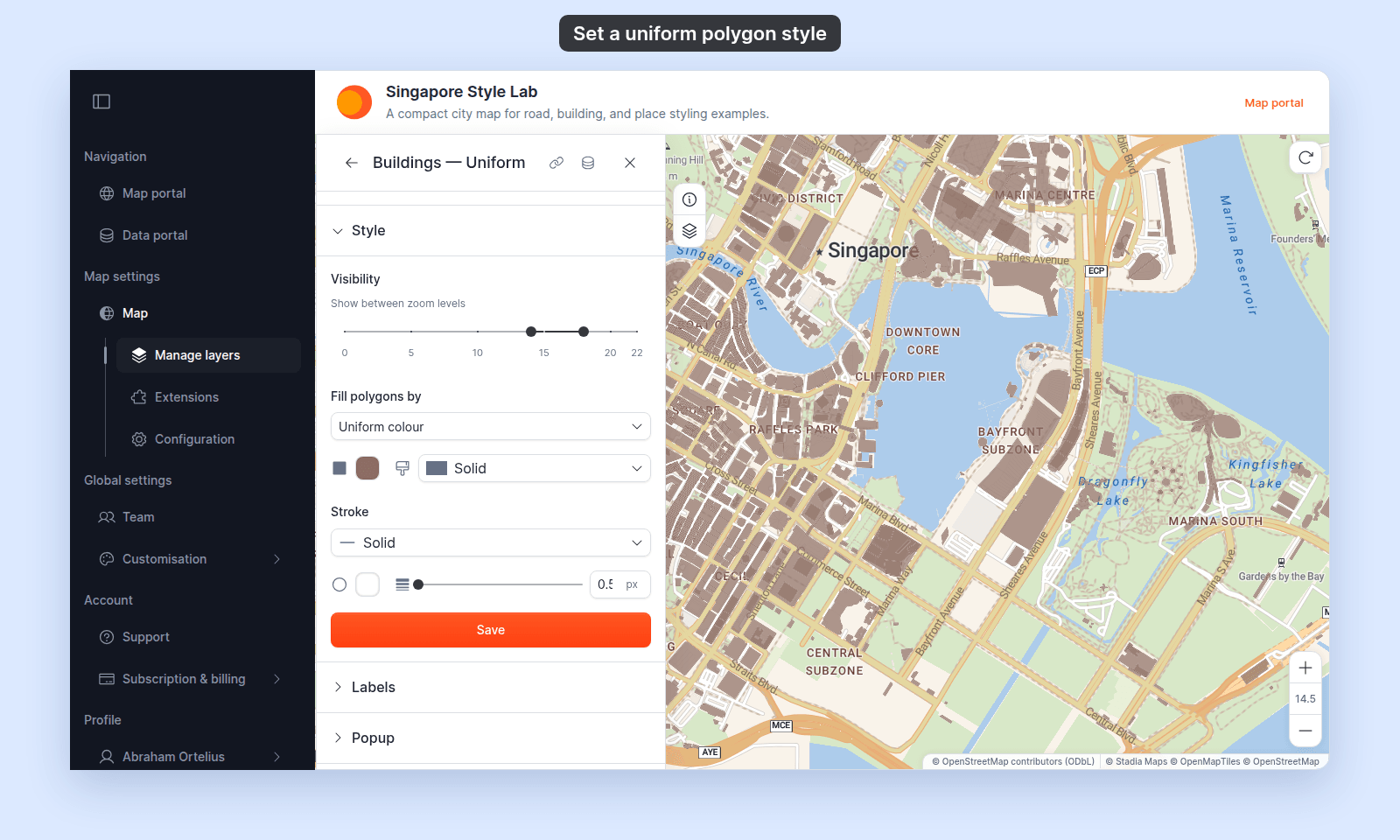
Picking a field instead turns the layer into a category- or quantity-driven style — see How to style features by category or How to style features by quantity.
Pick a fill colour
Click the fill colour swatch. Pick a hex value or a preset chip. The fill colour applies to every polygon on the layer.
Set fill transparency
There’s no separate opacity slider in Uniform mode — fill transparency is set inside the colour picker via the alpha channel. Default fill is #2196F3 with 50% alpha.
For overlay maps, use 40–60% alpha so the basemap shows through. For solid maps, use 80% or more.
Pick a fill pattern
The fill pattern dropdown is next to the fill colour, after a brush icon with the tooltip Fill pattern style. The default is Solid. Pick a pattern such as Slash, Grid, or Dots to draw the fill as a pattern in the fill colour. Pick None to draw no fill. Then set a stroke below, or the polygons don’t show at all.
For every choice, see How to style polygon fill patterns.
Configure the outline (stroke)
A new polygon layer has no outline. To add one, set Stroke to Solid, Dashed, or Dotted, then pick a stroke colour and width. A thin dark outline suits parcel maps. Where shapes blur into each other, use a wider outline or a colour with more contrast.
The outline works the same with every polygon style. For each setting, and for common problems, see How to style polygon outlines.
Save
Click Save at the bottom of the panel. The map redraws with the new style.
Related
- Polygon layer style controls — the canonical reference.
- How to style polygon fill patterns — every pattern choice, and a different pattern per category or class.
- How to style polygon outlines — stroke style, colour, and width for every polygon style.
- How to style features by category — for one colour per text-field value.
- How to style features by quantity — for graduated colour by numeric field.
- How to set the zoom range a layer is visible at
- How layer styling works in MangoMap