

How to colour and size points by two fields
Show two values on one point layer: colour from a text or numeric field and size from a numeric field. Set both drivers on the Style tab. Point layers only.
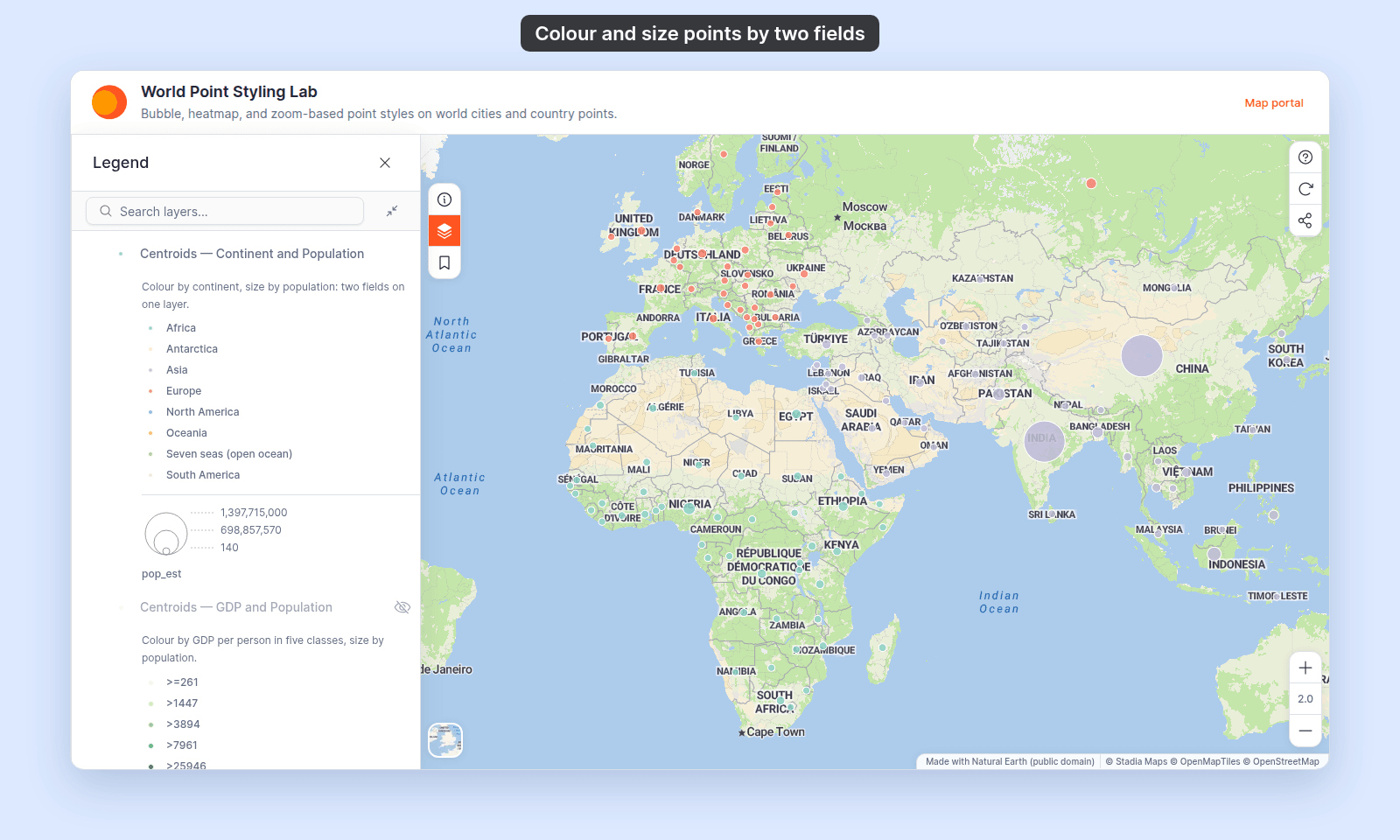
Pick a field in Colour markers by and a numeric field in Size markers by, and each marker shows two values at once: its colour from one field and its size from the other. The legend shows the colour rows with a size key under them, so viewers can read both.
See it on an example map
Open the World Point Styling Lab. In the legend, turn on the Two Fields folder and turn off Size and Colour. Centroids — Continent and Population colours each country point by continent and sizes it by population. Centroids — GDP and Population colours by GDP per person in five classes and sizes by population.
Before you start
- The layer must be a point layer with at least one numeric field. Lines and polygons have no size driver.
- You need edit access to the map.
- Size applies to
CircleandIconmarkers.Heatmaphas no size or colour driver. Colour by zoomalso works with a size field. See How to change marker colour by zoom level.
Open the Style tab
In the layer panel, select your point layer. Click the Style tab.
Pick the colour field
Open Colour markers by and pick the field for colour. A text field gives one colour per value. A numeric field adds Style as, where you pick classes, a continuous gradient, or categories. The colour controls are the same as on a single-field layer. See How to style features by category and How to style features by quantity.
Pick the size field
Open Size markers by and pick the numeric field for size. The single size slider is replaced by a Minimum size and Maximum size range in pixels. The smallest value in the field draws at the minimum size and the largest at the maximum.
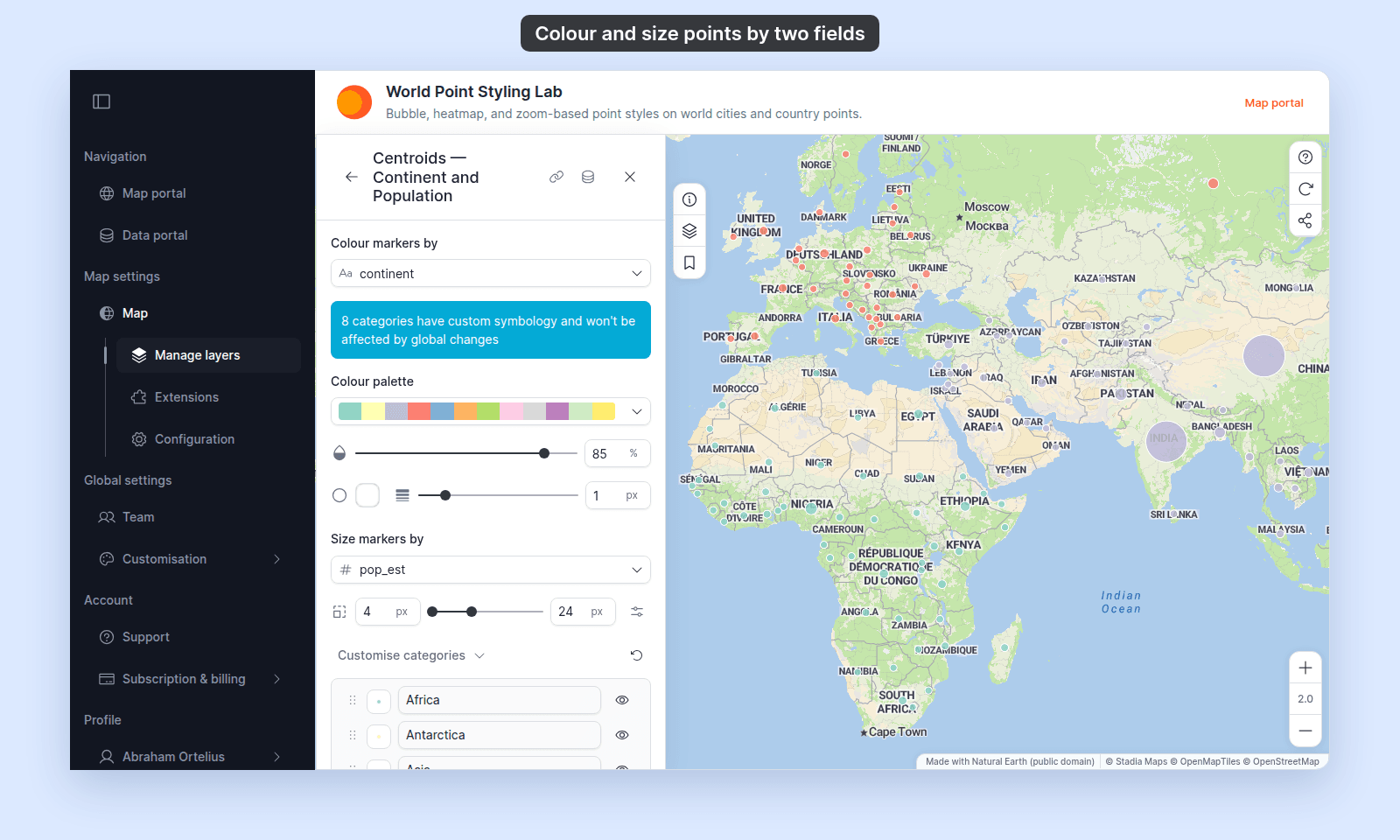
Widen the range when the colours hide the size differences. A range of 4 to 24 px reads well on a world map; a city map can take a smaller range.
(Optional) Scale the sizes as viewers zoom
On Circle markers, click Vary size by zoom level next to the size range. Each stop then holds a Scale that multiplies both sizes at that zoom. See How to vary marker size by zoom level.
Save
Click Save at the bottom of the panel. The map redraws with both fields applied.
What viewers see in the legend
The legend shows the colour rows first, then a size key of three circles for the size field. The size key’s caption is the size field’s alias from the Format tab, or the field name when it has no alias.
If the two fields fight each other
Two drivers on one layer is a lot to read. When the map gets busy, try one of these:
- Use a light palette for the colour field, so the size differences stay visible.
- Give the circles a thin white outline, so overlapping markers keep their edges.
- Raise the minimum size. Tiny markers lose their colour.
- Split the layer in two and let viewers switch between them in the legend.
If you want size steps instead of a smooth range
The size driver maps values to a smooth range. For a fixed size per category or class break, leave Size markers by on Uniform size and set a size on each row instead. See How to customise category and class break symbology.