

How to show labels on map features
Show a field's value as text on each point, line, or polygon, and set its colour, size, halo, and position. Label changes save as soon as you make them.
Pick a field in the layer’s Labels tab, and each feature shows that field’s value as text on the map. Label changes save as soon as you make them: unlike the Style tab, the Labels tab has no Save button.
See it on an example map
Open the Singapore Point Styling Lab. In the legend, turn on the Labels folder and turn off Icons by Category. Sites — Labelled shows each site’s name above its point, with a white halo.
Before you start
- You need edit access to the map.
- The layer must be a point, line, or polygon layer. Raster and WMS layers have no
Labelstab. - Choose a field with short values, such as a name or a code. Long text crowds the map.
Where labels go
The steps are the same for every geometry, but each geometry places its labels differently:
| Point | Line | Polygon | |
|---|---|---|---|
| Where the label sits | Next to the point | Along the line, following its bends | At the spot inside the polygon that is farthest from its edges |
Label anchor |
Sets which side of the point the label is on | Has no effect | Sets which part of the label sits on that inside spot |
| How often | Once per point | Repeats along long lines. A line shorter than its label has no label. | Once per polygon. A polygon with several parts, such as a country with islands, can get a label on each part. |
Open the Labels tab
In the layer panel, click the layer name to open its settings. Then open the Labels tab.
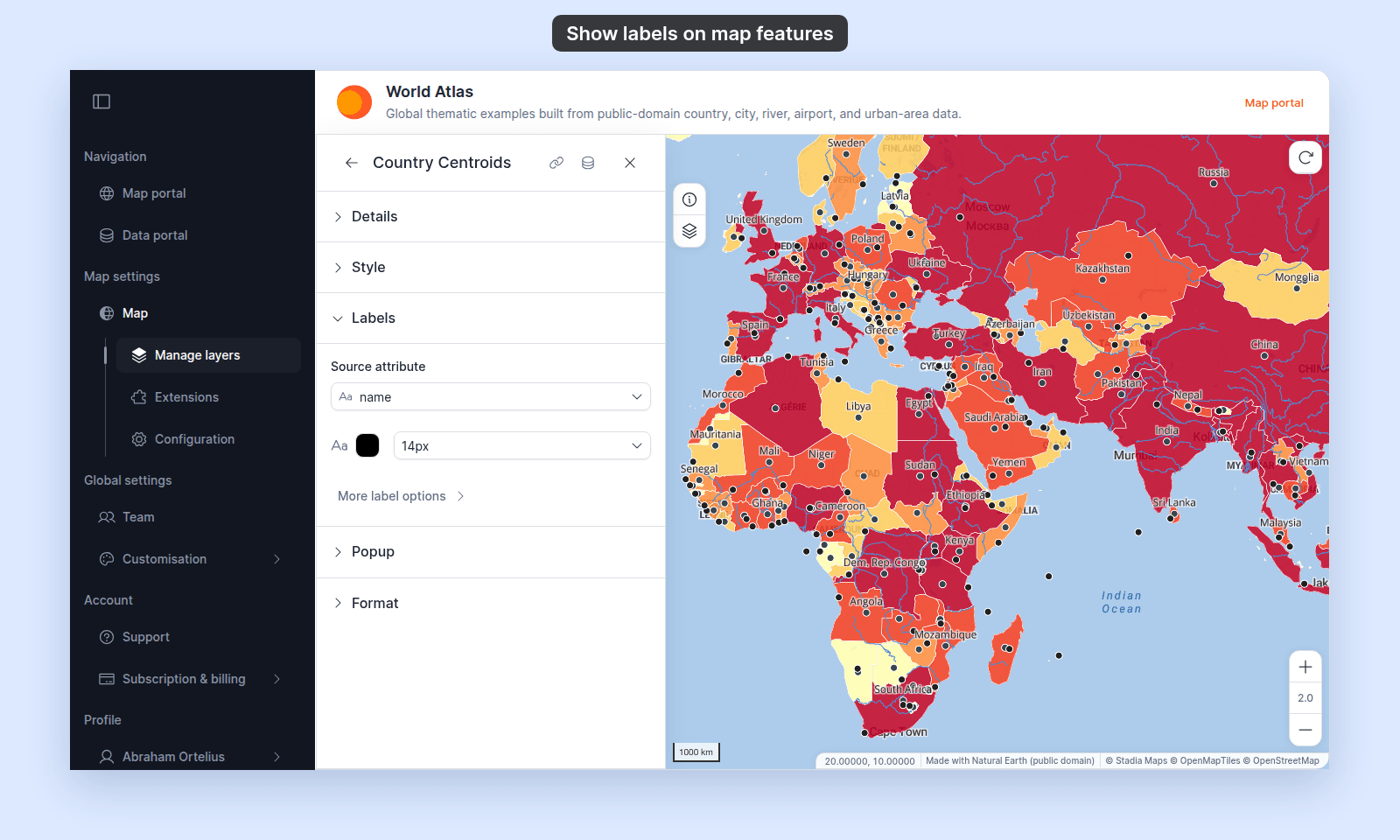
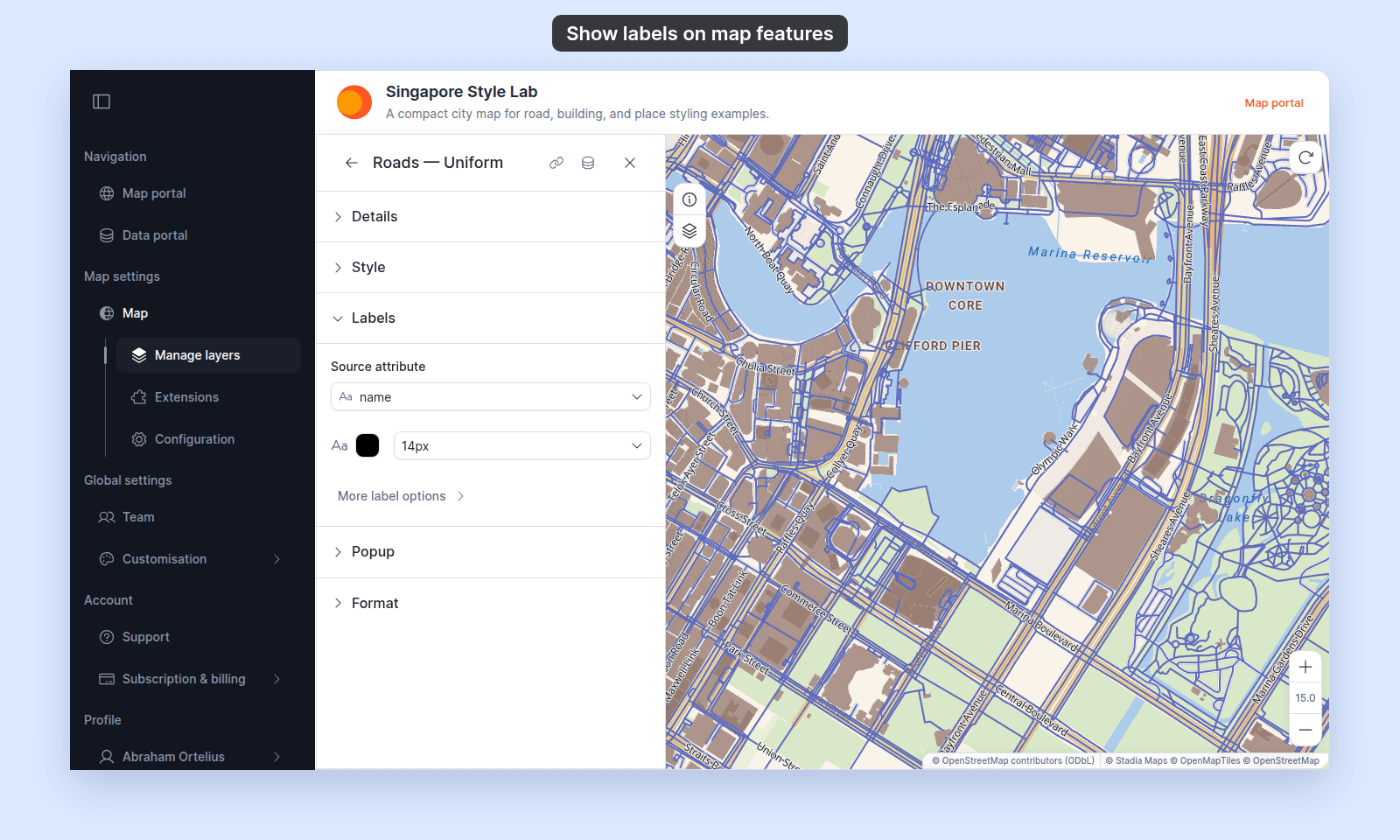
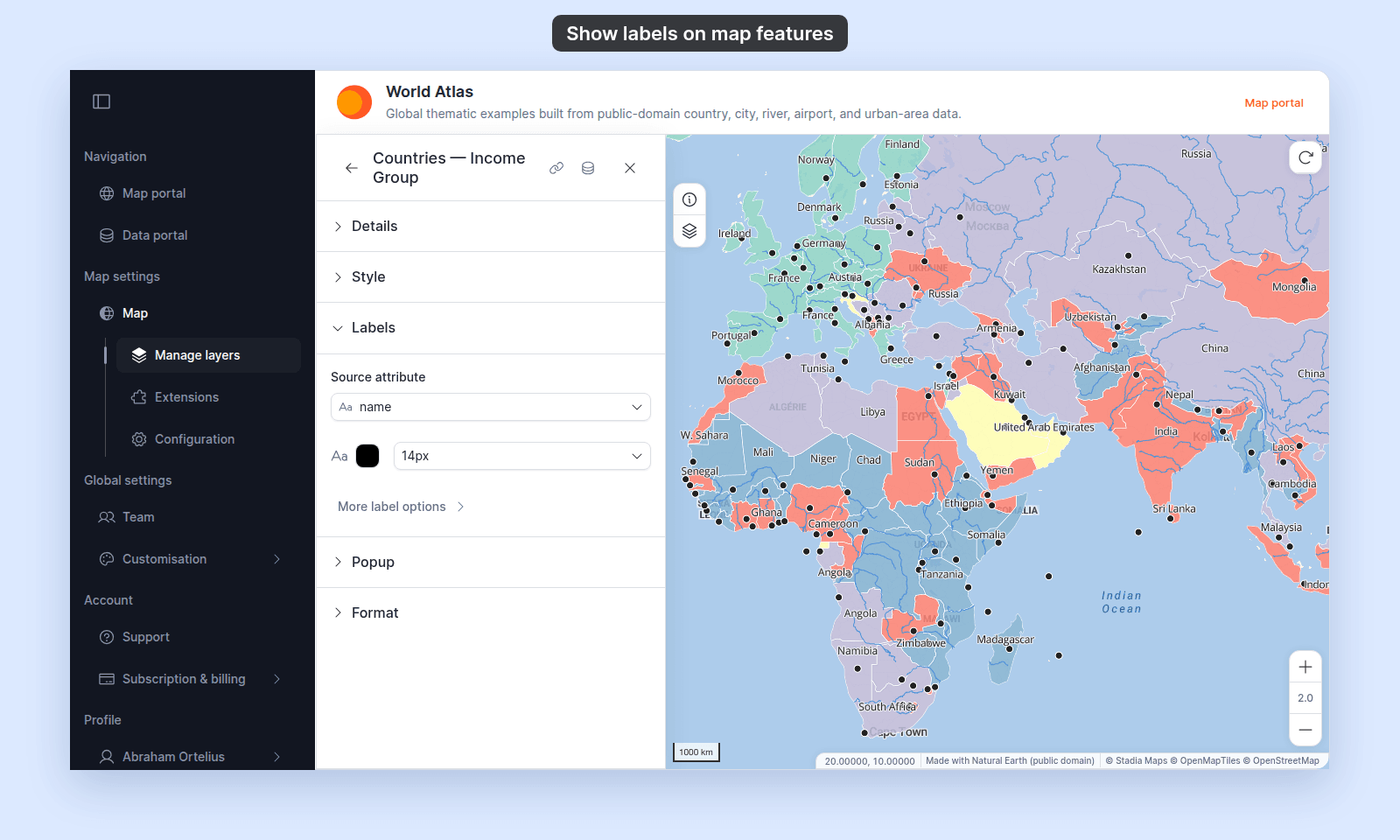
Pick the field to show
Open Source attribute and pick a field. The list shows the dataset’s field names.
The labels appear on the map at once. A feature with an empty value in the field has no label.
Set the text colour and size
- Click the text colour swatch and pick a colour. Use the picker’s transparency control to fade the labels.
- Open the font size dropdown and pick a size from 10px to 32px.
(Optional) Set the halo, position, and overlap
Click More label options to show these settings:
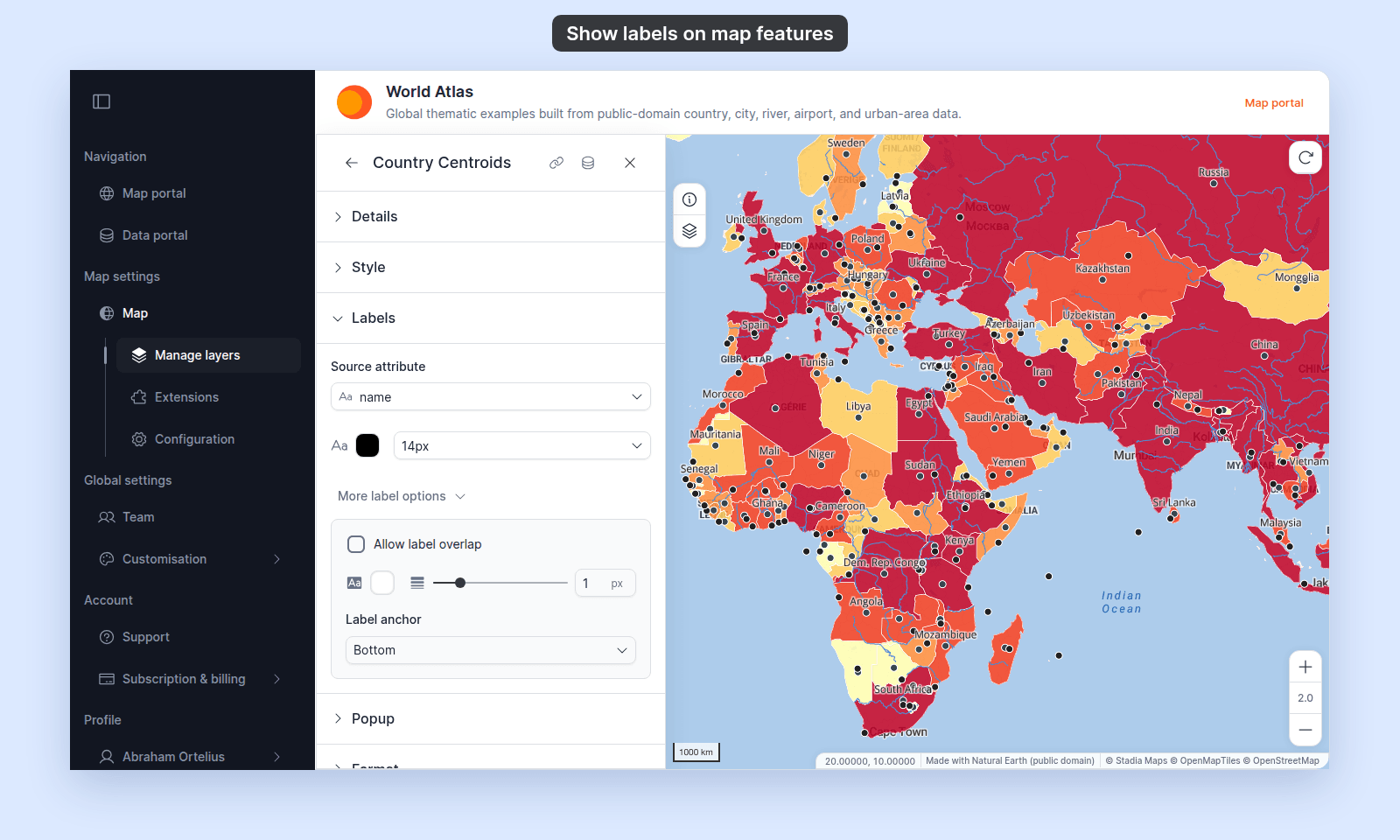
Allow label overlap— off by default. While it’s off, MangoMap hides labels that would collide with other labels. Turn it on to show every label, even where they overlap.- Halo colour and width — the halo is an outline around the text that keeps it readable on busy backgrounds. The width runs from 0 to 5 px. Set it to 0 to remove the halo.
Label anchor— the part of the label that sits on the feature. WithBottom, the default, a point’s label sits above the point, and a polygon’s label sits just above the polygon’s inside spot. PickCenterto centre a polygon’s label on that spot. Line labels ignore it (see Where labels go).
Check the labels
Pan and zoom the map. A label shows only when:
- the feature has a value in the field,
- the layer’s style draws the feature, and
- the map is inside the layer’s
Visibilityzoom range.
Point labels with a halo, as viewers see them:
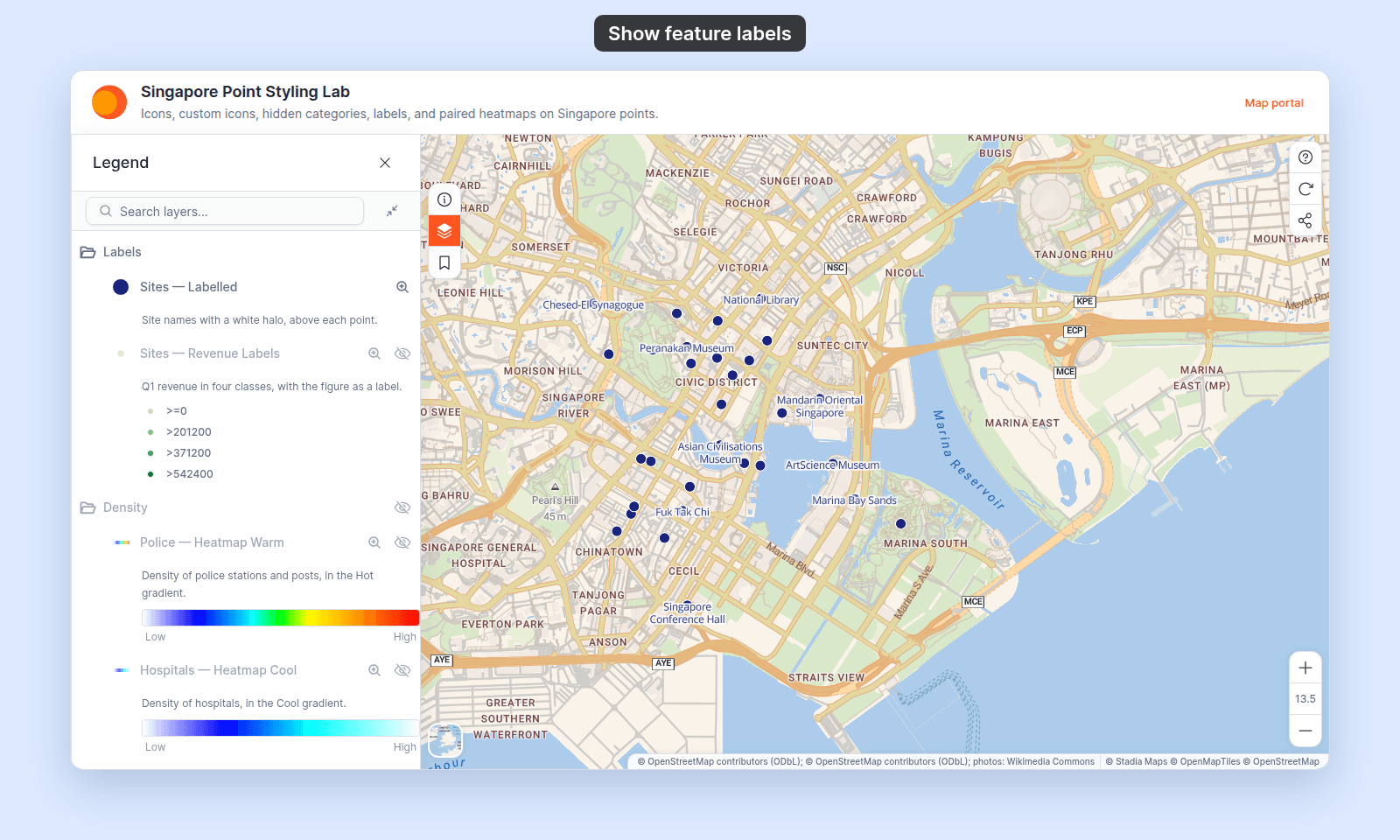
Features in a hidden category have no label. With a quantity or size style, features with no value in the styled field also have no label. For the zoom range, see How to set the zoom range a layer is visible at.
Turn labels off
Open Source attribute and pick No labels. The labels disappear from the map.
Troubleshooting
Some features have no label. The feature’s value is empty, or its category is hidden in the Style tab. With Allow label overlap off, crowded labels are also hidden: zoom in, or turn the option on.
Short lines have no label. A line label shows only where the line is longer than the text and has no sharp bend under it. Zoom in, or pick a smaller font size.
A label shows 1500.5, not 1,500.50. Labels show the raw field value. Settings on the Format tab don’t apply to labels.
Labels disappear when I zoom out. The map is outside the layer’s Visibility zoom range. Labels follow the same range as the layer.
Label anchor does nothing. The layer is a line layer. Line labels always run along the line.
The layer has no Labels tab. Raster and WMS layers can’t show labels.
Related
- Label settings — every label setting and its choices.
- How to set the zoom range a layer is visible at
- How to style features by category — hidden categories hide their labels too.
- How attribute formatting works in MangoMap — formatting changes popups, not labels.
- Layer panel controls