

Line layer style controls
Every control on a line layer's Style tab, with defaults and value ranges: colour, width, pattern, cap, join, and casing.
The Style tab for a line layer has a Colour lines by dropdown (Uniform colour plus any field), a line-width slider, and a collapsible More line settings section with pattern, cap, join, and casing controls. This page lists every visible control with its defaults and value ranges.
For the conceptual overview, see How layer styling works in MangoMap.
Colour lines by
| Default | Uniform colour |
| Choices | Uniform colour, plus any text or numeric field on the dataset |
| Where | First control in the Style tab |
Uniform colour paints every line the same. A text field gives one colour per category. A numeric field gives classes or a gradient; its Style as dropdown can switch it to one colour per value.
Controls when colour driver = Uniform colour
Line colour
Default: #2196F3 (blue). Supports alpha — Uniform mode has no separate opacity slider; the colour picker’s transparency channel is how you set line transparency.
Line width
| Default | 2 px |
| Range | 0.5–20, step 0.5 |
| Unit | Pixels |
Line width is one value for the whole layer. It can’t come from a field.
Controls when colour driver = a field styled as categories
A text field always uses these controls. A numeric field uses them when Style as is Categories.
Style as
Numeric fields only. Shown at the top of the category controls, set to Categories. Pick another choice to go back to classes or Continuous; the choices are listed in the numeric-field section below.
Colour scheme
Palette assigned across unique values, in list order. The picker lists palettes made for categories. Colours repeat when there are more categories than palette colours.
Opacity
Slider, 0–100%.
Customise categories
Per-category colour, label, visibility, drag-to-reorder, and line-pattern overrides. See Category and class break symbology reference.
Category list
| Values | One category per distinct value. Numbers are not rounded or grouped. |
| Order | Numbers from lowest to highest; text from A to Z |
| Limit | 50 values. Values past the first 50 draw as one Other category. |
| Empty values | Features with no value draw as one Null category |
| Add or remove | Not available. Hide a category instead. |
Controls when colour driver = a numeric field styled as classes or Continuous
Style as
| Default | 5 classes |
| Choices | Continuous, Categories, 3 classes, 4 classes, 5 classes, 6 classes, 7 classes, 8 classes, 9 classes |
| Where | Numeric fields only. Beside the classification method dropdown (no label; tooltip “How to divide values into classes”) when a class count is picked. |
Continuous draws a smooth gradient. A class count draws one colour per class. Categories switches to the category controls above. Switching between Categories and the other choices removes the customisations of the mode you leave.
Classification method
| Choices | Equal Interval, Quantile, Natural Breaks (Jenks), Head/Tail Breaks |
| Where | Shown only in discrete (not Continuous) mode |
See Classification methods for by-quantity styling.
Colour scheme + Reverse colour ramp
Palette selector with a reverse-ramp icon button.
Opacity
Slider, 0–100%.
Customise Class Breaks
Per-break colour, range, label, visibility, and line-pattern overrides.
More line settings (collapsible)
Available regardless of colour driver. Pattern, cap, join, and casing apply globally to the layer.
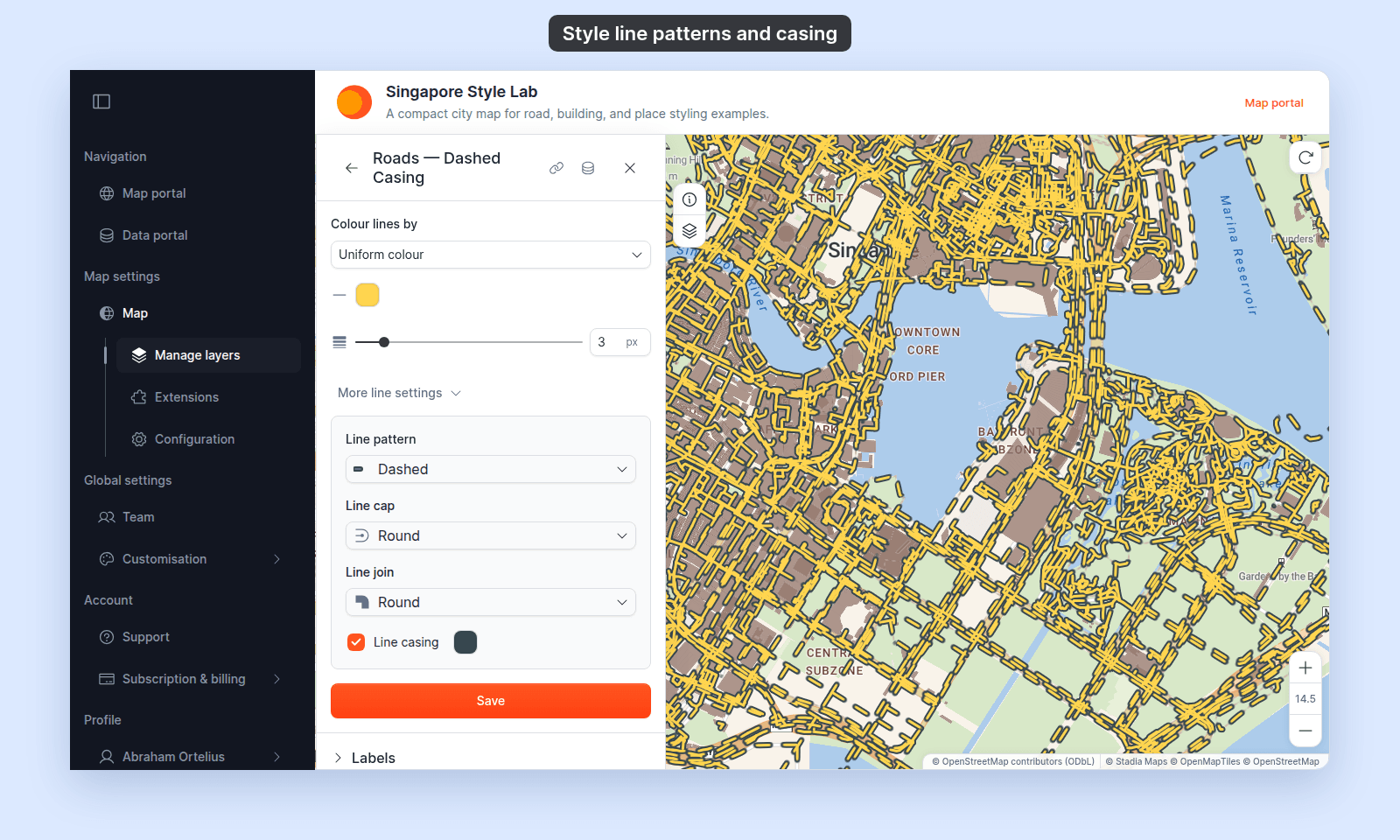
Line pattern
| Default | Solid |
| Choices | Solid, Dashed, Dotted |
The dash pattern of the main line. Each choice shows a preview with the layer’s cap and casing. On a layer coloured by categories, picking a pattern here sets every category to it; a category can then get its own pattern in Customise categories.
The pattern grows with the line width.
Line cap
| Default | Round |
| Choices | Butt, Round, Square |
How line endpoints are drawn. On Dashed and Dotted lines, it also shapes each dash or dot: Round gives round dots, Butt gives square dots, and Square draws the same as Butt.
Line join
| Default | Round |
| Choices | Bevel, Round, Miter |
How line corners are drawn.
Casing
A coloured outline drawn behind the main line. The casing surface has two controls only:
Line casing— checkbox. Turns the casing on or off. Default: off.- Casing colour — picker, shown when casing is on. Default:
#000000(black).
The casing adds a fixed 2 px band on each side of the line at any Line width — it doesn’t scale with the line’s width. On Dashed and Dotted lines, the casing outlines each dash or dot and leaves the gaps open.
The legend swatch and the printed legend show the layer’s pattern, cap, and casing.
See How to style line patterns and casing.
Save button
| Label | Save |
| Where | Bottom of the Style tab |
The Style tab doesn’t auto-save. Your changes apply only when you click Save. Closing the panel or switching tabs discards every unsaved change. See Troubleshooting: my style change isn’t appearing on the map.
Related
- How to set a uniform style on a line layer
- How to style features by category
- How to style features by quantity
- How to set line width and opacity
- How to style line patterns and casing
- Category and class break symbology reference
- Classification methods for by-quantity styling
- How layer styling works in MangoMap