

My classification produced empty buckets or weird breaks
Fix a classification that shows empty classes or odd breaks. Pick a method that fits how your values are spread, or set the breaks by hand.
You styled a layer by a numeric field, but the legend has empty classes or every feature falls in one bucket. The classification method does not fit your data. Pick a method that suits the distribution, or override the breaks per-class to fix it directly.
Classification works the same way on point, line, and polygon layers. A few things differ:
| Point | Line | Polygon | |
|---|---|---|---|
| Colour driver | Colour markers by |
Colour lines by |
Fill polygons by |
| Head/tail method | Head/Tails |
Head/Tail Breaks |
Head/Tail Breaks |
| Show size as well as colour | Yes, with a separate size field | No | No |
Why this happens
MangoMap offers four classification methods, each generating breaks differently:
| Method | What it optimises for | Fails on |
|---|---|---|
Equal Interval |
Evenly-sized ranges from min to max | Skewed data — most values cluster in one or two breaks, the rest empty |
Quantile |
About the same number of distinct values in each class | Data with extreme outliers — outlier ends up alone or breaks lose meaning. Fields with no more distinct values than classes give a message (Symptom 5) |
Natural Breaks (Jenks) |
Statistical clusters in the data | Fields with fewer distinct values than classes. You get a message instead of class breaks (Symptom 5) |
Head/Tail Breaks |
Classes that get wider step by step, from the lowest to the highest | Very skewed data — most features can still fall in the lowest class |
Pick the method that fits your data.
For the full reference of how each method computes breaks, see Classification methods reference.
Symptom 1: most features land in one bucket, the rest are empty
Common with Equal Interval on skewed data. Income, revenue, population, and other “long tail” fields often have a few very large values that stretch the equal intervals so most features fall into the lowest bucket.
For example, with Equal Interval and 5 classes, world country populations put almost every country polygon in the lowest class: China and India stretch the range. On a Singapore roads line layer, road length does the same: a few long roads put almost every short segment in the lowest class.
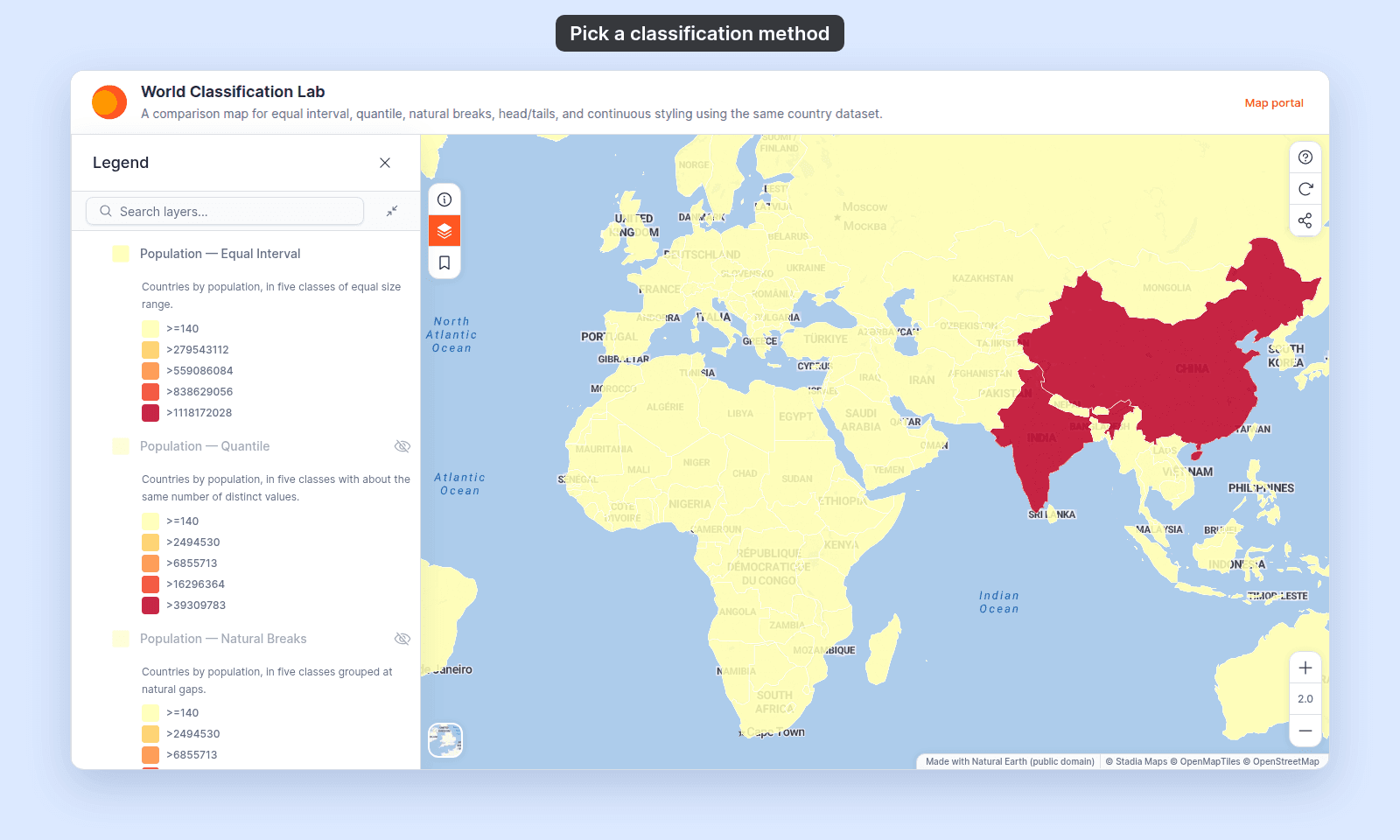
Fix: switch to Quantile to spread the distinct values evenly across the classes, or Natural Breaks (Jenks) to find statistical clusters. In the Style tab, pick the method in the classification method dropdown next to Style as, then click Save. It has no label.
Symptom 2: an outlier sits alone in its own bucket
Common with Quantile and Natural Breaks when one feature is much larger or smaller than the rest. The classification correctly identifies it as different, but the resulting legend has a useless single-feature bucket.
Fix:
- Filter the outlier out of the dataset, if it’s a data-quality issue.
- Customise the break ranges to merge the outlier into the next-nearest bucket. Expand
Customise Class Breaks, edit the relevant range, and clickSave. - Give the outlier’s class break its own colour in
Customise Class Breaks, so it stands out instead of hiding.
See How to customise category and class break symbology for the per-break edit flow.
Symptom 3: every feature is the same colour
Two causes. Either the field has very low variation (every value is identical or near-identical), or the classification produced a single break that catches everything.
Fix:
- Confirm the field has variation — open the dataset’s data table and check.
- Reduce the class count if you’ve asked for more classes than the field has distinct values — for example, 9 classes on a field with only 5 distinct values. With
Equal IntervalorHead/Tail Breaks, the extra classes stay empty. Open theStyletab, pick a lower class count in theStyle asdropdown, and clickSave. - Style the values as categories instead — when the field has only a few distinct values, one colour per value reads better. Set
Style astoCategories. See How to style features by category.
Symptom 4: the breaks looked good, then I changed the field and they’re broken now
Auto-generated breaks are recomputed every time the field, class count, or classification method changes. If you’d customised individual ranges, those customisations were rebuilt from scratch.
Fix: you cannot undo the recalculation. Either redo the per-class customisations on the new breaks, or change back to the original field and method.
See How to customise category and class break symbology for the customisation controls.
Symptom 5: a message says the field doesn’t have enough values
You picked Natural Breaks (Jenks) or Quantile, and a message like this appears:
Failed to generate breaks: Error: Sorry, lanes doesn't have enough values to support 9 classbreaks. Please reduce the classbreaks.The field has too few distinct values for the class count. Features with the same value always share a class, so Natural Breaks (Jenks) can make at most one class per distinct value. Quantile needs more distinct values than classes. MangoMap makes no class breaks.
Fix:
- Pick fewer classes in the
Style asdropdown. For example, alanesfield with the values 1 to 7 supports up to7 classeswithNatural Breaks (Jenks), and up to6 classeswithQuantile. - Style the values as categories — set
Style astoCategoriesto give each value its own colour.
When to switch to a different style approach
Some data isn’t well served by numeric-field colouring at all:
- Few unique values — set
Style astoCategories. One colour per value reads better than artificial ranges. - Density across an area, on a point layer — switch
Marker typetoHeatmap. See How to make a heatmap from a point layer. - Magnitude as size, on a point layer — size the markers by the field. See How to size points by a number.
Line and polygon layers show a numeric field by colour only. Line width is the same for the whole layer.