

How to set a uniform line style
Give every line on a layer the same colour, width, and pattern using the Uniform colour option on the Style tab.
A uniform line style gives every feature on a line layer the same colour, width, and pattern. Open the layer’s Style tab, leave Colour lines by on Uniform colour, pick a colour and a width, and (optionally) adjust line pattern, cap, join, and casing in More line settings. Click Save to apply.
See it on an example map
Open the Singapore Style Lab. Roads — Uniform is on when the map opens. Every road is one blue line of the same width.
Before you start
- The layer must be a line layer. For points and polygons, see How to set a uniform style on a point layer and How to set a uniform style on a polygon layer.
- You need edit access to the map.
- Decide whether you want a casing (a wider contrasting line drawn behind the main line). Use casing for major roads on a busy basemap. Skip it for minor or muted lines.
Open the Style tab
In the layer panel, select your line layer. Click the Style tab.
Leave the colour driver on Uniform colour
Colour lines by is the first dropdown. Default is Uniform colour — leave it there for a uniform style. The colour, width, and More line settings controls are below it:
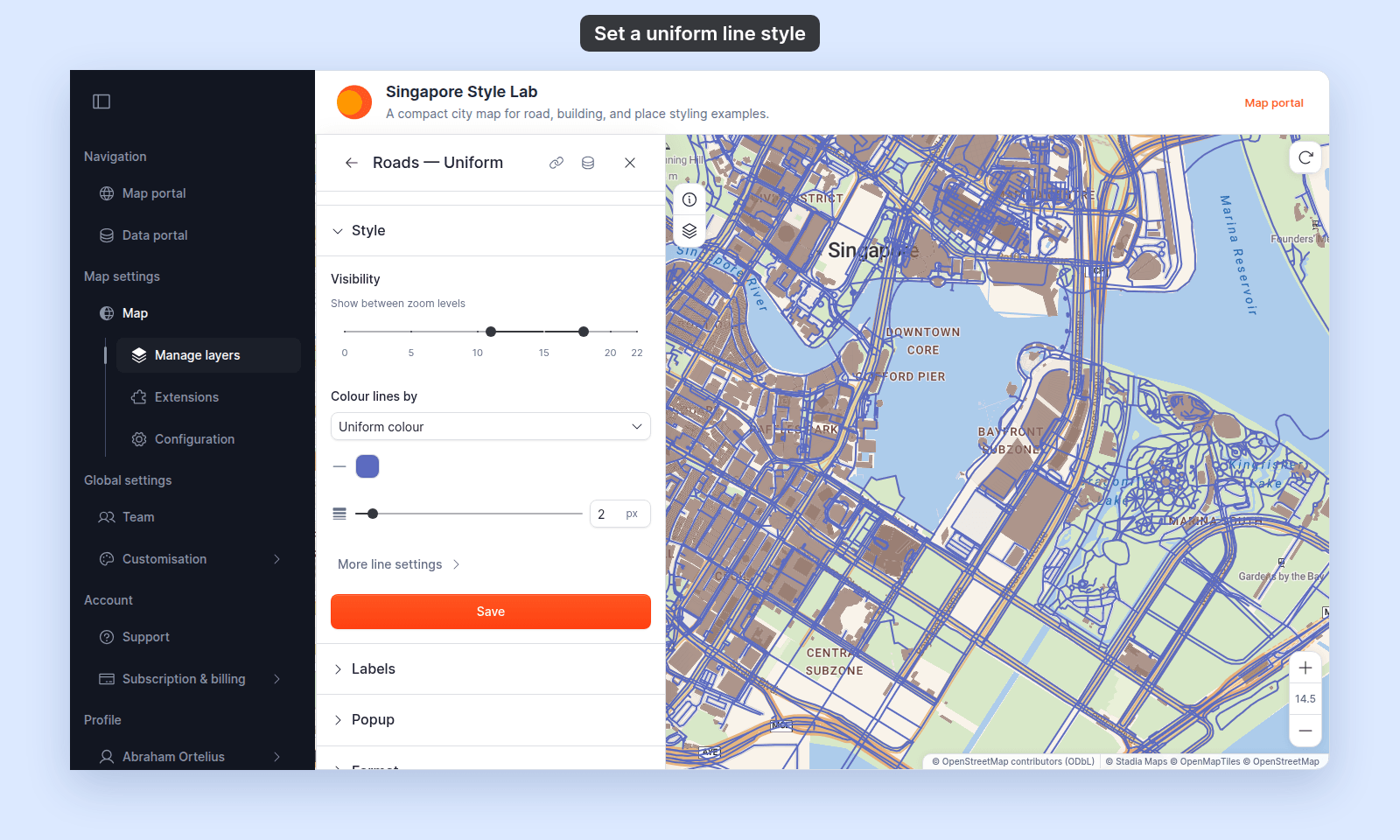
Picking a field instead turns the layer into a category- or quantity-driven style — see How to style features by category or How to style features by quantity.
Pick a line colour
Click the colour swatch. Pick a hex value or a preset chip. The colour applies to every line on the layer.
To make the lines transparent, lower the transparency in the same colour picker. With Uniform colour there is no separate opacity slider.
Set the line width
Drag the line width slider, or type a value. The range is 0.5 to 20 px; a new layer is 2 px. The width is one value for the whole layer, and it works the same when you colour lines by a field. See How to set line width and opacity.
(Optional) Open More line settings
Expand the More line settings collapsible for additional controls:
Line pattern—Solid,Dashed, orDotted. Solid is the default.Line cap—Butt,Round, orSquare. Controls how line endpoints are drawn.Line join—Bevel,Round, orMiter. Controls how line corners are drawn.- Casing controls — a wider line drawn behind the main line, useful for route-style maps with a dark casing and a lighter centre. See How to style line patterns and casing for how to set casing.
Save
Click Save at the bottom of the panel. The map redraws with the new style.
Related
- Line layer style controls — the canonical reference.
- How to set line width and opacity — width and opacity for every line style.
- How to style line patterns and casing — for casing recipes and pattern combinations.
- How to style features by category — for one colour per text-field value.
- How to style features by quantity — for graduated colour by numeric field.
- How to set the zoom range a layer is visible at
- How layer styling works in MangoMap