

How to size points by a number
Size each point marker from a numeric field to make a proportional-symbol (bubble) map. Set the minimum and maximum size on the Style tab. Point layers only.
A numeric field sizes each marker from its value. Small values make small markers; large values make large markers. Open a point layer’s Style tab, switch Size markers by from Uniform size to a numeric field, and set the minimum and maximum marker size. Click Save to apply.
See it on an example map
Open the World Point Styling Lab. Centroids — Bubble is on when the map opens. Each country point is sized by population. Large countries have large circles. The Two Fields folder adds colour from a second field (Centroids — Continent and Population, Centroids — GDP and Population) and a size range that scales with zoom (Major Cities — Population, Zoom Scaled).
Before you start
- The layer must be a point layer with at least one numeric attribute. Lines and polygons have no size driver. If a point layer has no numeric field, the
Size markers bydropdown offers onlyUniform size. - You need edit access to the map.
- Marker type matters: sizing applies to
Circle,Icon, andCustom Iconmarkers, but theSize markers bycontrol is only visible whileCircleorIconis selected. Using a custom icon? Pick the size field first, then switch the marker toCustom Icon— the sizing stays applied. Sizing doesn’t apply toHeatmap(a different visualization).
Open the Style tab
In the layer panel, select your point layer. Click the Style tab.
Switch “Size markers by” to a numeric field
Below the Colour markers by driver, find Size markers by. It defaults to Uniform size. Open it and pick the numeric field whose values should drive marker size. Only numeric fields appear in the list.
The single size slider is replaced by a minimum / maximum size range.
Set the minimum and maximum size
Two inputs — Minimum size and Maximum size, each in pixels — with a dual-handle slider set the size range:
- The smallest value in the field renders at the minimum size; the largest at the maximum.
- Range: 2–60 px. Defaults: minimum
4px → maximum20px. The two values stay at least 4 px apart.
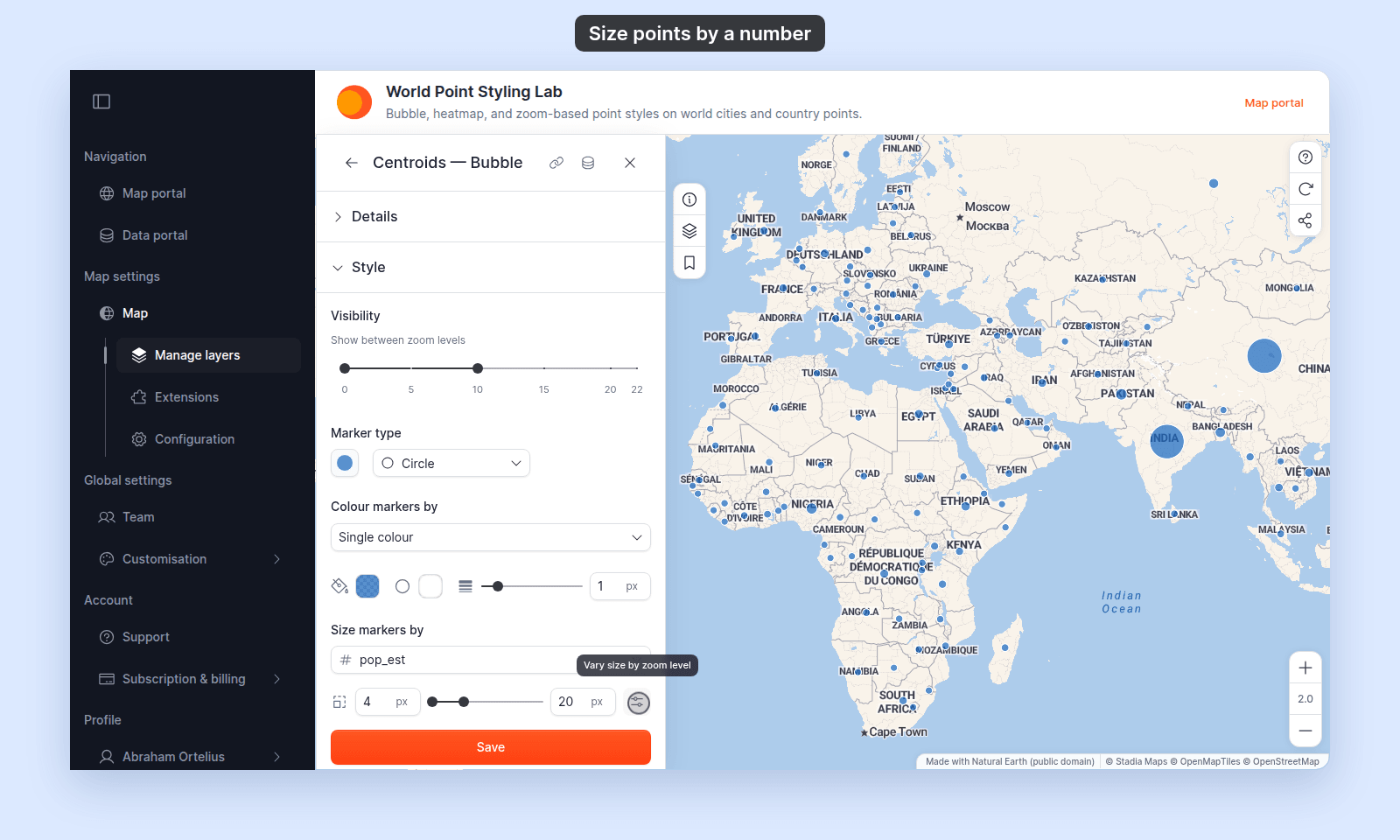
Widen the gap to increase contrast; narrow it to keep sizes closer.
(Optional) Scale the sizes as viewers zoom
On Circle markers, click the Vary size by zoom level button next to the size range. Each zoom stop then holds a Scale that multiplies both the minimum and maximum size at that zoom.
The ratio between small and large markers stays the same at every zoom. See How to vary marker size by zoom level for the stop controls.
(Optional) Combine size with a colour driver
The size driver is independent of the colour driver, so you can encode two variables at once (see How to colour and size points by two fields):
- Single colour + size — a plain proportional-symbol map: one colour, varying size. The legend shows a size key — a set of min / median / max circles for the field. The caption under the key is the field’s alias from the
Formattab, or the field name if there’s no alias. The key’s numbers use the field’sFormatsettings. - Quantity colour + size — colour by one numeric field and size by another. The legend shows the colour breaks with the size key below them.
- Category colour + size — colour each category and size by a numeric field. The legend shows the category swatches with the same size key below them.
- Colour by zoom + size —
Circlemarkers change colour as viewers zoom and take their size from the field. See How to change marker colour by zoom level.
Save
Click Save at the bottom of the panel. The map redraws with markers sized by the field.
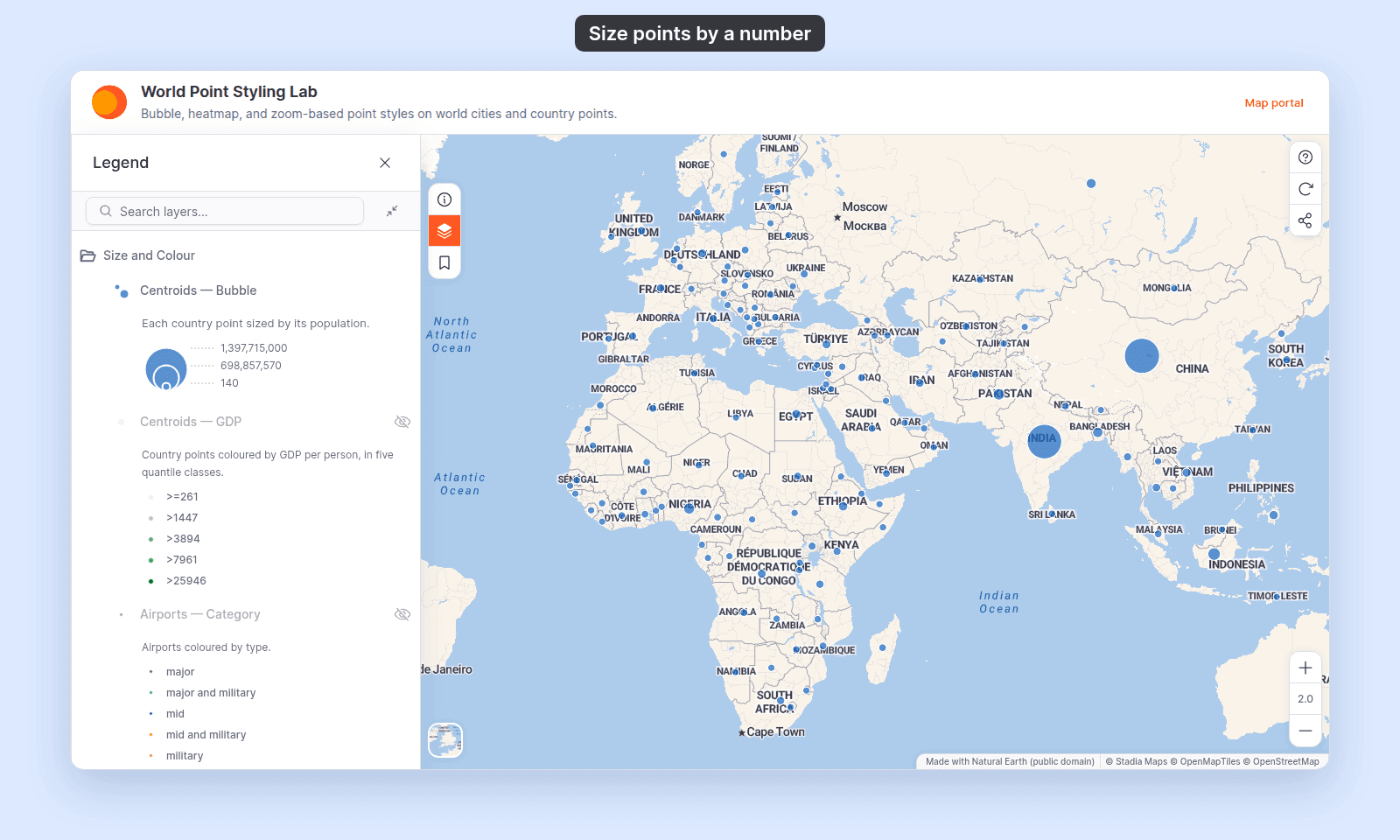
If the map doesn’t update, you probably didn’t click Save — see Troubleshooting: my style change isn’t appearing on the map.
If the markers are all nearly the same size
The field’s values may be tightly clustered, or an outlier may be stretching the range so most features land near the minimum. Widen the min/max gap, or pre-process the field (for example, log-scale very skewed data) before import.
If you want a fixed size per category or break instead
Field-driven sizing changes smoothly across the range. For a fixed size per category or per class break (not a smooth range), leave Size markers by on Uniform size and set a per-row marker size in the per-category / per-break customisation panel — see How to customise category and class break symbology.
Related
- Point layer style controls — the
Size markers bydriver, its ranges and defaults. - How to set a uniform style on a point layer
- How to vary marker size by zoom level — make markers grow or shrink as viewers zoom.
- How to style features by quantity — colour (rather than size) driven by a numeric field.
- How to style features by category
- How to make a heatmap from a point layer — the other way to read point magnitude / density quickly.
- How layer styling works in MangoMap