

Planning a thematic map in MangoMap
Choose how to style a point, line, or polygon layer before you open the Style tab: what your fields allow, what the map must show, and three worked examples.
Ask two questions before you open the Style tab:
- What does my data allow? Colour by category needs a text field or a numeric field of codes. Colour by quantity needs a numeric field. A heatmap and size by a number need a point layer.
- What should viewers learn from the map? Are you showing kinds, amounts, or density?
Your data sets the first answer. The map’s purpose sets the second. Together, they lead to one way to style the layer:
First decision: what your data allows
Two things decide what you can do:
- The colour driver, on every geometry. The dropdown is
Colour markers byon points,Colour lines byon lines, andFill polygons byon polygons. It takes the no-field choice (Single colouron points,Uniform colouron lines and polygons) or any field on your dataset. - The geometry. Some methods exist on one geometry only. Points have a
Marker typepicker (Circle,Icon,Custom Icon,Heatmap) and a size driver. Lines have patterns and casing. Polygons have fill patterns.
| Goal | Field type | Geometry | How to style |
|---|---|---|---|
| One look across the layer | Any | Point, line, polygon | Single colour (points) or Uniform colour (lines, polygons) |
| One colour per category | Text, or numeric codes | Point, line, polygon | Pick the field in the colour driver. For a numeric field, set Style as to Categories. |
| Graduated colour by amount | Numeric | Point, line, polygon | Pick the numeric field, then choose a class count in Style as and a classification method |
| Categories told apart by symbol, not only colour | Text, or numeric codes | Point, line, polygon | Customise each category: marker type or icon (points), line pattern (lines), fill pattern (polygons) |
| Size by amount | Numeric | Point only | Size markers by → a numeric field |
| Point density | None, or a numeric weight | Point only | Marker type → Heatmap |
If your only field is text, colour by category is your thematic choice. If you have a numeric field, you can colour by quantity on any geometry, or by category when the numbers are codes. On a point layer you can also size by the number, or show density with a heatmap. Line width and polygon size cannot come from a field, so on lines and polygons an amount is shown with colour.
Second decision: what should the map show?
Each method answers a different question for the viewer:
- Colour by category shows kinds. Road class, zoning, income group, airport type, or numeric codes such as zone numbers. Viewers see what type each feature is.
- Colour by quantity shows relative amounts. Population, building height, road length, a score. Viewers compare the values.
- Size by a number (points) also shows amounts. Viewers compare the marker sizes.
- Heatmap (points) shows where features are dense. Viewers see where points cluster, not the value of each point.
A common error is splitting numeric codes (a zone number, a category code) into classes. Set Style as to Categories for those. The opposite error is colour by category on a field with hundreds of unique values. Both give maps that look styled but tell the viewer nothing.
Worked example 1 — Category: roads by road class (lines)
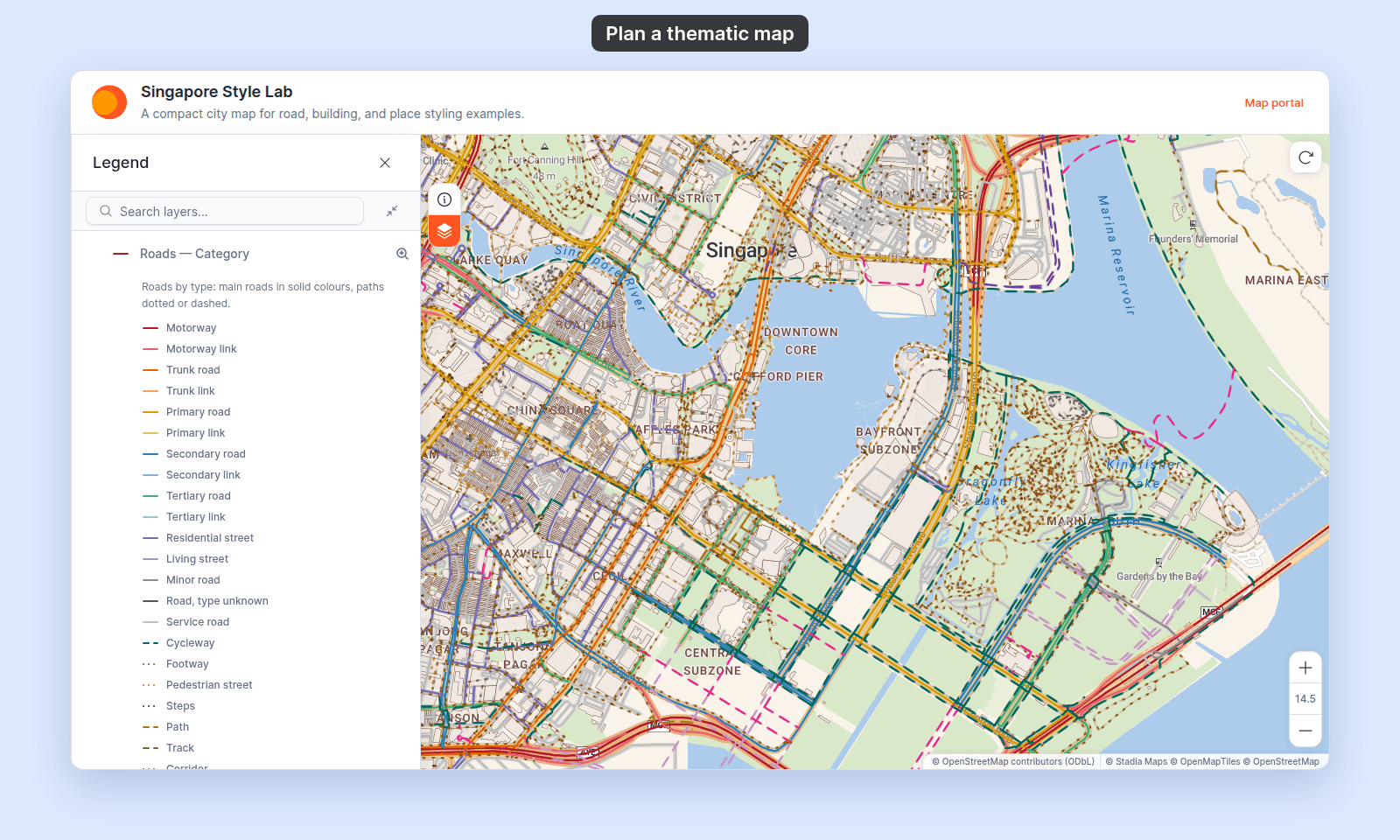
You have a line layer of Singapore roads with a class text field. Its values include trunk, primary, secondary, residential, service, and footway. The map’s job: a viewer can quickly tell main roads from side streets and footpaths.
Open the layer’s Style tab. In Colour lines by, pick class. Each class gets its own colour from the Colour scheme palette. Those colours carry no meaning, so viewers must check the legend for every road.
Open Customise categories and give the colours a meaning. Use strong, warm colours for motorways and trunk roads, and calmer colours for minor streets. Colour alone is not the only tool here: give footways and steps a Dotted pattern and cycleways and paths a Dashed one, so viewers can tell paths from roads at a glance. Rename each label (footway to Footway), and drag the rows into road order, main roads first, so the legend reads from the top down.
Category colouring gets its meaning from your choices, not from MangoMap’s defaults. The same steps work for building classes on a polygon layer (with fill patterns) or airport types on a point layer (with marker types).
The result, after you customise the categories:
Worked example 2 — Quantity: countries by GDP per person (polygons)
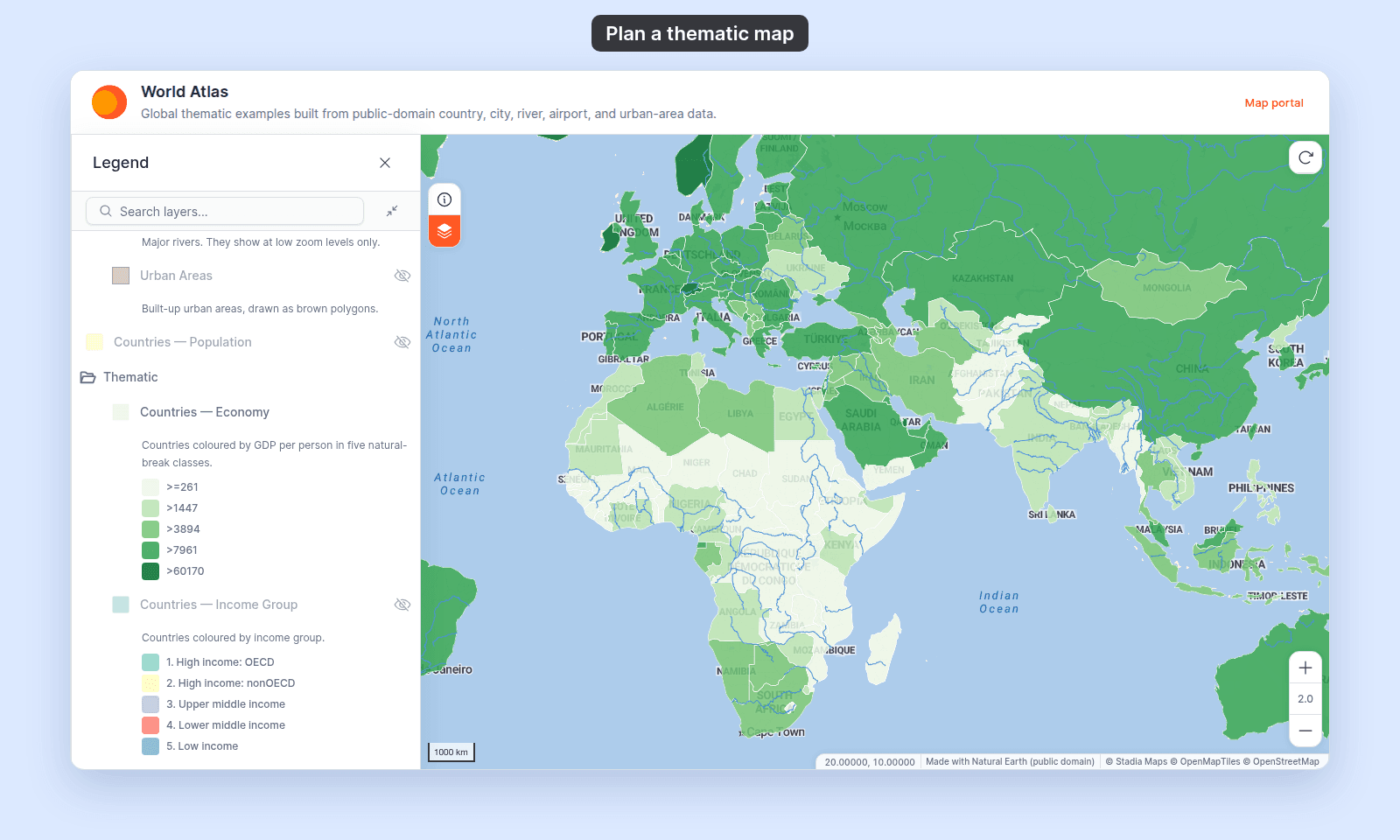
You have a polygon layer of world countries with a gdp_pc numeric field. Values run from about 260 to 200,000 US dollars per person. Half the countries are below about 5,800. The map’s job: a viewer can see which parts of the world are richer and which are poorer.
Open the layer’s Style tab. In Fill polygons by, pick gdp_pc. The panel shows a Style as select (default 5 classes), a classification method dropdown (default Natural Breaks (Jenks)), and a Colour scheme palette. Natural Breaks puts the class breaks at gaps in the data, so each colour holds a group of similar countries.
A common error is picking Equal Interval. With 5 classes, each class is about 40,000 wide. That puts 150 of the 177 countries in the lightest colour, and hides the differences between them.
When the class breaks look right, open Customise Class Breaks to round awkward boundaries (8,427 → 8,000) so the legend reads cleanly. See Choosing a classification method for choropleth maps for when each method fits. The same steps work for roads coloured by length or for points coloured by a number.
The result, with the five class breaks in the legend:
Worked example 3 — Heatmap: city density (points)
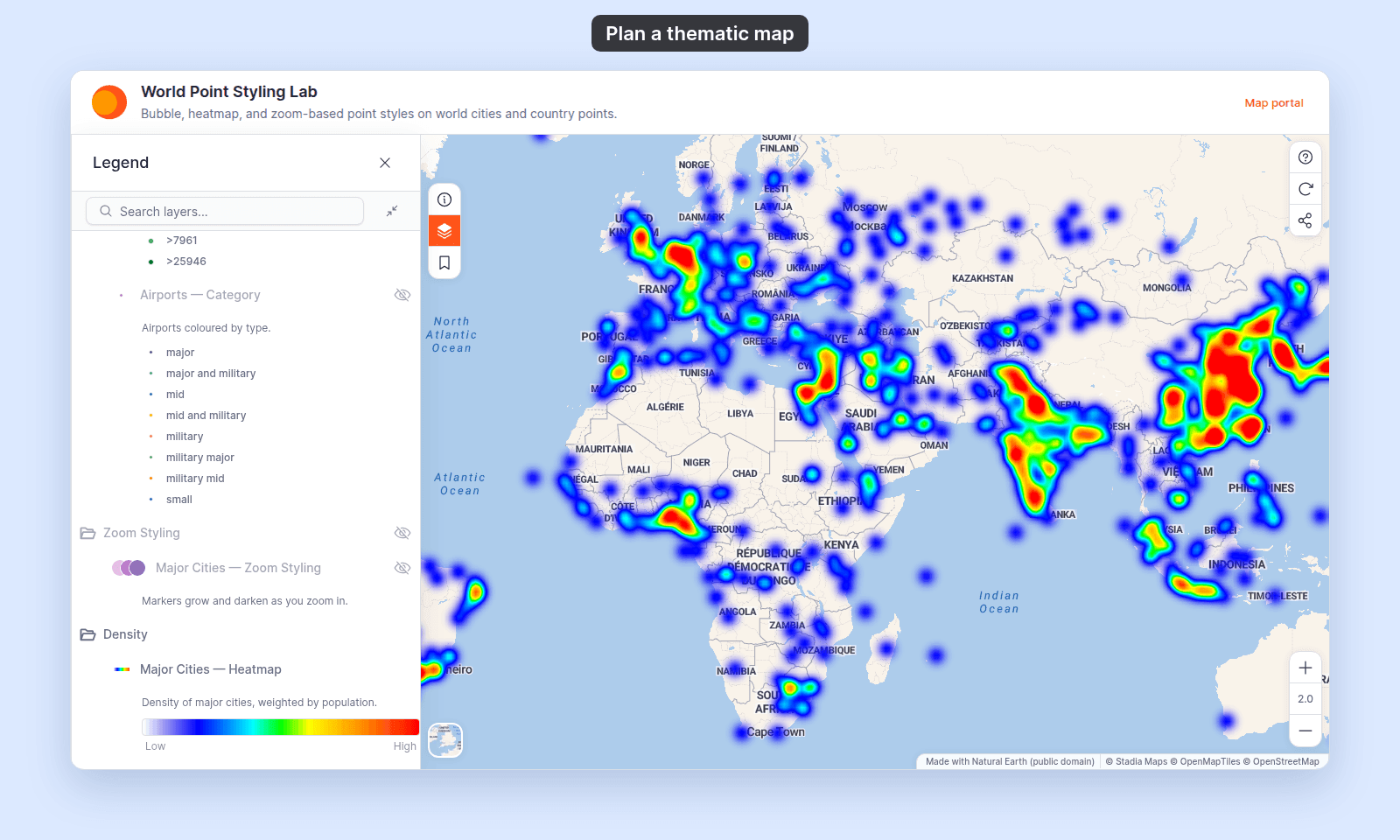
You have a point layer of world cities. In some regions the cities sit close together. In others there are only a few. Drawn as individual circles, the markers in dense regions overlap and hide each other. The map’s job: a viewer can see where cities cluster without counting individual points.
Open the layer’s Style tab. In Marker type, pick Heatmap. The controls change to heatmap options: Colour gradient, Weight by, Radius, Intensity, and Opacity.
Leave Weight by on Equal weight to count every city the same. Pick a numeric field such as population to let large cities count for more. Pick a gradient that goes from cool to hot. Set Radius and Intensity so the heatmap reads as a smooth gradient at the zoom level your viewers use.
Use a heatmap when density is the main message. To see individual points as well, keep the marker type on Circle and use the colour and size controls instead. A layer cannot be a heatmap and circles at the same time.
The result, with the gradient from low to high density in the legend:
A note on bubble maps
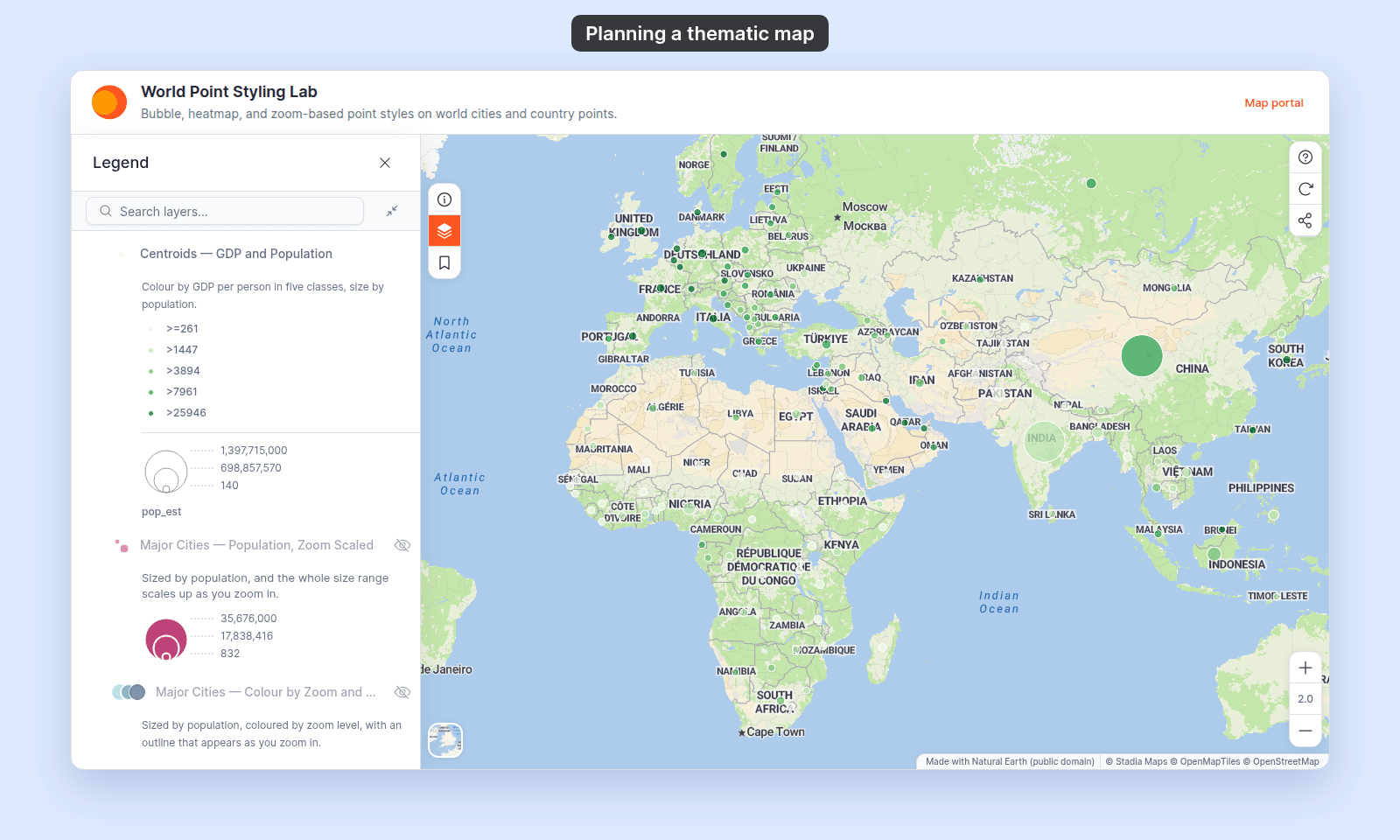
Sizing points by a numeric field makes a “bubble” or proportional-symbol map. On a point layer, switch Size markers by from Uniform size to a numeric field. Use it when size should show an amount instead of colour. It works together with the colour driver, so colour and size can show two different fields at once. See How to size points by a number.
Colour from one field and size from another, GDP per person in five classes and population as the bubble size:
See How to colour and size points by two fields.
What this isn’t
This page is for the decision before you open the Style tab. The how-to guides walk through the controls.
For every geometry:
- How to style features by category
- How to style features by quantity
- How to customise category and class break symbology
For one geometry:
- How to size points by a number (points)
- How to make a heatmap from a point layer (points)
- How to style line patterns and casing (lines)
- How to style polygon fill patterns (polygons)
The reference pages list the controls for each geometry:
Related
- How layer styling works in MangoMap: the overview this page pairs with.
- Choosing a classification method for choropleth maps: the next choice once you’ve picked a numeric field.
- How to customise category and class break symbology: to fine-tune a style once it is set.