

How to style polygon fill patterns
Draw polygons with a hatch, grid, dot, or arrow pattern in the fill colour, so overlapping layers stay distinct and black-and-white prints stay readable.
Pick a fill pattern, such as Slash, Grid, or Dots, and the polygon layer draws as a pattern in its fill colour instead of a solid fill. The gaps in a pattern are transparent, so the basemap shows through them.
See it on an example map
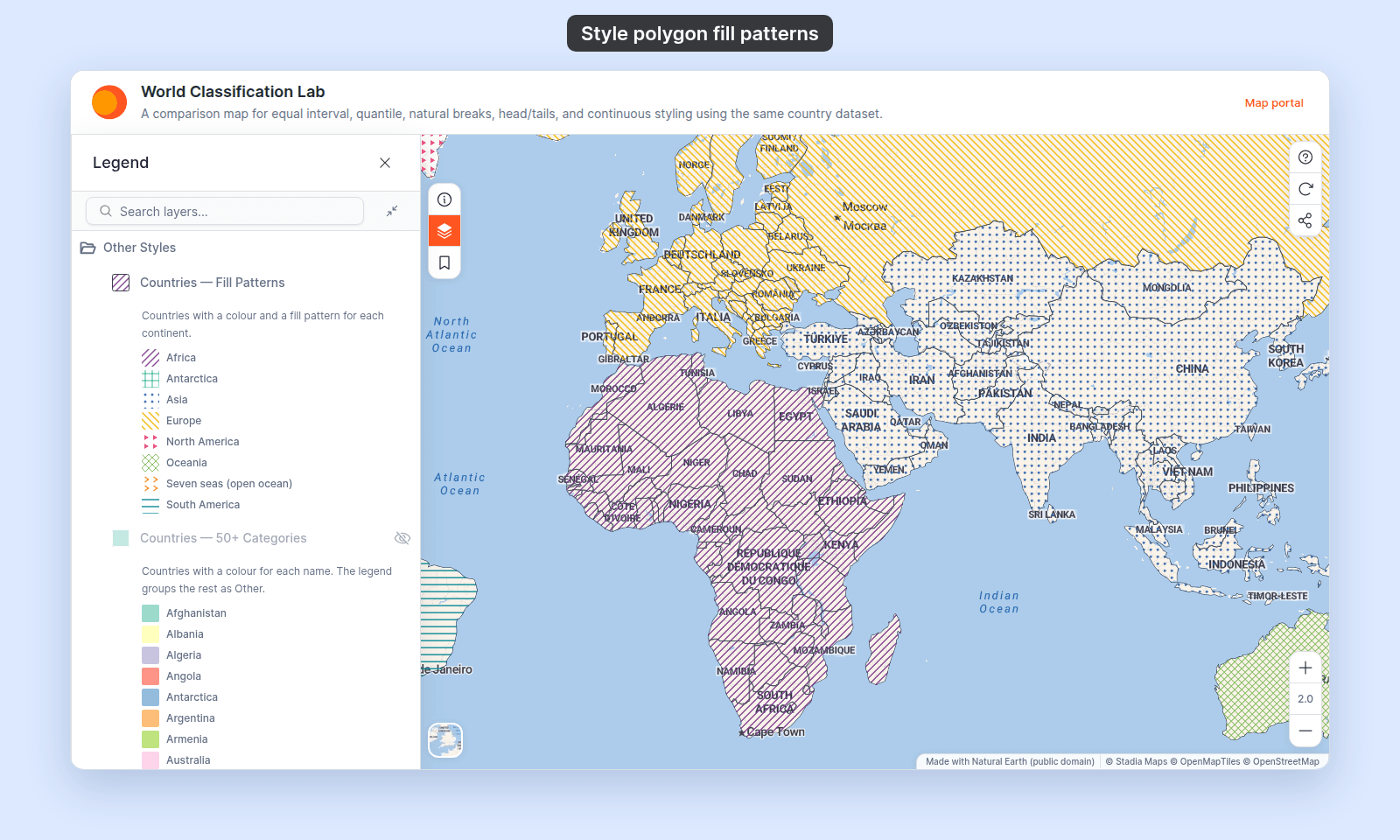
Open the World Classification Lab. In the legend, open the Other Styles folder and turn on only Countries — Fill Patterns. Turn off Population — Equal Interval. Each continent shows its own colour and fill pattern.
Patterns work with Uniform colour and with a field in Fill polygons by. With a field, you can also give each category or class its own pattern.
Before you start
- You need edit access to the map.
- The layer must be a polygon layer.
- A fill colour that differs from the basemap, or the pattern won’t show.
- A reason to use a pattern. Use patterns for:
- Distinguishing overlapping polygon layers without colour conflicts.
- Black-and-white printing where colour-based distinction won’t survive the print.
- Editorial maps where hatching reads as cartographic shorthand for a category (e.g. cross-hatch for “restricted area”).
Open the Style tab
Click the polygon layer in the layer panel to open its settings, then switch to the Style tab.
Find the fill pattern dropdown
Where the fill pattern dropdown is depends on Fill polygons by:
Uniform colour: the dropdown is next to the fill colour, after a brush icon. Point to the icon to see the tooltipFill pattern style.- A text or numeric field: the dropdown is below the colour scheme controls.
Pick a pattern
The dropdown shows a small preview of each pattern next to its name. Here it is open on a layer that gives each continent its own pattern:
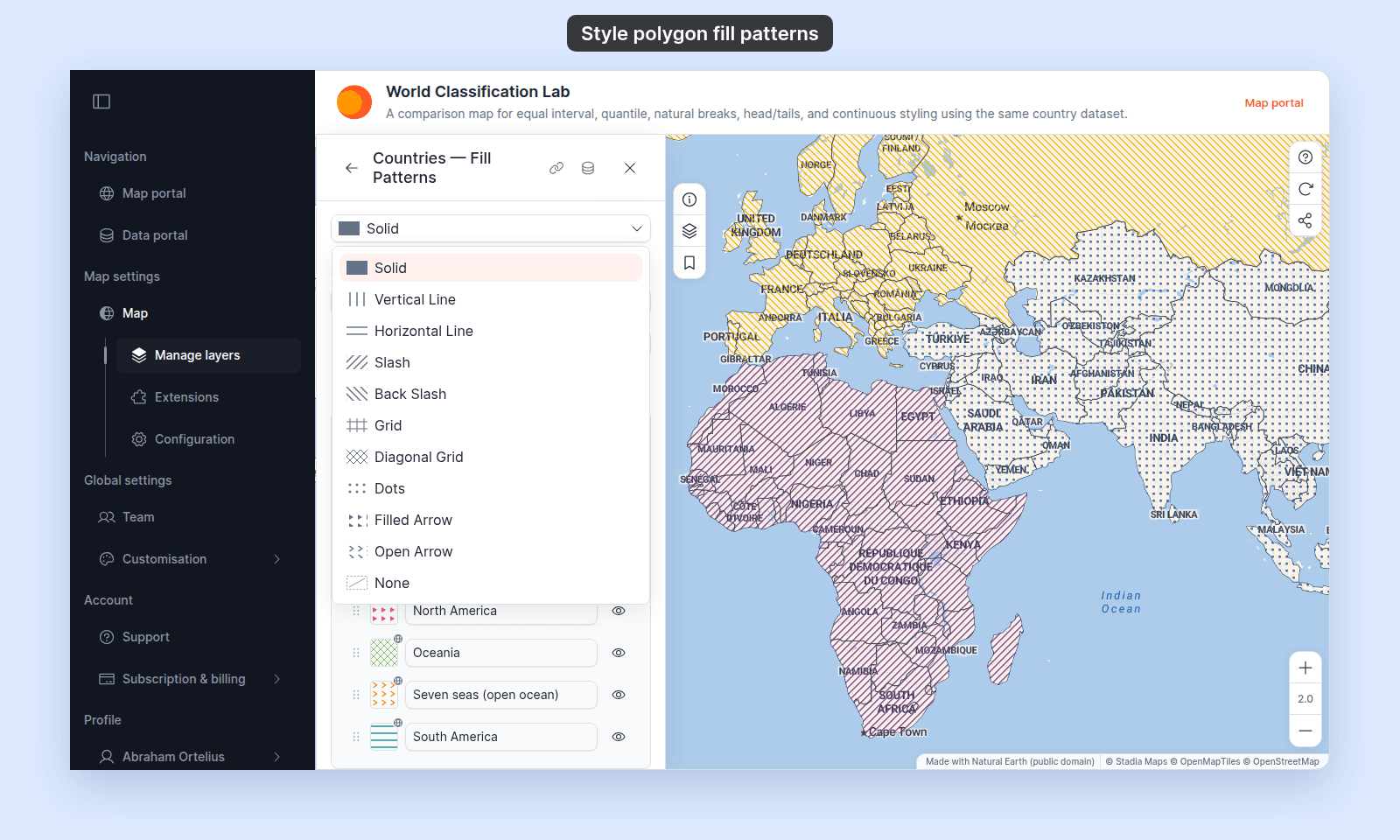
The 11 choices, with cartographic notes:
| Pattern | What it draws | Common use |
|---|---|---|
Solid |
Continuous fill | Default. Use when polygons don’t need pattern differentiation. |
Vertical Line |
Evenly spaced vertical strokes | Distinguishing one of two stacked layers. |
Horizontal Line |
Evenly spaced horizontal strokes | Pairs with Vertical Line for layered comparison. |
Slash |
Forward-slash hatching (/) |
Restricted areas, “no-go” zones in editorial maps. |
Back Slash |
Back-slash hatching (\) |
Pairs with Slash for visual contrast. |
Grid |
Square grid | Designation areas (parks, surveys) where rectangular structure reads as “managed”. |
Diagonal Grid |
Crossed diagonal hatching | Higher visual weight than Grid; reads as denser. |
Dots |
Evenly spaced small dots | A lighter texture than line hatching, for areas that need less emphasis. |
Filled Arrow |
Rows of small solid arrowheads that point right | A direction cue, such as flow or movement across an area. |
Open Arrow |
Rows of small open arrowheads (>) that point right |
A lighter direction cue than Filled Arrow. |
None |
No fill at all (outline only). | Boundary-only polygons; combine with a stroke for an outline-only look. |
Patterns draw at a fixed size on the screen. The line spacing and line width stay the same at every zoom level.
Save
Click Save at the bottom of the panel.
If you close the layer settings or switch tabs without clicking Save, your changes are lost.
Verify the result
The legend swatch shows the same pattern as the map.
Customising patterns per-category or per-break
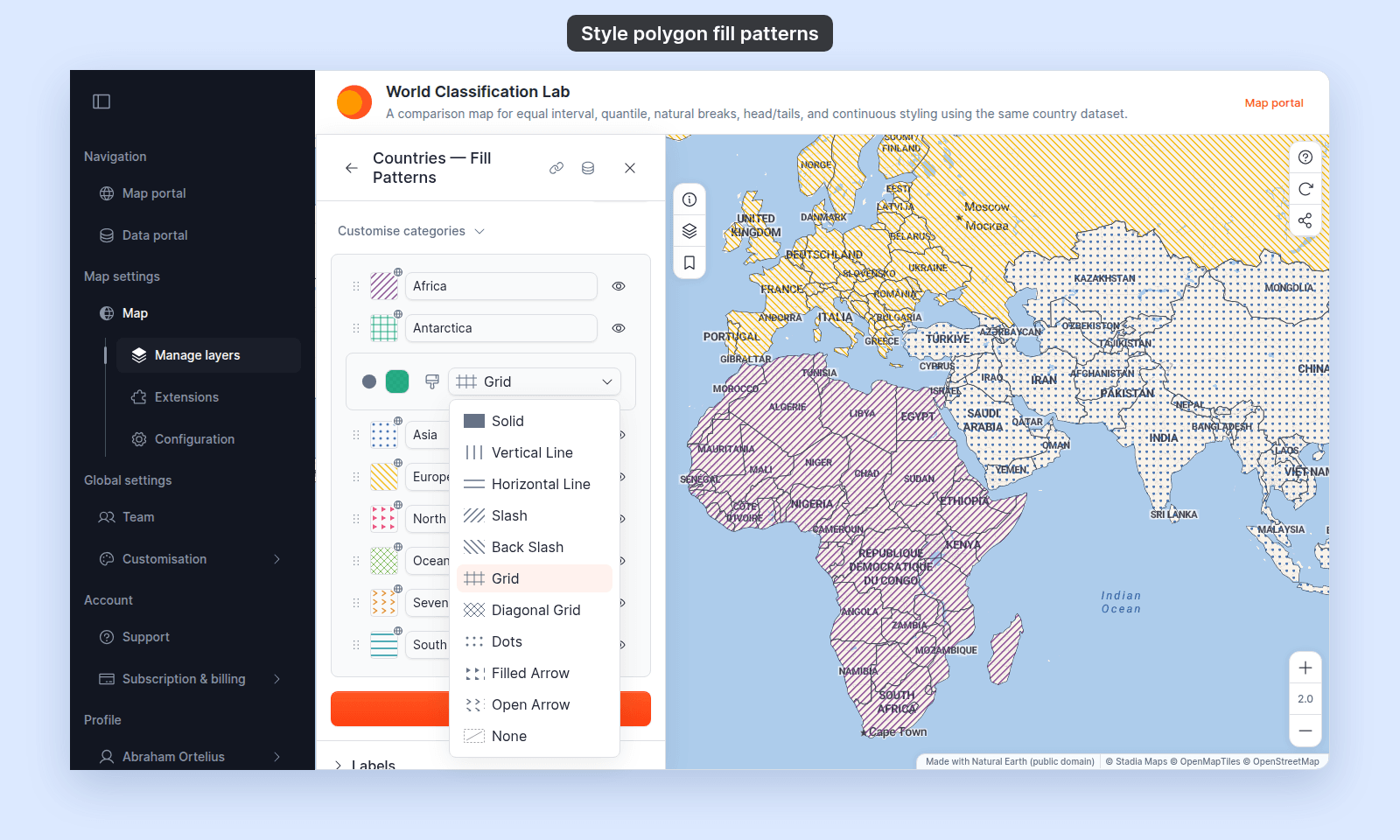
With a field in Fill polygons by, the layer-level pattern is the starting default for every category / break. Changing the layer-level pattern later sets every row to the new pattern. To set different patterns for different rows (for example: solid for the lowest class, hatched for the highest):
- Pick the layer-level pattern as the default.
- Expand the per-category or per-break customisation collapsible.
- Click a row’s pattern swatch. The row’s own fill colour and pattern controls open below it.
- Pick a pattern from the row’s dropdown.
See How to customise category and class break symbology for the full per-row customisation flow.
When patterns don’t render
A few cases where patterns don’t appear as expected:
- Pattern is
None— the polygon shows the outline only. If you want a fill, change the pattern. - Fill opacity is 0 — patterns inherit the fill colour and opacity. Bring the fill opacity above 0.
- Stroke is wider than the polygon — for very small polygons, a thick stroke can swallow the fill. Reduce the stroke width or zoom in.
- Zoom level outside the layer’s visibility range — the layer renders nothing if the map zoom is outside the layer’s
Visibilityrange. See How to set the zoom range a layer is visible at.
For broader style-not-applying causes, see Troubleshooting: my style change isn’t appearing on the map.
What this doesn’t cover
- Dashed or dotted lines — see How to style line patterns and casing.
- Dashed or dotted polygon outlines — see How to style polygon outlines.
- Per-row customisation in detail — see How to customise category and class break symbology.