

My colour ramp is the wrong way round
Fix a colour ramp that runs the wrong way, with dark for low values. Click Reverse colour ramp next to the palette dropdown, then click Save.
Your high values are coloured with the light end of the ramp and your low values with the dark end (or vice versa). Click the Reverse colour ramp button (two arrows, next to the palette dropdown) to flip it. Click Save to apply.
How to reverse the ramp
The button works the same on point, line, and polygon layers. Two labels change by geometry:
| Point | Line | Polygon | |
|---|---|---|---|
| Colour driver | Colour markers by |
Colour lines by |
Fill polygons by |
| Palette dropdown | Colour palette |
Colour scheme |
Colour scheme |
In the Style tab, set the colour driver to a numeric field, and Style as to Continuous or a class count. Then:
- Click the
Reverse colour rampbutton to the right of the palette dropdown. - Click
Saveat the bottom of the panel.
The ramp flips: the lowest values take the colour the highest values had, and so on.
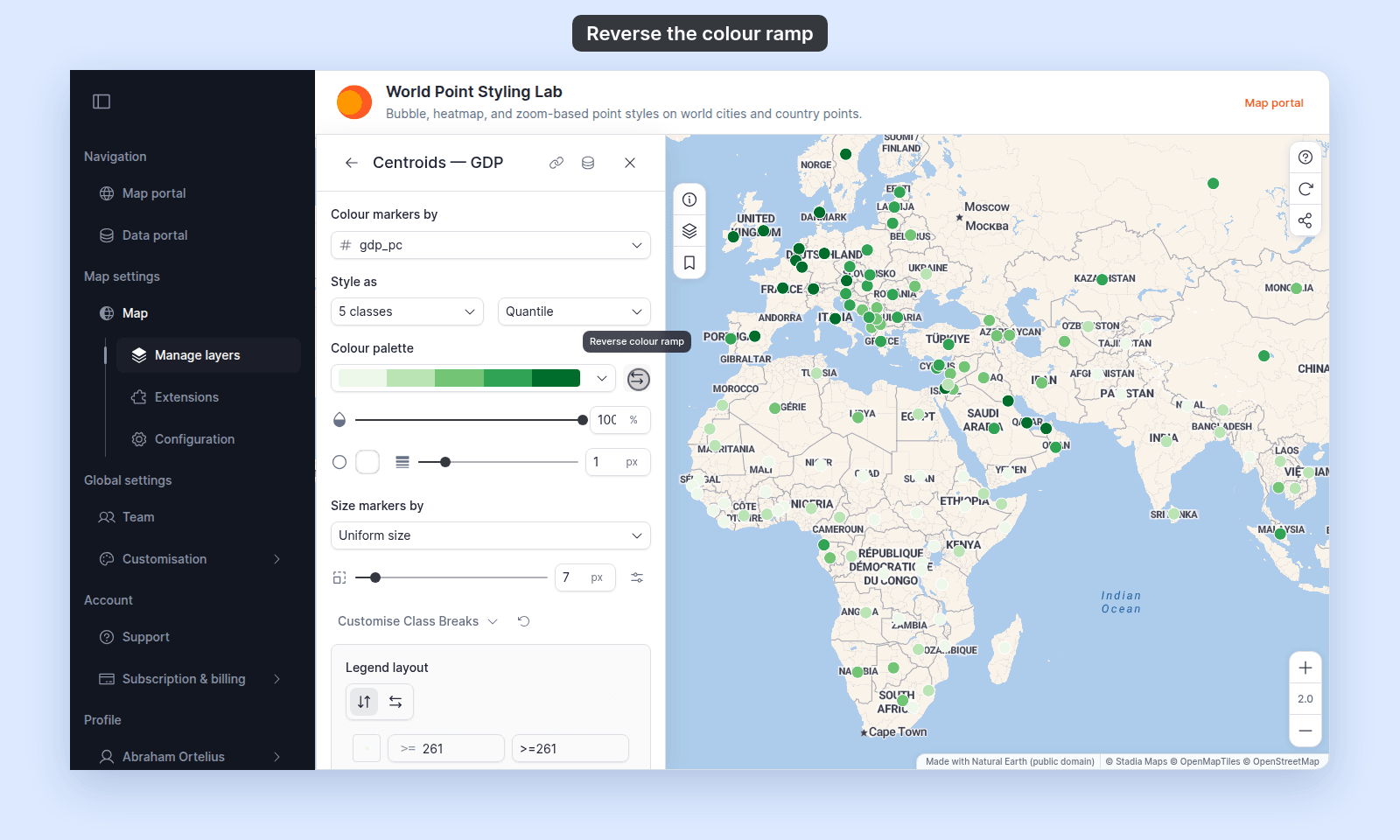
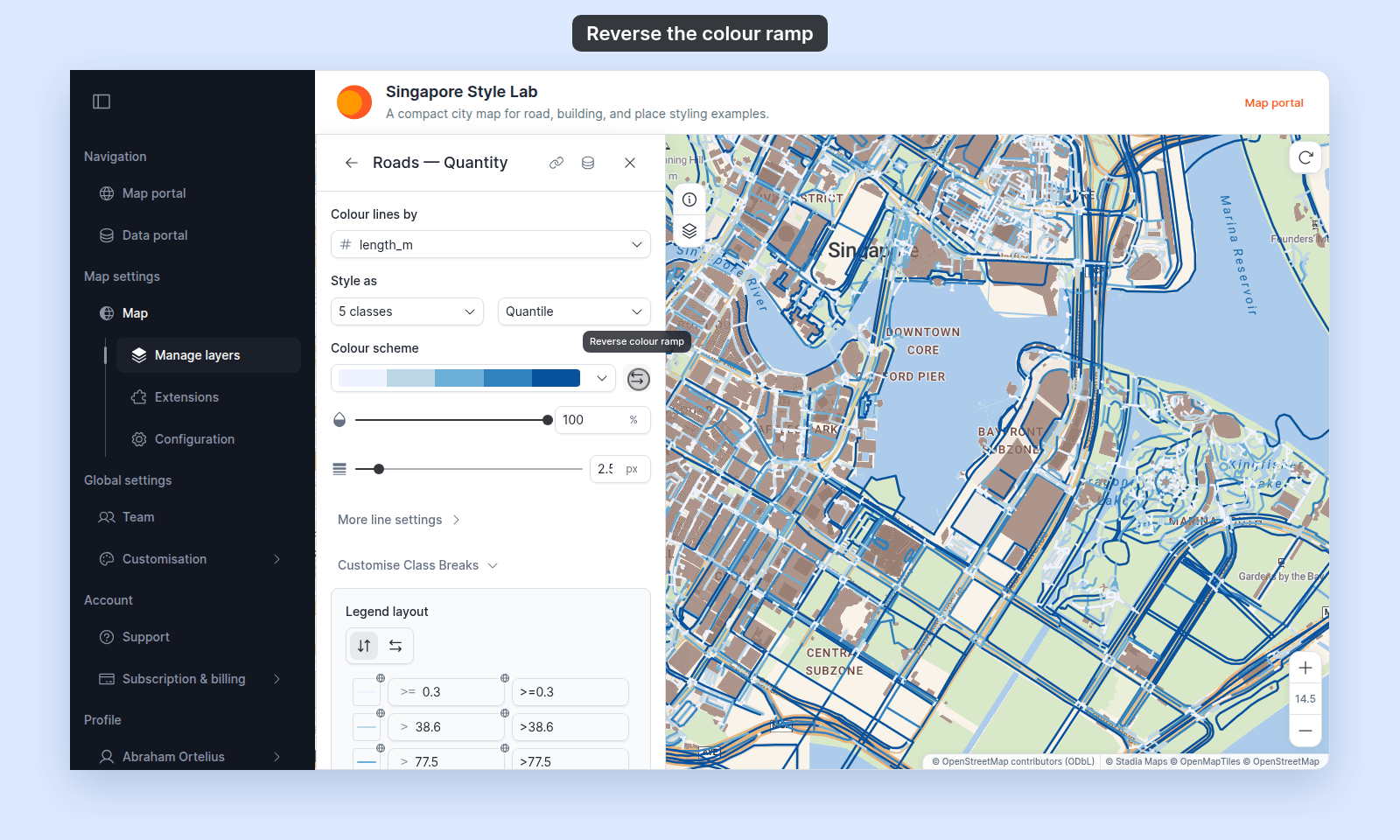
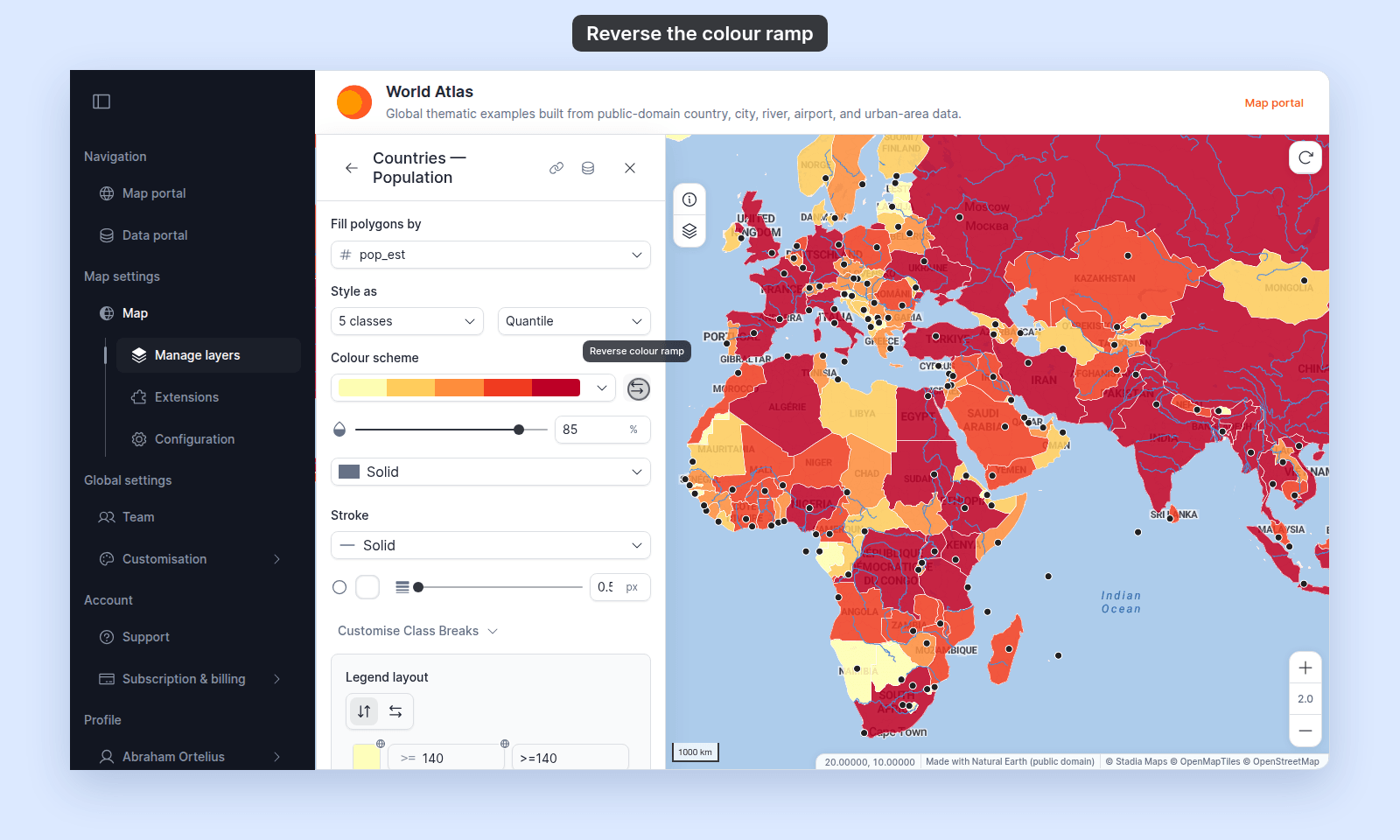
To flip it back, click the button again.
Why ramps look “wrong” by default
Two competing conventions exist:
- Light = low, dark = high — the most common in choropleth mapping. Higher values draw more attention: the most populous countries, or the fastest roads.
- Light = high, dark = low — used when “high” should read as “good” or “lit up” (for example, satellite radiance, or a ramp where dark means absence).
MangoMap’s built-in ramps start at one extreme. The reverse toggle lets you pick whichever direction reads better for your map without switching to a different ramp.
When to reverse vs. when to switch
- Reverse when the colours are right but the direction is wrong. The hues stay the same; only the order flips.
- Switch when the hues themselves don’t suit the data — pick a different ramp from the dropdown. For divergent data with a meaningful midpoint (deviations from a baseline, change over time), pick a divergent ramp. For sequential data with a clear high-or-low scale, pick a sequential ramp.
Per-break colour overrides interact with reverse
If you gave a class break its own colour in Customise Class Breaks, Reverse colour ramp skips it. It flips only the class breaks that still use the ramp’s colours. This is the same on every geometry.
To clear those colours and use the ramp again, click the Reset customizations button next to Customise Class Breaks, then pick Reset colours. It clears only the custom colours. Labels and ranges stay as they are. There is no confirmation step, so click Save only if the result is what you want.
See How to customise category and class break symbology for the override controls and the full reset menu.