

How layer styling works in MangoMap
How the Style tab works for point, line, and polygon layers: one colour, colour by a field, geometry-only options, and why raster layers only get opacity.
This page explains the Style tab for point, line, and polygon layers: what every geometry shares, what only one geometry has, and why raster layers offer so little. Read it before the how-to guides.
The Style tab differs by geometry
Every vector layer has a Style tab in the layer settings panel. The main idea is the same for every geometry: a colour driver decides whether all features share one colour or take their colour from a field. The controls around it depend on the geometry:
| Point | Line | Polygon | |
|---|---|---|---|
| Top-level picker | Marker type (Circle, Icon, Custom Icon, Heatmap) |
None: every line is a stroke | None: every polygon is a fill and a stroke |
| Colour driver | Colour markers by |
Colour lines by |
Fill polygons by |
| One colour for every feature | Single colour |
Uniform colour |
Uniform colour |
| Per category or class break | Colour, marker type, size, outline | Colour, line pattern | Colour, fill pattern |
| Same for the whole layer | Opacity, size | Width, opacity, cap, join, casing | Fill opacity, outline |
| Only on this geometry | Size by a field, zoom stops, heatmap, custom icons | Casing, cap, and join | Fill patterns |
Only points have a top-level picker. It chooses a regular symbol (Circle, Icon, or Custom Icon) or a Heatmap. Lines and polygons go straight to the colour driver.
Line width is one value for the whole layer. You cannot set it from a field.
The Style section of one layer of each geometry, each with one colour for every feature:
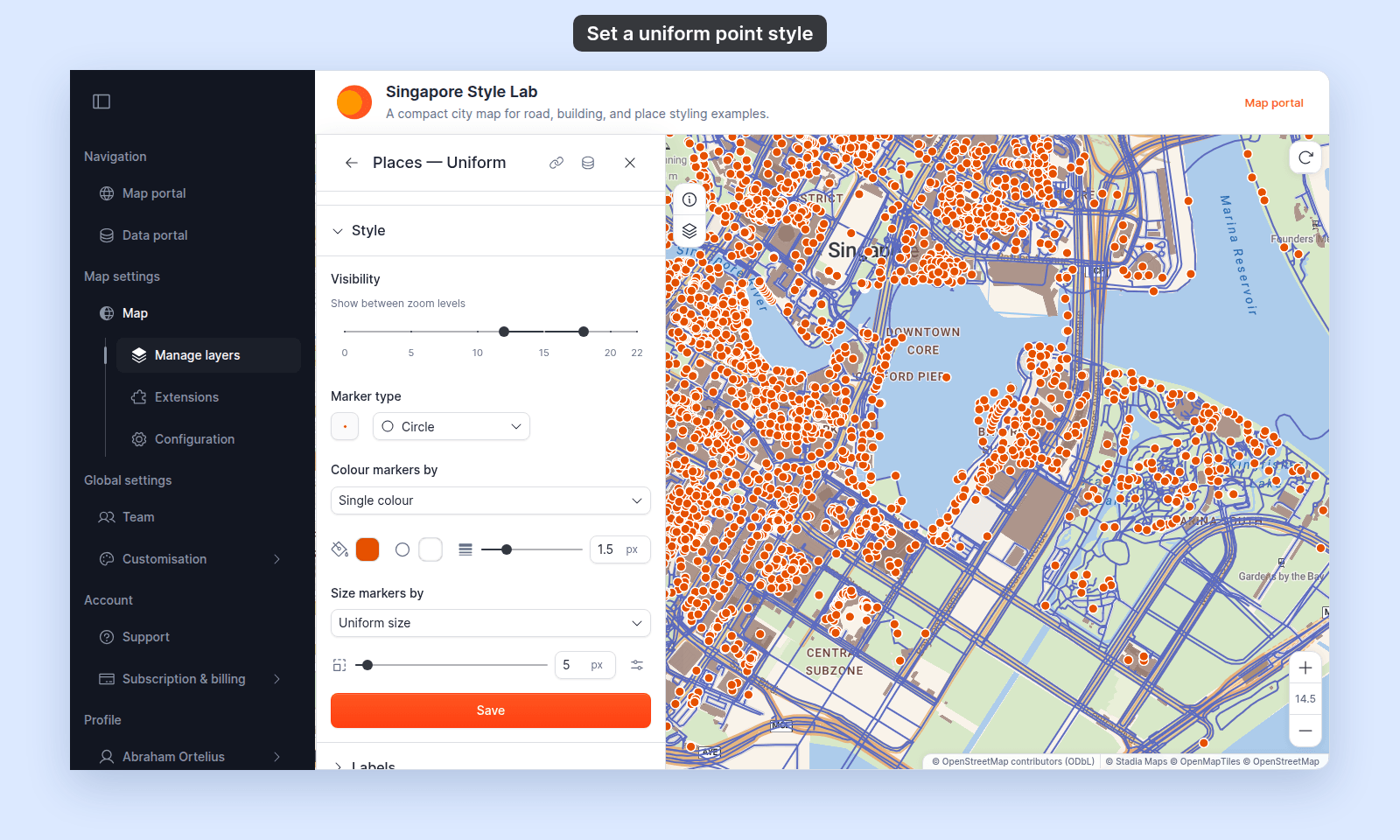
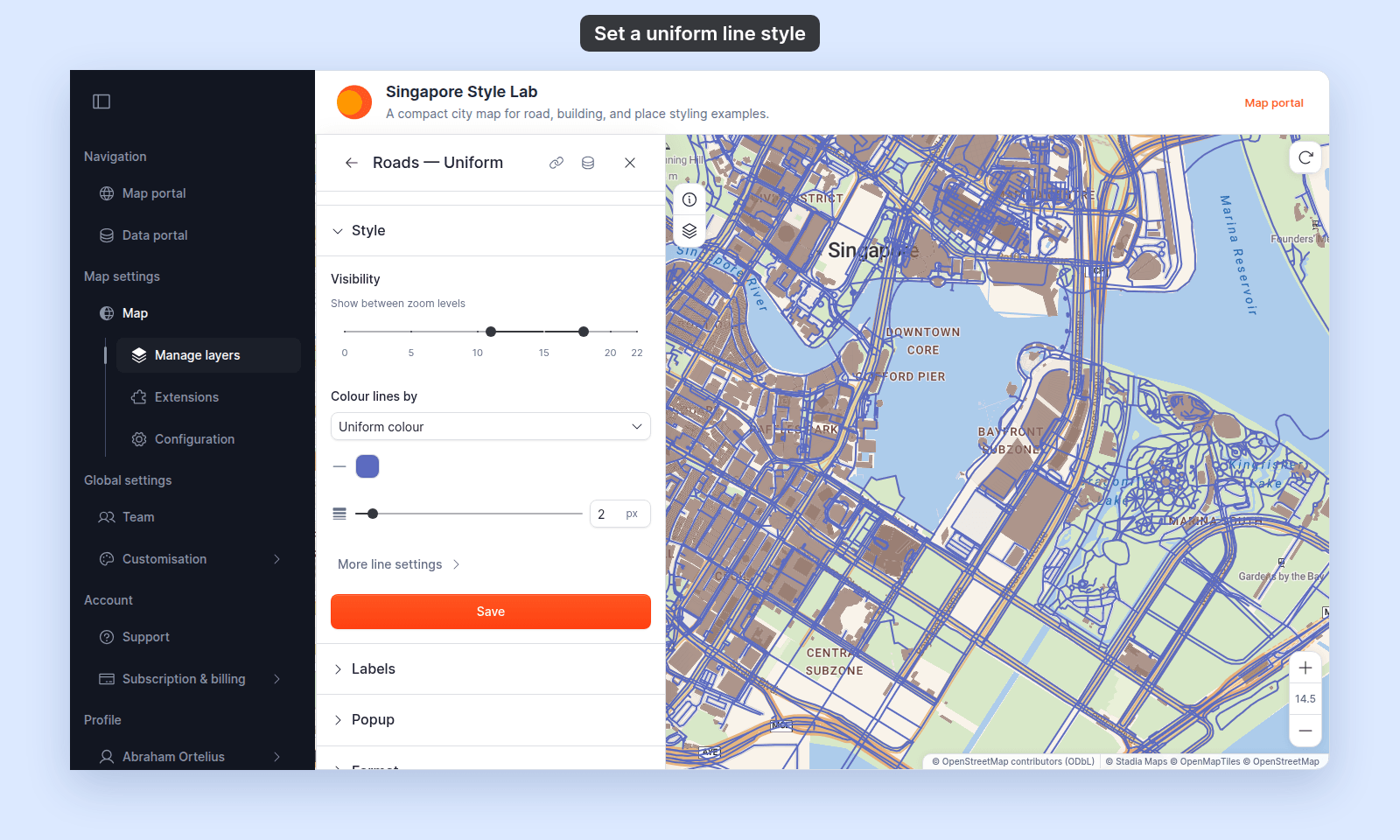
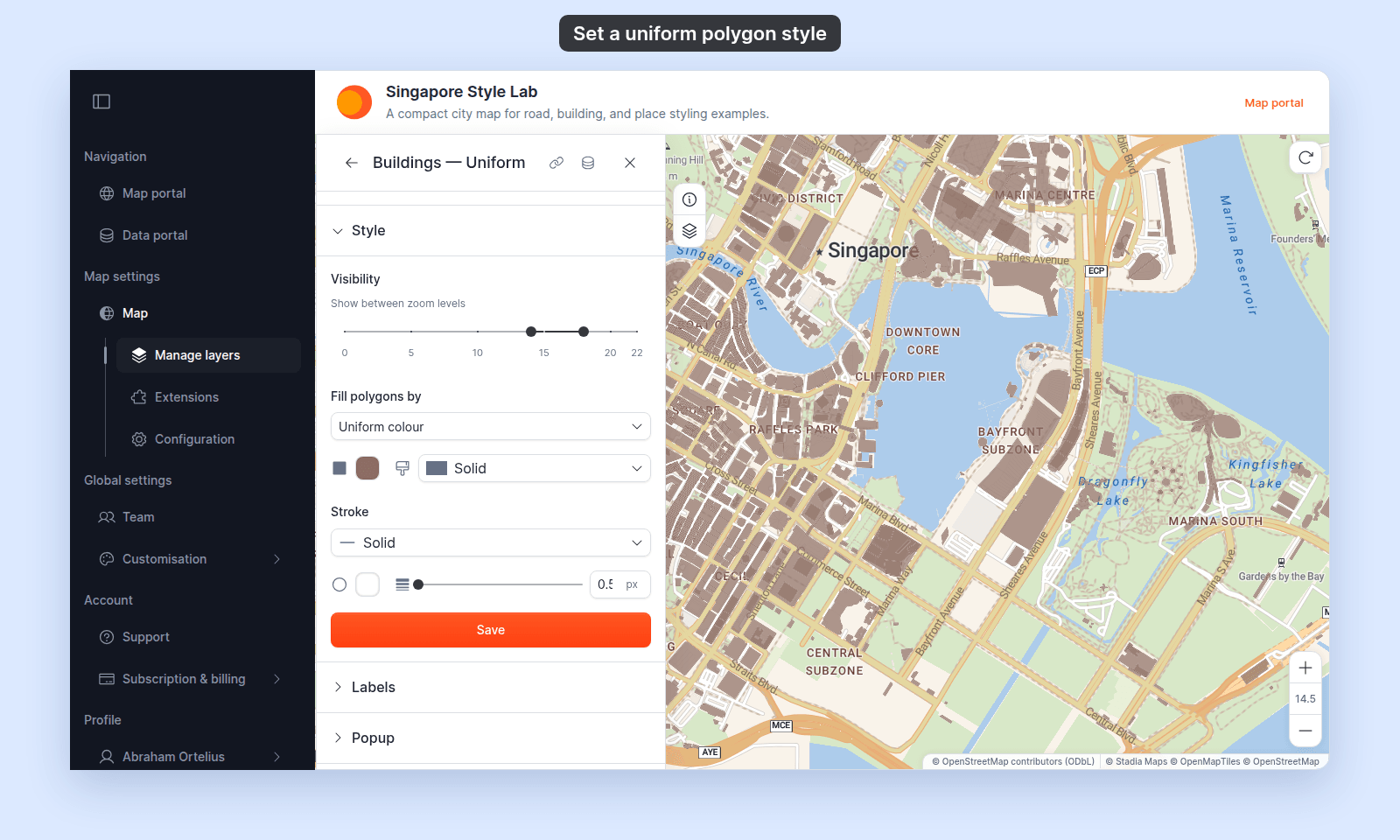
The colour driver: one colour or by field
The colour driver works the same way on every geometry. It offers these kinds of choice:
- One colour for every feature.
Single colouron points,Uniform colouron lines and polygons. Use it when the layer shows one kind of thing, such as a road network, a set of building outlines, or a set of offices. - A text field. Every distinct value gets its own colour from the chosen palette. This is the “category” behaviour. Roads coloured by road class, countries coloured by income group, and airports coloured by airport type all work this way.
- A numeric field. The
Style asselect decides what happens. Pick a class count and MangoMap splits the values into class breaks with a graduated colour ramp. PickContinuousfor a smooth gradient. Both are the “quantity” behaviour. Countries coloured by population, buildings coloured by height, and roads coloured by length all work this way. PickCategoriesand each distinct number gets its own colour, the same as a text field. Colour by zoom(point layers withCirclemarkers only). Every marker shares one colour, which changes as the viewer zooms. See Styling that changes with zoom.
A text field is always styled as categories. A numeric field starts as 5 classes with Natural Breaks (Jenks). Change Style as to Categories when the numbers are codes rather than amounts: zone numbers, years, or a 1–5 rating. The controls below the colour driver change to match.
Follow your pick in the colour driver to see what it gives you:
Colour is not the only way to tell categories apart. Each category or class break can also have its own symbol: a marker type or icon on points, a line pattern on lines, and a fill pattern on polygons. See How to customise category and class break symbology.
Size: points only
Size shows magnitude on points only. Point layers have a second driver below the colour driver, Size markers by, with two kinds of choice:
Uniform size. Every marker draws at one size, set with the size slider. This is the default.- A numeric field. Each marker is sized by that field’s value, between a minimum and a maximum size across the data range. This makes a proportional-symbol or “bubble” map. The size is continuous only: there are no classes or classification method.
The size driver is separate from the colour driver, so you can use one field for colour and another for size. See How to size points by a number. For both at once, see How to colour and size points by two fields.
Lines and polygons have no size driver. A line layer has one width for every line. A polygon’s size is its shape on the map, so magnitude on a polygon layer is shown with colour.
On Circle markers, either kind of size can also change with zoom. See the next section.
Styling that changes with zoom
A point layer with Circle markers can change its marker size, its colour, or both as the viewer zooms. This is often called scale-dependent styling. Small, pale markers keep a country view readable. Larger, stronger markers stand out at street level. Line and polygon layers do not have this option.
Both features use zoom stops. A zoom stop pairs a zoom level with a value: a size, a size scale, or a colour. You set 2 to 6 stops between zoom 1 and zoom 22. Between two stops, the value changes gradually. Below the first stop, markers keep the first stop’s value. Above the last stop, they keep the last stop’s value.
- Size. The
Vary size by zoom levelbutton next to the size control. WithUniform size, each stop holds a size in pixels. With a size field, each stop holds a scale that grows or shrinks the whole size range. See How to vary marker size by zoom level. - Colour.
Colour by zoominColour markers by. Each stop holds a fill colour and an optional outline.Colour by zoomtakes the place of field-based colour, so a layer can colour by zoom or by a field, not both. The stop outlines also replace the layer’s own outline, so a stop without one draws no outline. See How to change marker colour by zoom level.
Zoom stops change how a layer looks. The Visibility range decides whether the layer draws at all, and it works on every geometry. Use stops to keep a point layer readable at every zoom. Use the Visibility range to hide any layer where it does not belong. See How to set the zoom range a layer is visible at.
Zoom stops work on Circle markers only. Switching the marker type to Icon, Custom Icon, or Heatmap deletes them.
Heatmap: a marker type for points
Heatmap is one of the four Marker type options on point layers. Picking it replaces the individual points with a smoothed density gradient. The controls that appear are different from any of the other marker types:
Colour gradient: a predefined gradient ramp.Weight by:Equal weight(every point counts the same) or a numeric field (some points contribute more density).RadiusandIntensity: control the spread and visual intensity.Opacity: 0–100%.
Classification methods (numeric-field colouring)
When you pick a numeric field in the colour driver and use classes (not the continuous gradient), the classification method dropdown decides how MangoMap splits the data into class breaks. It works the same way on every geometry:
Equal Interval: classes of equal width across the data range.Quantile: classes with about the same number of distinct values.Natural Breaks (Jenks): break points fall at gaps in the distribution.Head/Tailson points,Head/Tail Breakson lines and polygons: classes that get wider from the lowest class to the highest.
The method changes which features go into each class, so the same data can give different maps. See Choosing a classification method for choropleth maps for how to choose, and Classification methods for by-quantity styling for what each method does.
Classes vs continuous gradient (numeric fields only)
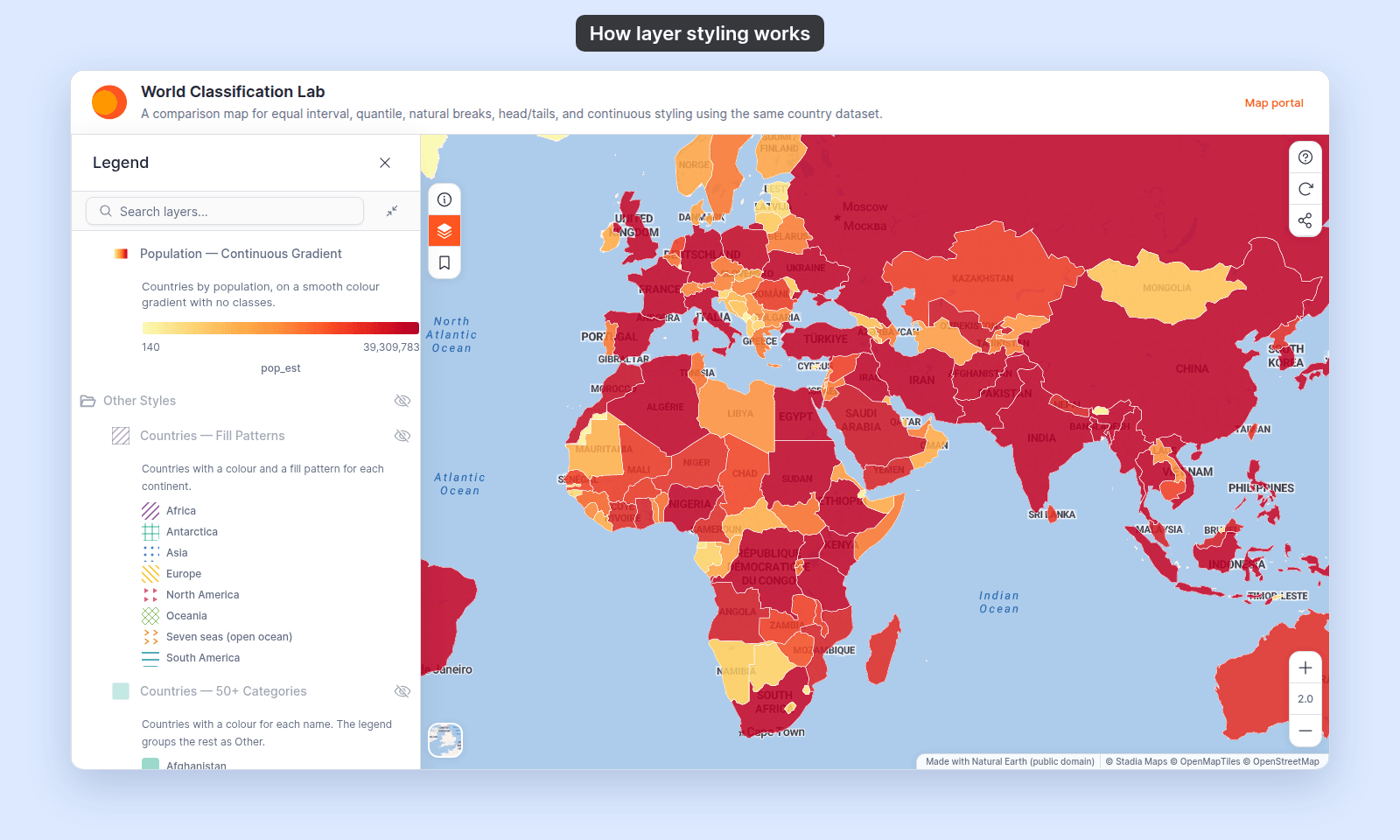
Numeric-field colouring has two modes, on every geometry:
- Classes. The default. The class-count choices (
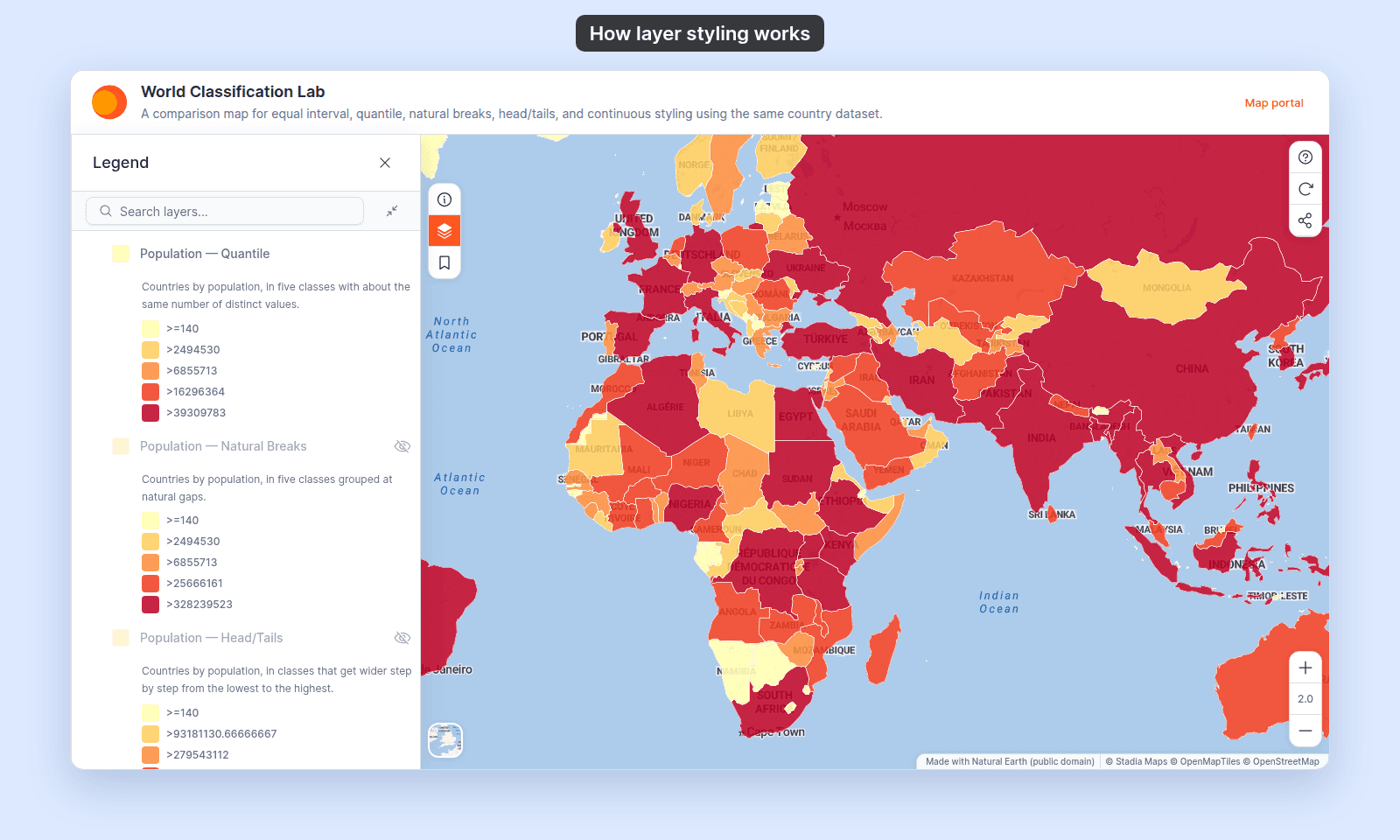
3 classesthrough9 classes) split the range into that many class breaks. Every feature draws in the colour of its class. The legend shows one swatch per class. - Continuous gradient. Every value maps to a position on the colour ramp. The legend shows a smooth gradient instead of swatches. Use it when small differences across many values matter more than reading off classes.
Switch between them in the Style as select: pick Continuous or a class count.
The same population data in both modes, with the legend a viewer sees:
Saving in the Style tab
The Style tab is one of the few places in MangoMap where changes don’t save on their own. MangoMap keeps your changes in the panel until you click the save button:
- Vector layers (point, line, polygon): the button reads
Save. - Raster and WMS layers: the button reads
Save Style.
Closing the panel or switching tabs without clicking the button discards every change since the last save. There’s no unsaved-changes warning.
A missed save is a common reason a style change does not show on the map. See My style change isn’t appearing on the map.
Why raster and WMS layers only expose opacity
When you select a raster or WMS layer in the layer panel, the Style tab shows only the Visibility range and an opacity slider. There are no colour or field controls.
This comes from the data, not a missing feature:
- A raster is a grid of pixels with fixed colour values. There’s no per-feature attribute to drive colour from.
- A WMS layer is drawn by the source server, so the styling decisions live there.
If you need different colours for a raster, reprocess it before upload (in QGIS or gdaldem). If you need different styling for a WMS, that change has to happen on the WMS provider’s server. See How to adjust raster or WMS layer opacity.
Common confusions
“I switched marker type and lost my outline or size settings.” Some controls only apply to specific marker types. Circle has fill, outline, and size. Icon has fill and size, with no outline. Custom Icon swaps the symbol entirely and has only an Opacity control. Switching to it sets the opacity to 100%. Heatmap has its own gradient, radius, and intensity controls. Switching marker types swaps the visible controls.
“Why doesn’t my line or polygon layer have a Marker type picker?” Marker types are point-only. A line is a stroke, and a polygon is a filled area with an outline. Neither has a marker.
“How do I tell categories apart without colour?” Give each category its own symbol: a line pattern on lines, a fill pattern on polygons, or a marker type or icon on points. See How to customise category and class break symbology.
“My ramp looks wrong for a numeric field.” The classification method, not the ramp, decides which features fall into which class. Try a different method (for example, switch from Equal Interval to Natural Breaks (Jenks)) before you change the colour scheme.
“My numeric field is a code, not an amount.” Set Style as to Categories. Each distinct number then gets its own colour, and the legend lists the values. Class breaks would group codes that have nothing in common, such as zone 4 and zone 5.
Related
For every geometry:
- How to style features by category: one colour per text value or numeric code.
- How to style features by quantity: colour from a numeric field, in classes or a gradient.
- How to customise category and class break symbology
- Classification methods for by-quantity styling
- Choosing a classification method for choropleth maps: the next choice once you’ve picked a numeric field.
- Planning a thematic map in MangoMap: how to choose a styling method, with three worked examples.
- My style change isn’t appearing on the map
Points only:
- How to set a uniform point style
- How to size points by a number
- How to vary marker size by zoom level
- How to change marker colour by zoom level
- How to make a heatmap from a point layer
- How to upload a custom point icon
Lines only:
Polygons only: