

Label settings
Every setting in a layer's Labels tab: the field to show, text colour and size, halo, anchor, and overlap, with choices and defaults.
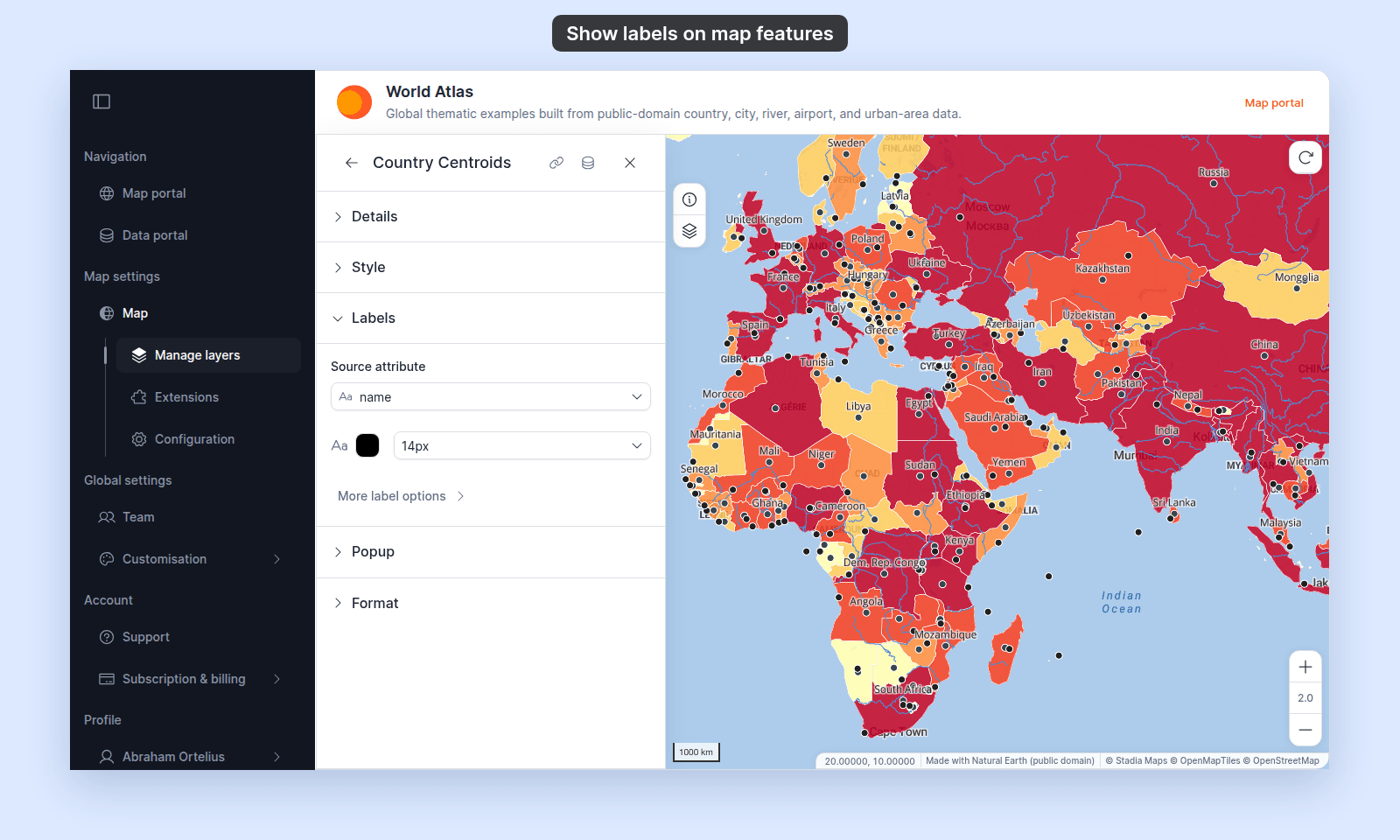
The Labels tab in a vector layer’s settings controls the text shown on each feature. Every change saves at once; the tab has no Save button.
For the task, see How to show labels on map features.
Source attribute
| Default | No labels |
| Choices | No labels, plus every field on the dataset |
| Where | Top of the Labels tab |
Sets the field whose value each feature shows. The list shows the dataset’s field names, not the aliases from the Format tab. The other label settings appear only after you pick a field.
Picking No labels removes the labels from the map.
Text colour
| Default | #000000 (black) |
| Where | Swatch at the start of the row below Source attribute. Tooltip: Label text colour. |
The colour of the label text. The picker supports transparency.
Font size
| Choices | 10px, 12px, 14px, 16px, 18px, 20px, 24px, 28px, 32px |
| Where | Dropdown next to the text colour swatch |
The size of the label text.
More label options
A collapsed group below the text settings. Click More label options to show it. It holds the four settings below.
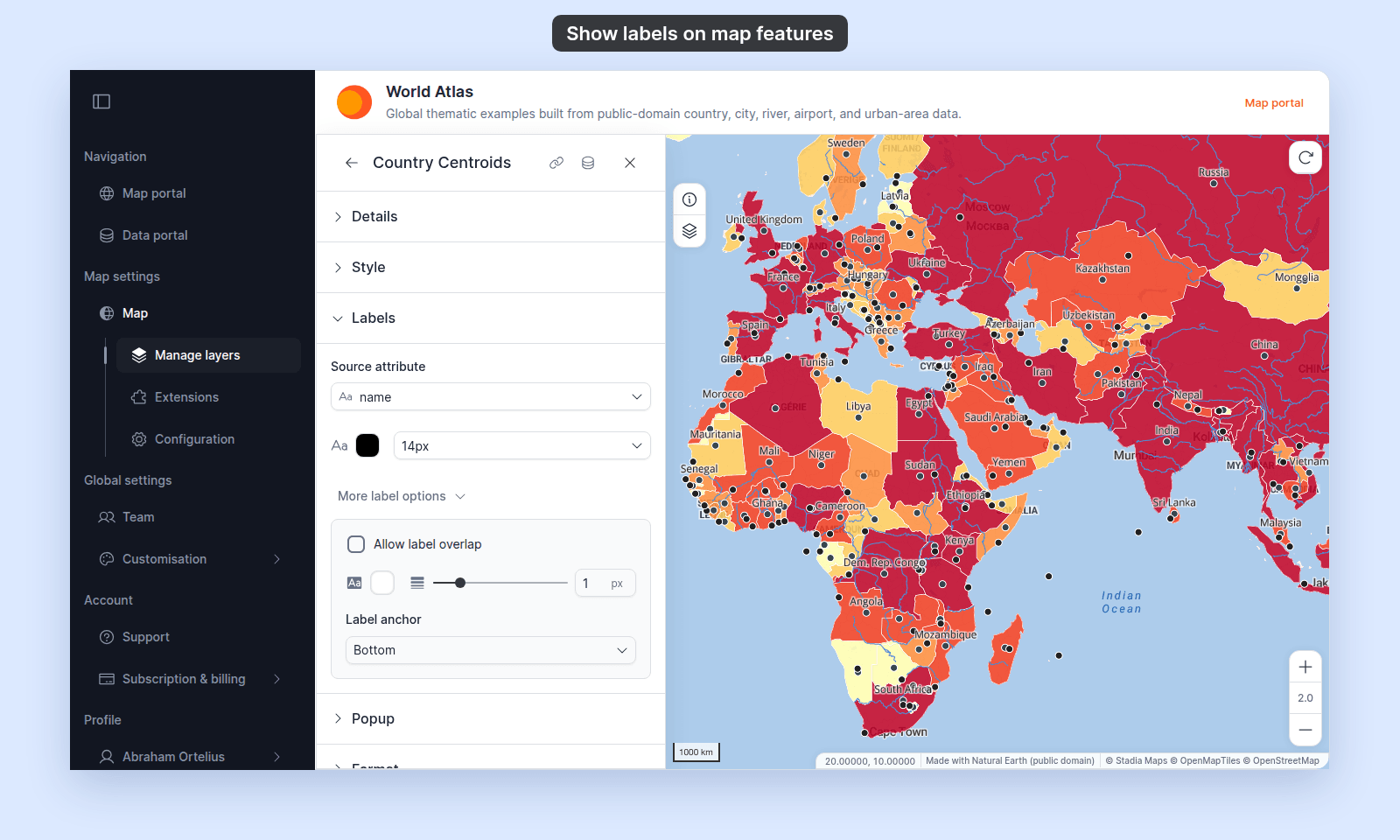
Allow label overlap
| Default | Off |
| Choices | On, Off |
While off, MangoMap hides labels that would collide with other labels. Which labels show changes as the map zooms. While on, every label draws, even where labels overlap.
Halo colour
| Default | #FFFFFF (white) |
| Where | Swatch at the start of the halo row. Tooltip: Label halo colour. |
The colour of the outline drawn around the label text. The picker supports transparency.
Halo width
| Default | 1 |
| Range | 0–5, step 1 |
| Unit | Pixels |
| Where | Slider and number box next to the halo colour. Tooltip: Halo width. |
The width of the outline around the text. 0 removes the halo.
Label anchor
| Default | Bottom |
| Choices | Center, Left, Right, Top, Bottom, Top Left, Top Right, Bottom Left, Bottom Right |
| Applies to | Point and polygon layers |
The part of the label that sits on the feature’s label point. With Bottom, the label sits above that point. With Top, it sits below. With Center, it sits on the point.
- Point layers — the label point is the point itself.
- Polygon layers — the label point is the spot inside the polygon that is farthest from its edges. Pick
Centerto centre the label in the polygon. - Line layers — the setting is shown but has no effect.
Label placement by geometry
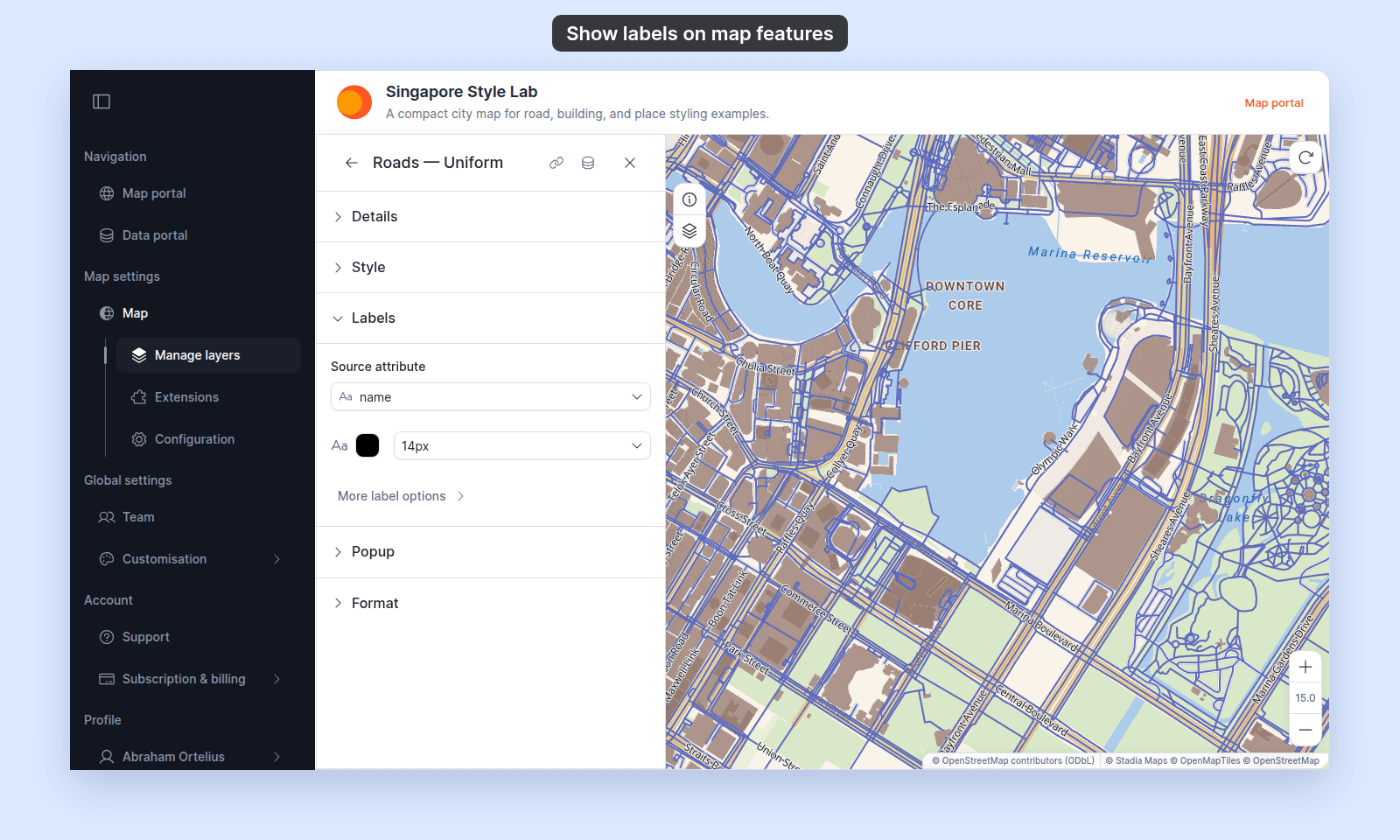
| Geometry | Where the label goes | How often |
|---|---|---|
| Point | At the point, placed by Label anchor |
Once per point |
| Line | Along the line, following its bends | Repeats along a long line. A line shorter than the text, or with a sharp bend under it, has no label. |
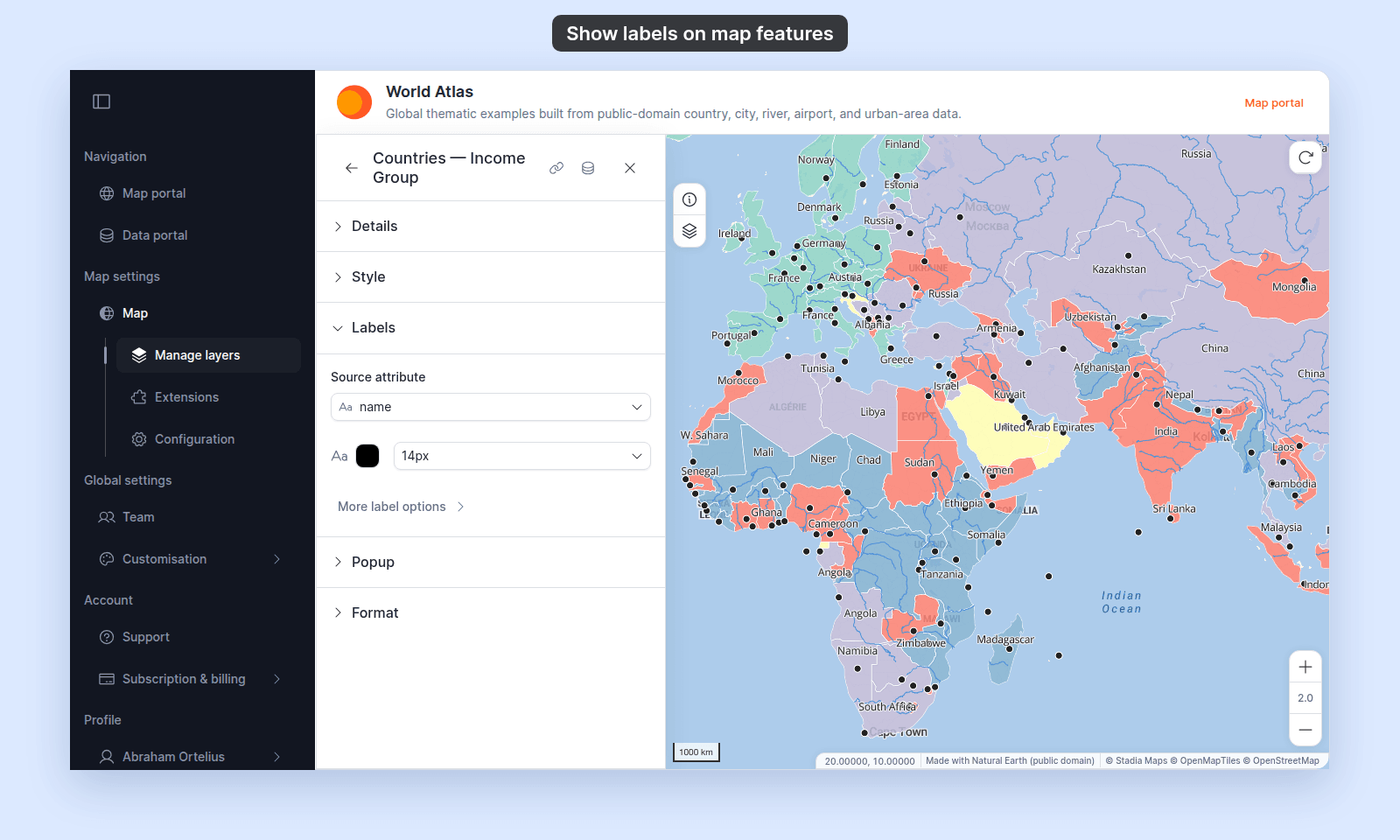
| Polygon | At the spot inside the polygon that is farthest from its edges, placed by Label anchor |
Once per polygon. Each part of a polygon with several parts, such as a country with islands, can get its own label. |
Which features get a label
A feature shows a label only when all of these are true:
- The feature has a value in the
Source attributefield. Empty values get no label. - The layer’s style draws the feature. Features in a hidden category get no label. With a quantity or size style, features with no value in the styled field get no label either.
- The map zoom is inside the layer’s
Visibilityrange, ends included. See How to set the zoom range a layer is visible at. - With
Allow label overlapoff, the label doesn’t collide with another label. - On a line layer, the line is longer than the text.
Label text
A label shows the field’s raw value. Settings on the Format tab, such as number formats and aliases, don’t apply to labels.
Who can change labels
People who can edit the map. Others see a message that they don’t have permission to edit layers.
Related
- How to show labels on map features
- How to set the zoom range a layer is visible at
- Layer panel controls — the
Edit Labelsaction opens this tab. - How attribute formatting works in MangoMap