

Layer panel controls
Look up every button, menu, and gesture in the layer panel, including the control bar, folder actions, layer context menus, and the layer settings sections.
The layer panel lists every map layer and its controls. This page lists each button, menu, and gesture for adding, grouping, and ordering layers.
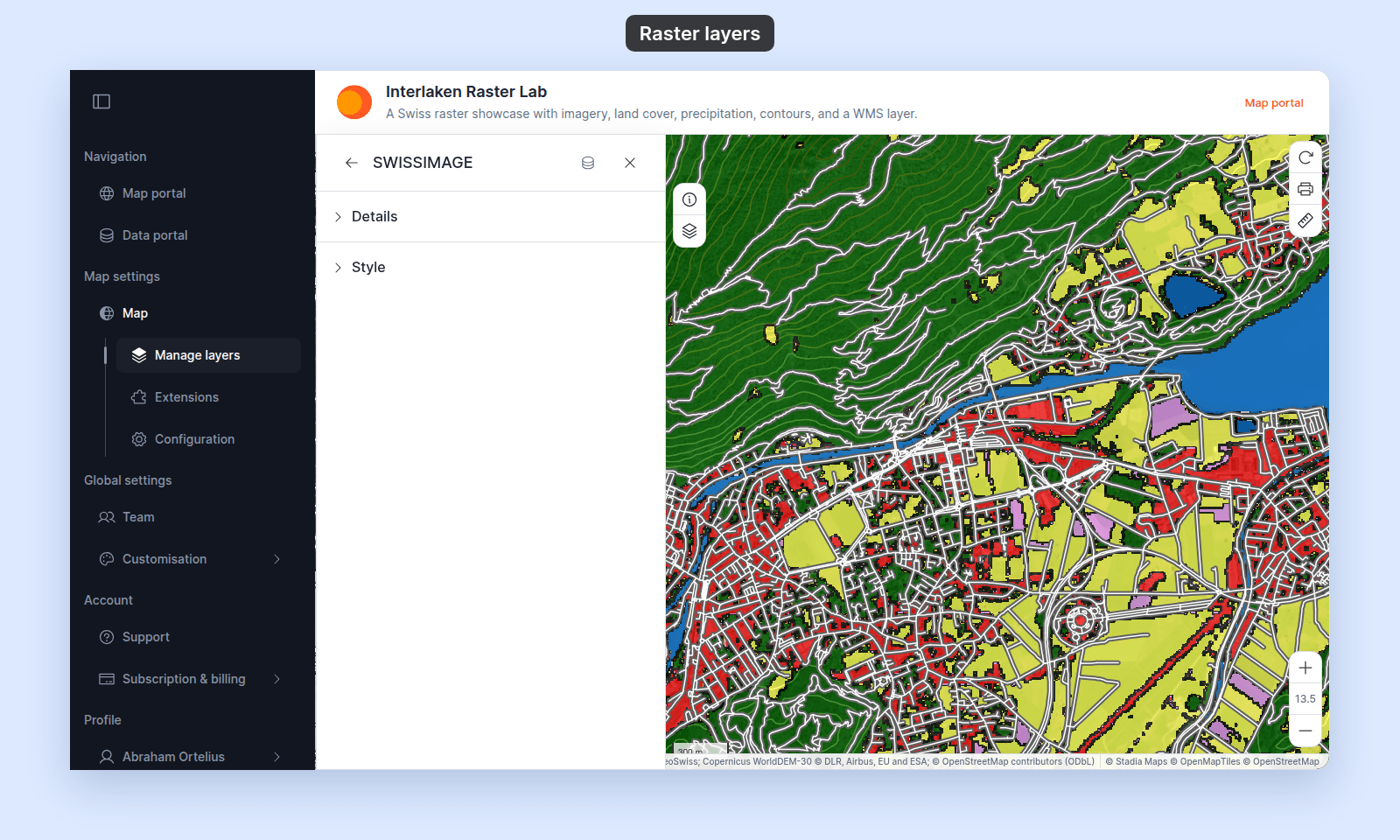
The layer panel opens from the map toolbar (Manage Layers tool). Raster and WMS layers appear on the panel like any other layer; their per-layer settings are limited to Details and Style, where you set the layer’s opacity and visibility range.
Top-level controls
The control bar at the top of the layer panel.
Search
| Where | Top of the layer panel |
Filters the layer list by name. Folders containing matching layers stay visible; non-matching layers and folders are hidden.
Expand all folders / Collapse all folders
| Where | Control bar, leftmost icon button |
Toggle button. The icon and tooltip switch between Expand all folders and Collapse all folders based on current state.
Create new folder
| Where | Control bar, folder-plus icon |
| Tooltip | Create new folder |
Creates a folder named New Folder at the root of the layer list at once. There is no dialog; rename the folder with Rename Folder in its More actions menu.
Add layer from data library
| Where | Control bar, primary stack-plus icon |
| Tooltip | Add layer from data library |
Opens the Add layer from data library modal. Pick a dataset from your account library to add it to the map as a new layer. See How to add a layer from your data library.
Import new data
| Where | Control bar, primary upload icon |
| Tooltip | Import new data |
Opens the data import flow. After import, the new dataset is added to your library and a layer for it is added to this map. See How to add a layer by importing data.
Per-layer row
Each layer row in the panel.
Layer name
| Where | Centre of each row |
Click to open the layer settings panel for that layer (Style, Format, Popup, Labels, Details).
Visibility eye
| Default | On (visible) |
| Where | Right side of each row, on hover (or always when hidden) |
Toggles the layer’s saved visibility. Saving immediately on click — the change persists and becomes the default for every viewer who opens the map. See How to set which layers show when the map first loads.
Drag handle
| Where | Implicit on the row; press and drag |
Reorders layers and moves layers between folders. Layers higher in the panel draw on top of layers lower in the panel. See How to reorder layers on the map.
Layer More actions menu
Open it with the More actions (⋯) button, which shows when you point to the layer row. Right-clicking the row does not open it.
The full set of per-layer actions:
| Action | What it does |
|---|---|
Hide Layer / Show Layer |
Same effect as the visibility eye — toggles saved visibility. |
Hide from Legend / Show in Legend |
Toggles whether this layer appears in the legend on the live map. The layer still draws; the legend entry is the only thing affected. |
Layer Settings |
Opens the layer settings panel (same as clicking the layer name). |
Edit Style |
Opens the layer settings panel directly to the Style tab. |
Edit Popup |
Opens the layer settings panel to the Popup tab. Vector layers only. |
Edit Labels |
Opens the layer settings panel to the Labels tab. Vector layers only. See How to show labels on map features. |
Edit Formatting |
Opens the layer settings panel to the Format tab. Vector layers only. |
Duplicate Layer |
Creates a second layer that references the same dataset, with copied settings. |
Delete Layer |
Removes the layer from the map after a confirmation dialog. The underlying dataset is preserved. See How to remove a layer from a map. |
For raster and WMS layers, the popup, labels, and formatting actions don’t appear (those layers don’t have those tabs).
Per-folder row
Each folder row in the panel.
Folder name
| Where | Centre of each folder row |
Click to expand or collapse the folder’s contents.
Expand / collapse
| Where | Folder icon on the left of the row |
Toggles the folder open or closed.
Folder visibility eye
| Default | On (visible) |
| Where | Right side of the folder row |
Toggles every layer inside the folder at once. Saves immediately and applies to every viewer.
Folder More actions menu
Open it with the More actions (⋯) button on the folder row.
| Action | What it does |
|---|---|
Add Layer |
Opens the Add layer from data library modal pre-targeted to this folder — added layers go into this folder. |
Upload Dataset |
Opens the import flow pre-targeted to this folder. |
Hide Folder / Show Folder |
Toggles every layer inside at once. Same effect as the eye. |
Hide from Legend / Show in Legend |
Toggles whether the folder appears in the legend on the live map. |
Rename Folder |
Opens the folder dialog with the current name pre-filled. |
Delete Folder |
Confirmation dialog asks whether to move children to root or delete with the folder. |
Default basemap section
| Where | Sticky at the bottom of the panel |
| Header | Default basemap |
Picks the basemap that loads when the map first opens, its available variants and overlays, or a custom solid colour. Saves immediately on every change.
A small information icon next to the header indicates whether viewers can also switch the basemap from the map toolbar:
- “Basemap switching is available to end users.” — viewers see a basemap chooser; their selection is per-session and doesn’t override the saved default.
- “End users cannot switch basemaps. Enable in Map Extensions.” — viewers don’t see a basemap chooser.
The dropdown offers street, terrain, satellite, artistic, and Colour backgrounds. See Available basemaps.
Basemaps with configurable overlays show Labels, Roads, POIs, and Boundaries chips. A filled chip means that overlay is shown; click it to hide the overlay. Unsupported overlays are disabled. All available overlays are shown by default, and each change saves immediately. Labels doesn’t hide points of interest (use POIs), and no chip hides your own layers. Chip choices carry over when you pick another basemap.
Defaults quickly
When you first open the layer panel on a new map:
| Setting | Default |
|---|---|
| Layer list | Empty (no layers) |
| Default basemap | Stadia OSM Bright (the platform default) |
| Basemap overlays | All available overlays shown |
Once you add layers, each new layer defaults to:
| Setting | Default |
|---|---|
| Visibility | On (visible) |
| Show in Legend | On |
| Position | Top of the layer list (inside the target folder if added via the folder’s More actions menu) |
Related
- How the layer panel works in MangoMap
- Available basemaps
- How to add a layer from your data library
- How to add a layer by importing data
- How to organise layers into folders
- How to reorder layers on the map
- How to remove a layer from a map
- How to set which layers show when the map first loads
- How to set the default basemap