

How to set up layers on a new map
Follow seven steps to set up a new map: add layers, group them, set order and default visibility, choose a basemap, and check the map as a viewer sees it.
Set up a new map in seven steps: add layers, group them if needed, set their order and default visibility, choose a basemap, and check the viewer view. Add all layers before setting order and visibility. Choose the basemap after the layers are ready. Each layer-panel change saves at once.
Before you start
- You have a new map open with no layers (or an existing map you’re reorganising).
- You know roughly which datasets you want on the map. They may already be in your data library, or you can import them during setup.
- You need edit access to the map.
1. Open the layer panel
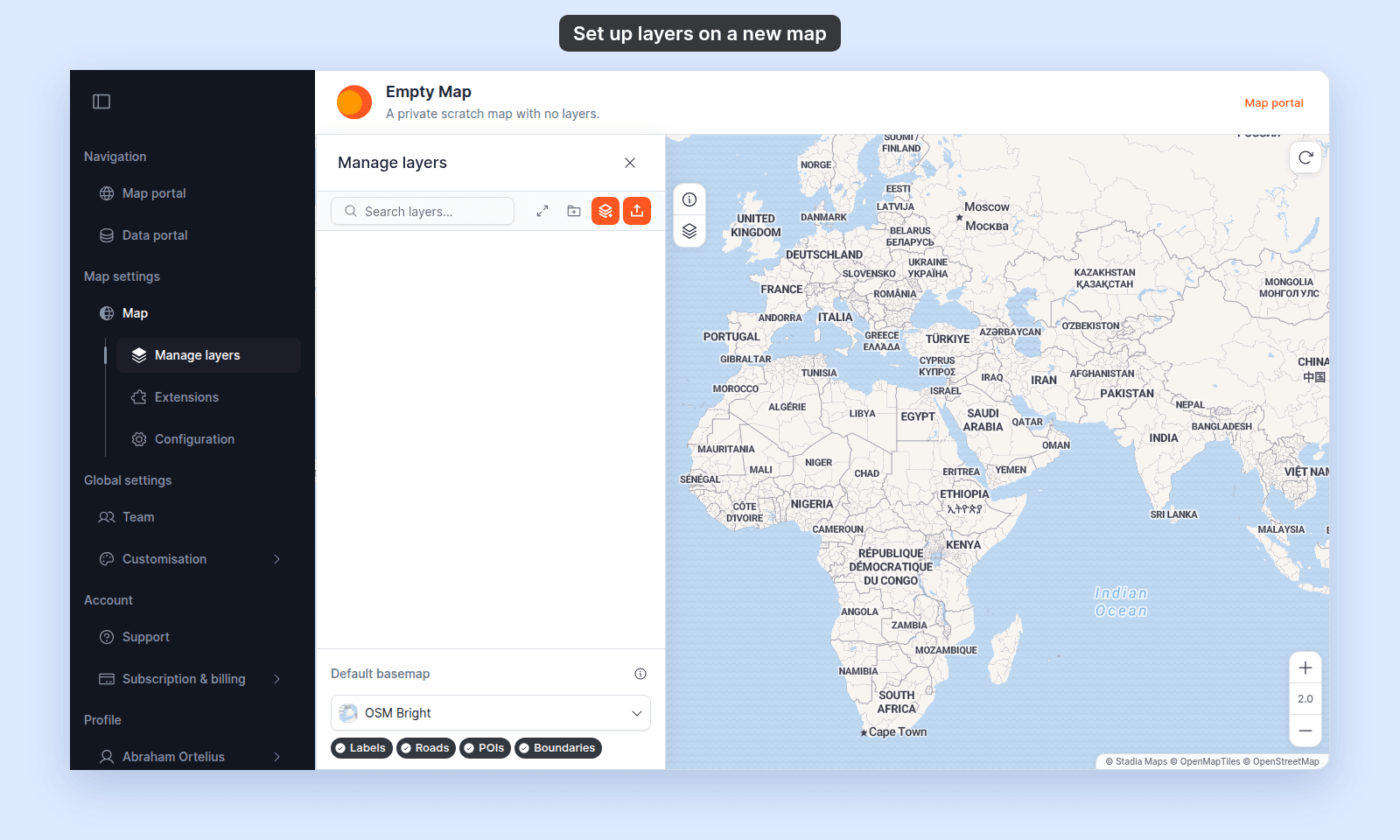
From the map toolbar, open Manage Layers.
A new map starts with no layers in the list and the platform default basemap (OSM Bright).
2. Add the layers you need
Two paths, picked per layer based on whether the data is already in your account:
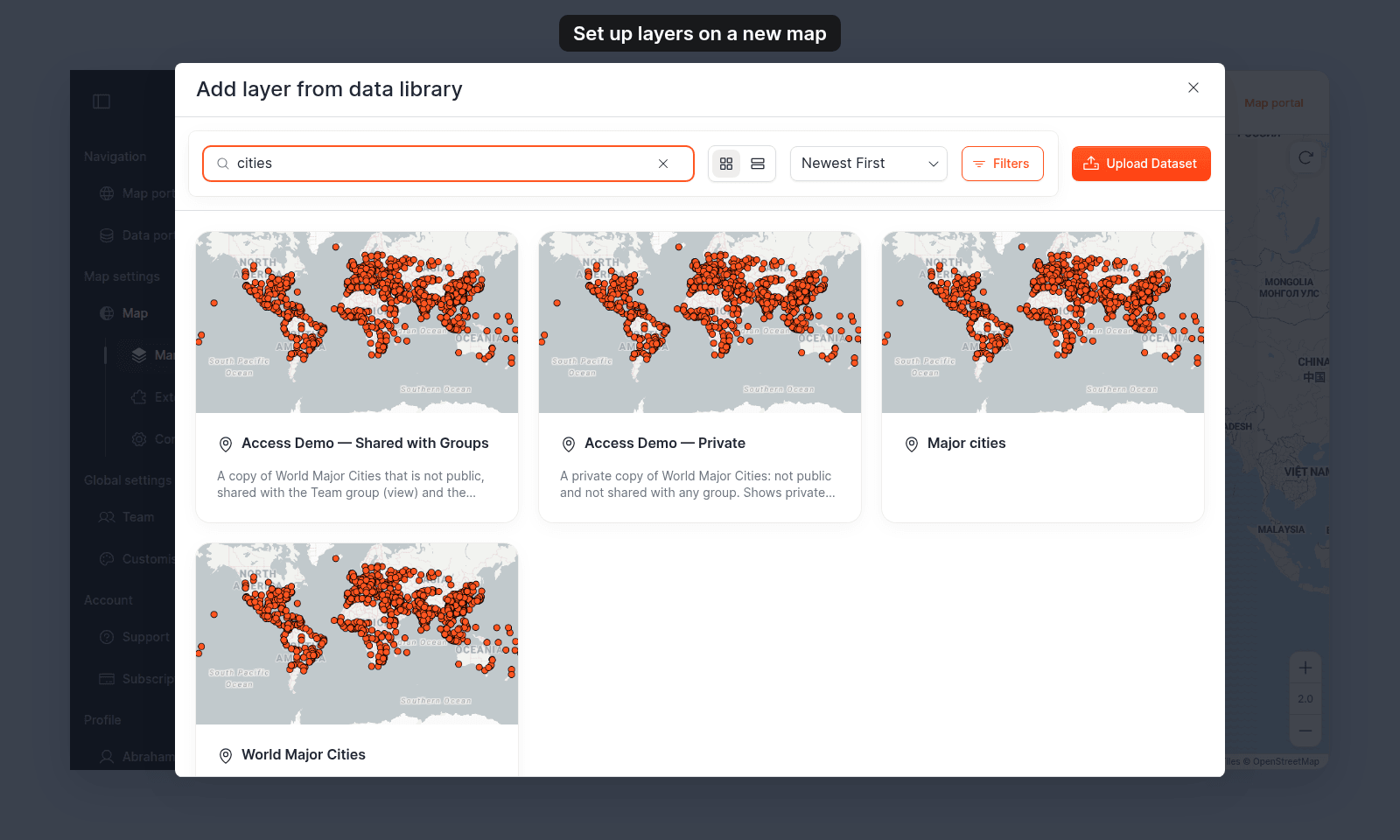
- Already in your library → click the stack-plus icon (
Add layer from data library), search for the dataset, click its card. The layer appears at the top of the list. See How to add a layer from your data library. - Not in your library yet → click the upload icon (
Import new data) to start a file import. After processing, the new dataset goes into your library and the layer is added to the map at the same time. See How to add a layer by importing data.
3. (Optional) Group related layers into folders
Skip this step for short layer lists (under five or six layers). For longer lists, folders make the panel easier to read and the legend clearer for viewers.
Click the folder-plus icon (Create new folder). A folder named New Folder appears at once; rename it with Rename Folder in its More actions (⋯) menu. Drag layers into the folder. Repeat for each grouping.
Useful patterns: by theme (Demographics, Infrastructure), by audience (For internal review, For viewers), by source (Census 2024, Field surveys).
A folder’s visibility eye toggles every layer inside at once — that’s the main reason to use folders rather than a flat list. See How to organise layers into folders.
4. Arrange the draw order
Drag layers up and down to set which draws on top of which. Layers higher in the panel draw on top of layers lower in the panel.
Common patterns:
- Points on top of lines and polygons.
- Lines on top of polygons.
- Heatmaps and clusters near the bottom (they work as backdrops, not overlays).
- Raster and WMS layers near the bottom, so they don’t cover other layers.
Labels need no ordering. Every layer’s labels draw above all layers.
Look at the map as you drag — the order updates and saves immediately. See How to reorder layers on the map.
5. Set which layers are visible by default
Toggle the eye icon on each layer’s row to set whether it shows when a viewer first opens the map. The eye saves immediately.
Two common starting points:
- Headline view: visible = the 2–3 layers that tell the map’s main purpose; hidden = everything else. Viewers can toggle hidden layers on as they explore.
- Reference tool: hidden = most layers by default; visible = none, or a single context layer. Viewers turn on what they need.
For folders, toggling the folder’s eye flips every layer inside at once. See How to set which layers show when the map first loads.
6. Pick the default basemap
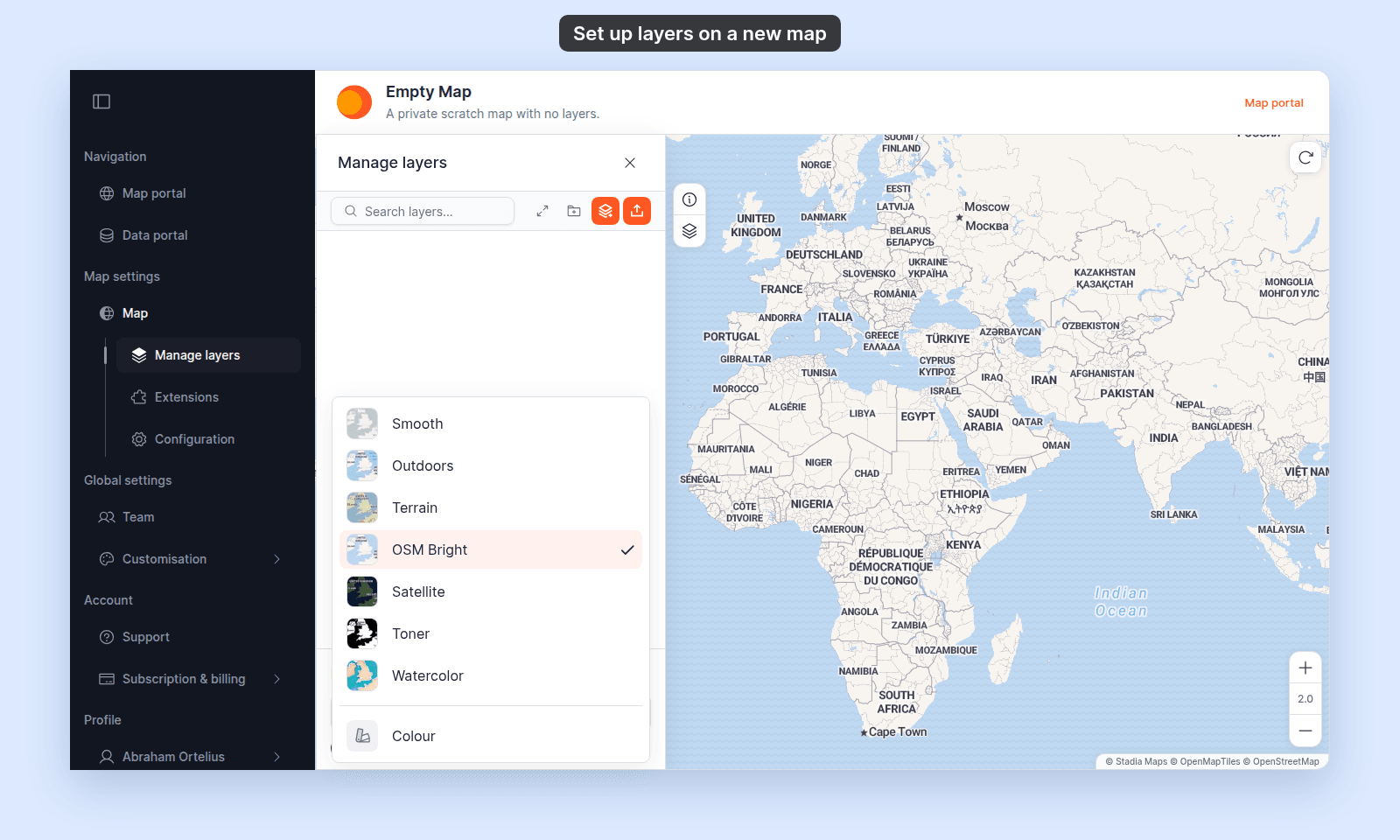
Scroll to the bottom of the layer panel. Under Default basemap, pick the basemap that fits the map’s narrative:
- A neutral basemap (such as
Smoothor theLiteToner variant) lets data layers carry the colour. Good for thematic maps. - A rich basemap (like
OSM Bright) gives viewers context — streets, place names, points of interest. Good for reference maps. - The
Satellitebasemap is right when ground-truthing matters. - A solid colour (the
Colouroption) is the cleanest backdrop when you want viewers to focus on the data.
On supported basemaps, use the Labels, Roads, POIs, and Boundaries chips to remove background content that competes with your data. See How to set the default basemap. For the full basemap list, see Available basemaps.
7. Verify the map as a viewer would see it
Open the map in a fresh tab (or sign out and view as a viewer). The defaults you set should match what loads:
- The basemap matches your
Default basemappick. - Visible layers are the ones whose eye was on in the layer panel.
- The draw order matches the panel order — top to bottom.
If something does not match, check the layer panel and adjust it.
If a layer doesn’t appear on the map
- Eye is off in the panel → toggle it on.
- Style is hiding the features → open the layer’s
Styletab and check the configuration. - Map is panned away from the data → click the layer’s
Zoom to fitbutton in the map’s legend, or pan and zoom to the data. - The dataset is empty → check the underlying dataset.
If you want to change something later
Every change saves immediately. Toggle a visibility eye, drag to reorder, swap the basemap — each of those persists on the spot.
The exception is part of the layer settings panel. Style changes apply only when you click Save, and a custom popup template applies when you click Save Changes. Format and Labels changes save at once, like the layer panel.
Related
- Layer panel controls
- How the layer panel works in MangoMap
- How to add a layer from your data library
- How to add a layer by importing data
- How to organise layers into folders
- How to reorder layers on the map
- How to set which layers show when the map first loads
- How to set the default basemap
- Available basemaps