

How to set up the Legend on a map
Show viewers a legend that names every layer next to its colour swatch. It is on for new maps. Change its title or default state.
Enabled by default
The Legend is already on for new maps. It lets viewers decode your colour-coded map by naming every layer next to its colour swatch — so the green polygons on your risk map read as High risk instead of decorative colour. Open its settings from the map’s Extensions page to change the title or default state; click Remove to turn it off and Add to turn it back on. The Legend reads each layer’s style as-is, so renaming swatches, hiding break ranges, and reordering entries happen at the layer level, not in this tool.
See it on an example map
Open the World Atlas. The legend opens when the map loads. It lists each layer and folder, and shows the colour swatches next to the layer names.
Before you start
- You need edit access to the map.
- The Legend works best on maps with at least one styled layer — see Styling layers for the per-layer styling that the Legend describes.
- Decide whether the Legend should be
ExpandedorCollapsedon first load. Use Expanded for short lists and Collapsed for long lists.
Open the Extensions page
From the map’s admin sidebar, click Extensions. You land on the card grid; on new maps the Legend card is already active and shows Settings, Remove, and an Open on load chip.
Configure the Legend
Click Settings on the Legend card. If the card shows Add instead, click it to turn the Legend back on and open the settings page.
Configure the title and default state
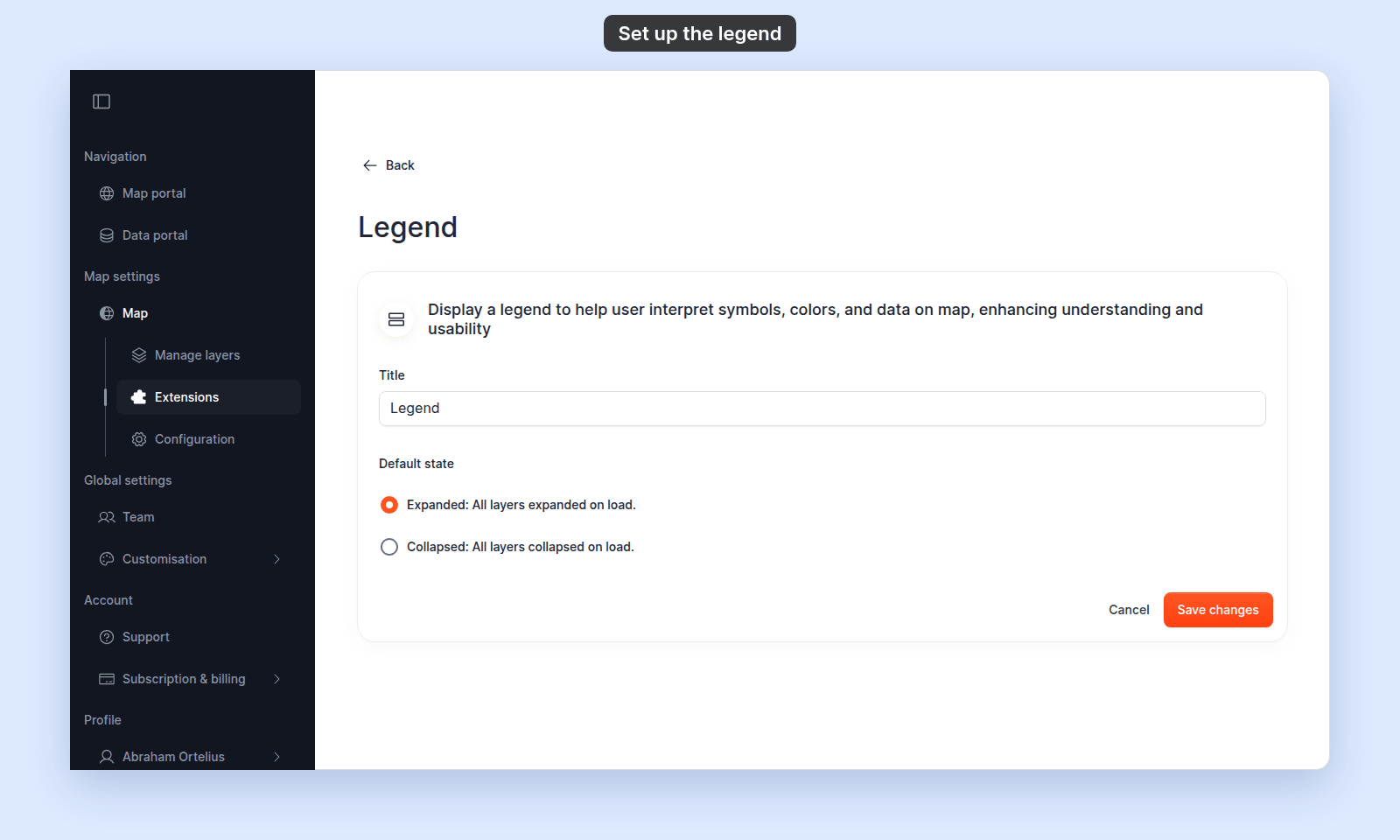
The settings page has two fields:
Title— the heading shown above the Legend panel. Defaults toLegend. Use a custom name if your map has a domain-specific term (“Map key”, “Symbology”, “Risk zones”).Default state— radio with two choices:Expanded: All layers expanded on load.— every layer’s swatches and labels are visible when the Legend first opens.Collapsed: All layers collapsed on load.— only layer names are visible; viewers click each one to expand.
Save
Click Save changes at the bottom of the page. The page returns to the map view.
(Optional) Set the Legend to open on load
Back on the Extensions page, the Legend card already shows a filled Opens on load chip on new maps. Click the chip to clear it if you want a different panel to open first. If you turn the Legend off and back on later, click the chip again to restore the default-open behavior.
Turning the Legend off or back on
Click Remove on the Legend card to turn the tool off. If you want it back later, click Add; the Legend settings page opens again so you can set the title and default state.
Verify the result
Open the map in a viewer-state session (a new tab or incognito window). The Legend should appear:
- As a clickable panel in the map toolbar.
- Open automatically if you set
Open on load. - With the title you configured.
- With layers shown in the default state you picked.
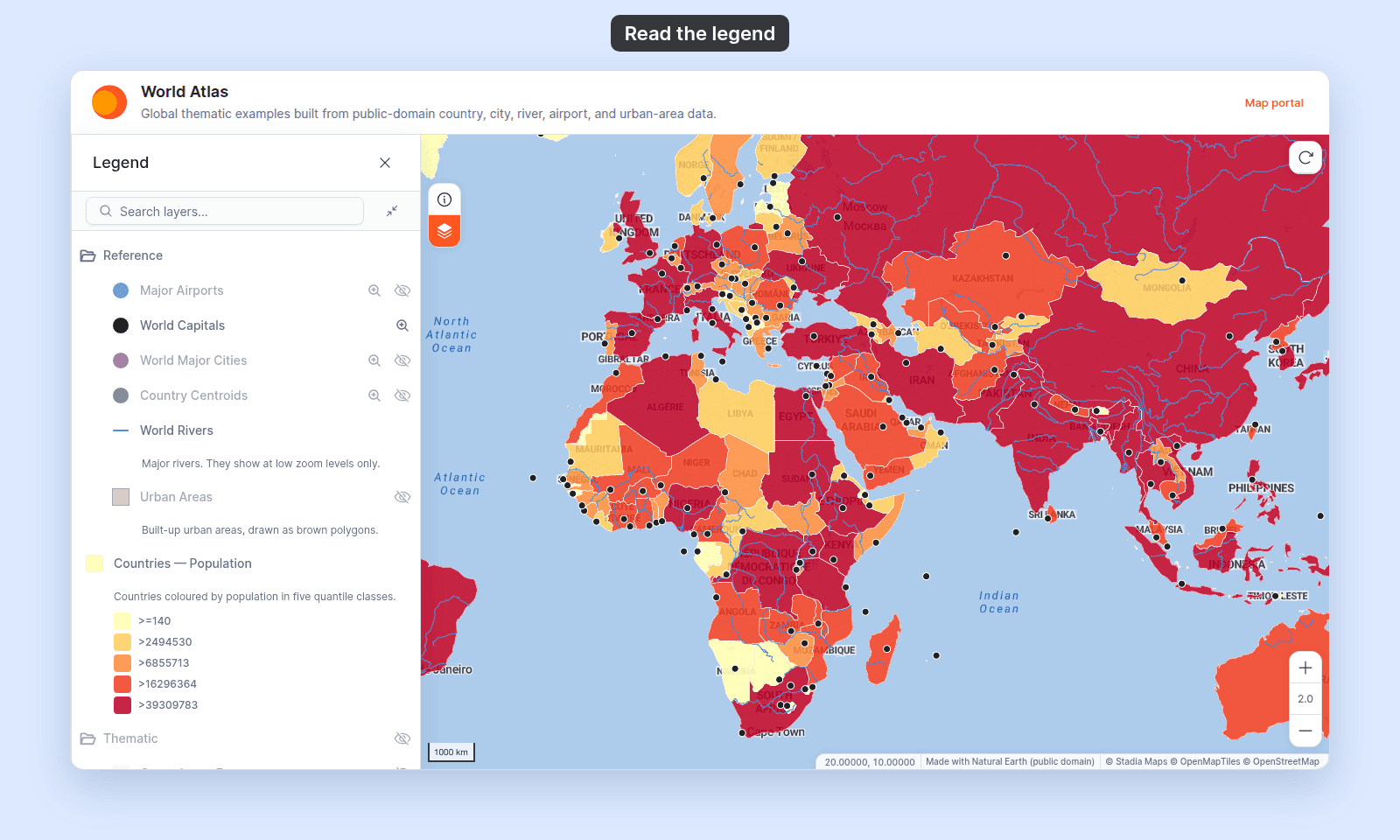
Click a layer’s eye icon inside the Legend to toggle that layer’s visibility for the current session — the change doesn’t save, since viewers only have per-session control. (For the persistent toggle, see How the layer panel works in MangoMap.)
What this doesn’t cover
- Hiding individual layers from the Legend permanently — see How to hide a layer from the legend. The Legend tool here renders every layer the map has; the layer panel decides which layers appear.
- Renaming a single layer or its style swatches inside the Legend — the layer’s name is its name on the map; rename it via the layer panel.
- Reordering Legend entries — the order follows the layer panel’s draw order. Reorder layers there to reorder the Legend; see How to reorder layers on the map.
- Customising per-break legend entries (colours, labels, ranges for a Category or Quantity layer) — that’s per-layer; see How to customise category and class break symbology.