

How to enable Mouse position on a map
Add Mouse position to a map so viewers see latitude and longitude as the cursor moves and can copy the coordinates. It has no settings.
Mouse position shows latitude and longitude as the cursor moves. Viewers can copy the coordinates into another system. Add it from the map’s Extensions page. It uses decimal degrees and does not show DMS, UTM, or elevation.
See it on an example map
Open the Interlaken Raster Lab. Move the cursor over the map. The latitude and longitude of the cursor show at the bottom right of the map.
Before you start
- You need edit access to the map.
- Mouse position has no settings — there’s nothing to configure.
Open the Extensions page
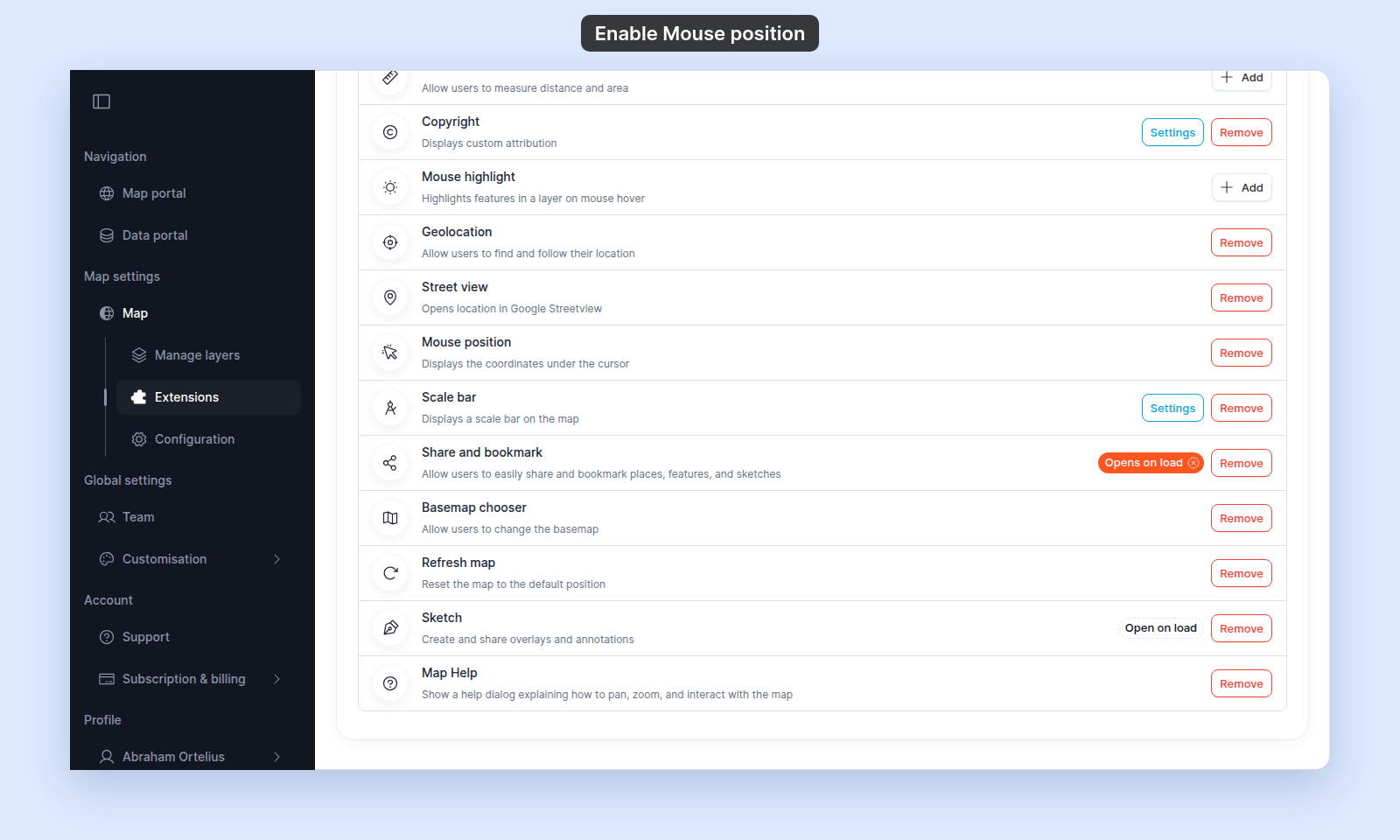
From the map’s admin sidebar, click Extensions. The Mouse position card is above Scale bar.
Enable Mouse position
Click the Add button on the Mouse position card. The card now shows a Remove button (no Settings button — there are no settings).
Verify the result
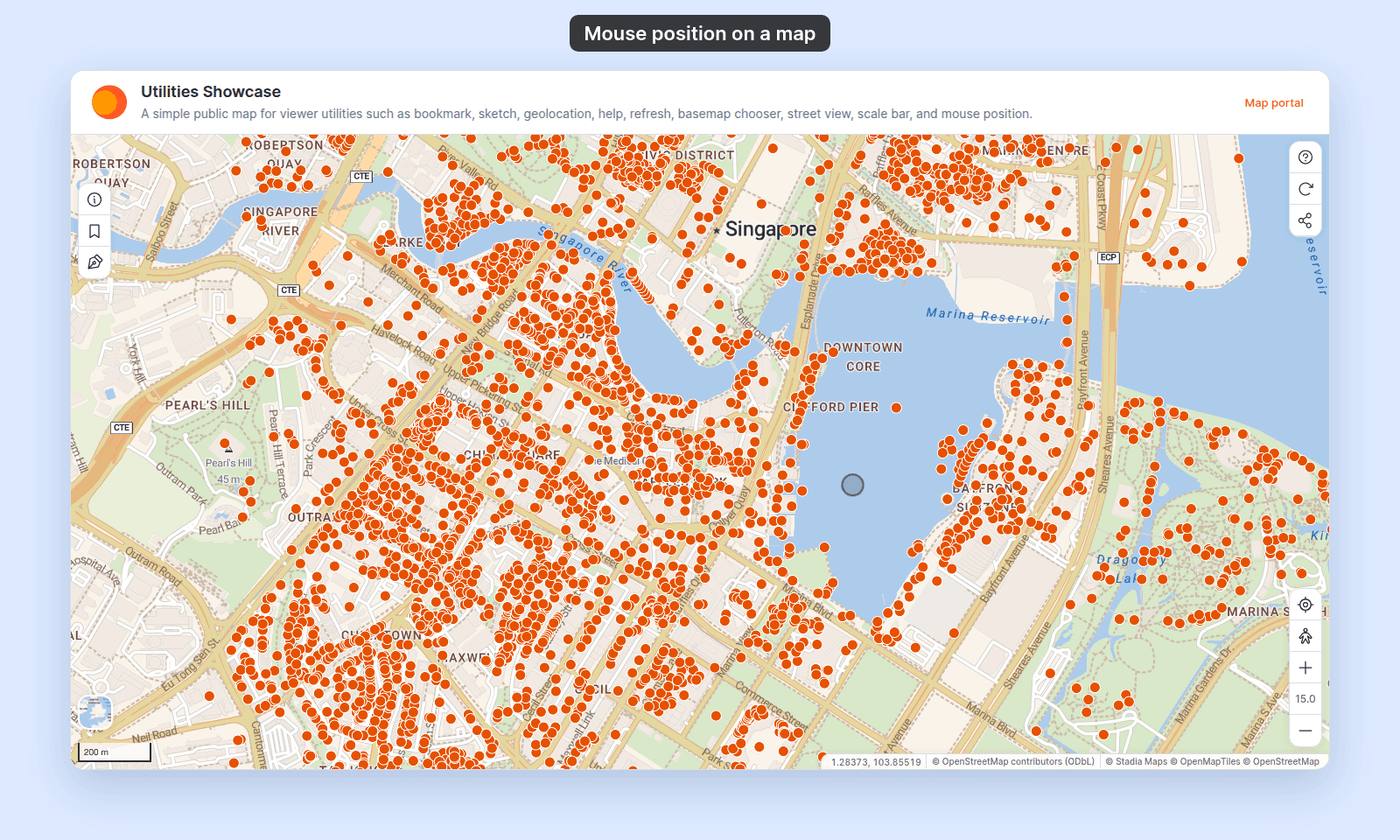
Open the map in a viewer-state session (a new tab or incognito window). Move the cursor over the map. The latitude and longitude under the cursor show at the bottom right of the map, before the map’s credits.
Removing Mouse position
To turn it off, click Remove on the Mouse position card. The readout disappears from the map for viewers.
What this doesn’t cover
- Choosing a coordinate format (DMS, UTM, etc.) — the readout uses decimal degrees; there’s no in-app picker for alternative formats.
- Displaying elevation — Mouse position shows lat / lon only; no elevation readout.
- Coordinate search — for viewers to jump to a coordinate they type in, enable Coordinate search inside the Search tool; see
/docs/map-extensions/set-up-search. Mouse position is read-out, not search.