

How to set up Proximity Analysis on a map
Let viewers find features within a set distance of a reference layer, and see the matches on the map, in a results table, and in a report.
Proximity Analysis lets viewers find features within a set distance. They pick a layer to search, a relationship and distance, and a reference layer, then see the matching features on the map, in a results table, and in a report. Add it from the map’s Extensions page. It supports vector layers and one layer per configuration. A single tool can hold many configurations in one panel.
See it on an example map
Open the Proximity Analysis Lab. The Nearby buildings panel is open when the map loads. Set Find features in to Buildings, That are to closer than, and Features in to Buildings. Choose Feature Selection, click a building, and click Search. The map highlights the buildings near it, and the panel shows a report and a results table.
Before you start
- You need edit access to the map.
- The map needs at least one vector layer per dataset configuration. Raster and WMS layers can’t be searched.
- Choose the layers viewers can search. Each layer has a separate configuration, and viewers can choose one at a time.
- For each configuration, decide the measurement unit default —
Meters,Kilometers,Feet, orMiles. It’s required; you can’t save a configuration without picking one. - For each configuration, decide whether you need a report. Reports are rich-text outputs that can include variable placeholders (drawn from the result set) and aggregate functions (sum, count, average, min, max, median). For just a list of matches, leave the report off.
Open the Extensions page
From the map’s admin sidebar, click Extensions. The Proximity Analysis card is in the row below Query.
Enable Proximity Analysis
Click the Add button on the Proximity Analysis card. The page routes to the Proximity Analysis settings page.
Configure the tool name, description, and highlight colour
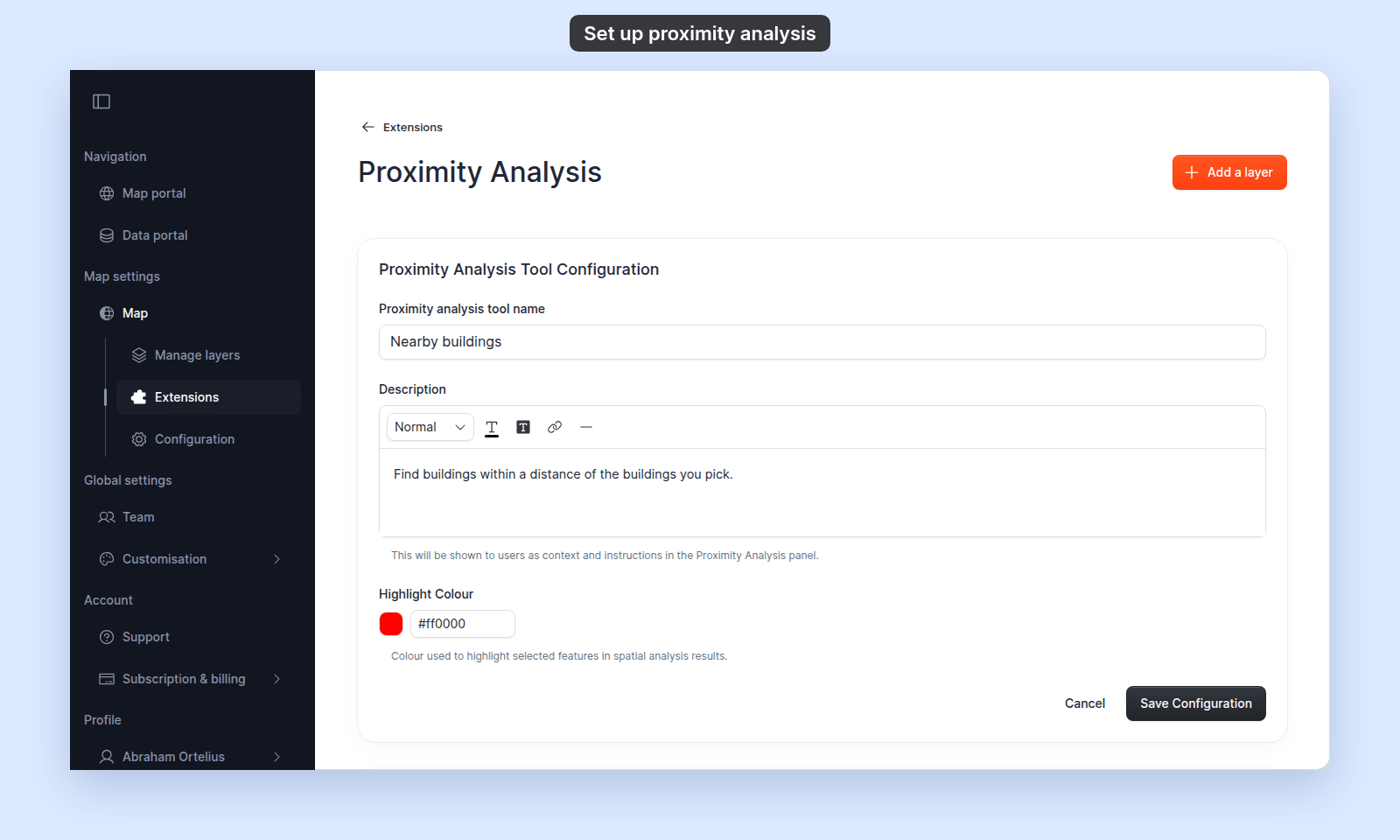
The first card on the page is Proximity Analysis Tool Configuration. Three fields:
Proximity analysis tool name— required. Defaults toProximity Analysis. Change it to something map-specific (“Nearby assets”, “Buffer search”) so viewers know what the panel does quickly.Description— optional rich-text shown at the top of the Proximity panel.Highlight Colour— the colour MangoMap uses to highlight matching features on the map after a proximity search runs. Defaults to red. Helper text:Colour used to highlight selected features in spatial analysis results.
Click Save Configuration at the bottom of this card to save tool-level changes.
Add a dataset configuration
Add at least one dataset before viewers can use the tool. Click Add a layer in the page header (top-right). A modal opens listing the map’s vector datasets. Click the dataset you want this configuration to use.
The page opens the per-layer form, Add a proximity query.
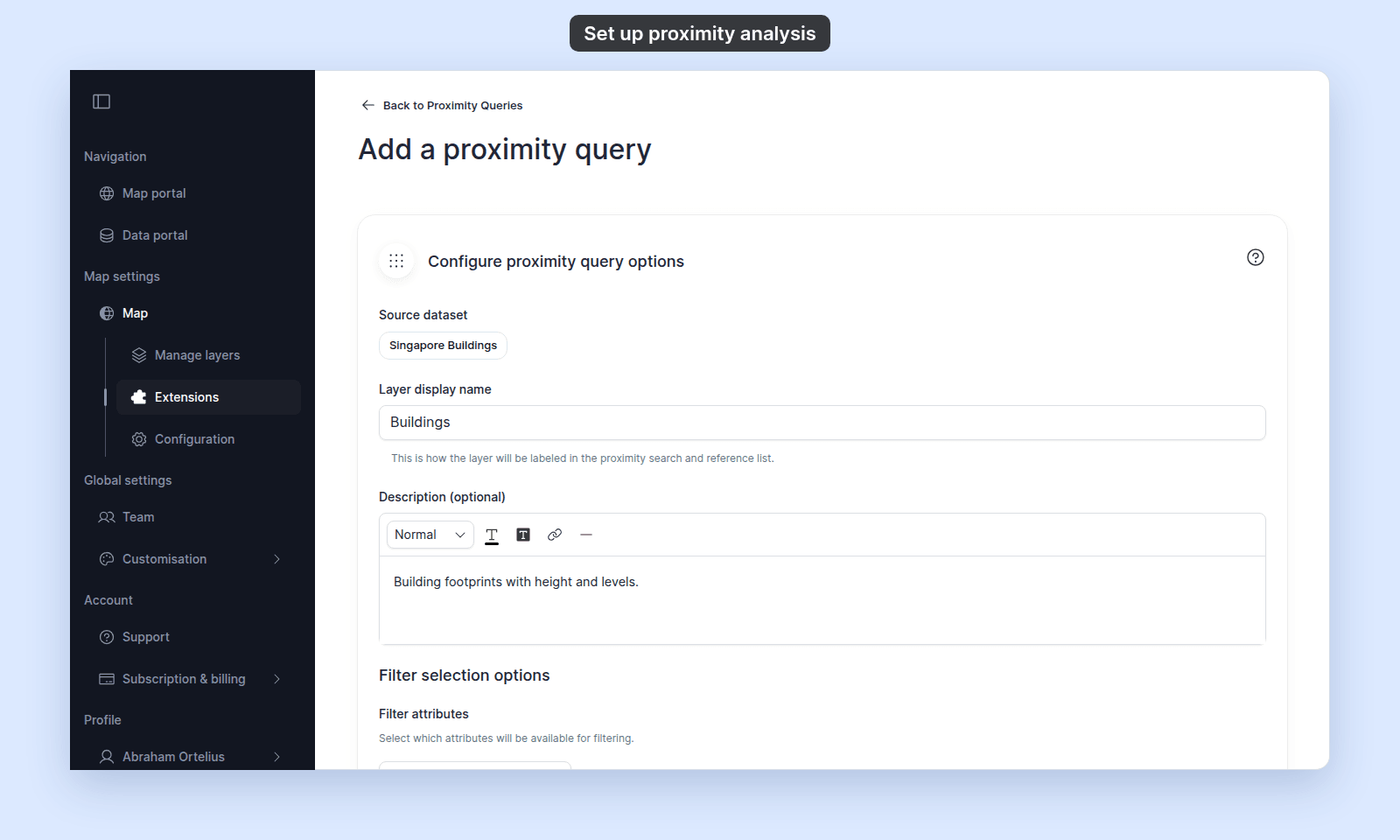
Configure:
Source dataset— the dataset you picked. You can’t change it; to use another dataset, delete the configuration and add a new one.Layer display name— the name viewers see for this layer in the Proximity panel’s layer lists. Defaults to the dataset’s layer name.Description (optional)— rich text shown in the Proximity panel.Filter attributes— pick the attribute fields viewers can also filter on.Spatial selection tools— tick the tools viewers can use underWithin areawhen this layer is inFind features in:Point Selection,Rectangle Selection,Circle Selection,Polygon Selection, andSelect All.Measurement units— required. Choices:Meters,Kilometers,Feet,Miles. The viewer’s panel does not use this setting yet: the distance always starts at 500 m.Results:Generate results table— theResults Tabletab always shows.Generate report— tick to add a report to the results panel. This shows theReport contenteditor and theReport preview.
Report content— rich text editor with aggregate variables (sum, count, average, min, max, median), equations, charts, and conditional content. See Report templating syntax.
Report preview— shows the text of the report, without its headings, styles, or line breaks. It does not read your data: an aggregate variable such as{gid:count}shows as you typed it. An equation shows a message such asNo sample value for gid:count.Results export— same checkboxes as Query:CSV(withInclude coordinates),Shapefile,KML. The viewer’sDownload resultsmenu offers all three formats whatever you tick.
When you finish the configuration, click Save Changes at the bottom of the form. Validation requires the measurement unit (Measurement unit is required).
The page returns to the main Proximity Analysis settings, and the new dataset configuration appears in the list.
Edit, reorder, or delete a dataset configuration
The configured-datasets list shows each configuration as a card with controls:
- Drag handle — drag to reorder. The order is the order viewers see in the Proximity panel’s layer lists.
- Edit (pencil) — opens the per-layer form with current values. Save Changes to apply.
- Delete (trash) — removes the configuration after a confirmation dialog.
The empty state shows the heading No proximity queries configured with the prompt Add proximity queries to enable spatial analysis between layers.
(Optional) Set Proximity Analysis to open on load
Back on the Extensions page, the Proximity Analysis card now shows Settings, Remove, and an Open on load chip. Click it to make Proximity Analysis the panel that opens automatically. Only one tool can be Open on load at a time.
For maps where proximity is the main task, Open on load takes viewers straight to the tool.
Verify the result
Open the map in a viewer-state session. The Proximity Analysis tool button should appear in the toolbar — or the panel should be open if you set Open on load. To run an analysis, a viewer picks the layer to search in Find features in, a relationship (for example closer than) with a distance and unit in That are, the reference layer in Features in, and a selection tool in Within area, then clicks Search. Search stays off until a selection tool is picked.
For now, pick the same layer in Find features in and Features in. With two different layers, the panel shows Analysis Failed with Properties query failed: Unauthorized.
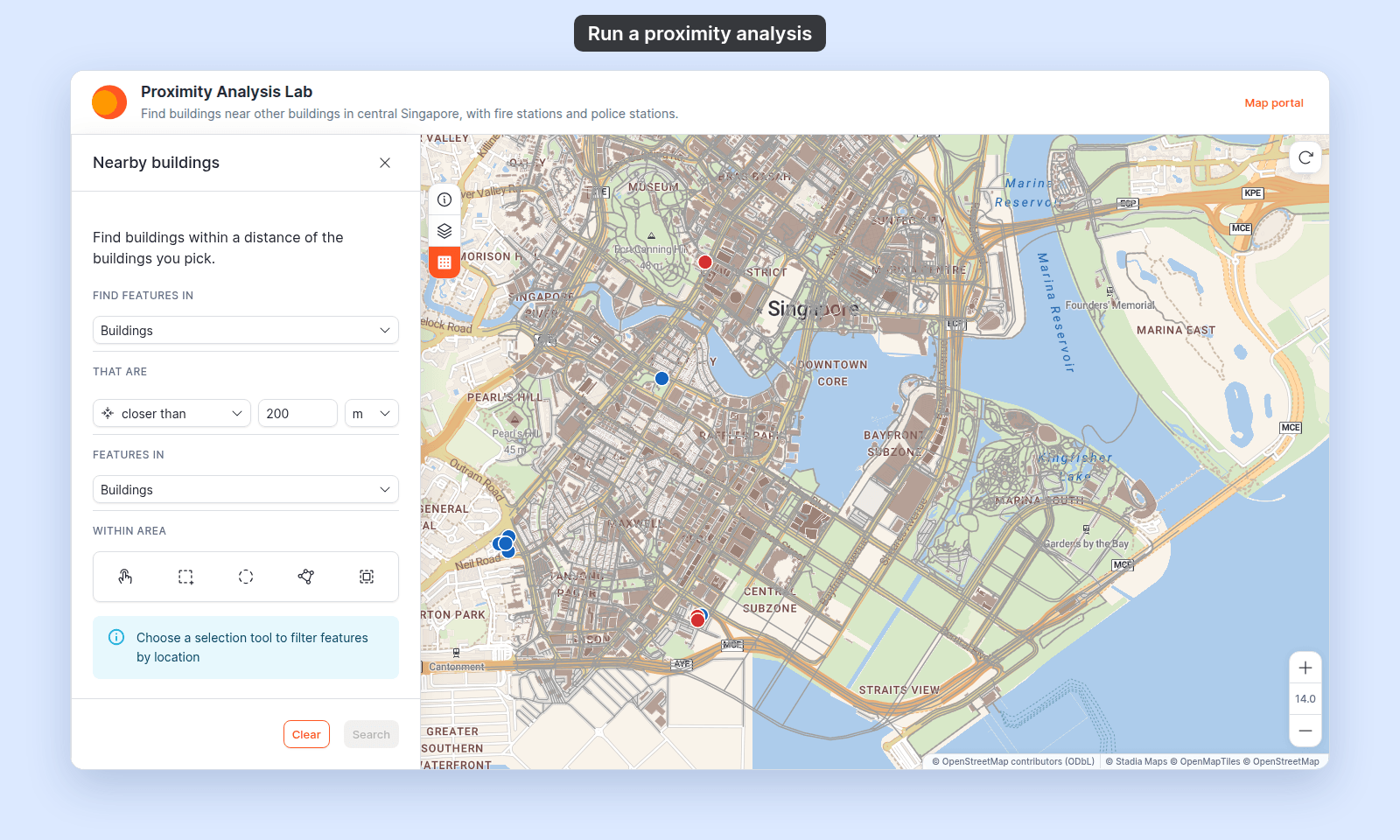
With Feature Selection, the viewer clicks a feature of the Features in layer on the map. After Search, the panel shows Query Results: the tool name, the number of results, and the run time, then the Report and Results Table tabs. The map zooms to the results and highlights them in your colour.
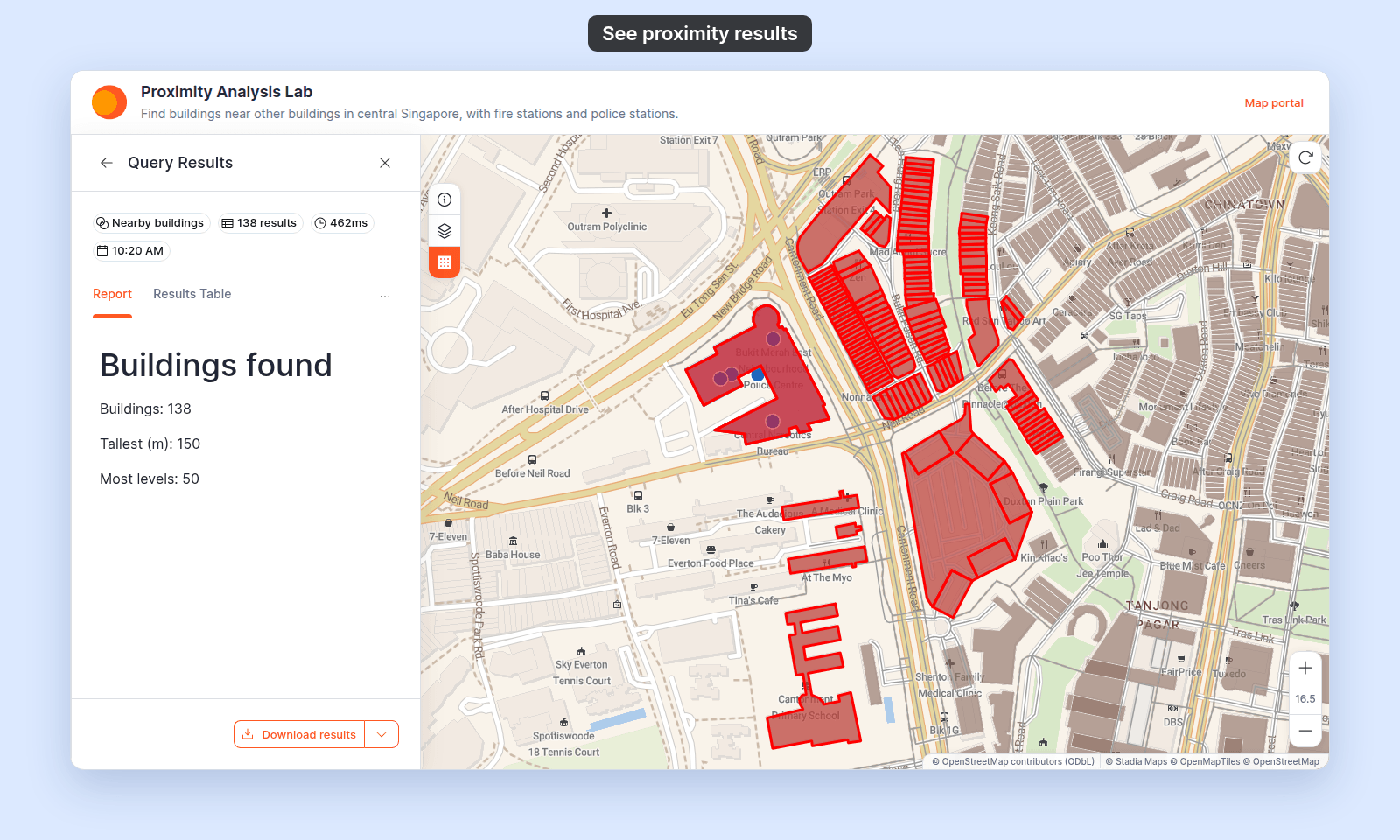
Confirm:
- The tool name and description match what you configured.
- The layer lists show every configured layer, in the order you set, with the display names you chose.
- Each spatial selection tool you ticked is available under
Within area. - Running a search highlights matching features on the map in your configured colour.
- The
Reporttab appears whenGenerate reportis on.
If a spatial tool is missing, return to the per-layer form and confirm it’s ticked. If the report shows its {field:function} placeholders instead of values, check each field name against the dataset; the Report preview does not catch a wrong field name.
What this doesn’t cover
- Attribute-only filtering on a single layer — use Advanced Search (
/docs/map-extensions/set-up-advanced-search). No spatial dimension. - Spatial selection inside a drawn area — use the Query tool (
/docs/map-extensions/set-up-the-query-tool). The difference: Query finds features inside a drawn area; Proximity Analysis finds features near a reference, with a distance dial. - Multi-layer proximity (find features in two different layers from one reference) — not supported directly. Set up two proximity configurations (one per layer) and have viewers run each separately.
- Per-feature popups — Proximity opens the layer’s popup on click. Configure popups in Configuring popups.
- The report templating syntax — aggregate variables, equations, and operators are documented in Report templating syntax, shared with Query reports.