

How to enable Geolocation on a map
Add Geolocation to a map so viewers can show their device location. A tap places a marker and zooms to it. It has no settings.
Geolocation shows viewers their device location on the map. A tap places a marker and zooms to it. Add it from the map’s Extensions page. Accuracy depends on the device. Phones with GPS can locate within metres; desktops may use Wi-Fi and be less precise.
Before you start
- You need edit access to the map.
- Geolocation has no settings — there’s nothing to configure.
- Viewers are asked once for permission; if they decline, the button stops working for that browser until they reset the permission. Decisions are per-browser, not per-map.
Open the Extensions page
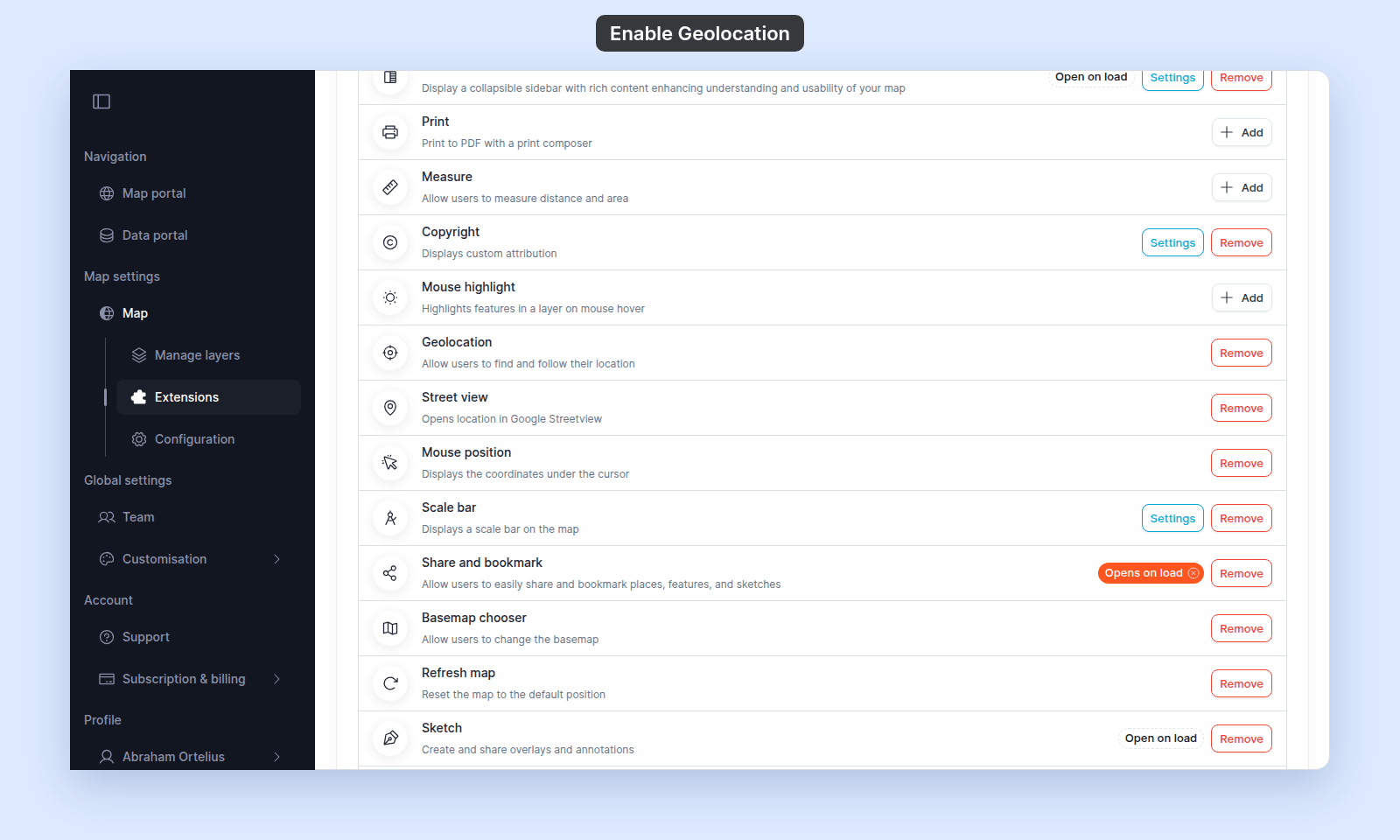
From the map’s admin sidebar, click Extensions. The Geolocation card is below Mouse highlight.
Enable Geolocation
Click the Add button on the Geolocation card. The card now shows a Remove button.
Verify the result
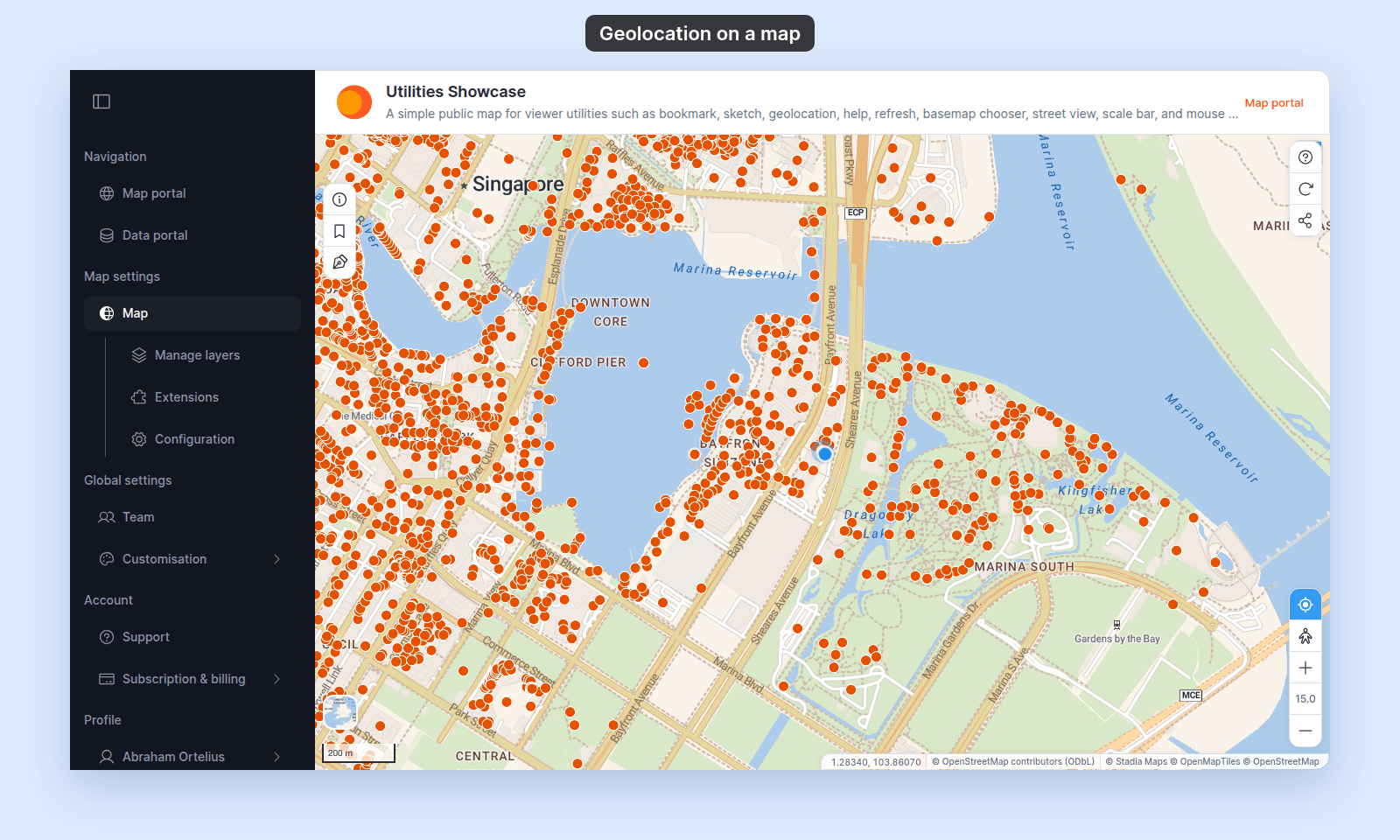
Open the map while you are signed in to your account, and click the My Location button above the zoom buttons:
- The browser asks for location permission (first time only).
- Allow → the map moves to your device’s current location and shows a blue dot there.
- The button stays highlighted while the map follows your location. Click it again to stop.
At the moment, the button works only for people signed in to your account. A visitor who is not signed in sees the message Location control is unavailable.
If clicking the button does nothing, check the browser’s location permission setting for the site. Many browsers also block geolocation in private / incognito windows.
Removing Geolocation
To turn it off, click Remove on the Geolocation card. The button is removed from the map for viewers.
What this doesn’t cover
- Tracking (live-following a viewer’s location as they move) — basic continuous-tracking is available once the viewer activates the button; there’s no separate “tracking only” mode.
- Showing other viewers’ locations — Geolocation is per-viewer for their own browser. There’s no live multi-viewer location sharing.
- Coordinate readout — Geolocation zooms to the location but doesn’t display the coordinates. For a continuous coordinate readout, also enable Mouse position.
- Privacy — viewers’ locations are not sent to MangoMap; viewers’ locations are not sent to MangoMap.