

How to set up the Measure tool on a map
Let viewers draw a line to read its length or a polygon to read its area. Choose Metric or Imperial units for the map.
Enabled by default
The Measure tool is on for new maps. Viewers can draw a line to read its length or draw a polygon to read its area. They can measure without leaving the map or exporting data. Open its settings from the map’s Extensions page to pick Metric or Imperial.
See it on an example map
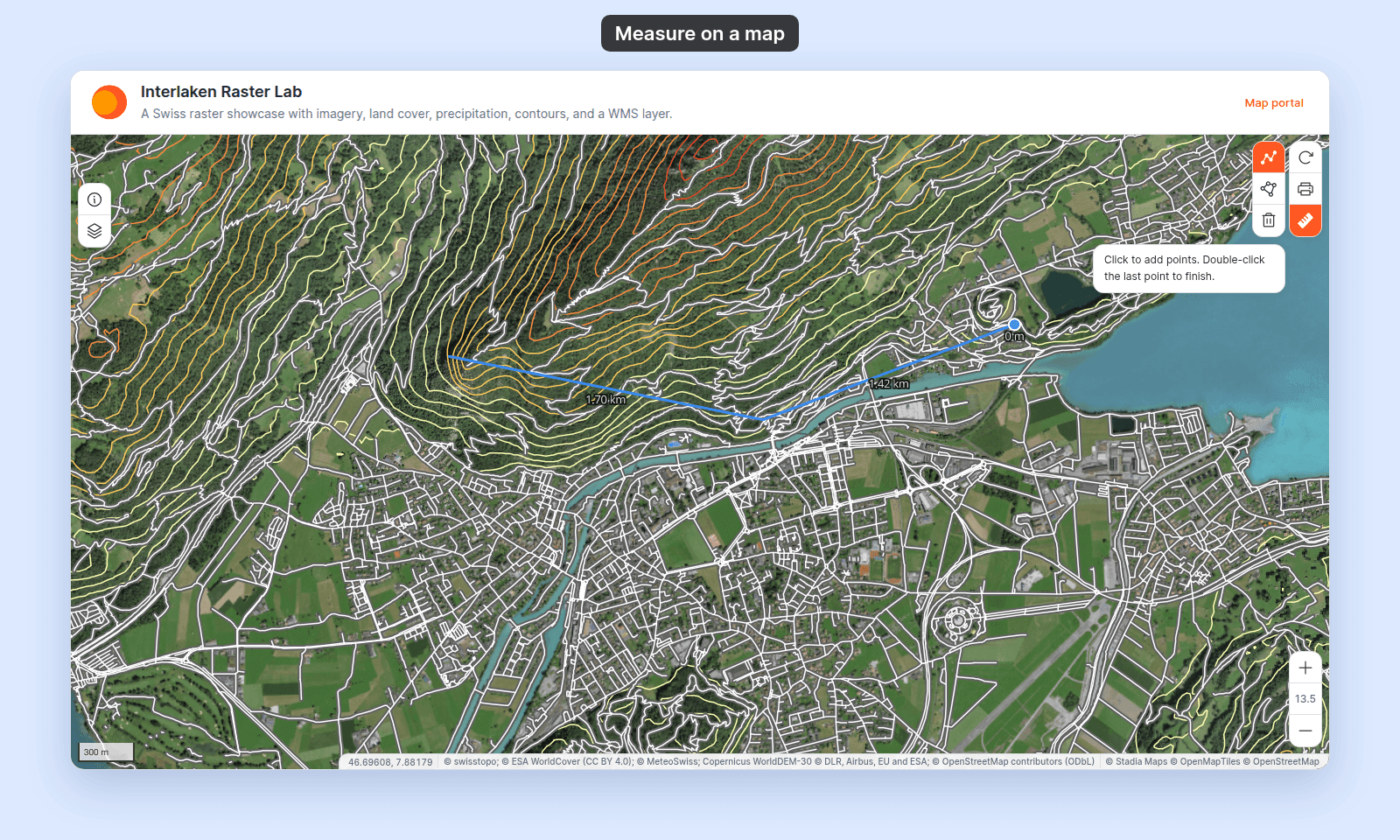
Open the Interlaken Raster Lab. Click Measure in the toolbar. Click Measure distance or Measure area, then click points on the map. The tool shows the length or the area.
Before you start
- You need edit access to the map.
- Decide which units fit your audience:
- Metric — metres / kilometres for distance, square metres / hectares / square kilometres for area. Default for most regions.
- Imperial — feet / miles for distance, acres / square miles for area. Use for US audiences and engineering applications that work in imperial.
- The Measure tool doesn’t have a “user can choose” option; the unit set is fixed for the map. If you need both, you’ll need to pick the one that matches the primary audience.
Open the Extensions page
From the map’s admin sidebar, click Extensions. The Measure card is in the row below Print, below the data-discovery tools, and on new maps it already shows Settings and Remove.
Configure Measure
Click Settings on the Measure card. If the card shows Add instead, click it to turn Measure back on and open the settings page.
Pick units
The settings page has one control — a radio with two options:
Metric— length in metres / kilometres, area in square metres / hectares / square kilometres.Imperial— length in feet / miles, area in acres / square miles.
The unit displayed on a given measurement scales with the size of what you draw — small distances show in metres / feet; long distances scale up automatically.
Save
Click Save changes at the bottom of the page. The page returns to the map view.
If you try to leave the page with unsaved changes, the Unsaved changes dialog opens:
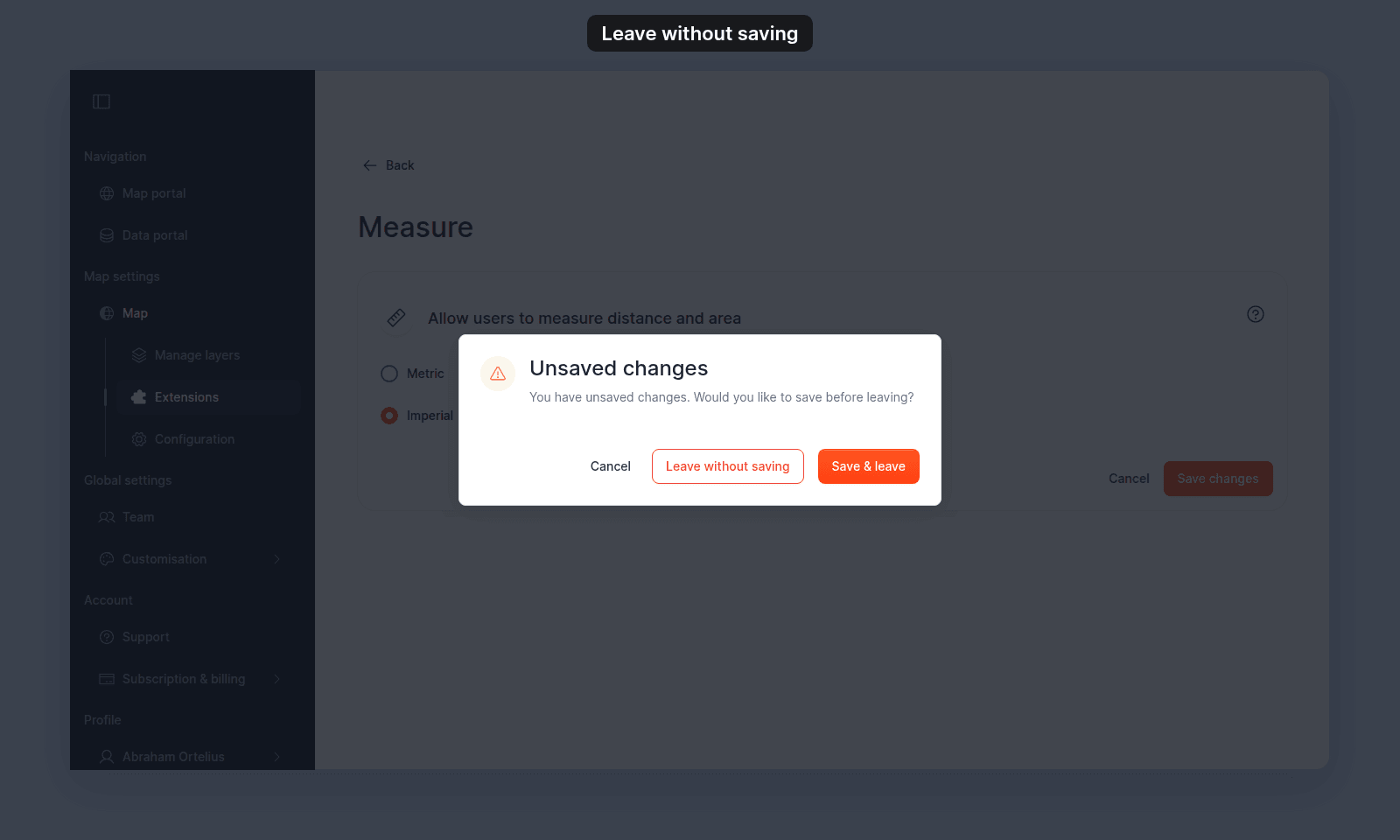
Save & leavesaves your change and leaves the page.Cancelkeeps you on the settings page.Leave without savingdiscards the change and leaves the page.
Turning the Measure tool off or back on
Click Remove on the Measure card to turn the tool off. If you want it back, click Add and choose Metric or Imperial again.
Verify the result
Open the map in a viewer-state session (a new tab or incognito window). The Measure button appears in the toolbar. Click it to show the Measure controls:
- Click
Measure distanceto measure a line, orMeasure areato measure a polygon. - Click points on the map to build the shape. While you draw, a hint below the controls tells you how to finish.
- To finish a line, double-click the last point. To finish a polygon, click the first point, or double-click the last point.
- Read the labels on the map. Each segment shows its length, a line shows
Total:and its length at the last point, and a polygon shows its area in the middle. The values use the units you configured. - Click
Clearto remove the measurement.
If the units displayed are wrong, return to the Measure settings page and confirm the radio matches what you expect. Save again if needed.
What this doesn’t cover
- The Scale bar (a fixed scale indicator at the corner of the map) — separate tool; see Scale bar. The Scale bar shows scale regardless of whether the viewer measures; Measure is the interactive ruler.
- Saving measurements with the map — there’s no save / export from the Measure tool. Measurements are one-session. For persistent annotations, use Sketch.
- Measuring on raster or WMS layers — It applies to whatever’s visible.