

How to set the Copyright text on a map
Add one line of attribution to the bottom of a map to credit imported data, a licence, or a citation. The text is plain only.
Copyright adds one line of attribution at the bottom of the map. Use it to credit imported data, a licence, or a required citation. MangoMap credits the basemap automatically, so do not add that credit here. Use this tool for your own imported data. Add it from the map’s Extensions page and type the attribution text; the text is plain only with no bold, italic, or links — for an attribution with clickable links, use the Information sidebar instead.
See it on an example map
Open the Utilities Showcase. Look at the bottom right of the map. The line of data credit text there is the copyright text. It shows before the basemap credits.
Before you start
- You need edit access to the map.
- Have the attribution text ready. It’s a single line of plain text. Keep it short — long attributions wrap and clutter the map.
- If you need to credit multiple sources, combine them in one line (“Data © Source A; Imagery © Source B”) rather than enabling a separate tool per source.
Open the Extensions page
From the map’s admin sidebar, click Extensions. The Copyright card is below Measure.
Enable Copyright
Click the Add button on the Copyright card. The Copyright settings page opens. Unlike Scale bar, Copyright is not active on the map until you save the settings — there’s no default attribution to fall back to.
Type the attribution text
Type in the Attribution text field. It’s a single line and required: you can’t save it empty.
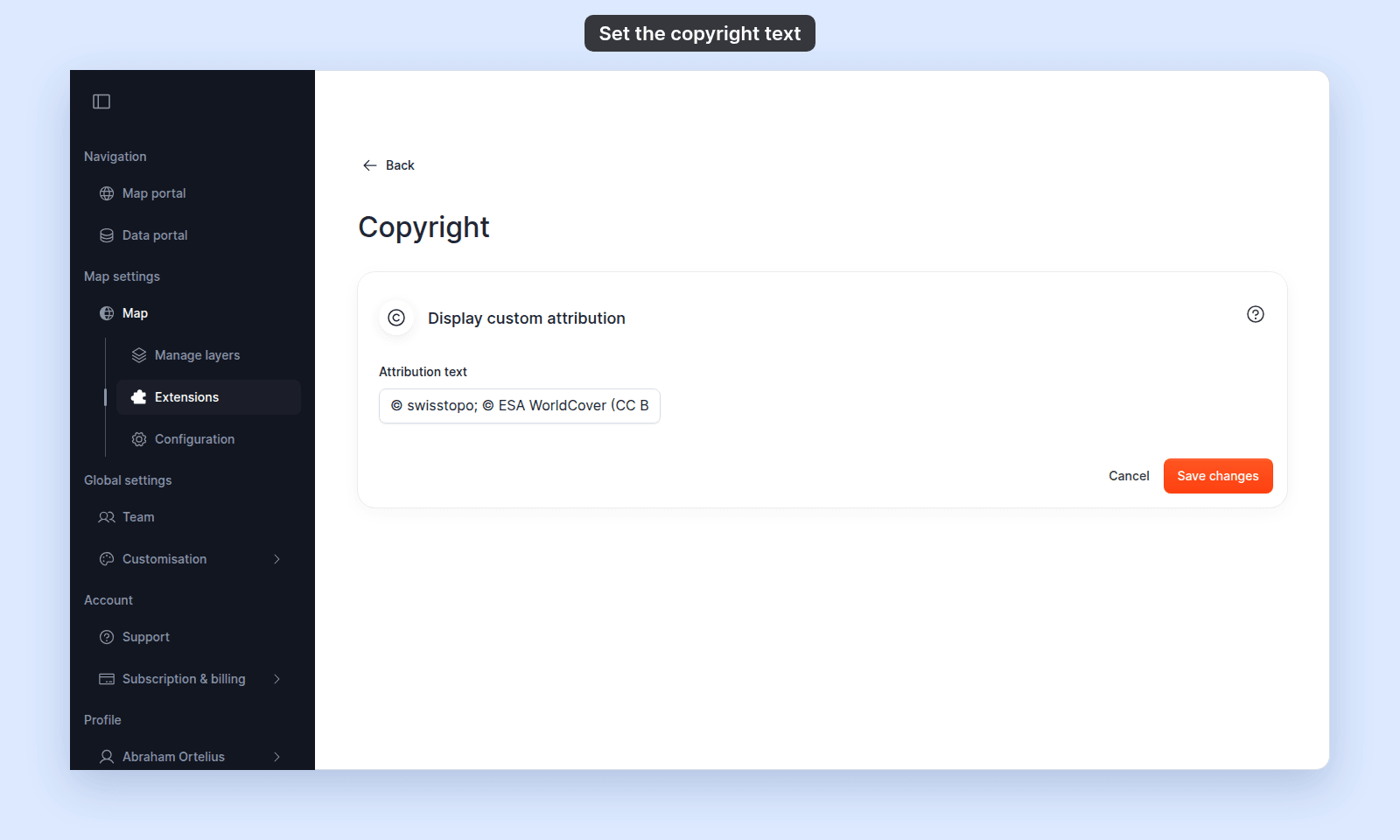
Type or paste your attribution. Common formats:
© <Year> <Owner>— for proprietary data.Data © <Source>; <Licence>— for openly licensed data with a licence notice.Source: <Provider>; Imagery: <Provider>— for combining multiple data sources.
Save
Click Save changes. Copyright is now on for the map.
Verify the result
Open the map in a viewer-state session (a new tab or incognito window). Your text shows at the bottom right of the map, before the basemap’s own credits.
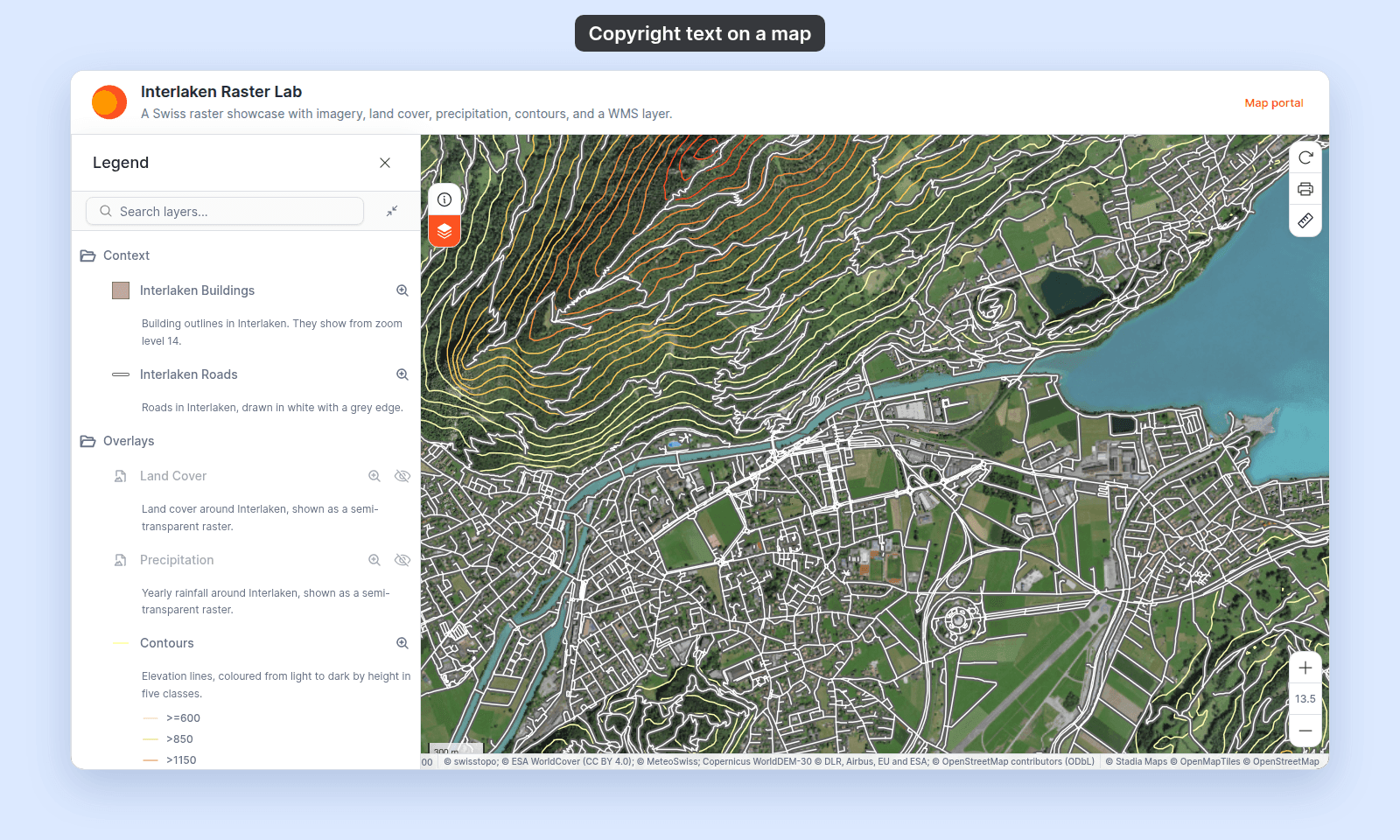
Confirm:
- The text matches what you saved.
- The text doesn’t wrap awkwardly — if it does, consider a shorter wording.
If you change the attribution later, click Settings on the Copyright card to return to the form, edit the text, and save again.
Removing Copyright
To remove the attribution from the map, click Remove on the Copyright card on the Extensions page. The text is cleared and the overlay disappears for viewers.
The text isn’t preserved on remove — re-adding the tool starts with an empty Attribution text field, so make sure you have a copy of the text if you might want to re-add it.
What this doesn’t cover
- Rich-text formatting — the attribution is plain text. There’s no bold, italic, or link support. To link to a source or licence, use the Information sidebar instead and put a rich-text “About this map” section there.
- Per-layer attribution — Copyright is map-level. There’s no per-layer attribution; a map shows one combined attribution line for everything on it.
- Account-wide attribution — for an account-wide credit footer in the portal, see Customisation.