

How to enable Map Help on a map
Turn Map Help on or off for a map. It shows viewers basic pan, zoom, and click instructions behind a question mark button.
Enabled by default
Map Help is on for new maps. It gives viewers basic pan, zoom, and click instructions behind a ? button. Open it from the map’s Extensions page to change whether it’s available; the dialog content is fixed, so for map-specific instructions use the Information sidebar instead.
See it on an example map
Open the Utilities Showcase. Click the Map help button (?) at the top right of the map. The dialog lists the mouse, touch, and keyboard controls.
Before you start
- You need edit access to the map.
- Map Help has no settings. The content of the dialog is built-in and not editable.
Open the Extensions page
From the map’s admin sidebar, click Extensions. The Map Help card is at the bottom of the list and, on new maps, already shows Remove.
Map Help is on by default
If the card shows Add, click it to turn Map Help back on. On a new map, the card already shows Remove; click Remove to turn it off.
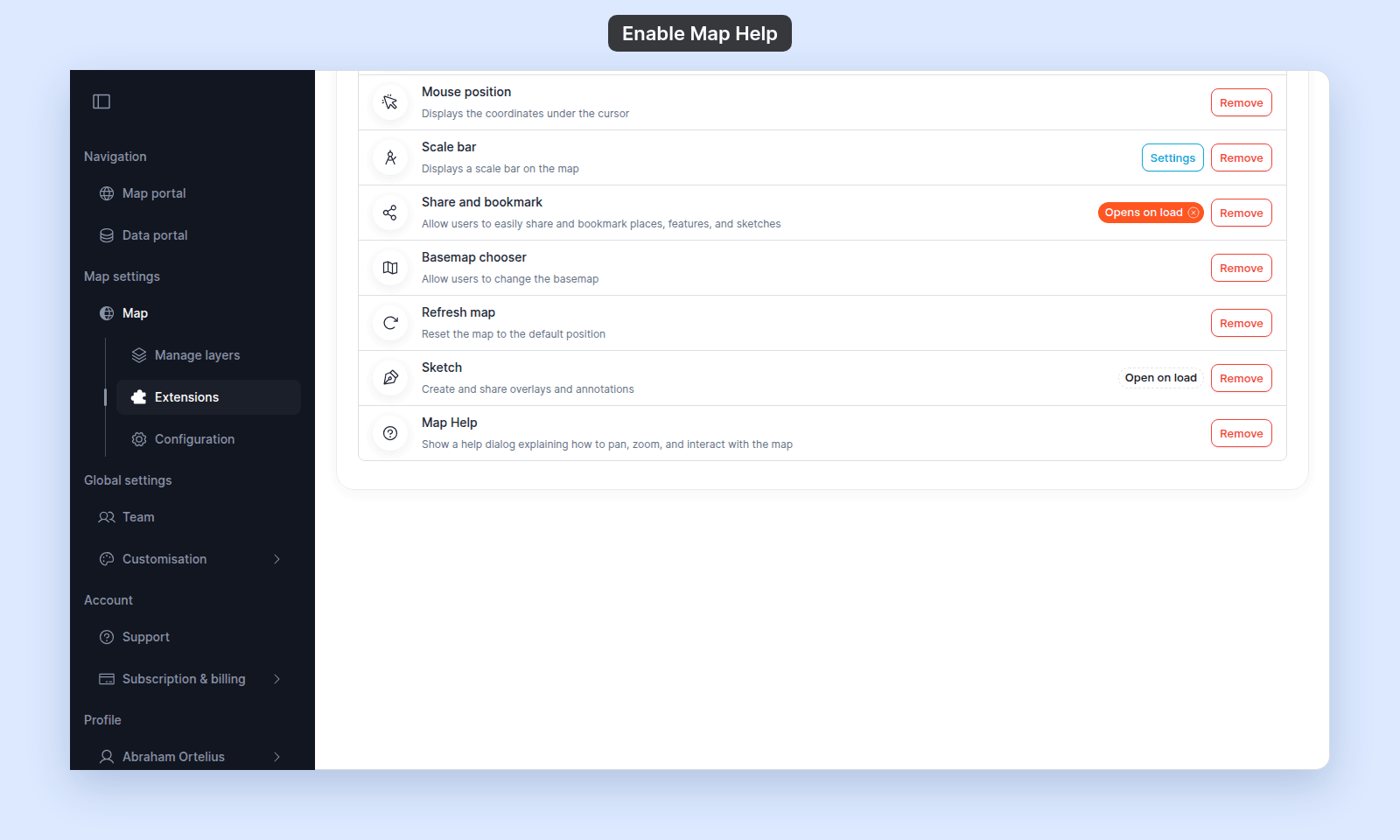
Verify the result
Open the map in a viewer-state session (a new tab or incognito window). Click the Map help button (?) at the top right of the map. The dialog lists the mouse, touch, and keyboard controls for the map.
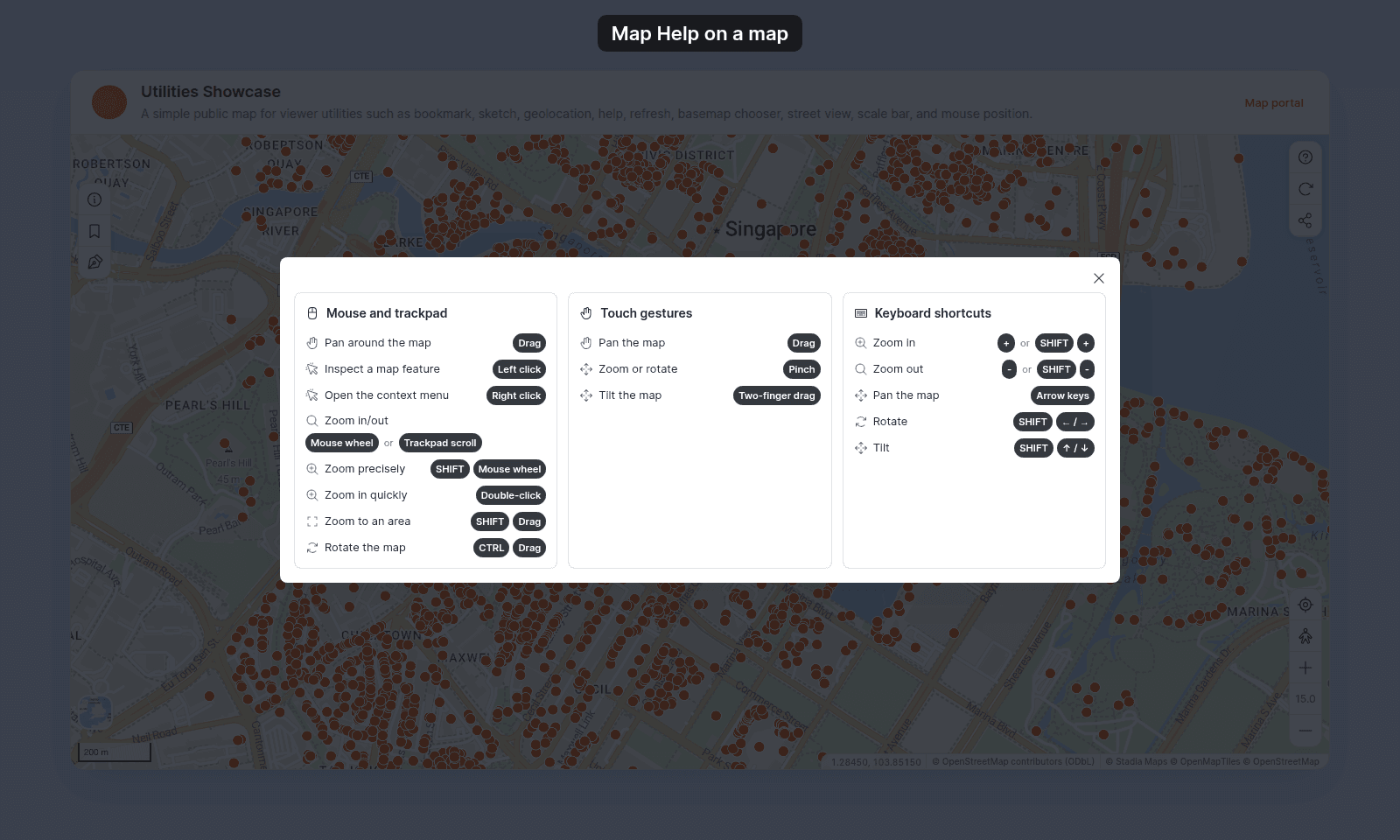
Turning Map Help off or back on
To turn it off, click Remove on the Map Help card. To turn it back on, click Add on the card. The button is removed for viewers while it is off.
What this doesn’t cover
- Custom help content — Map Help shows a fixed built-in dialog; the text isn’t editable. For map-specific instructions, use the Information sidebar.
- Walkthrough / guided tour — there’s no built-in tour or step-by-step viewer onboarding.
- Per-tool help — Map Help is about the map itself (pan / zoom / interact). Individual tools (Search, Measure, etc.) have their own panel UI; there’s no per-tool help text feature.