

How to set up Search on a map
Set up the Search tool so viewers can find places, values in your data, or a lat, lon coordinate, and move the map to the result.
Enabled by default
Search is on for new maps. Its toolbar bar finds places, values in your data, or a lat, lon coordinate, then moves the map to the result. Open Extensions to choose the search types. The page saves each change, and only vector layers can support data search.
See it on an example map
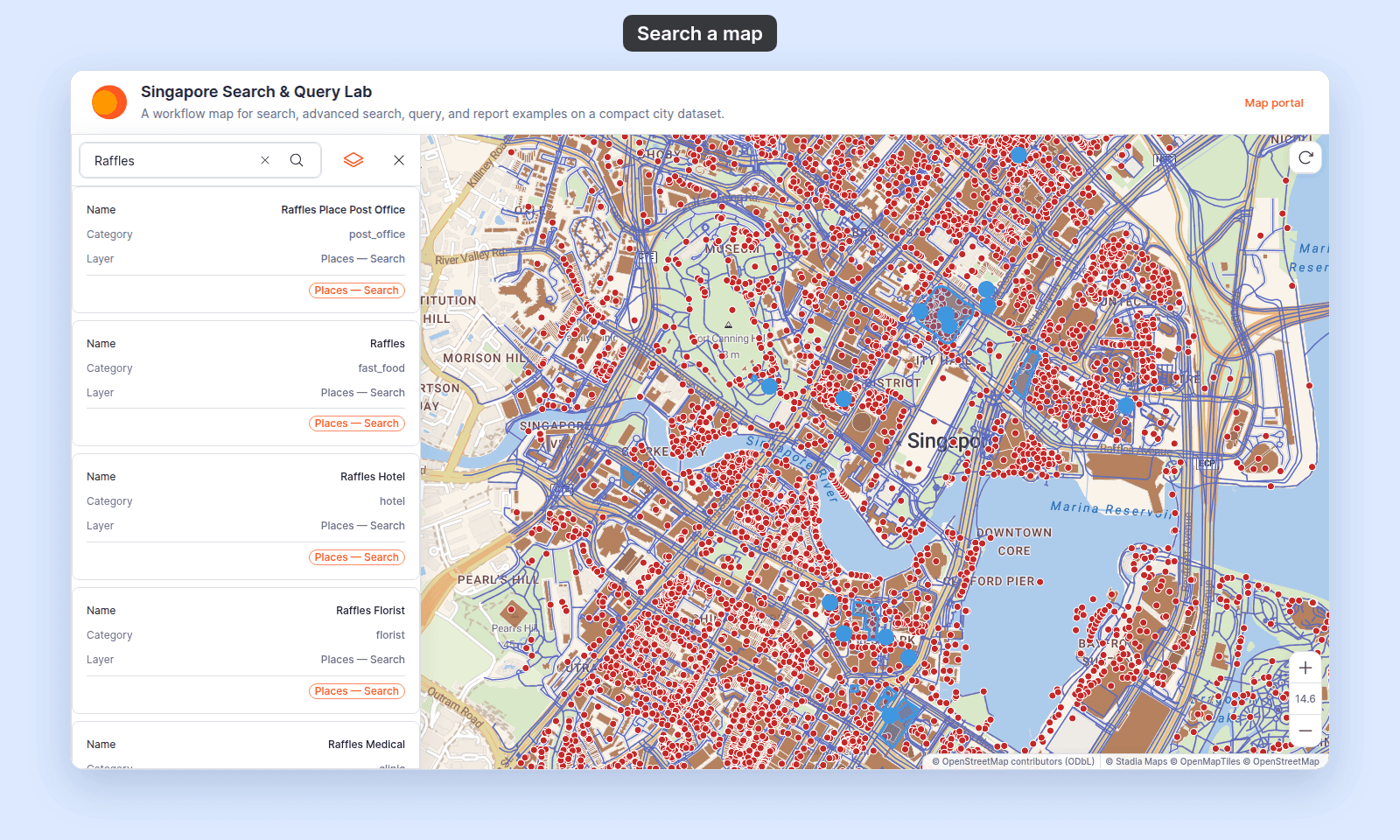
Open the Singapore Search & Query Lab. Type Raffles in the search box in the toolbar and press Enter. The results list shows places and buildings with that name, and the map highlights the matches.
Before you start
- You need edit access to the map.
- For Data search, decide which layers viewers should be able to search. You’ll add them to an
Indexed layerslist — only vector layers (point, line, polygon) can be indexed; raster and WMS layers can’t. - If your map is country-specific, decide whether to restrict the address search to one or more countries. This narrows results but disables
Prioritise results in current view. - If your map’s audience is non-English, pick a preferred results language. Address results use that language when available, with English as the fallback.
Open the Extensions page
From the map’s admin sidebar, click Extensions. The Search card is the second row, below Legend, and on new maps it already shows Settings and Remove.
Configure Search
Click Settings on the Search card. If the card shows Add instead, click it to turn Search back on and open the settings page.
The Search page saves each change. It has no
Save changesbutton. A small save indicator appears next to each field.
Set the default search type
At the top of the page, the Default search type dropdown picks which search a viewer’s first keystroke triggers when more than one type is enabled. On new maps, Address search is already on and selected as the default search type. Choices:
Address searchData searchCoordinate search
(Optional) Configure Address search
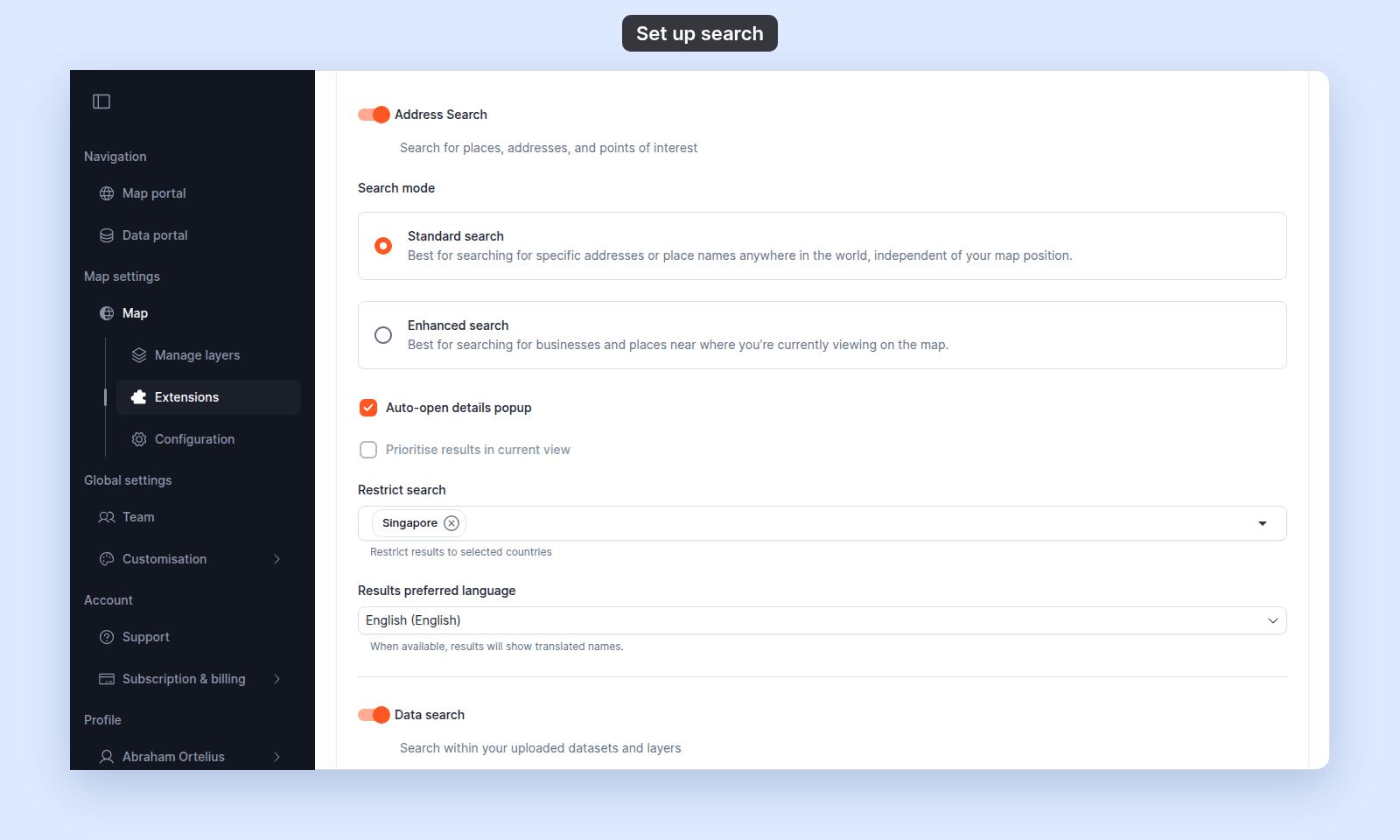
Toggle Address Search on. The description reads Search for places, addresses, and points of interest. Underneath:
Search mode— radio with two options:Standard search— best for finding specific addresses or place names anywhere in the world. The result rank is independent of the current map view.Enhanced search— best for finding businesses and places near where the viewer is currently looking on the map. Use this on operational maps where local matters more than global.Auto-open details popup— when on, picking an address-search result also opens the details popup automatically. Off by default.Prioritise results in current view— when on, results closer to the map’s current viewport rank higher. On by default. Disabled when one or more countries are selected inRestrict search(the two options conflict).Restrict search— a multi-select of countries. When empty, search is world-wide. Selecting one or more countries narrows the search to those countries and automatically turns offPrioritise results in current view.Results preferred language— a dropdown of supported languages. Result names show in the chosen language when available.
(Optional) Configure Data search
Toggle Data search on. In Indexed layers, click Add next to each layer viewers can search. Click Remove to take a layer out of the search.
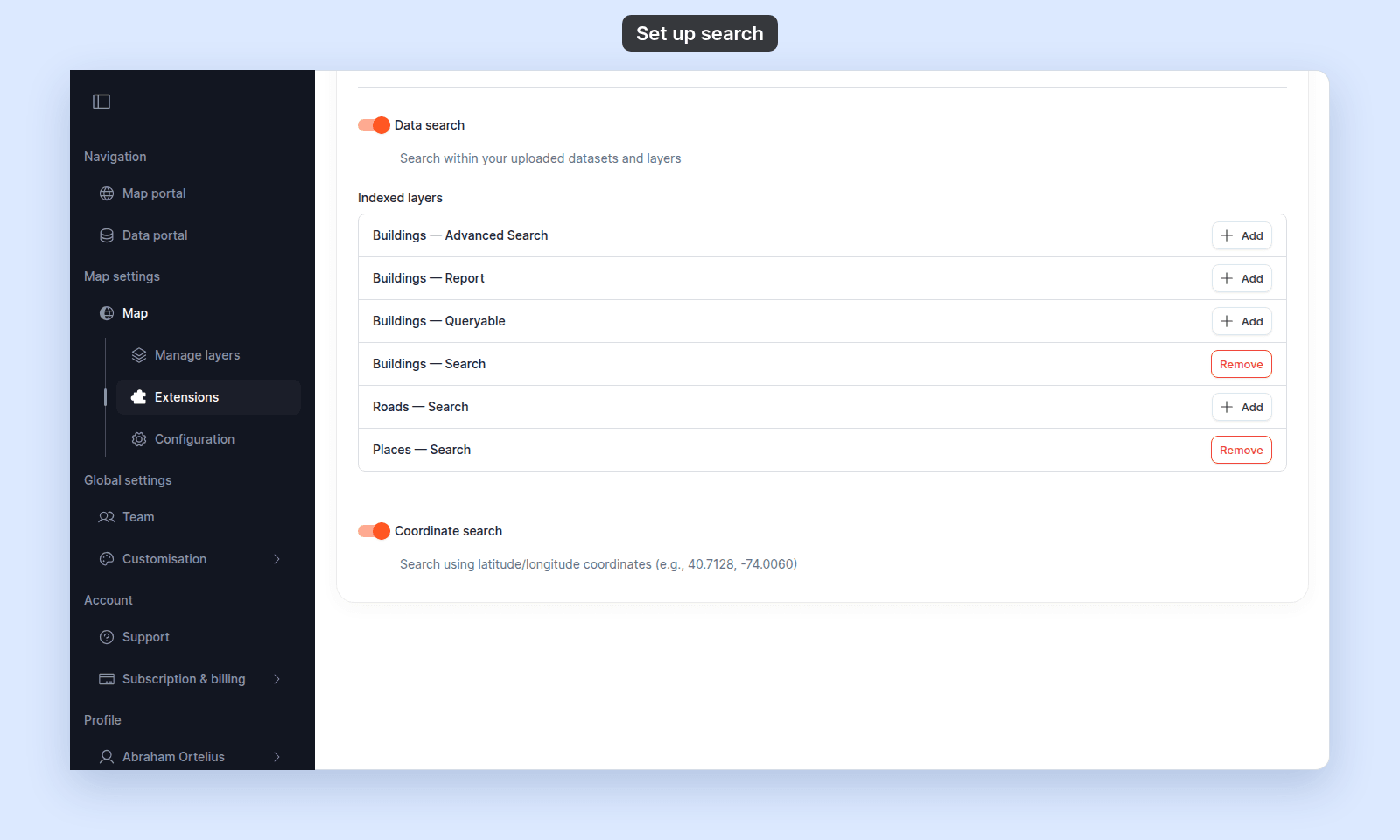
Viewers can see non-indexed layers on the map, but cannot search their attributes from the Search bar. Index the layers viewers most need to look up — usually the ones with a meaningful name or ID field.
(Optional) Configure Coordinate search
Toggle Coordinate search on. The description reads Search using latitude/longitude coordinates (e.g., 40.7128, -74.0060). There are no sub-settings — when on, viewers can paste comma-separated coordinates into the bar to jump to that point.
Turning Search off or back on
Click Remove on the Search card to turn the tool off. If you want it back, click Add and open the settings page again; Search will start from the default address-search state.
Verify the result
Open the map in a viewer-state session (a new tab or incognito window). The Search bar should already appear in the map toolbar. Try each enabled type:
- Address — type a city or landmark. Pick a result; the map should zoom to it. If
Auto-open details popupis on, the popup also opens. - Data — type a value you expect to match an indexed layer’s attribute, and press
Enter. The results list shows each match with its layer, and the map highlights the matches. Pick a result; the map should zoom to the feature. Data results show 25 at a time. UsePreviousandNextto move between pages, or show 50 or 100 per page. - Coordinate — paste
40.7128, -74.0060(or any valid lat, lon). The map should jump to that point.
If a search type produces no results when you expect some:
- For Address: check
Restrict searchdoesn’t exclude the region you’re searching, and thatSearch modematches your use case. - For Data: confirm the layer is in
Indexed layersand is vector, not raster. - For Coordinate: confirm the format is
lat, lon(latitude first), comma-separated, in decimal degrees.
If you pick a Data result and the message Feature not found appears, the feature was deleted after the search ran. Search again. If the panel shows Details could not be loaded, the feature’s values did not load. See A popup says “Details could not be loaded”.
What this doesn’t cover
- Advanced Search (filter a layer by one or more attributes with a richer UI than the Search bar) — separate tool; see How to set up Advanced Search.
- The Query tool (find features by attribute and location together) — separate tool; see How to set up the Query tool.
- Per-layer popups that open after a search match — search opens the layer’s existing popup; configure the popup in Configuring popups.