

How to set up printing on a map
Let viewers export the current map view as a PDF, and choose which elements print, such as a title, legend, scale bar, and north arrow.
Print lets viewers export the current map view as a PDF with an optional title, description, legend, scale bar, north arrow, basemap, and selected-feature highlights. Add it from the map’s Extensions page and configure the elements; two user-option modes let viewers toggle settings before exporting (Users can change these settings) or lock every print to the same configuration (All prints use these settings) for branded handouts or regulated documents.
See it on an example map
Open the Interlaken Raster Lab. Click Print in the toolbar. The Print Composer opens, and a frame on the map shows the page outline.
Before you start
- You need edit access to the map.
- The defaults
Map titleandDescriptioncome from the map’s main title and description (set in How to set the map title and description). You can override them for the printout — useful when the printed version should read differently from the on-screen version. - Decide which elements should appear on every PDF, and which viewers should be allowed to toggle. If you are unsure, start with
Users can change these settingsso viewers have flexibility; tighten later if you need consistency.
Open the Extensions page
From the map’s admin sidebar, click Extensions. The Print card sits below the Information sidebar.
Enable Print
Click the Add button on the Print card. The Print settings page opens.
Set the title and description
At the top of the page:
Map title— pre-filled with the map’s title. Edit to change just the printed title without changing the on-screen one.Description— multi-line text. Pre-filled with the map’s description. Edit to change just the printed description.
These appear in the printout’s header / metadata block.
Pick which elements appear on the print
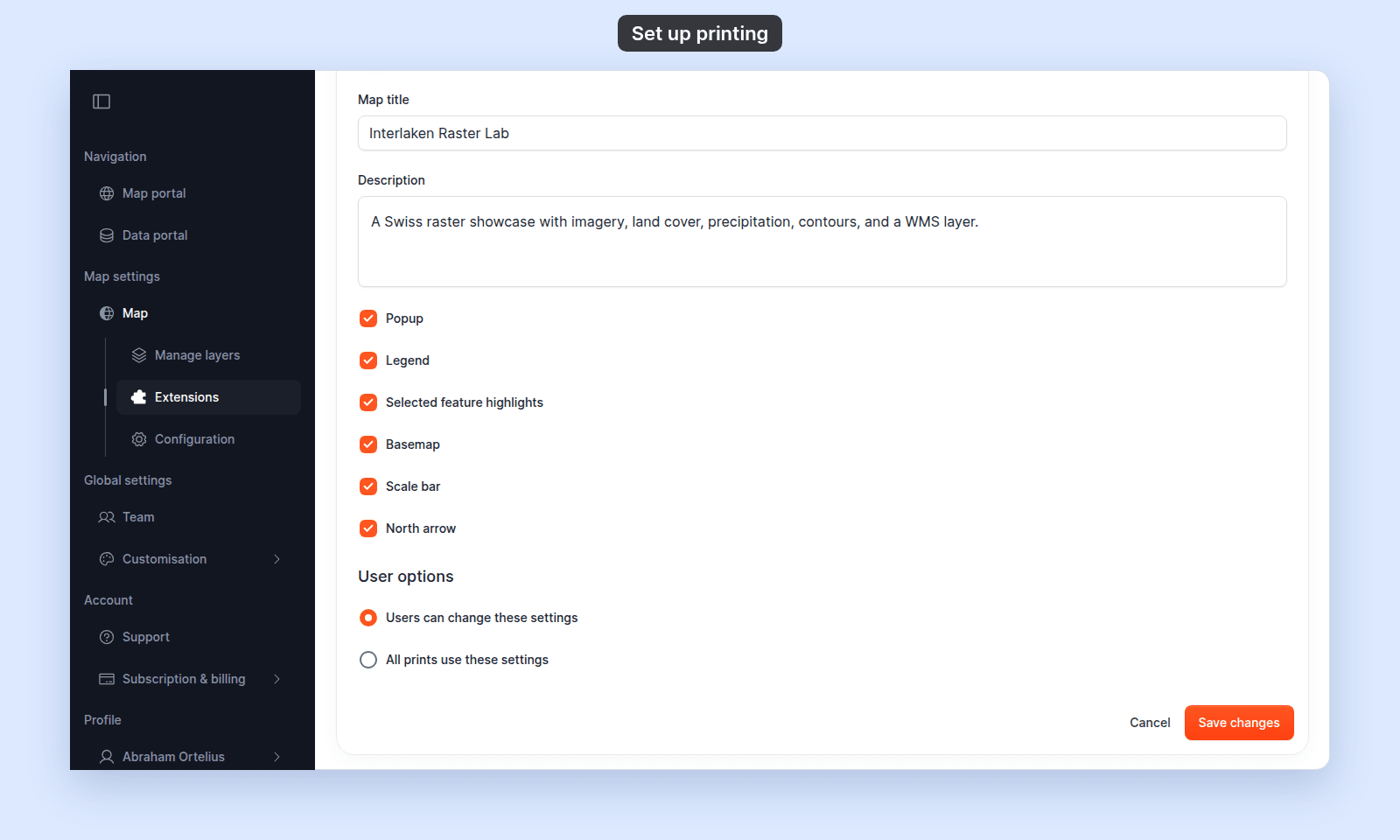
Below the title and description, six checkboxes control inclusion of map elements on the PDF:
Popup— include the currently-open feature popup, if any. Default on.Legend— include the map’s legend. Default off.Selected feature highlights— include any feature selection styling from search or interactive selection. Default off.Basemap— include the basemap tiles. Default off. Often turned off for cleaner thematic prints where the basemap distracts.Scale bar— include the scale bar in the printout. Default on.North arrow— include a north arrow. Default on.
Pick the user-option mode
Under the User options heading, a radio picks whether viewers can change the settings before printing:
Users can change these settings— viewers see your selections as the defaults but can toggle each one before exporting the PDF.All prints use these settings— viewers can’t change anything; every PDF uses exactly the settings you saved.
Pick Users can change these settings unless every printed copy must match.
Save
Click Save changes at the bottom of the page. The page returns to the map view.
To leave without saving, click Cancel next to Save changes. The page returns to the map view without applying the change.
Verify the result
Open the map in a viewer-state session (a new tab or incognito window). A Print button should appear at the top-right of the map. Click it to open the Print Composer. The page outline on the map shows what the print holds.
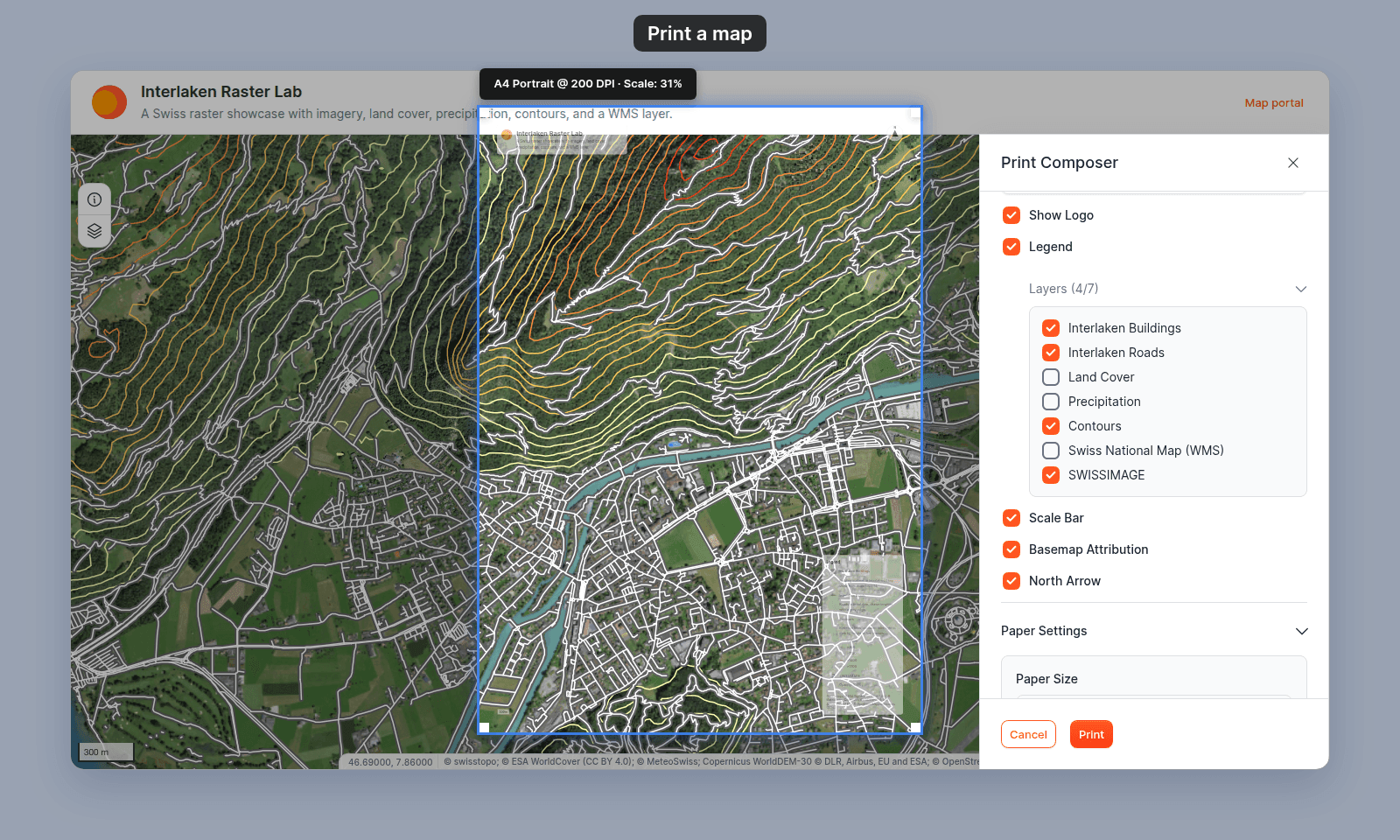
- The elements you checked appear in the layout.
- If you picked
Users can change these settings, the viewer can turn each toggle on or off before exporting. - If you picked
All prints use these settings, the toggles appear greyed out. Viewers can change onlyPaper Settings.
In Paper Settings, set Export Format to PDF. Click Print to download the file. Open the file and confirm:
- The title and description match what you configured.
- Every checked element is present; every unchecked element is absent.
- The scale bar uses metric or imperial depending on the Scale bar tool’s settings (if that tool is also enabled).
What this doesn’t cover
- Printing without enabling the Print tool — viewers can’t access the print composer unless the tool is enabled. Browser-level
Ctrl+Pwon’t produce the same composed PDF. - Setting a default page size, orientation, DPI, or export format — those aren’t admin-configurable. Viewers pick
Paper Size,Orientation,Resolution (DPI), andExport Format(PNG,JPEG,PDF,SVG) in the Print Composer at export time. See How to share a map as a PDF for the viewer-side controls. - The Scale bar’s units — set inside the Scale bar tool, not here. See Scale bar.
- Background brand logo on prints — not configurable per-map; account-wide branding lives in Customisation.
- Bulk export of multiple maps — not supported. Each PDF is one map view at one zoom level.
Related
- How to share a map as a PDF — what viewers see and do when they click the
Printbutton you’ve enabled.