

How to share a map as a PDF
Export the current map view as a printable PDF, PNG, JPEG, or SVG with a title, legend, scale bar, and north arrow.
Click Print on the map to export the current view as a printable file with a title, legend, scale bar, north arrow, and attribution. The Print Composer starts on PNG, so set Export Format to PDF before you export.
See it on an example map
Open the Interlaken Raster Lab. Click Print in the toolbar. In the Print Composer, set Export Format to PDF, then click Print.
Before you start
- The map’s Print extension must be enabled. If the
Printbutton isn’t on the map toolbar, see How to set up printing on a map — Print is an extension a map owner adds explicitly. - You don’t need to be signed in. The Print Composer works for any viewer with access to the map.
- The page uses the current map state — what’s panned to, what layers are visible, which feature (if any) is selected. Set the view up before opening the composer.
Open the Print Composer
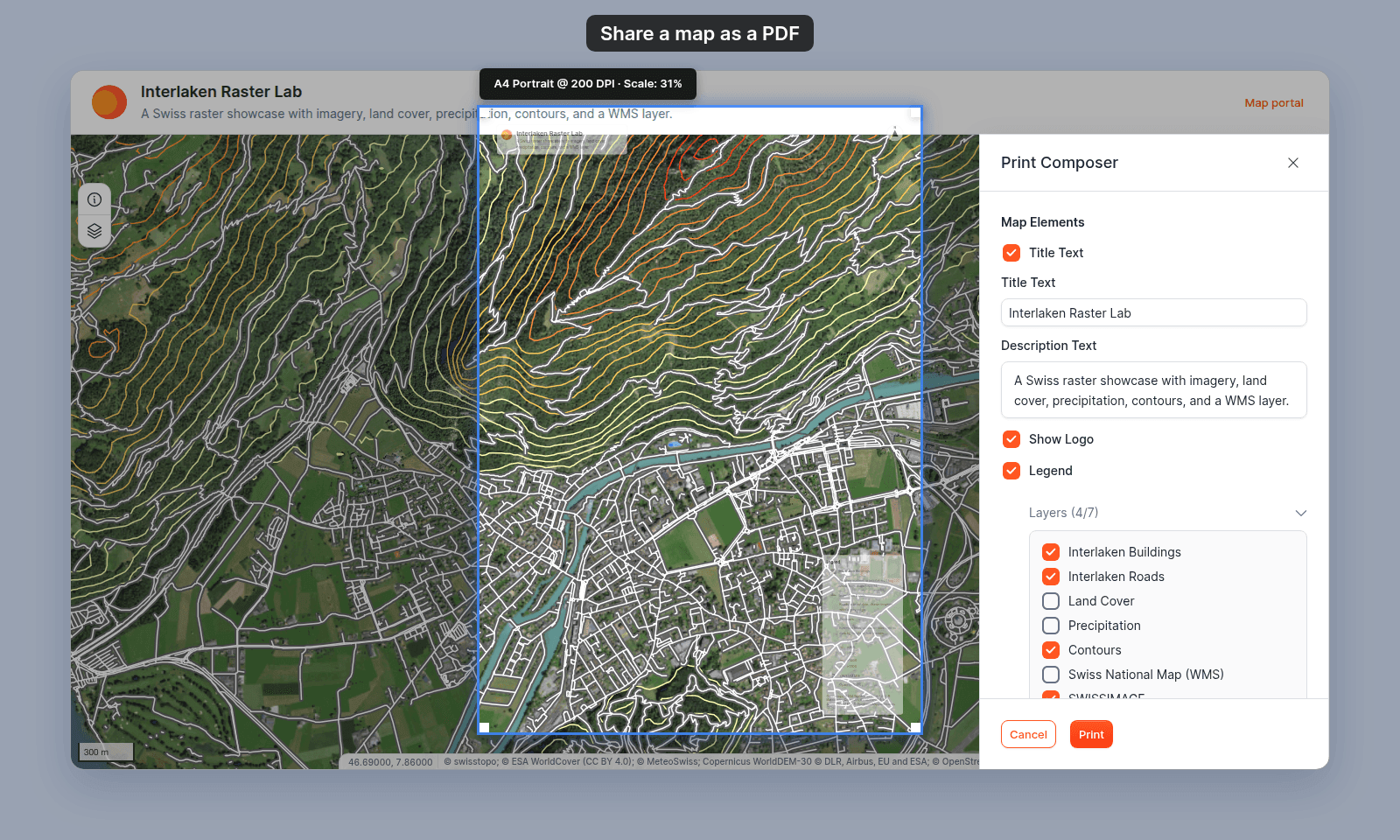
Click Print in the map toolbar. The Print Composer opens, and a frame on the map shows the page outline at the chosen size and orientation. The frame changes as you adjust the settings.
Pick the map elements
Map Elements is a list of checkboxes. Each toggles whether that element appears on the exported page:
| Element | What it adds |
|---|---|
Title Text |
A title heading on the page. When on, two text fields appear underneath — Title Text and Description Text — for the printed title and description. They start with the title and description from the Print extension setup. If the setup doesn’t set them, they start with the map’s own title and description. Edit them to change what’s printed. |
Show Logo |
The account’s logo (configured in Customisation) added to the title block. If the logo can’t load, the export still finishes, without the logo. |
Legend |
The map’s legend. When on, a collapsible Layers (N/M) group lets you toggle individual layers in the printed legend. |
Scale Bar |
A distance indicator scaled to the printed view. |
Basemap Attribution |
The basemap provider’s attribution line. |
North Arrow |
A north arrow indicator. |
Feature Highlights |
Only appears when a feature is selected on the map. Includes the selected feature’s highlight styling on the page. |
When the map owner picked All prints use these settings during admin setup, every checkbox and text field is disabled (greyed out). You see the configuration but can’t change it.
Adjust paper settings
Paper Settings holds the page-level controls. The composer starts on A4, Portrait, 200 DPI (High Quality), and PNG.
Paper Size—Social - Square (1:1),Social - Vertical (9:16),Social - Landscape (16:9),A2throughA6,B2throughB6,Letter,Legal,Tabloid. Each option shows the dimensions in mm or inches.Orientation—PortraitorLandscape. Hidden for social media sizes (their aspect ratio is fixed).Resolution (DPI)—72 DPI (Screen),96 DPI (Standard),200 DPI (High Quality),300 DPI (Print Quality),400 DPI (Very High Quality). Higher DPI produces larger files; 300 is the standard for print.Export Format—PNG,JPEG,PDF,SVG. PDF for a printable document; PNG / JPEG for embedding the map image in another file or social post; SVG when you need vector output for further editing.
Viewers can still change Paper Settings when an admin locks the element checkboxes.
Export the file
Click Print at the bottom of the panel. A Preparing export… message shows while the file renders. When it finishes, Export ready shows, the file downloads, and the Print Composer closes.
Larger paper sizes at higher DPI take longer to render.
To leave without exporting, click Cancel next to the Print button.
When the map owner has locked the settings
When admin setup uses All prints use these settings, the viewer sees the Print Composer with every element checkbox and text field disabled. The Paper Settings section still allows changes, so viewers control how the page comes out but not what’s on it.
This pattern is for branded handouts, regulated documents, or anything where every print needs to look the same regardless of viewer.
Troubleshooting
The file exported without the logo. The warning “Could not load the customer logo. The export continued without it.” means the logo file didn’t load. Upload the logo again in Customisation, then export again. See How to set your brand logo and colours.
There’s no Print button on the map. The Print extension isn’t on. See How to set up printing on a map.
Related
- How to set up printing on a map — the admin side: enabling the Print extension and configuring defaults.
- How to publish a map to the web — another way to share a map view.
- How to embed a map in another website — embed an interactive map instead of a static export.