

How to embed a map in another website
Show a live MangoMap map inside another website. Wrap the map's public or private link in an iframe and paste it into the page. Map access settings still apply.
Embed a map to show it, live, inside another website. Visitors can pan, zoom, and open popups without leaving the host page. You can embed any map link: wrap the link in an <iframe> and paste it into the page. The embed shows the map to the same people as the link does, so visitors who are not signed in to MangoMap see it only if the map is published to the web.
Before you start
- You need to be able to add HTML to the host page. Most website builders have a custom HTML or embed block.
- Check who can see the map. The embed follows the map’s access:
Public: anyone.Link-only: anyone with the private link. Inside an iframe, the link is visible in the page source.Password: visitors who know the password. They type it inside the embed.Allow public accessoff: signed-in team members only. Each visitor signs in to MangoMap inside the embed.
- Changing the map’s access is optional. Do it only if the embed needs a different audience, and only if you have permission to change the map’s access. See How map access works in MangoMap.
Copy the map’s link
Use the link people already use to open the map. If you do not have it, open the map and copy its address from the browser’s address bar.
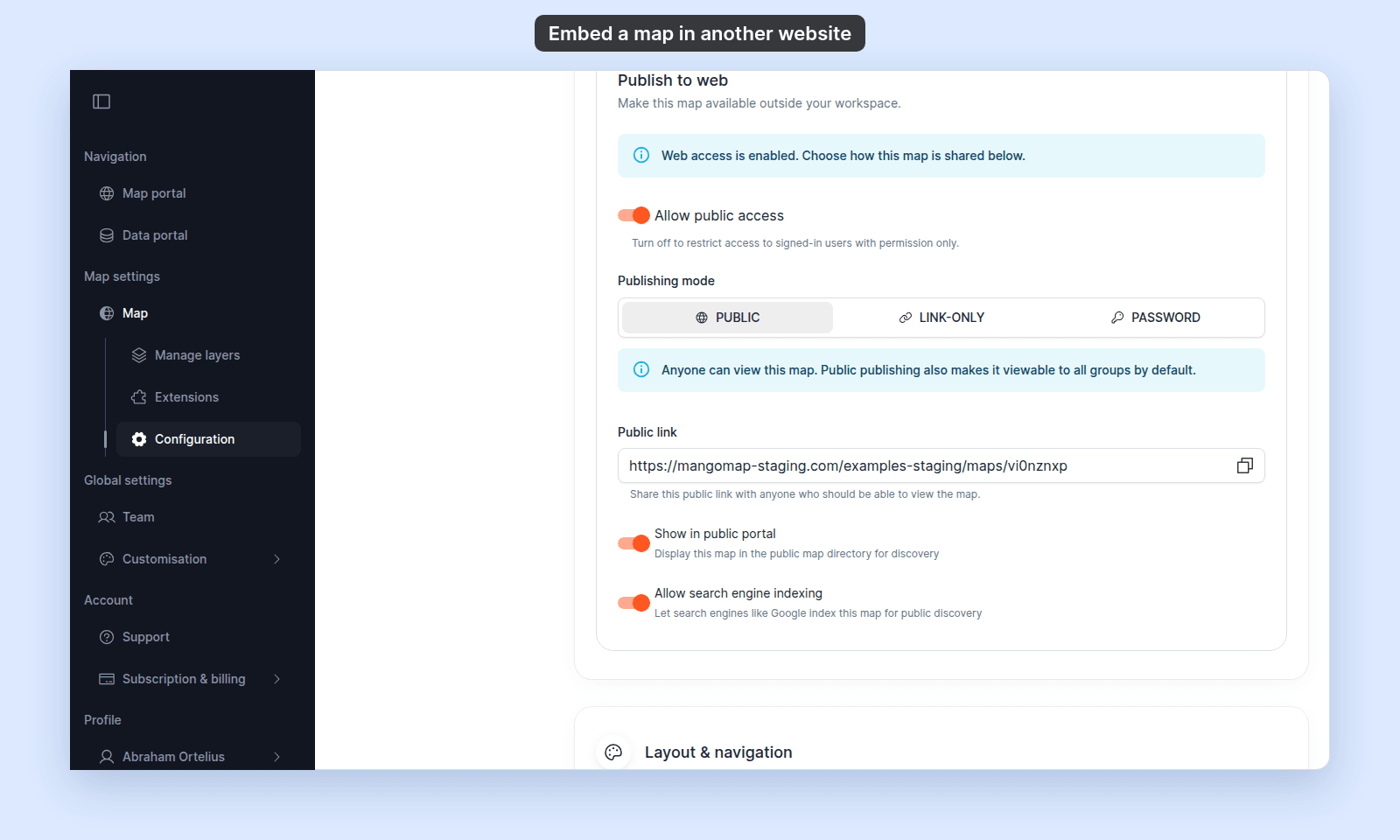
If you can change the map’s access, you can also copy the link from the map’s settings. Open the map, click Configuration in the sidebar, open Access, and go to Publish to web:
PublicorPassword: copy thePublic link.Link-only: copy thePrivate link.
To embed the map for visitors outside your team when Allow public access is off, turn it on first and choose a publishing mode. See How to publish a map to the web.
Choose where the map opens
The embedded map opens at the map’s Initial view: either fitted to its data, or at a saved position and zoom. Every embed and every visitor gets the same starting view. To change it, see How to set the initial map view.
Inside an embed, the MangoMap app sidebar is hidden, so the map fills the frame. An embed is usually small, so keep the map in view when it opens:
- Set no tool to open on load. On the map’s
Extensionspage, click the filledOpens on loadchip to clear it. Otherwise a panel such as the legend covers part of the map. See How the Extensions page works in MangoMap. - Hide the title block if the host page already names the map. See How to show or hide the title block on the map.
Build the embed code
Put the link in the src of an <iframe>:
<iframe
  src="https://mangomap.com/your-account/maps/your-map-link"
  title="Map of bus routes"
  width="100%"
  height="700"
  style="border: 0"
  allow="geolocation"
  loading="lazy"
></iframe>- Replace the
srcvalue with the link you copied. - Replace the
titlewith a short description of the map. Screen readers read it out. - Keep
width="100%"so the map fills the width of your page’s column, and set theheightin pixels. See Make the map large. - Keep
allow="geolocation"if the map has the geolocation tool. Without it, browsers block the tool inside the frame.
Make the map large
Give the map as much space as your page allows. A map is read by looking at it, and viewers use its legend, tools, sidebar, and popups to find answers. In a small frame these panels cover most of the map, popups are cut off, and viewers must pan and zoom much more to find what they need.
- Use the full width of the page’s column:
width="100%". - Make it at least 600 pixels high. Use 700 to 800 pixels for a map with a legend, a sidebar, or long popups.
- On a page with little room, such as a narrow sidebar, show a link or a button that opens the map in a full browser tab, instead of a small frame.
Paste it into your website
Paste the code into the HTML of the page where the map should appear.
| Platform | Where to paste |
|---|---|
| WordPress (block editor) | A Custom HTML block |
| Squarespace | A Code block |
| Webflow | An Embed element |
| Notion | An /embed block. Paste the map’s link, not the iframe code. |
| Plain HTML | Anywhere inside the page’s <body> |
Check the embed
Open the published page in a private browser window, so you see it as a visitor who is not signed in. The map loads in the frame, and you can pan, zoom, and open popups. This live example embeds a public map:
Visitors who have not yet chosen MangoMap cookie settings see its cookie banner inside the frame first.
Follow the map’s access settings to see what a visitor who is not signed in gets in the frame.
What a visitor sees first depends on the map’s access:
- Public or Link-only: the map.
- Password: a password form. After the visitor enters the password, the map loads. The browser remembers the password until the visitor closes the tab.
- Team only: a
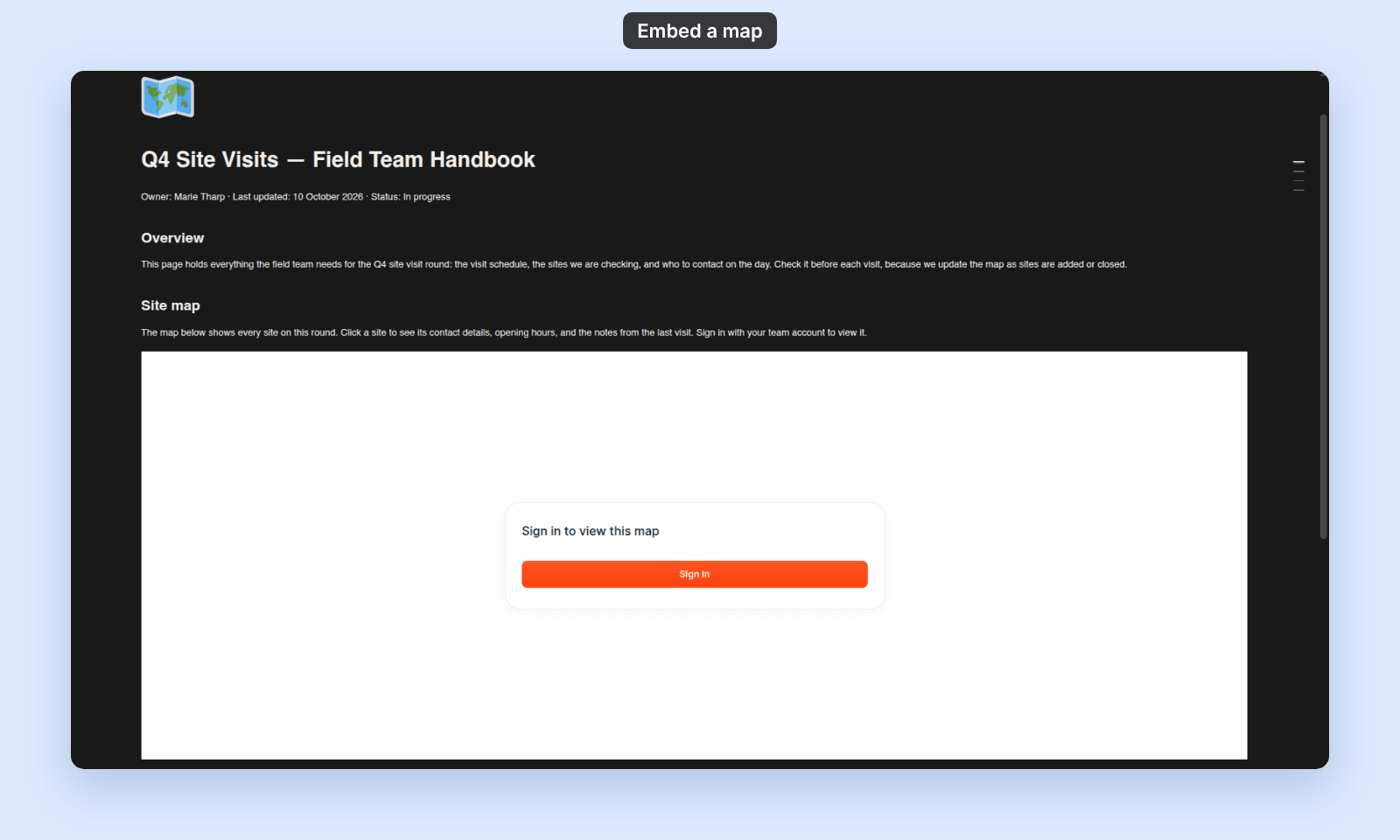
Sign in to view this mappanel.Sign inopens a sign-in window. After the visitor signs in, the map loads. If the host page is reloaded, the visitor signs in again.
This is a map for team members only, embedded in a team wiki page and opened by a visitor who is not signed in:
How changes to the map reach the embed
The iframe shows the live map, so:
- Changes to layers, styles, popups, and tools show in every embed at once. You do not need new embed code.
- A new
Initial viewchanges where every embed opens. - A change to the map’s access changes who can see the embed. If you turn
Allow public accessoff, visitors who are not signed in see the sign-in panel instead of the map. - If you regenerate a
Link-onlymap’s private link, embeds that use the old link stop working. Update theirsrc.
To remove the embed, delete the iframe from the host page.
Troubleshooting
The frame shows Sign in to view this map. Allow public access is off. Publish the map to the web, or keep it for signed-in team members only. See How to publish a map to the web.
Sign in does nothing, or a message says the browser blocked the sign-in popup. The browser blocked the sign-in window. Allow popups for the host site, then click Sign in again.
The frame shows the password form on every visit. The password is kept only until the browser tab closes. Visitors enter it again in a new tab.
The legend, a popup, or a tool panel covers the map, or is cut off. The frame is too small. Make it the full width of the column and at least 600 pixels high. See Make the map large.
The map shows, but at the wrong place. The embed opens at the map’s Initial view. See How to set the initial map view.
An embed that used to work now shows an error. The Link-only private link may have been regenerated. See Private link no longer works.
Related
- How to publish a map to the web: choose the access mode before you embed.
- How to configure map access: all the access controls.
- How to set the initial map view: choose where embeds open.
- How to share a map as a PDF: share a fixed snapshot instead of a live map.