

How to publish a map to the web
Publish a map so people can open it without signing in. Choose Public, Link-only, or Password mode, then copy the link. Changes save as soon as you make them.
Publishing a map to the web lets people open it without signing in. Choose one of three modes: Public is listable on your portal and indexable by search engines, Link-only is unlisted with a private link, and Password adds a shared password on top of the public link. Manual passwords need at least 6 characters. Regenerating a private link invalidates the old one. Turning Allow public access off also clears Show in public portal and Allow search engine indexing.
Before you start
- You need permission to share the map. Share access follows edit access.
- Decide whether to list the map publicly or share it by direct link.
- If you use
Passwordmode, prepare a password with at least 6 characters.
Open web publishing
Open the map. In the sidebar, under the map’s name, click Configuration, then click Access.
In Publish to web, turn on Allow public access. The screen shows Publishing mode. Each change saves as soon as you make it.
Publish a public map
Choose Public when anyone with the public link can view the map.
- Select
Public. - Copy the
Public link. - Turn on
Show in public portalif the map should appear in the public map directory. - Turn on
Allow search engine indexingif search engines should be allowed to index the map.
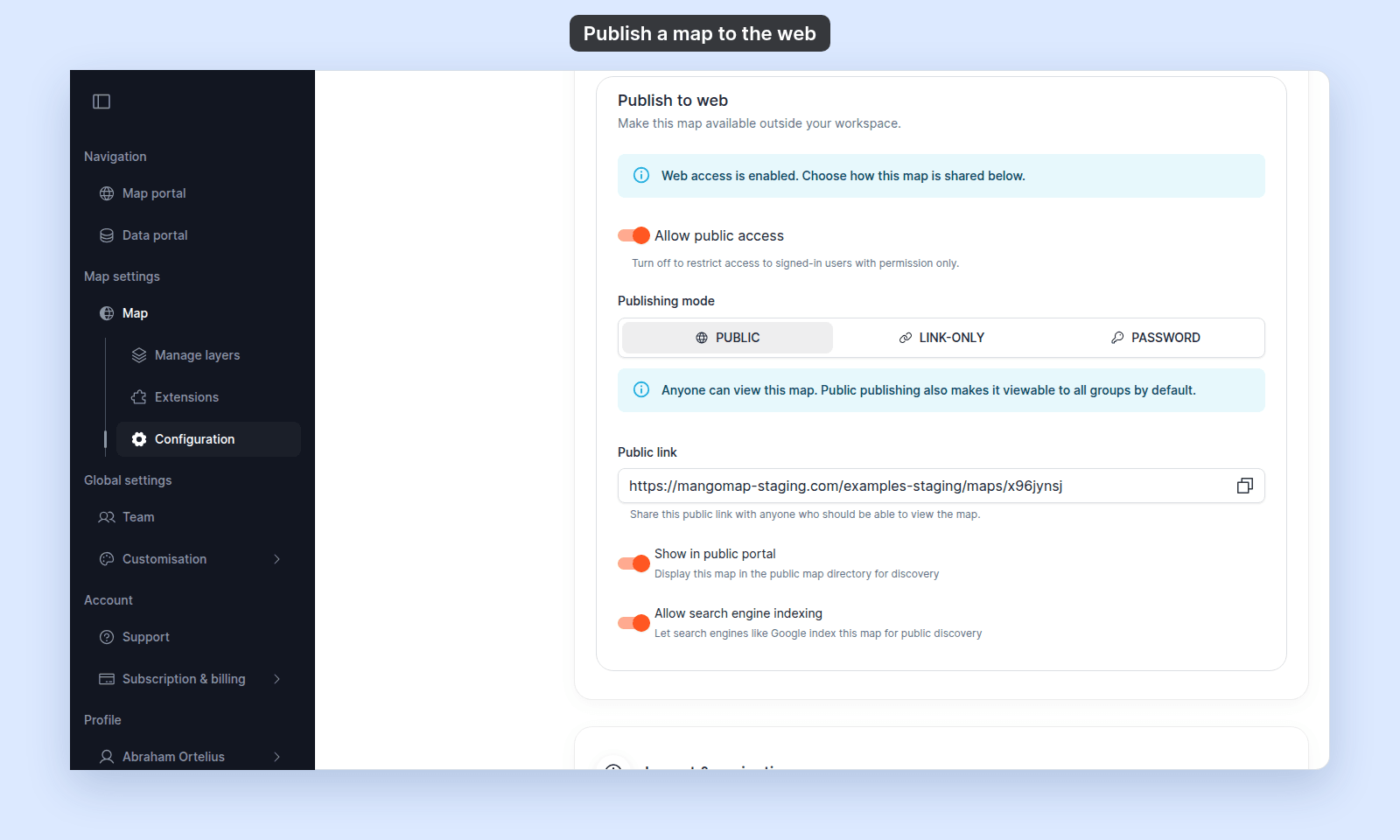
Only Public maps with Show in public portal enabled appear in the public portal listing.
Publish a link-only map
Choose Link-only when anyone with a private link can view the map, but the map should not appear in the public portal or search engines.
- Select
Link-only. - Copy the
Private link. - Send the private link to viewers who should have access.
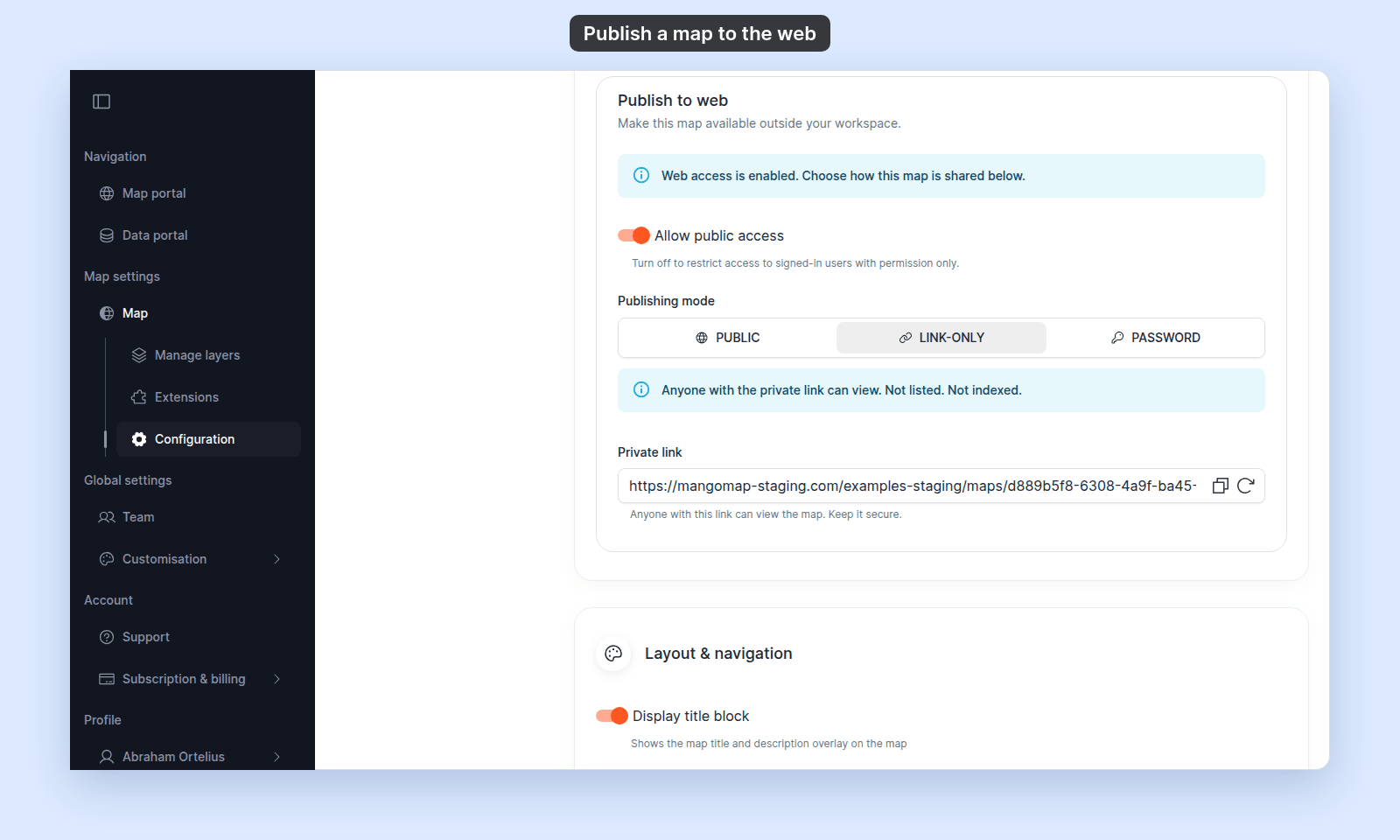
Link-only maps are unlisted and not indexed.
Publish a password-protected map
Choose Password when viewers should need both a link and a password.
- Select
Password. - Copy the
Public link. - Enter or confirm the
Password. - Send viewers both the public link and the password.
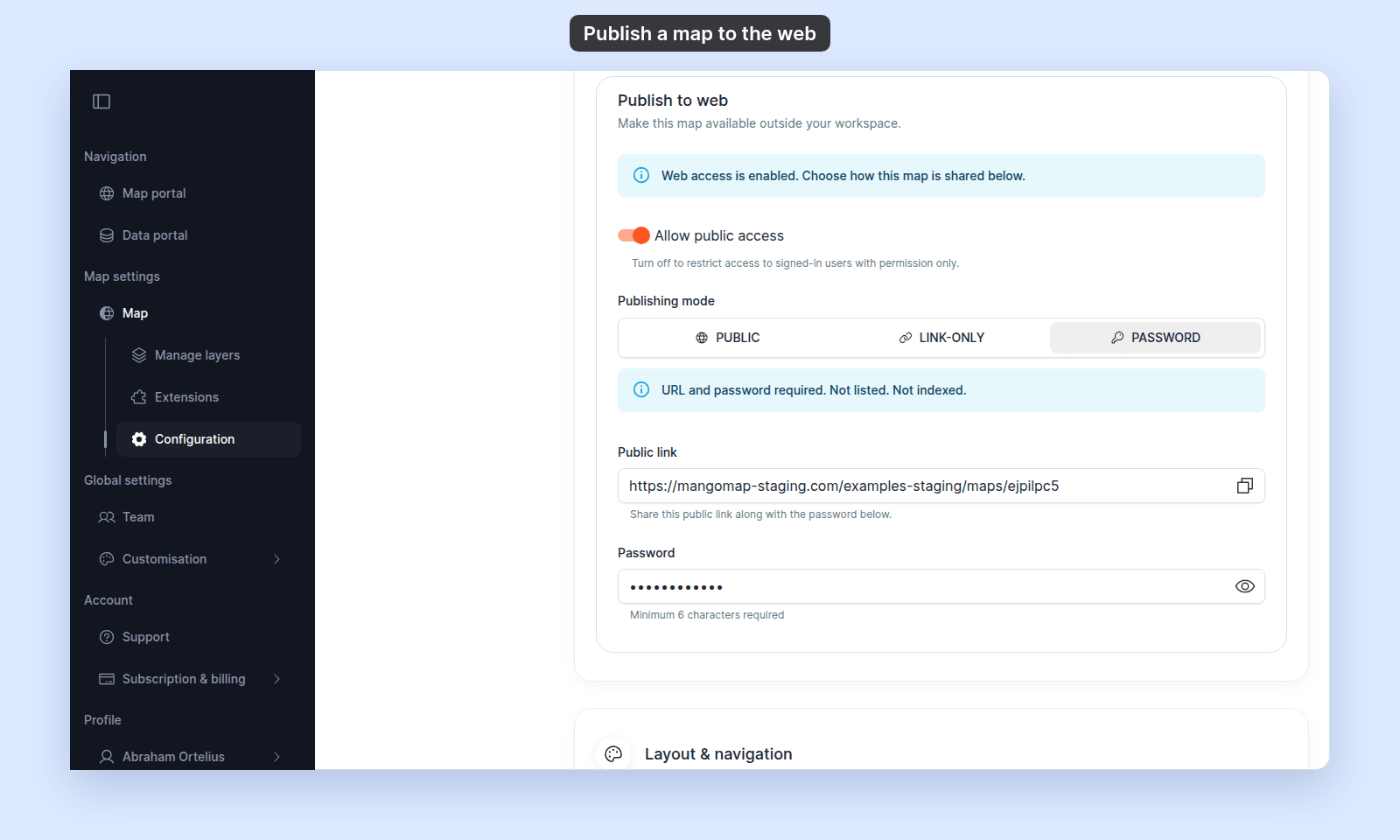
Manual passwords must be at least 6 characters. Password maps are unlisted and not indexed.
Regenerate a private link
Use Regenerate link only when the current private link should stop working.
- In
Link-onlymode, clickRegenerate link. - Read the
Regenerate Private Linkconfirmation dialog. - Click
Regenerate Link. - Share the new
Private link.
Regenerating creates a new private link and invalidates the old one. Anyone using the old link can no longer access the map.
Take a map offline
Turn off Allow public access to restrict the map to signed-in users with permission.
MangoMap also turns off Show in public portal and Allow search engine indexing when web access is turned off.
Troubleshooting
The map is not showing in the public portal. Confirm the map is in Public mode and Show in public portal is on. See Map is not showing in the public portal.
The private link no longer works. The link may have been regenerated. See Private link no longer works.
The password does not work. Confirm the map is in Password mode and the viewer has the current password. See Map password is not working.
Related
- Map access settings
- Choose how to share a map
- How map access works in MangoMap
- How to configure map access
- How to share a map with groups
- How to embed a map in another website — for putting a published map into another website via iframe.
- How to share a map as a PDF — for sharing a static snapshot instead of a live link.