

How map access works in MangoMap
Understand how map access works: signed-in access for your team through groups, and web access through Public, Link-only, or Password publishing modes.
MangoMap has two map access models: signed-in access for people in your workspace and web access for everyone else. Choose whether viewers must sign in, use a public link, use a private link, or enter a password.
MangoMap checks signed-in access first, then web access. Map access means the map’s creator, the account owner, a group with View or Edit access, or any user in your workspace when Allow public access is on:
Signed-in access
Signed-in access depends on the current user, map creator, account owner, and group access. A signed-in user can view a map when one of these is true:
- The map is public.
- The user created the map.
- The user is the account owner.
- The user belongs to a group with view access for the map.
Editing is narrower. A user can edit when they created the map, they are the account owner, or they are an admin-level user with group edit access for the map. Share access follows the same rules as edit access.
Group access
Groups let admins grant access to multiple workspace users at once. A group can have View access, Edit access, both, or neither.
Edit access also counts as view access. A group with Edit access can open the map, but only members with the Admin role can change it.
Group access still requires sign-in. It does not create a public URL.
Web access
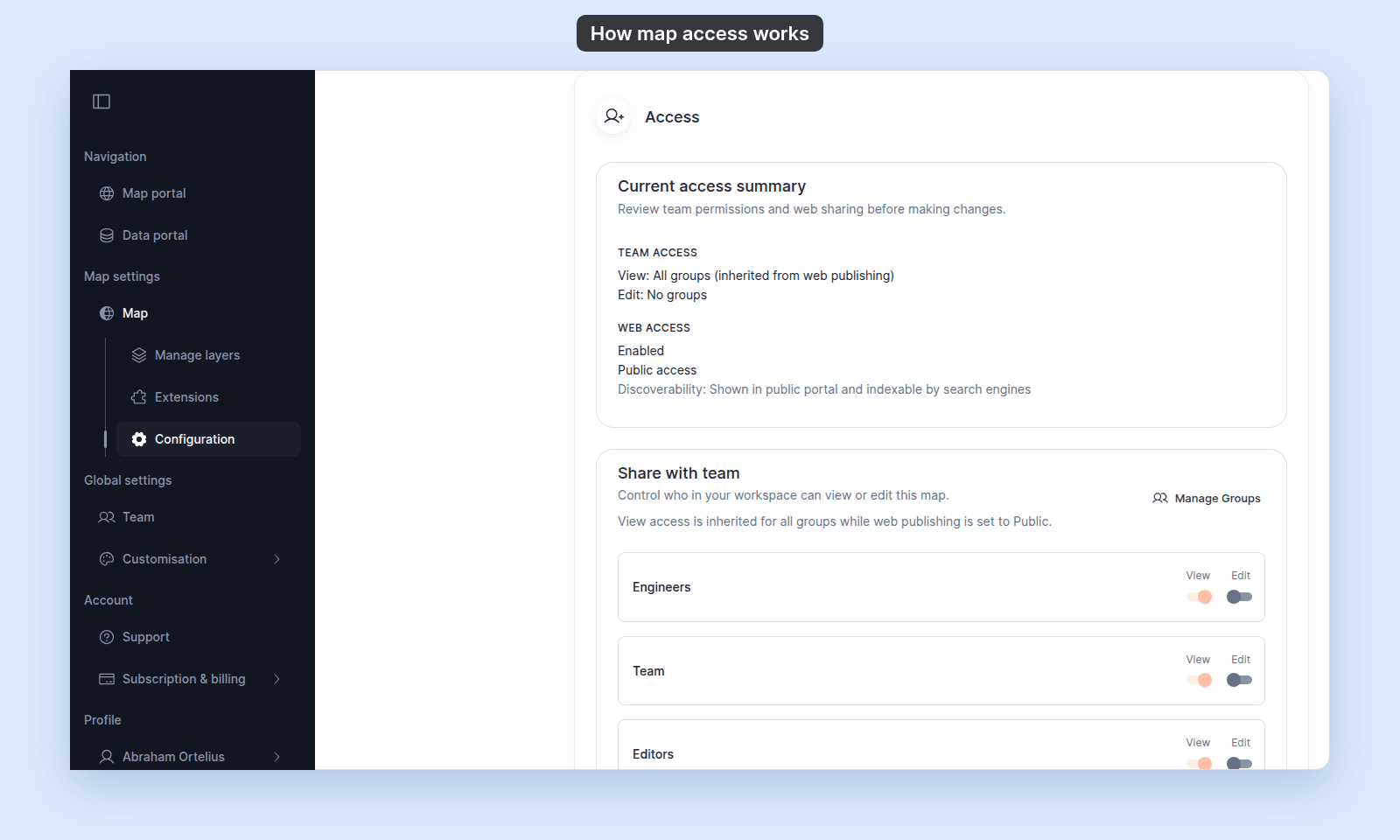
Web access controls whether people can open a map without workspace permissions. In the map’s Configuration page, this starts with Allow public access.
When Allow public access is off, the map is limited to signed-in users with permission. When it is on, Publishing mode controls how outside viewers reach the map.
Publishing modes
Public mode lets anyone with the public link view the map. It can also make the map discoverable through the public portal and search engines, depending on the map’s visibility settings.
Link-only mode uses a private link. Anyone with that private link can view the map, but the map is not listed in the public portal and is not indexed for search engines.
Password mode uses the public link plus a password. Anyone with both can view the map, but the map is not listed in the public portal and is not indexed for search engines.
Public portal listing
Public portal listing is narrower than web access. A map appears in the public portal only when it is public, uses Public mode, and has Show in public portal enabled.
Link-only and Password maps are web-accessible, but they are unlisted. They are intended for direct sharing rather than public browsing.
Common confusion
It is possible for a map to be viewable on the web without appearing in the public portal. Link-only maps and Password maps are examples. A Public map can also be hidden from the public portal when Show in public portal is off.
A group can also show view access while a map is public. In that case, the view access is inherited from web publishing: everyone can view the map, including all groups.
Related
- Map access settings
- Choose how to share a map
- Legacy map access modes and current settings
- How to configure map access
- How to share a map with groups
- How to publish a map to the web
- Account roles reference - explains the account role side of edit and share access.