

How to share a map with groups
Give a group View or Edit access to a map from Configuration > Access. Members open or change the map after they sign in. A group does not create a public link.
Granting a group View or Edit lets its members open or change the map after sign-in. Manage group members separately. Edit includes View (the switches are linked), and Edit lets a member change the map only if their account role is Admin; when Publishing mode is Public, every group inherits view access. While Allow public access is on, every signed-in member of your account can open the map. Turn it off to limit viewing to chosen groups.
Follow the questions to see whether a group member can view or edit the map.
Before you start
- You need permission to share the map. Share access follows edit access.
- The groups you want to use should already exist. If no groups exist, the access screen shows
Create a Group. See How to create an access group. - Group access is for signed-in users. It does not create a public link.
Open group access
Open the map. In the sidebar, under the map’s name, click Configuration, then click Access.
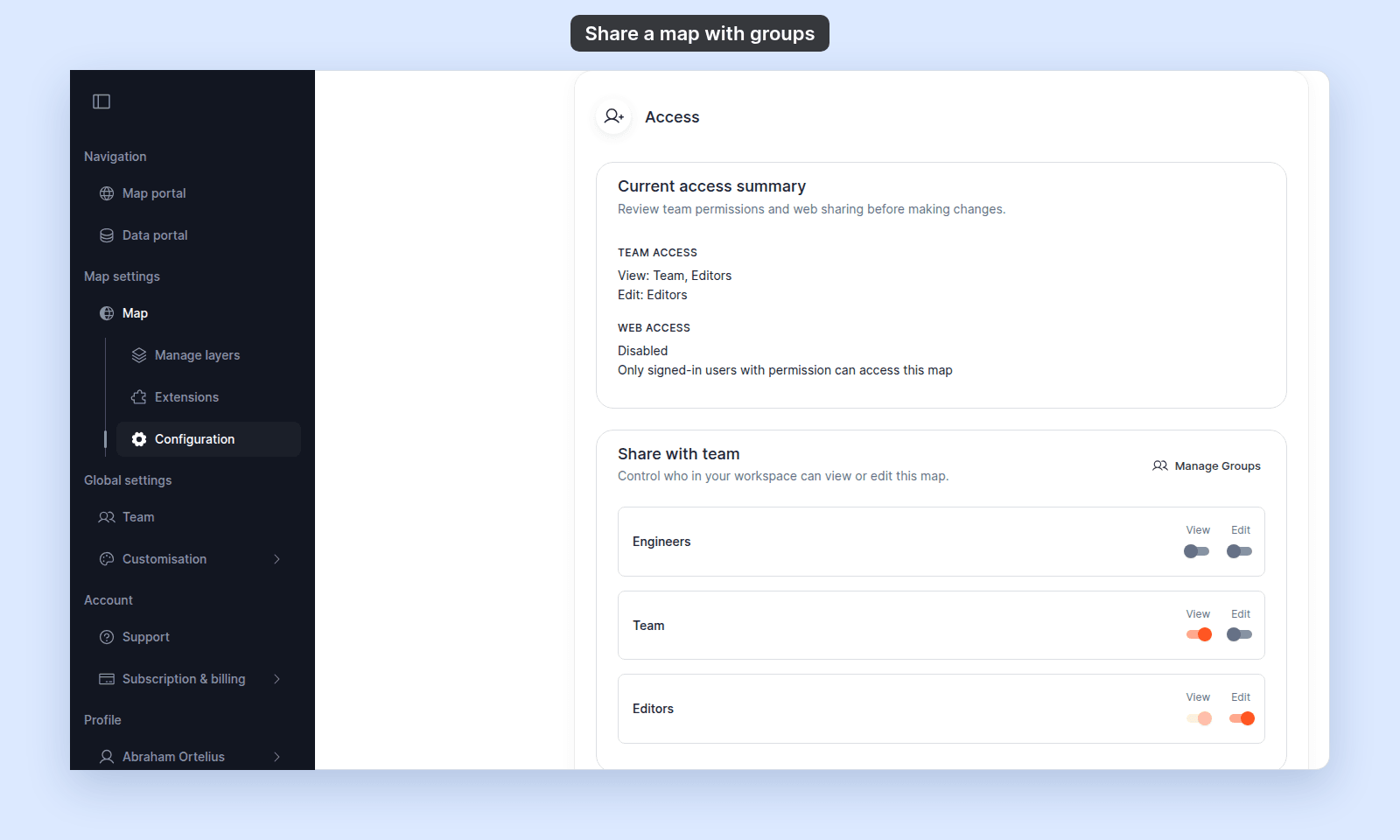
In Current access summary, check Team access to see which groups can currently view or edit the map. The switches in Share with team save as soon as you change them.
Give a group view access
In Share with team, turn on View for the group.
Members of that group can view the map after signing in. If Edit is already on for the group, View is already included.
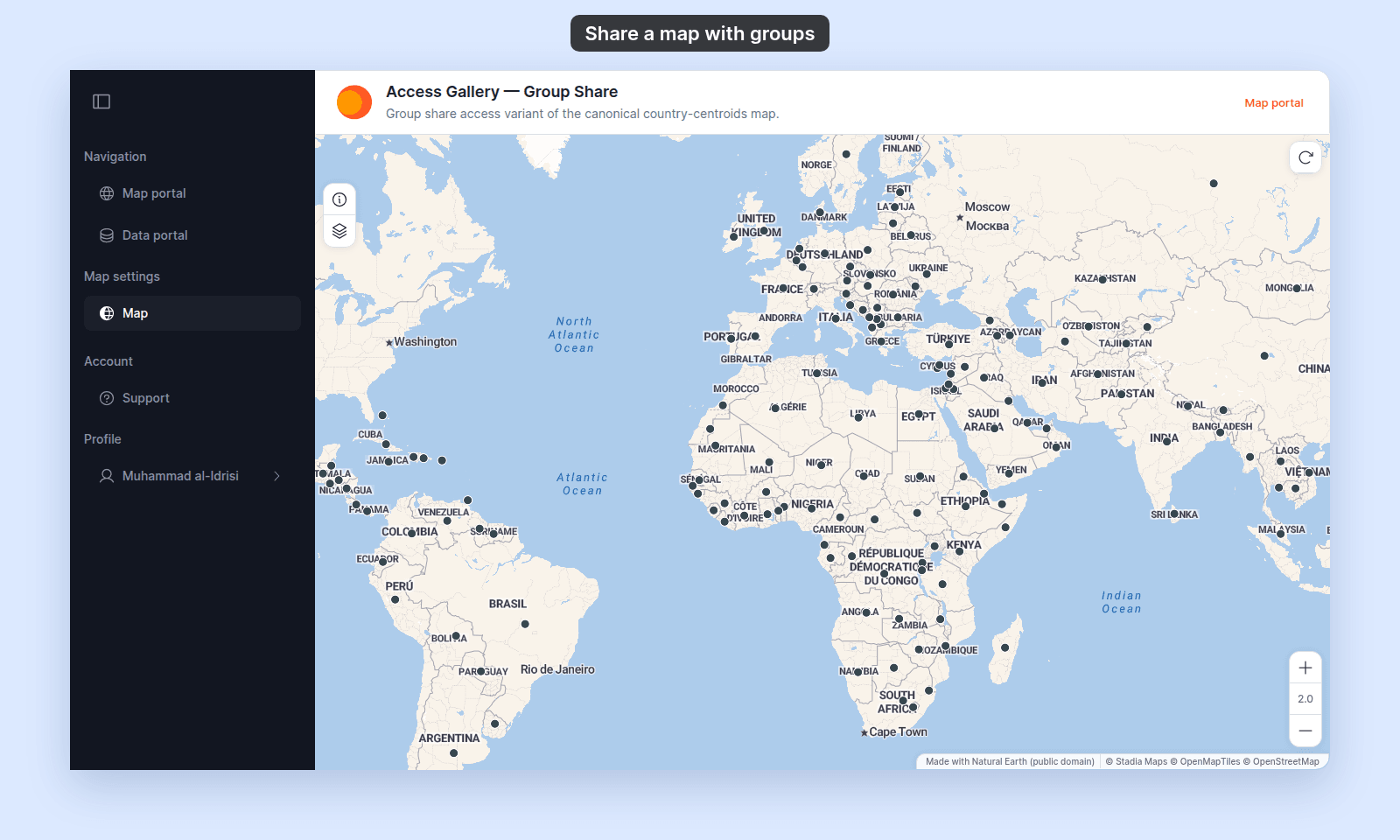
A member sees the map, but not its Configuration page. Here, Muhammad al-Idrisi, a Viewer in the Team group, opens the map:
Give a group edit access
In Share with team, turn on Edit for the group.
Edit access also counts as view access. Through group Edit, only members with the Admin role can change the map. Other members can open the map but not change it, unless they created it.
Remove group access
In Share with team, turn off View and Edit for the group.
If Edit is on, turn it off before removing view-only access. Edit includes view access, so View stays effectively enabled while Edit is enabled.
If view access is inherited from web publishing
When Publishing mode is Public, every group’s View switch is on and locked. Anyone can view the map through public web access, including signed-in users in every group.
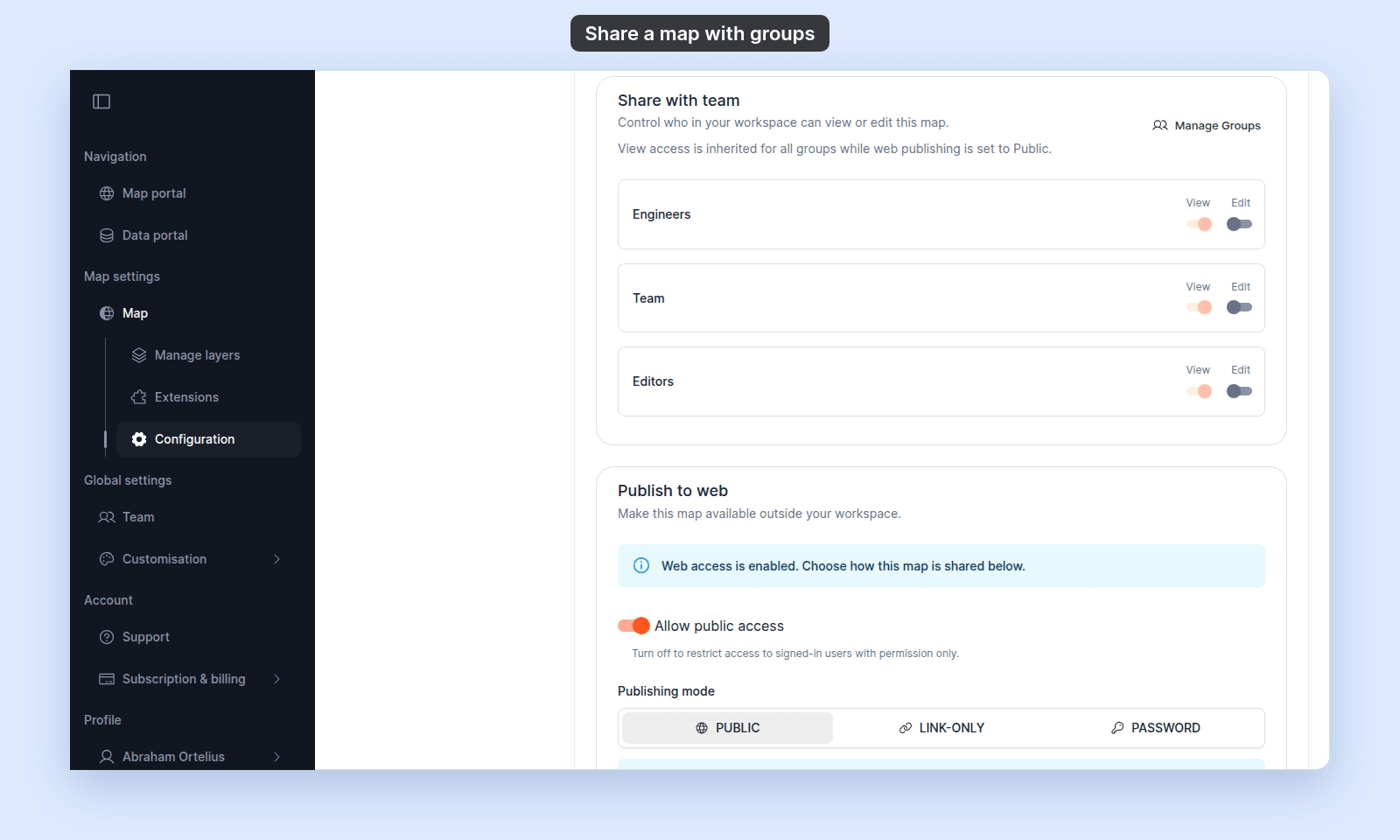
To make group view access specific again, turn off Allow public access. With Link-only or Password, the View switches unlock, but every signed-in member of your account can still open the map from its link, without the password.
If you need to create or manage groups
Click Create a Group when no groups exist. The button opens the Create group form.
Click Manage Groups to open the Access Groups tab on the Users page. Group create, edit, and delete are documented in Team management.
Troubleshooting
Access settings are disabled. You do not have permission to share this map. See Access settings are disabled.
A group can view even though View is off. Check whether Edit is on, because Edit includes view access. Also check whether Allow public access is on, because web access lets every signed-in member of your account open the map.
Related
- Map access settings
- How map access works in MangoMap
- How to configure map access
- How to publish a map to the web
- Account roles reference - explains how account role and group access combine for editing maps.