

Users page
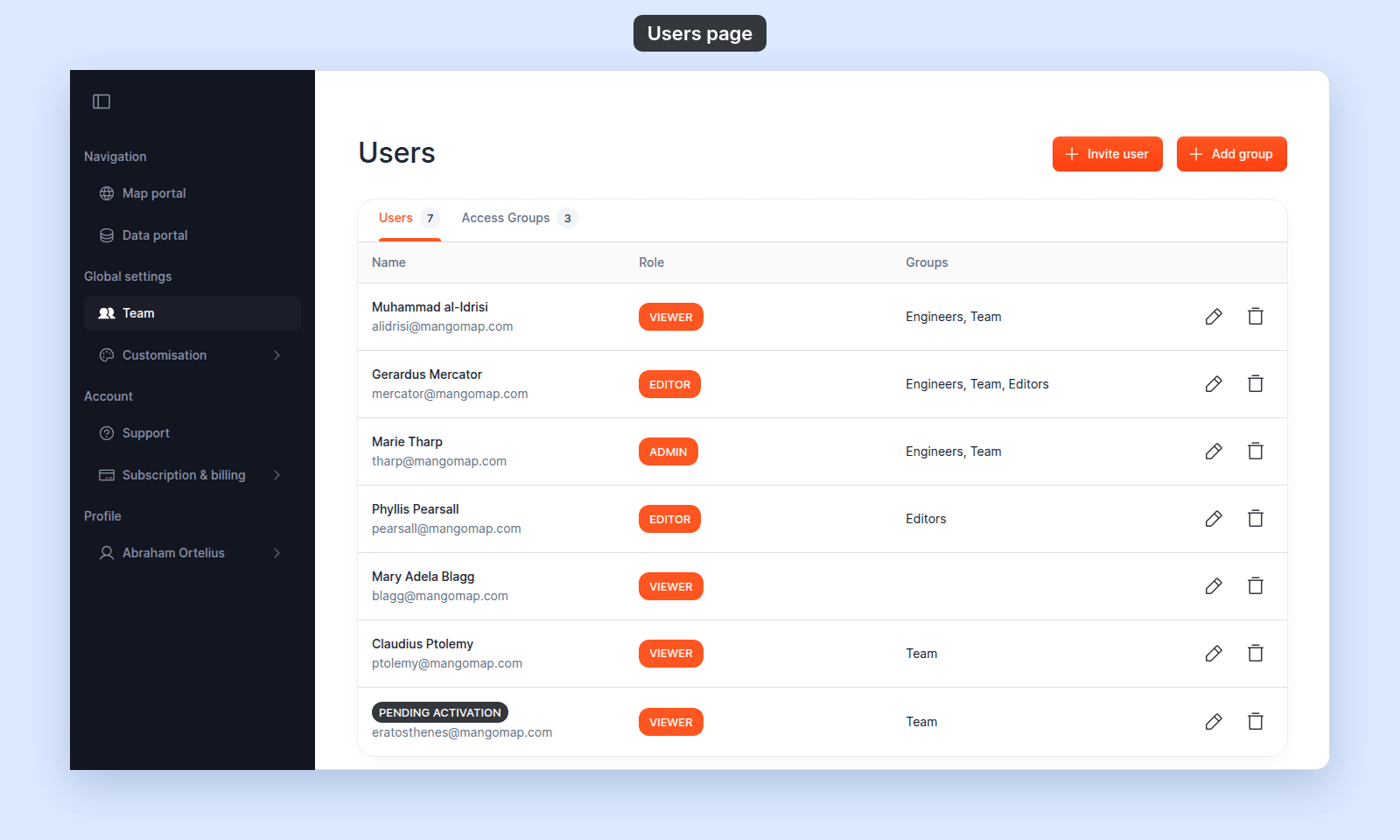
Look up the controls on the Users page: the Invite user and Add group buttons, the Users and Access Groups tabs, table columns, row actions, and states.
Enterprise and Agency onlyThe account owner uses the Users page to manage users and access groups. Use this reference to check each control before you invite, change, or delete a user.
Where this page is
| Navigation | Global settings > Team |
| Page title | Users |
| Tabs | Users, Access Groups. Each tab shows its count. |
| Action bar | Invite user, Add group |
| Required role | Owner. Admin, Editor, and Viewer users do not see Team in the navigation, and MangoMap sends them to the Map portal if they open the route. |
Action bar
| Button | Effect |
|---|---|
Invite user |
Opens the Invite user form. |
Add group |
Opens the Create group form. |
The buttons appear on both tabs.
Users tab
| Column | What it shows |
|---|---|
| Name | The user’s name and email on two lines. While the user is unactivated, the name is replaced with a PENDING ACTIVATION chip and only the email is visible. |
| Role | The user’s account role, shown as a chip: ADMIN, EDITOR, or VIEWER. |
| Groups | The names of every access group the user is in, comma-separated. |
| (actions) | Edit (pencil) and Delete (trash) icons, right-aligned. |
The table does not list the account owner.
Empty state: No users found.
Row actions
| Action | Where it goes | When it appears |
|---|---|---|
| Edit (pencil) | Update user. |
Always. |
| Delete (trash) | Opens the Permanently delete this user? dialog. |
Always. The owner has no row, so the owner cannot be deleted. |
Delete user dialog
| Field | Value |
|---|---|
| Title | Permanently delete this user? |
| Body | This user's access will be immediately revoked. |
| Confirm | Permanently delete |
| Cancel | Cancel |
Deletion happens at once and cannot be undone in the UI.
Access Groups tab
| Column | What it shows |
|---|---|
| Name | The group’s name. |
| Members | The number of members in the group. |
| (actions) | Edit (pencil) and Delete (trash) icons, right-aligned. |
Empty state: No groups found.
Row actions
| Action | Where it goes |
|---|---|
| Edit (pencil) | Edit group. |
| Delete (trash) | Opens the Permanently delete this access group? dialog. |
Delete group dialog
| Field | Value |
|---|---|
| Title | Permanently delete this access group? |
| Body | All access granted by this group will be immediately revoked. |
| Confirm | Permanently delete |
| Cancel | Cancel |
Deleting a group revokes every View and Edit permission that group granted across every map and dataset, in one step.
Invite user form
| Section | Field | Choices / details |
|---|---|---|
User information |
Email address |
Free text. Must be a valid email. |
User information |
(role) | Admin, Editor, and Viewer (radio). Owner is not offered. |
Groups |
(group selection) | Checkbox table of every access group with a Select all column header. |
Submit button: Invite user. Cancel: Cancel. Empty group table: No groups found.
The invite is rejected if the role’s seat limit is reached. Team management and access groups require an Enterprise or Agency plan.
Update user form
| Section | Field | Choices / details |
|---|---|---|
User information |
Name |
Free text. Optional. |
User information |
Email address |
Free text. Required. Must be a valid email. |
User information |
(role) | Admin, Editor, and Viewer (radio). Owner is not offered. |
Groups |
(group selection) | Same checkbox table as on the invite form. |
Submit button: Update user. Cancel: Cancel.
The forms offer Admin, Editor, and Viewer; they do not offer Owner.
Create group form
| Section | Field | Choices / details |
|---|---|---|
Group information |
Name |
Free text. Required. |
Members information |
(member selection) | Checkbox table of every account user. The header column is Select all. The second column is Role. |
Submit button: Create group. Cancel: Cancel. Empty users table: No users found.
The owner’s row is pre-selected and disabled. Rows for unactivated (PENDING ACTIVATION) users can be selected like any other row.
Edit group form
Same fields as the create form, with title Edit group, submit Save changes, and empty state No members found.
Status chip
| Chip | Meaning |
|---|---|
PENDING ACTIVATION |
The user has been invited but has not completed Join. They cannot sign in yet. You can still edit them, remove them, and add them to groups. |
Once a user activates, the chip is replaced with their name.
Related
- How team management and account roles work in MangoMap
- Account roles reference - the canonical “who can do what” matrix across every surface.
- How to invite a user
- How to update a user
- How to remove a user
- How to create an access group
- How to edit an access group
- How to delete an access group