

How to update a user
Change a user's name, email, role, and access groups in one save from the Users tab. A role change applies to all maps and datasets they reach through groups.
Enterprise and Agency onlyUpdate user changes a user’s name, email, role, and groups in one save. A role change takes effect on every map and dataset they access through groups. Only owners can use this form, and Owner is not assignable (one owner per account, set at account creation); for users to change their own name, email, or password, they use their own User profile instead.
Before you start
- You need to be the account owner. Only the user with the
Ownerrole can update users.Admin,Editor, andViewerusers cannot. - Know what you want to change. The form saves role and group changes together.
- The owner’s role cannot be changed from this form. The role selector offers
Admin,Editor, andViewer.
Open the update form
In the navigation, under Global settings, click Team. On the user’s row, click the pencil icon. The form opens with the user’s current values filled in:
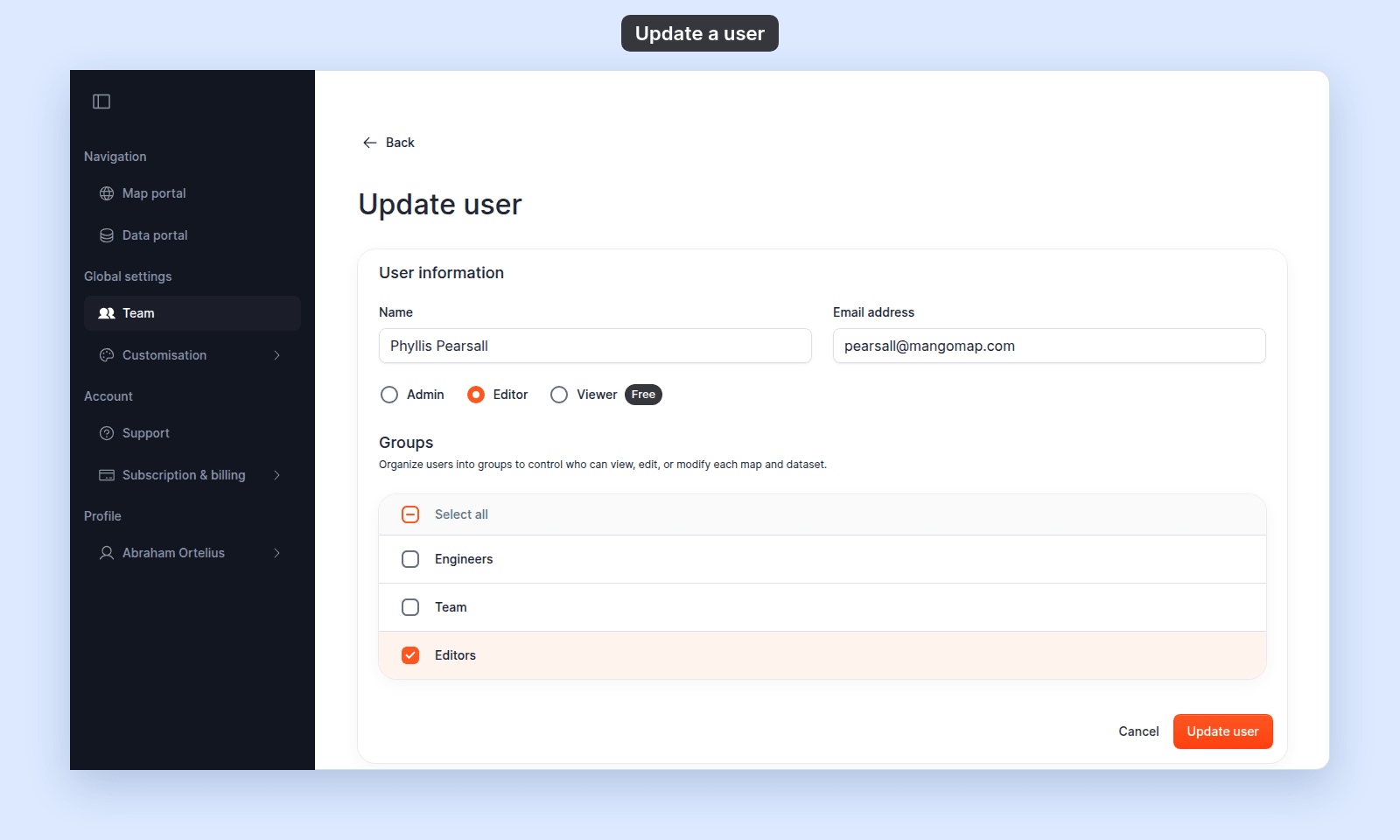
Change the name or email
In User information:
- Edit
Nameto change the displayed name. - Edit
Email addressto change the sign-in email. The email must be a valid address.
Name is optional. Email address is required.
Change the role
In User information, select a role: Admin, Editor, or Viewer.
Changing a role takes effect as soon as you click Update user. A user moved to a role without edit permission immediately loses the ability to edit the maps and datasets they previously had Edit access to through their groups.
Change access group memberships
In Groups, the user’s current groups are ticked.
- Tick a checkbox to add the user to that group.
- Untick a checkbox to remove the user from that group.
Use the Select all column header to add or remove the user from every group at once.
For what each group’s View and Edit access actually grants, see How map access works in MangoMap and How dataset access works in MangoMap.
Save changes
Click Update user. Every change in both sections — name, email, role, group memberships — saves together.
If you change your mind before saving, click Cancel to leave the form without applying any changes.
Updating a pending user
A user who shows PENDING ACTIVATION can still be updated. Their email, role, and group memberships save the same way. When they accept the invitation and complete Join, your changes apply immediately.
Limits on updates
| Symptom | Cause | Fix |
|---|---|---|
The role radio does not show Owner. |
The team UI offers Admin, Editor, and Viewer; Owner is set when the account is created and is not assignable from this form. |
Account ownership transfer is not available from this form. |
| The submit shows an upgrade prompt. | The role you selected exceeds your subscription’s seat limit for that role. | Upgrade the subscription or pick a role with seats available. |
| Group changes save but the user still cannot view a map or dataset. | The map or dataset’s own access settings have not granted that group View or Edit. |
See How to share a map with groups and How to share a dataset with groups. |
Troubleshooting
The Users page is blocked. You are not the account owner. See The Users or Groups page is blocked.
A user has the right role and groups but still can’t edit a dataset. Confirm the dataset’s Internal Access card has Edit on for one of the user’s groups. See A teammate can’t edit a dataset I shared with their group.
Related
- Users page
- How team management and account roles work in MangoMap
- How to invite a user
- How to remove a user
- How to update your profile - users change their own name, email, and password from
Profile. Use this page only to change another user’s role or group memberships. - How to share a map with groups
- How to share a dataset with groups