

How to update your profile
Change your name or sign-in email in User profile. Eligible account owners can also change the organisation name and the account URL.
Use User profile to change your name or sign-in email. Eligible account owners can also change the organisation name and account URL.
Before you start
- You must be signed in.
- To change email, have access to the new inbox and know the current password.
- The role shown on this page is read-only. Account owners change roles through team management.
Open your profile
In the profile section of the admin navigation, click User profile.
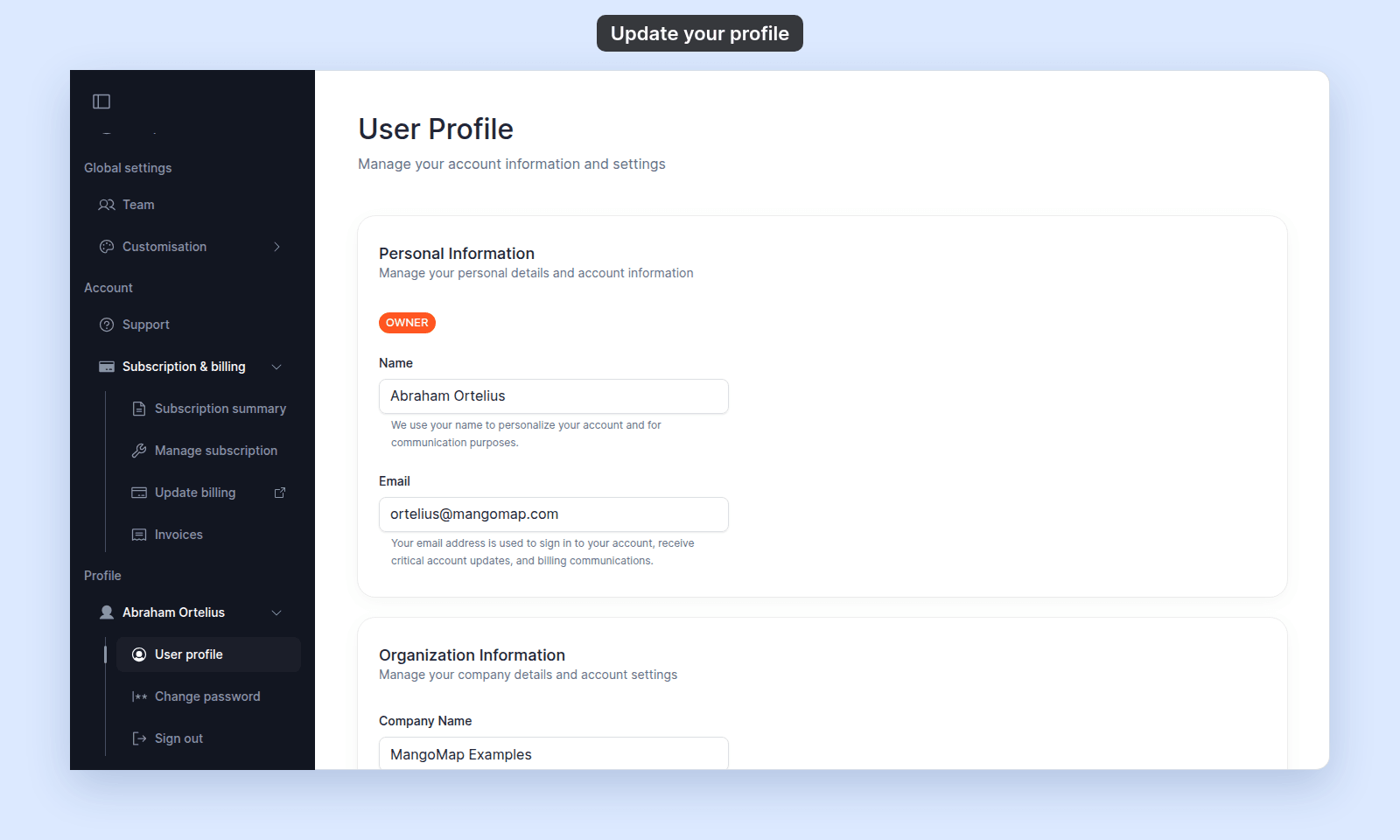
Change your name
Edit Name, then leave the field or press Enter. The save indicator confirms the change.
Change your email
- Edit
Email, then leave the field or press Enter. - Open the verification message sent to the proposed address.
- Enter its code and your
Current password. - Click
Verify.
After verification, the proposed email becomes your sign-in address. MangoMap signs out other sessions and starts a new session in this browser.
Use Resend Verification Email if the message does not arrive. Closing the dialog before verification leaves the existing email unchanged.
Change the organisation name
Account owners on directly billed accounts can edit Company Name. Leave the field or press Enter to save.
For a partner-managed account, contact the partner instead. MangoMap hides these controls, so the owner cannot update them directly.
Change the account URL
Eligible account owners can click Edit beside URL Slug. Because the change affects shared links and embeds, follow How to change your account URL slug.
Troubleshooting
The new email is rejected before verification. Correct the email format and try again.
The verification message does not arrive. Follow Email verification did not work.
Organisation settings are absent. You are not the account owner, or the account is partner-managed.
The role is incorrect. Ask the account owner to update it through team management.