

A teammate can't edit a dataset I shared with their group
Find out why a teammate with group Edit access still cannot edit a dataset. Editing also needs an account role of Editor or higher, not Viewer.
A teammate has group Edit access in Internal Access but still cannot edit the dataset or its features. Group Edit access is one of two editing requirements. The account role is the other.
Check the causes in this order, from the most likely to the least likely:
Most likely cause: their account role is Viewer
Editing a dataset requires both:
Editaccess through a group the user belongs to, and- An account role of
Editoror higher.
A Viewer with group Edit access can still only view the dataset. These requirements are separate. Granting Edit does not change the account role.
A teammate who cannot edit the dataset sees Dataset in the sidebar with no Configuration under it, and no Delete Dataset button. This is what a Viewer sees, with or without group Edit access:
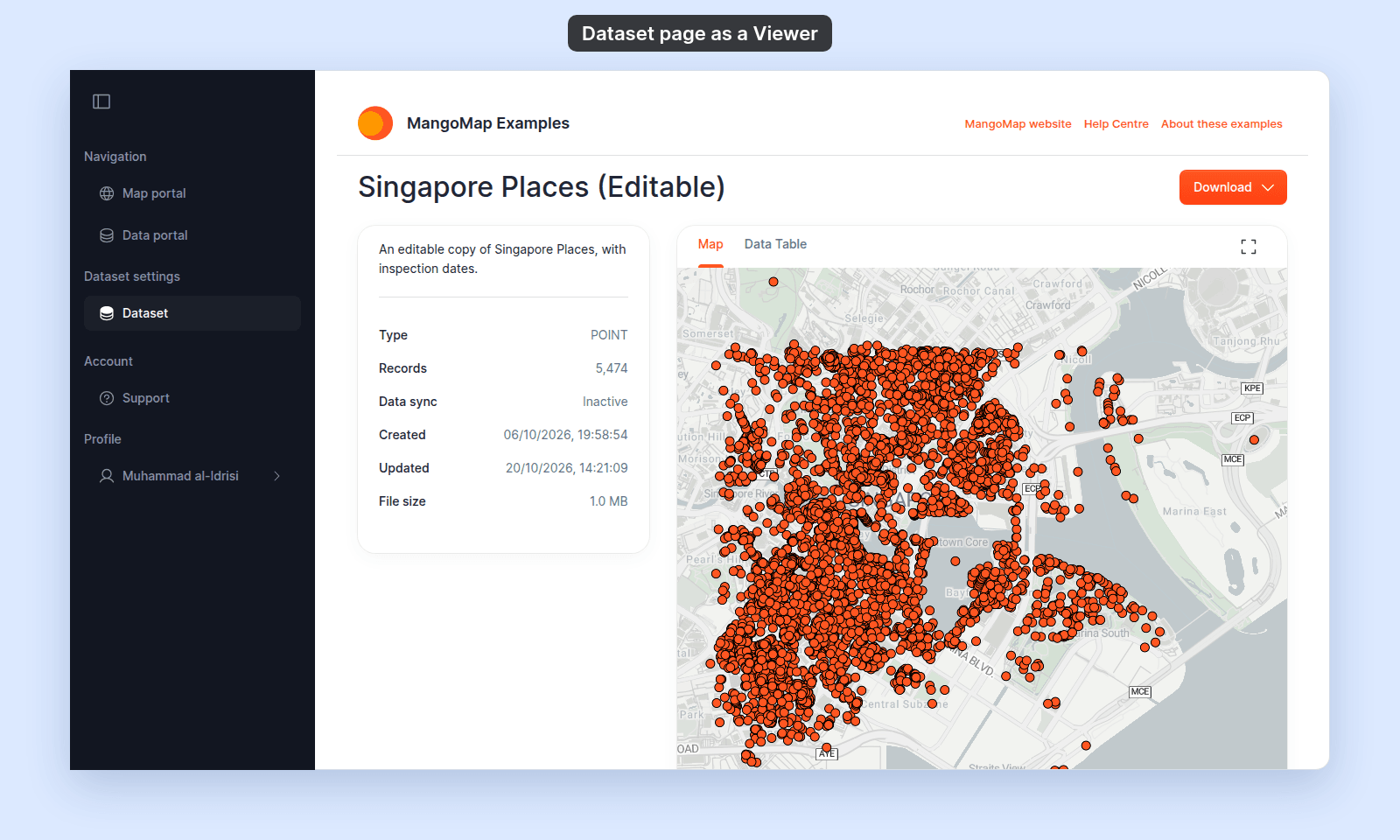
To verify, the account owner opens the Users page and checks the user’s role. If it is Viewer, raise it to Editor or Admin.
Less common: they are not in the group
Edit is granted to a group, not directly to a user. If the user is not actually a member of the group with Edit access, the switch in Internal Access does nothing for them.
To verify, the account owner opens Manage Groups and checks the group’s membership.
Less common: a different group’s Edit switch is off
If you turned Edit on for a group, double-check that you saved the change on the right dataset. Group access is per dataset, not workspace-wide. The user might have Edit on group A for dataset X but not for dataset Y.
To verify, open the dataset in question, go to Configuration > Access, and confirm Edit is on for the group that contains the user.
Less common: they are signed in to the wrong account
Each MangoMap user belongs to one account only. If your teammate has more than one MangoMap sign-in, for example a work email in your account and a different email in another account, they need to sign in with the email that is a user in your account. When they are signed in as a user of a different account, they cannot edit a dataset in your workspace, regardless of group access.
If none of the above
Ask support to check the dataset ID, the user’s account role, and the user’s group membership. Include the dataset URL and the user’s sign-in email address.