

Dataset access settings
Check what each Public Access and Internal Access setting changes on a dataset, where to find them, and who can manage them, before you share.
Dataset access settings control whether a dataset is private, shared with specific groups, or available to anyone on the web. Use this reference when you need to check exactly what each setting changes before you share a dataset.
Where these settings are
| Page | Configuration, under Dataset in the sidebar |
| Section | Access |
| Cards | Public Access, Internal Access |
| Required permission | You need permission to manage access for the dataset. The dataset creator and the account owner always qualify; otherwise you need an Admin account role and a group with Edit access. |
Open the dataset, select Configuration in the sidebar, then select Access in the page’s section list. From a map, the Edit data access item in a feature popup’s three-dot menu opens the same section in a new tab. The sidebar shows Configuration only when you can edit the dataset. If you cannot, you do not see the settings.
When you can edit the dataset but cannot manage its access, every switch in Public Access and Internal Access is disabled and Manage Groups does not show. See Dataset access settings are disabled.
Changes save automatically when you toggle a switch.
This is the Access section of a public dataset, as the account owner sees it:
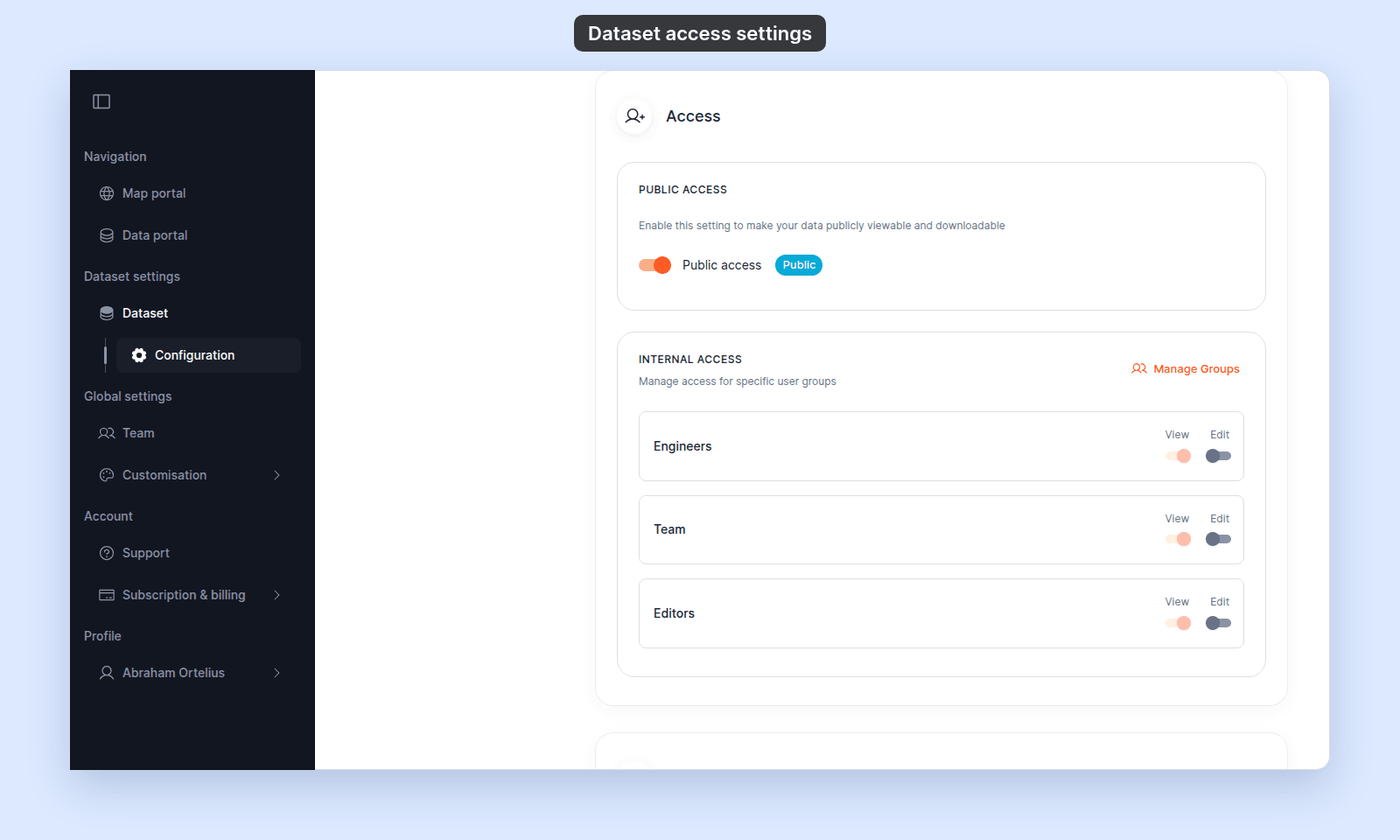
Public Access
| Setting | Type | Default | Effect |
|---|---|---|---|
Public access |
Switch | Off for new datasets | When on, the dataset is publicly viewable and downloadable. When off, only signed-in users with view access can open it. |
Public |
Status chip | Hidden when off | Shown next to the toggle while Public access is on, so the public state is visible quickly. |
Turning Public access on does not change which groups have Edit access. It only changes whether people outside your workspace can view and download the dataset.
Internal Access
| Setting | Type | Effect |
|---|---|---|
View |
Switch per group | Members of that group can view the dataset after signing in. |
Edit |
Switch per group | Members of that group can edit the dataset if their account role is Editor or higher. Edit also counts as view access. |
Manage Groups |
Button | Opens the Access Groups tab on the Users page. |
Create a Group |
Button | Appears in the empty state when no groups exist and you can manage access. Opens the Create group form. |
Group access applies to signed-in users in your workspace. It does not create a public link or grant access to anyone outside your workspace.
A single Edit switch covers every kind of change a group member can make to the dataset. Granting Edit allows attribute and geometry edits on maps that use the dataset, file updates from Update from file, sync changes, and dataset configuration changes.
Switch state rules
Public access |
Group Edit |
Group View shows |
Group View is editable |
|---|---|---|---|
| Off | Off | Whatever you set | Yes (if you can manage access) |
| Off | On | Forced on | No - turn off Edit to change View |
| On | Off | Forced on | No - turn off Public access to change View |
| On | On | Forced on | No |
Edit is editable whenever you can manage access, regardless of Public access or View state.
When you cannot manage access, every switch is disabled regardless of these rules.
What Edit access lets a group do
A user with Edit access through a group, and an account role of Editor or higher, can do all of the following on the dataset:
| Action | Where it happens | Linked guide |
|---|---|---|
| Edit feature attributes on a map | Map view, with the layer’s editing tools | Edit feature attributes |
| Edit feature geometry on a map | Map view, with the layer’s editing tools | Edit feature geometry |
| Add or delete features on a map | Map view, with the layer’s editing tools | Add a feature, Delete a feature |
| Update the dataset from a new file | Configuration > Update from file |
How to update a dataset from a file |
| Change sync settings | Configuration > Sync |
How to set up Dropbox sync |
| Change dataset properties and configuration | Configuration > Data details |
(future doc) |
A user with View access can do none of the above.
Who can do what
| Action | Required |
|---|---|
| View a public dataset | No sign-in required. |
| View a private dataset | Be the dataset creator, the account owner, or in a group with View or Edit access. |
| Edit a dataset | Be the dataset creator, the account owner, or have an Editor (or higher) account role plus Edit access through a group. |
| Manage access for a dataset | Be the dataset creator, the account owner, or have an Admin account role plus Edit access through a group. |
| Delete a dataset | Be the dataset creator, the account owner, or have an Admin account role plus Edit access through a group. |
| Export a dataset | Same as view. |
The account owner always qualifies for every action.
Related
- How to configure dataset access
- How dataset access works in MangoMap
- How to share a dataset with groups
- How to share a dataset publicly
- How data updates work in MangoMap - what
Editaccess unlocks inUpdate from fileandSync. - Account roles reference - the canonical “who can do what” matrix across datasets, maps, and groups.