

A public dataset is not accessible to the recipient
Find out why someone outside your workspace cannot open a dataset link. Check that Public access is on, the URL is right, and no sign-in is needed.
Someone outside your workspace cannot open a dataset link. Check public access, the URL, and any sign-in prompt.
Most likely cause: Public access is off
When Public access is off, the dataset is restricted to signed-in users with view or edit permission. Anyone outside your workspace - or anyone in the workspace without group access - is blocked.
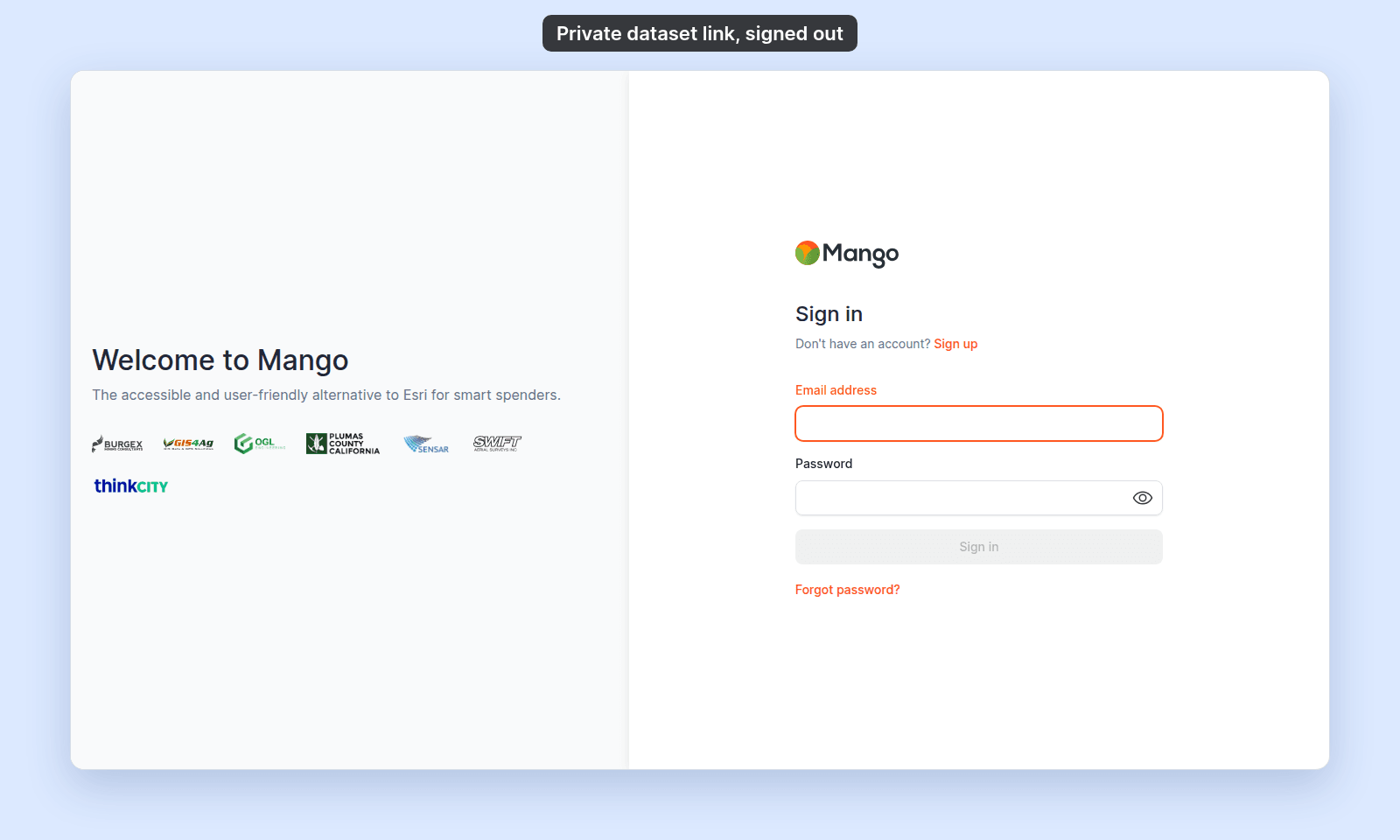
A recipient who is not signed in gets the MangoMap sign-in page instead of the dataset:
To verify:
- Open the dataset, go to
Configuration, and selectAccess. - In
Public Access, look for thePublicchip next to the toggle. - If the chip is missing, turn on
Public access.
The dataset becomes public and downloadable when the toggle is on. Send the recipient the dataset URL again.
Less common: the recipient is using the wrong URL
A typo, a stale link, or a link copied from a different dataset all show as a missing or inaccessible dataset.
To verify, copy the URL from your browser address bar while you have the dataset open, and resend it.
Less common: the recipient is being asked to sign in for a different reason
If the recipient lands on a sign-in page, confirm:
- They opened the dataset URL directly, not a map URL or a workspace URL.
If the URL is correct and the dataset is public, recipients should not be asked to sign in.
If none of the above
Ask support to check the dataset ID, the dataset’s public access state, and the URL the recipient is using. Include the dataset URL you sent and a screenshot of what the recipient sees.