

How to share a dataset publicly
Turn on Public access so anyone with the URL can view and download a dataset. Check the data is safe to publish first, as you cannot recall copies.
Turning on Public access lets anyone with the URL view and download the dataset. You cannot recall a downloaded copy. There is no view-only public mode. Public access does not grant edit (that stays with Internal Access group toggles), and turning it back off restores group View to whatever you had set before but doesn’t recover already-downloaded copies.
Before you start
- You need permission to manage access for the dataset. The dataset creator and the account owner always qualify; otherwise you need an
Adminaccount role andEditaccess through a group. - Confirm that the data is safe to publish. Public access lets anyone download the dataset; once it is downloaded, you cannot recall it.
- Decide who you want to be able to edit the dataset. Public access only controls viewing and downloading. Editing still depends on
Internal Accessand account roles.
Open Public Access
Open the dataset. In the sidebar, under Dataset, select Configuration, then select Access in the page’s section list.
Changes save automatically when you toggle a switch.
Make a dataset public
- Turn on
Public access. - Confirm the
Publicchip appears next to the toggle.
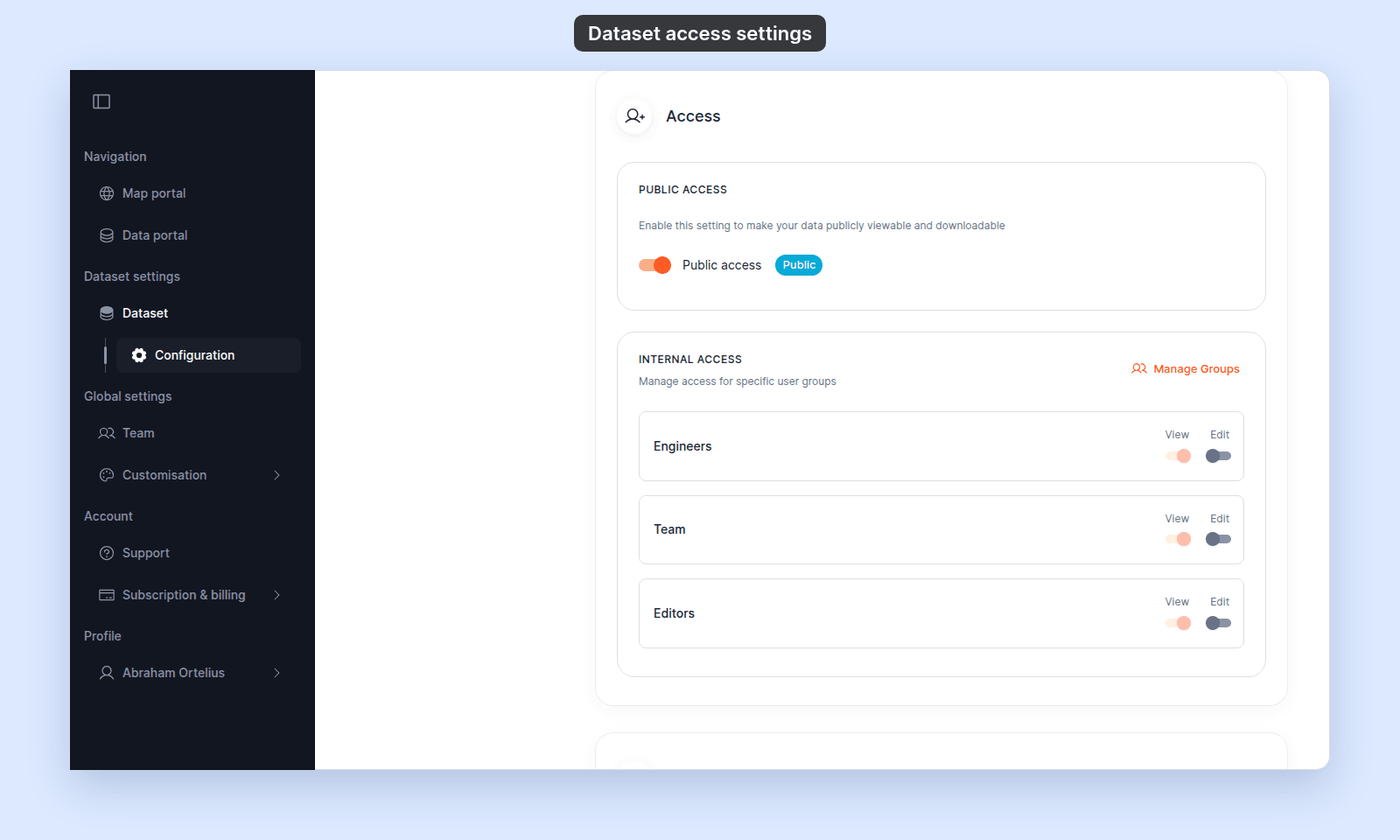
The dataset is now publicly viewable and downloadable. Anyone with the dataset URL can open it.
What changes when public access is on
| Area | Effect |
|---|---|
| Web access | Anyone with the dataset URL can view and download the dataset, signed in or not. |
Internal Access group View switches |
Forced on for every group while Public access is on. The dataset is publicly viewable, so signed-in groups can view it as well. |
Internal Access group Edit switches |
Unchanged. Public access does not grant editing rights. |
| Dataset creator and account owner | Unchanged. Always have full access. |
Take a dataset back to private
Turn off Public access to restrict the dataset to signed-in users with view or edit permission.
| Area | Effect |
|---|---|
| Web access | Removed. Anyone without group access loses access to the dataset. |
Internal Access group View switches |
Return to whatever you set before public access was enabled. |
| Existing copies people downloaded | Not recalled. People who downloaded the dataset while it was public still have their copies. |
Edit access stays separate
Public access controls who can view and download the dataset. It does not let anyone edit it.
To let workspace teammates edit the dataset, grant Edit to a group in Internal Access. See How to share a dataset with groups.
Troubleshooting
The toggle is greyed out. You do not have permission to manage access for this dataset. See Dataset access settings are disabled.
A recipient cannot open the dataset. Confirm the Public chip is showing next to the toggle. If it is not, Public access is off. See A public dataset is not accessible to the recipient.
Related
- Dataset access settings
- How dataset access works in MangoMap
- How to configure dataset access
- How to share a dataset with groups