

How to add a feature to a layer
Draw a new point, line, or polygon from an existing feature's popup, fill in its attributes, and save it to the dataset for every map.
Use Add feature from an existing popup to draw a feature in the same dataset. The new feature appears on every map that uses the data.
Before you start
- Sign in with permission to edit features in the dataset.
- Use a vector layer with an enabled popup.
- Select a feature from the target layer. MangoMap uses it to find the dataset and its attribute fields. The dataset’s geometry type sets what you draw.
This workflow cannot create the first feature in an empty dataset because no popup exists. Import or update the dataset from a file instead.
Open the add editor
- Select any feature in the target layer.
- Open the popup’s three-dot menu.
- Click
Add feature.
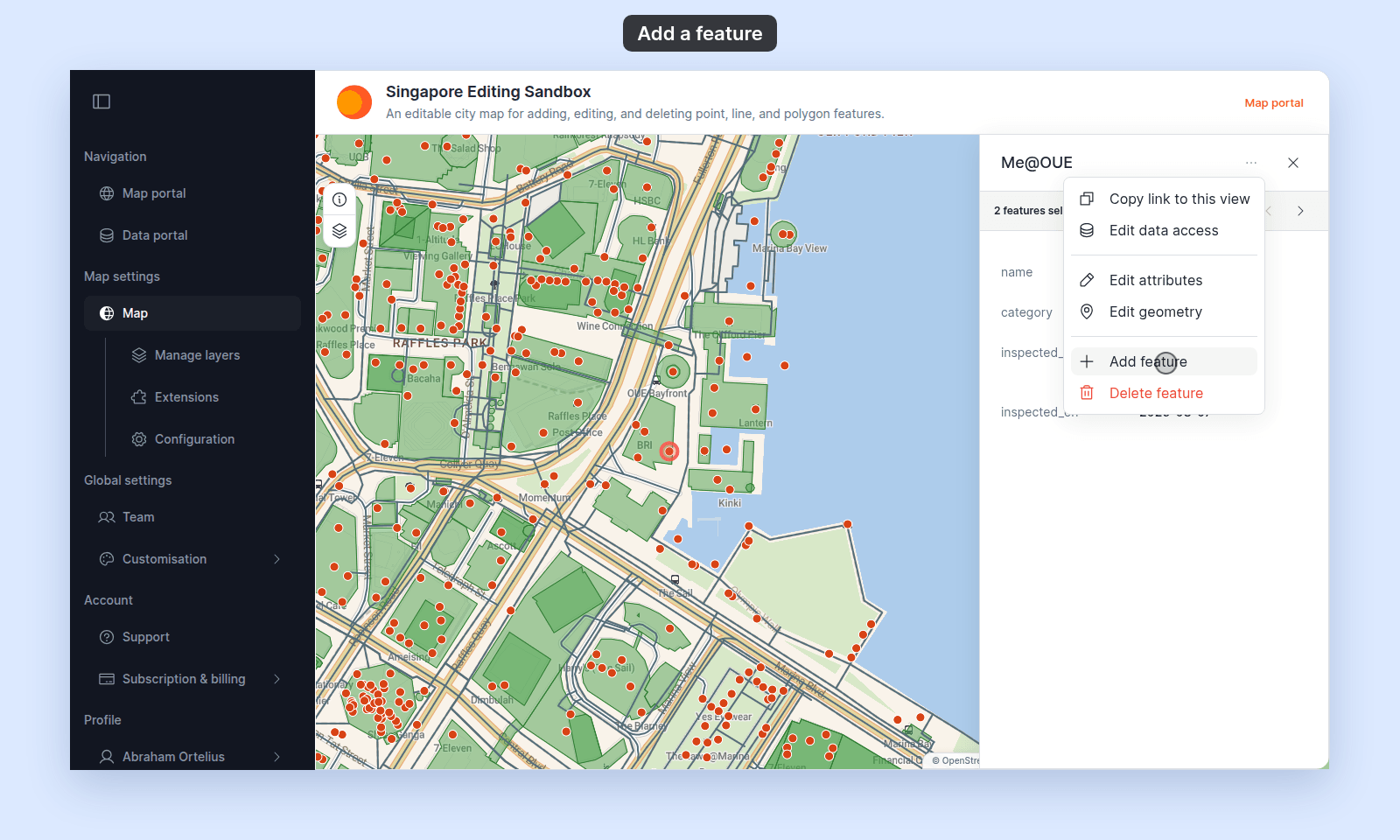
Save feature remains disabled until a complete geometry has been drawn.
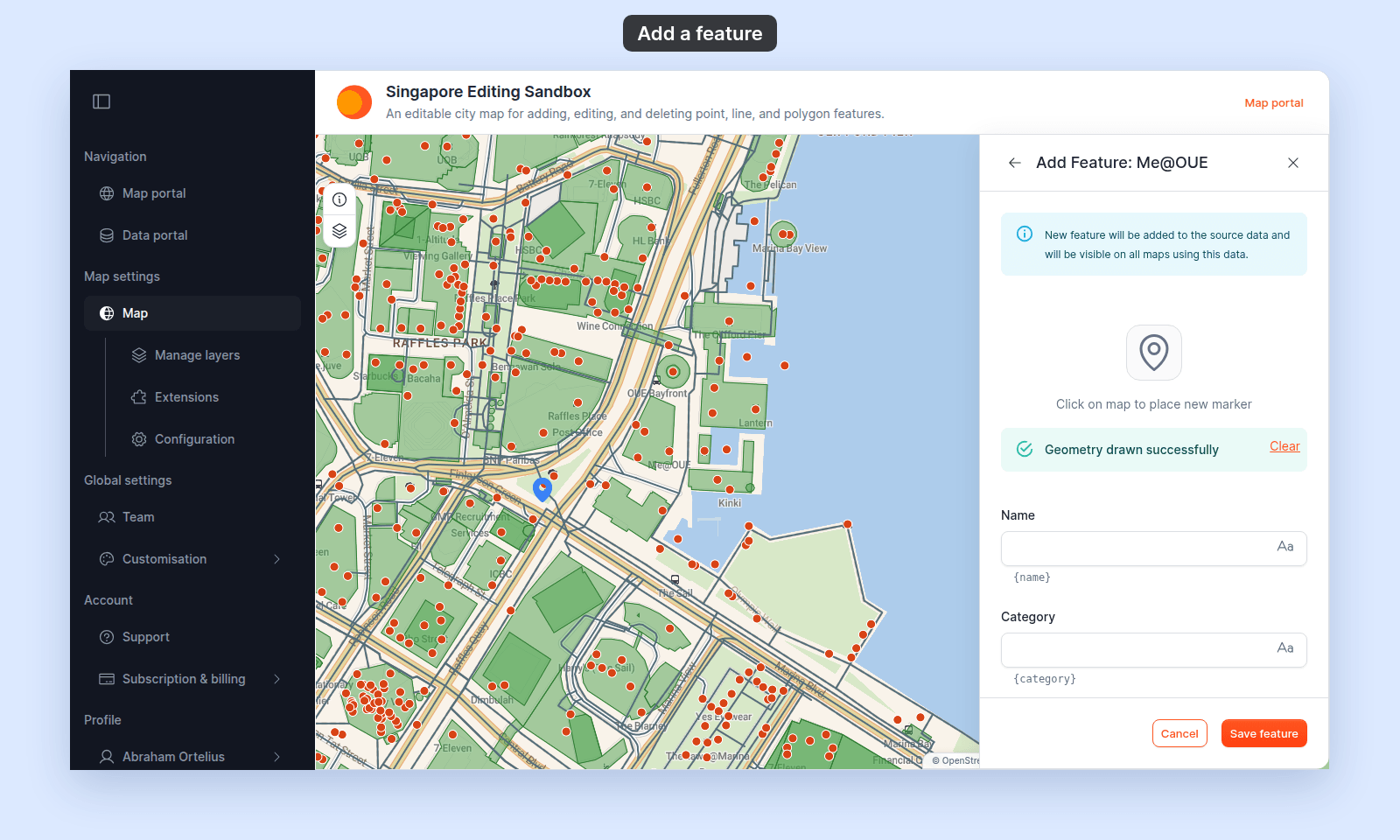
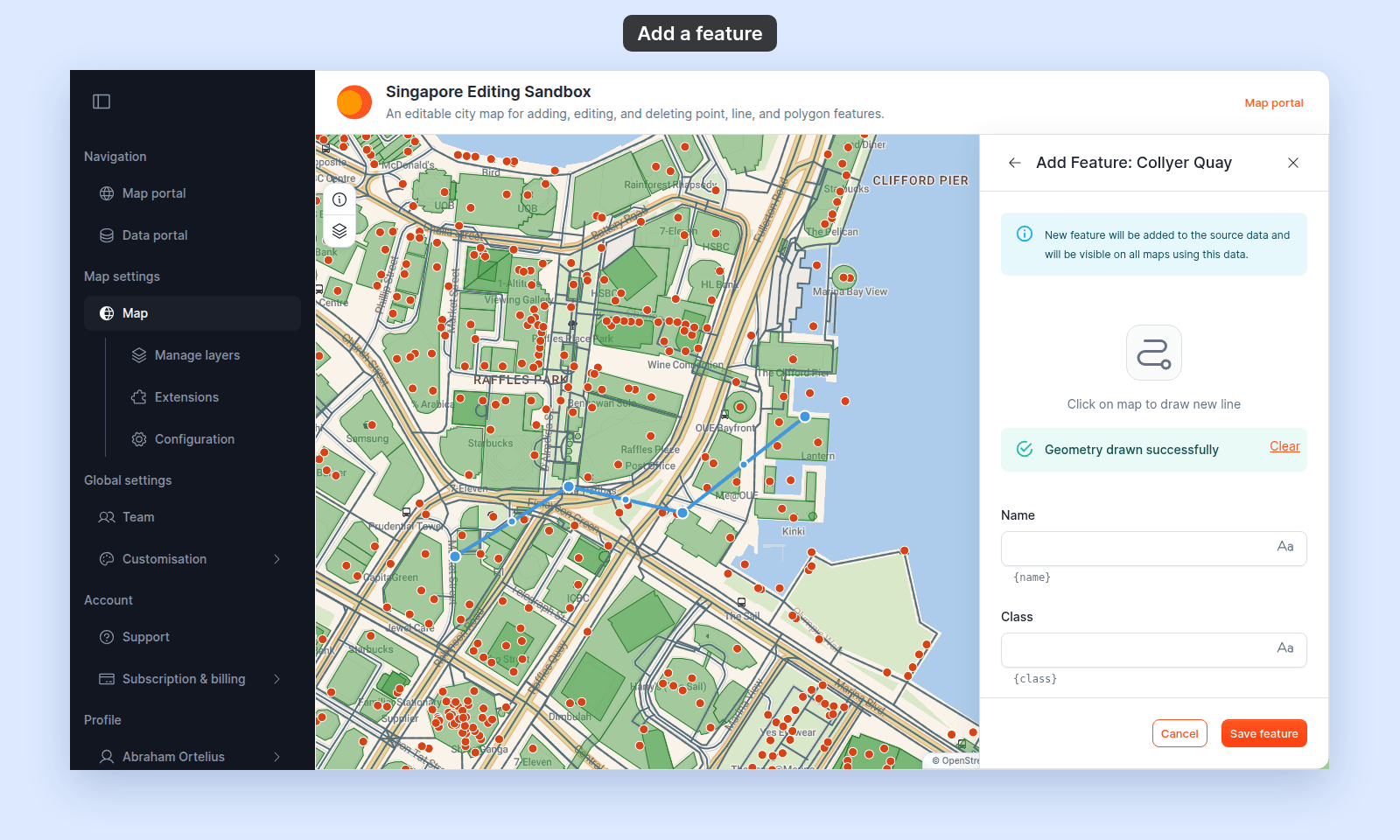
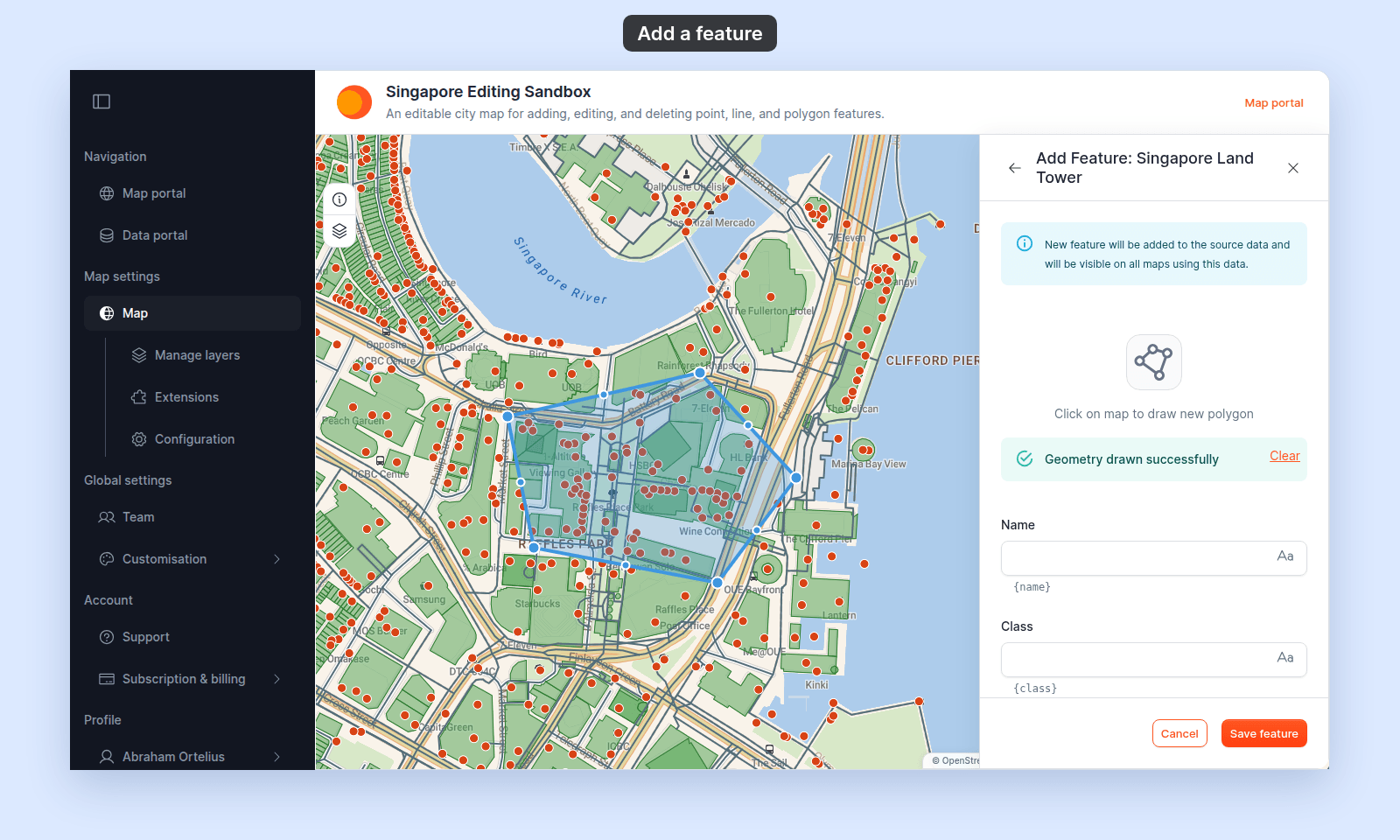
Draw the geometry
- Point or multipoint — click once to place a draggable marker.
- Line or multiline — click to add vertices, then click the last vertex again to finish the line.
- Polygon or multipolygon — click to add corners, then click the first corner to close the polygon.
After a line or polygon is complete, its vertices can be adjusted. Use Clear to discard the geometry and draw it again.
Enter attributes
Fill the attributes needed for the new feature.
Save or cancel
Click Save feature to add the feature to the dataset. The new feature is selected on the map.
Click Cancel to discard the geometry and values.
If saving fails
An error message appears, and the panel stays open with your drawing and values.
| Message starts with | What to do |
|---|---|
Validation failed: |
The message lists each value that does not fit its field, for example text in a number field. Correct the values and save again. |
Invalid geometry: |
The drawn shape is not valid. Click Clear and draw it again. |
Unauthorized: |
You can’t edit features in this dataset. Ask the account owner to check your account role and the dataset’s access. |
Add several features
Repeat this workflow for small one-off additions. For bulk changes, prepare the complete source and follow How to update a dataset from a file.