

How to delete a feature
Delete one feature from its dataset with the Delete feature action. The change is permanent, so check how to confirm it and restore data.
Delete feature permanently removes one feature from its dataset and every map that uses it. A dialog asks you to confirm, and you cannot undo the deletion.
Before you start
- Sign in with permission to edit features in the dataset.
- Verify that you selected the correct feature and layer.
- Keep an external source copy if the data may need to be restored.
Delete the feature
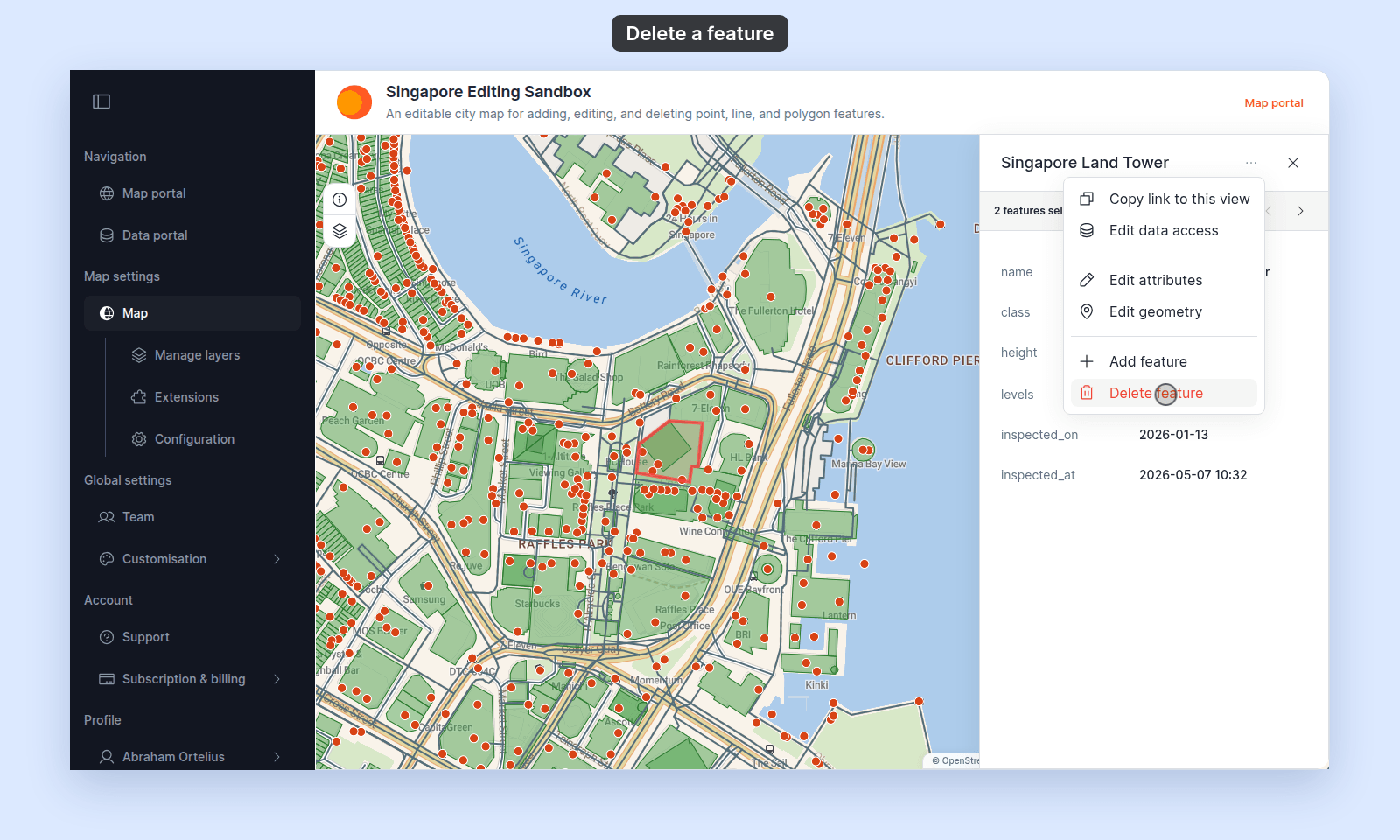
- Select the feature on the map.
- Open the popup’s three-dot menu.
- Click
Delete feature. A confirmation dialog opens. - Click
Delete. To keep the feature, clickCancel.
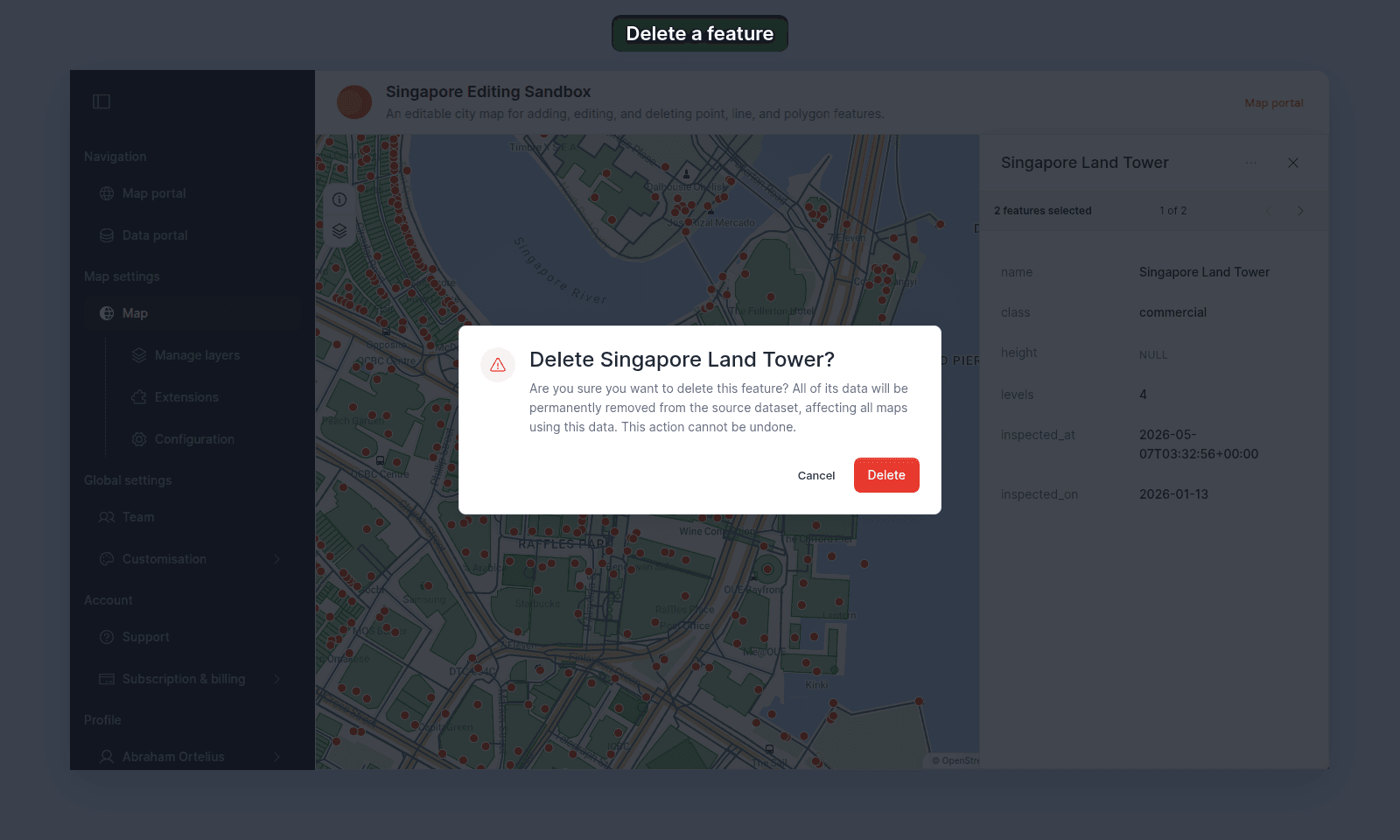
When the deletion succeeds, the popup closes.
Restore a deleted feature
MangoMap does not keep a feature-edit history. To restore the data:
- Add a replacement manually with Add a feature, or
- Update the dataset from an external source containing the missing feature.
A recreated feature is a new feature. Links to the deleted one will not follow it.
Delete many features
The popup action deletes one feature at a time. For a bulk removal, prepare a complete source file without the unwanted features and update the dataset.
If deletion fails
Refresh the map before retrying. The feature may already have been deleted, your permission may have changed, or the connection may have dropped.