

How to edit a feature's geometry
Move a point, reshape a line or polygon, or remove a vertex. Saving changes the dataset on every map that uses it.
Use Edit geometry to move a point or reshape a line or polygon. Saving changes the source dataset and every map that uses it.
Before you start
- Sign in with permission to edit features in the dataset.
- Use a vector layer with an enabled popup.
- Confirm that the dataset-wide geometry change is intended.
Open the geometry editor
- Select the feature on the map.
- Open the popup’s three-dot menu.
- Click
Edit geometry. The editor opens on the right, and handles appear on the feature on the map.
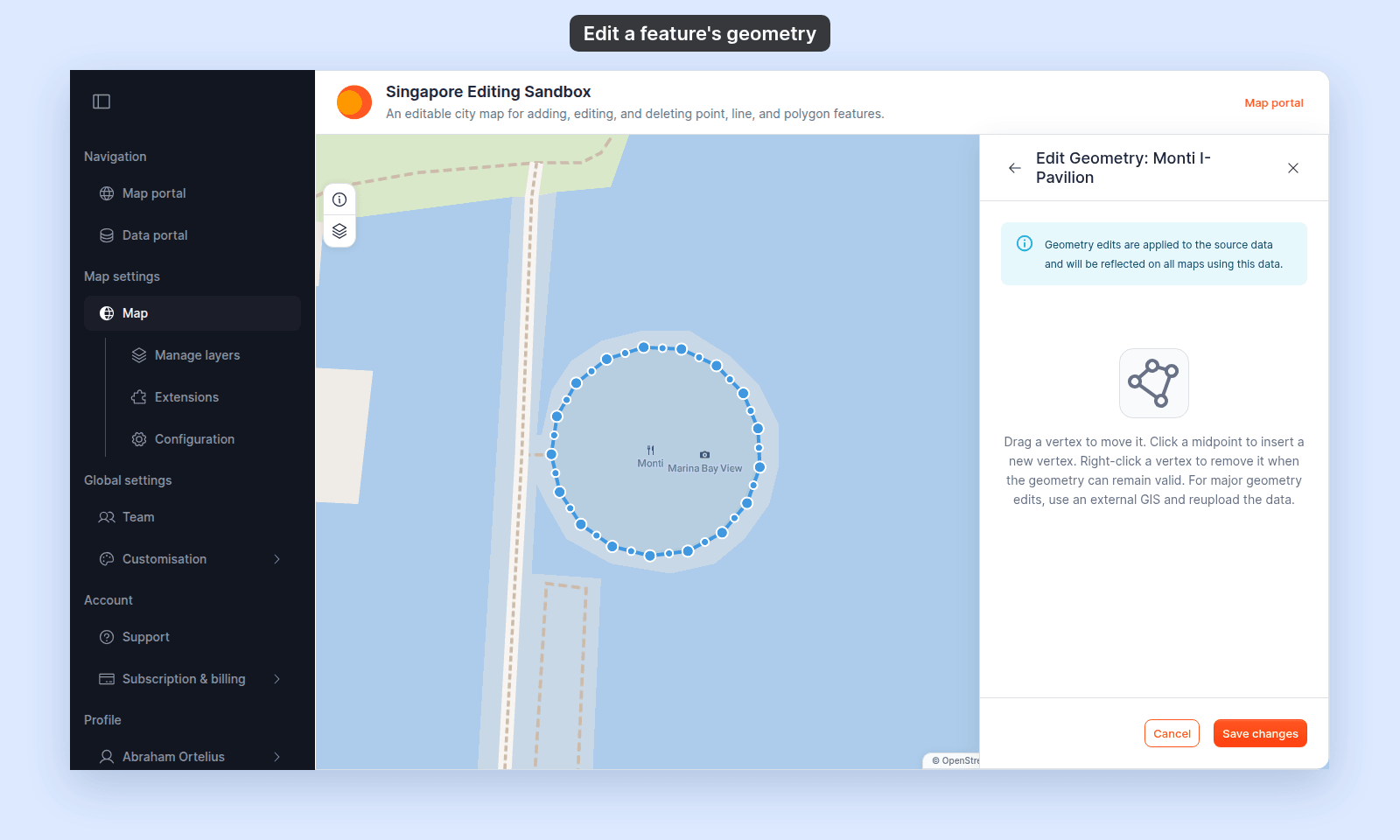
Move or reshape the feature
- Line — drag a vertex to move it. Click a midpoint to insert a new vertex.
- Polygon — drag a corner to move it. Click a midpoint to insert a new corner.
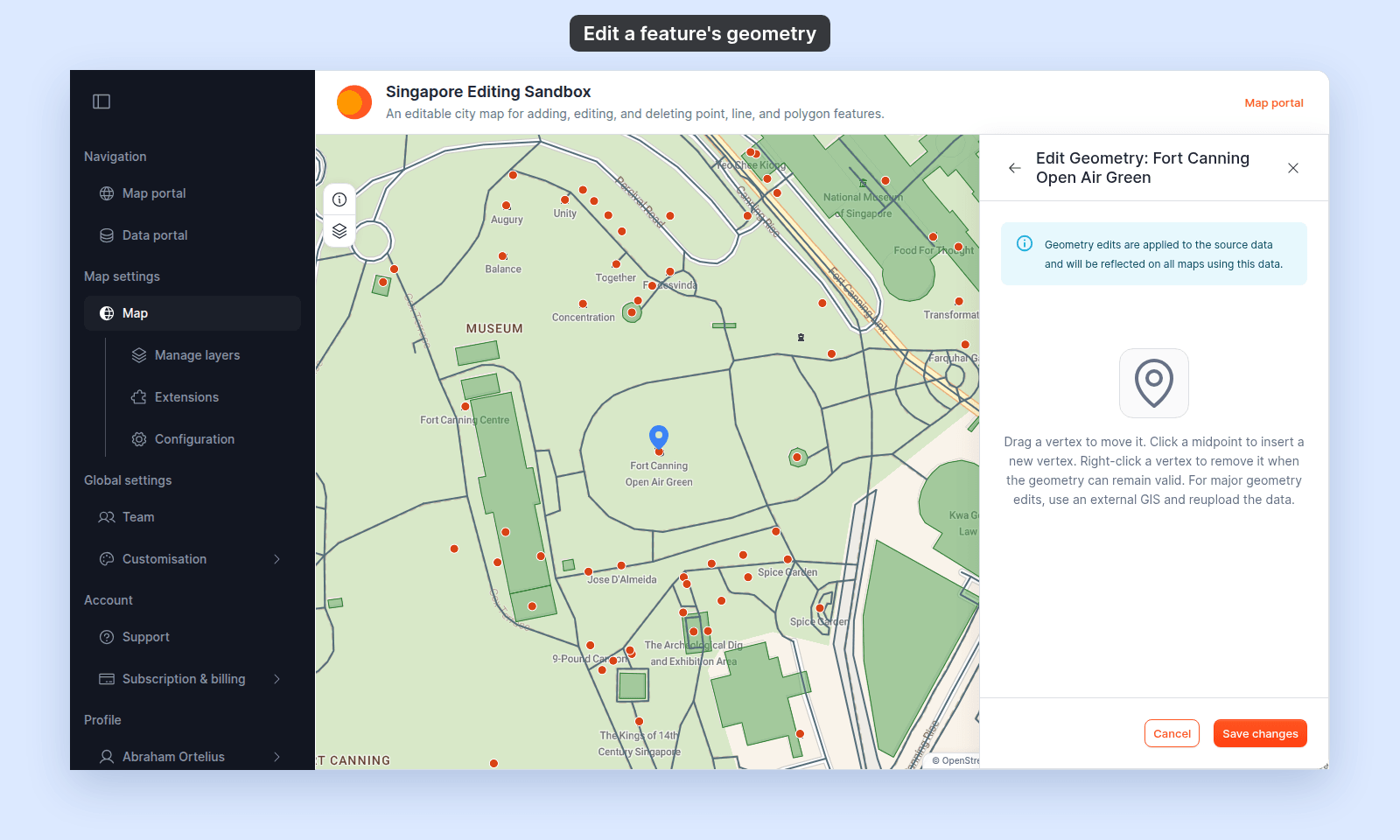
- Point — drag the blue marker to the new place.
For a point from an imported file, the panel shows the instructions for lines and polygons (Drag a vertex to move it. Click a midpoint to insert a new vertex.). Ignore them: a point has one marker, and you drag it.
Remove a vertex
Right-click a vertex on a line or polygon to remove it. A vertex is removed only when the shape stays valid, so a line or polygon can’t lose the vertices it needs.
Multi-part features and polygons with holes
The editor works on one line or one polygon ring at a time. So that no part is lost, it does not open for:
- A feature with more than one part, such as a multipolygon with two islands, or a multipoint with two points.
- A polygon with a hole.
For these features, and for large changes, edit the data in a desktop GIS and update the dataset from a file.
Save or cancel
After moving at least one coordinate, click Save changes. On success, the editor closes.
Click Cancel to remove the editing overlay without saving.
Change geometry type
The editor preserves the feature’s geometry family. It does not convert a point to a line, or a line to a polygon. Use a dataset with the required geometry type instead.
If the editor doesn’t open
Follow the checks in order to find out why the editor didn’t open:
A message appears instead of the editor:
| Message | What it means |
|---|---|
Editing multipart features or polygons with holes is not supported safely |
The feature has more than one part, or it is a polygon with a hole. |
Exact geometry could not be loaded |
MangoMap could not load the feature’s shape. Close the popup, click the feature again, and retry. |
This feature is too large to edit safely |
The feature has more than 30,000 vertices, or its shape is more than 1 MB of data. Edit it in a desktop GIS. |
If the panel shows Details could not be loaded instead of the popup, it has no three-dot menu, so Edit geometry isn’t available. See A popup says “Details could not be loaded”.
If saving fails
- Make sure at least one coordinate changed.
- Correct invalid or incomplete geometry.
- Confirm that edit permission is still active.
- Retry after restoring the network connection.