

How to invite a user
Invite a teammate by email from the Team page. Choose an Admin, Editor, or Viewer role and pick access groups. MangoMap emails them a link to join.
Enterprise and Agency onlyInvite a teammate by entering their email, choosing a role, and selecting their access groups. MangoMap emails them a link to set a password and join. Only the account owner can invite. Each role has a subscription limit; a full role shows an upgrade prompt.
Before you start
- You need to be the account owner. Only the user with the
Ownerrole can invite.Admin,Editor, andViewerusers cannot. - Decide whether the user needs the
Admin,Editor, orViewerrole. - Decide which access groups they should be in. You can also add them to groups later via
Update user. - If your subscription has seat limits per role, confirm you have a free seat for the role you plan to assign.
Open the invite form
In the navigation, under Global settings, click Team. On the Users page, click Invite user at the top right.
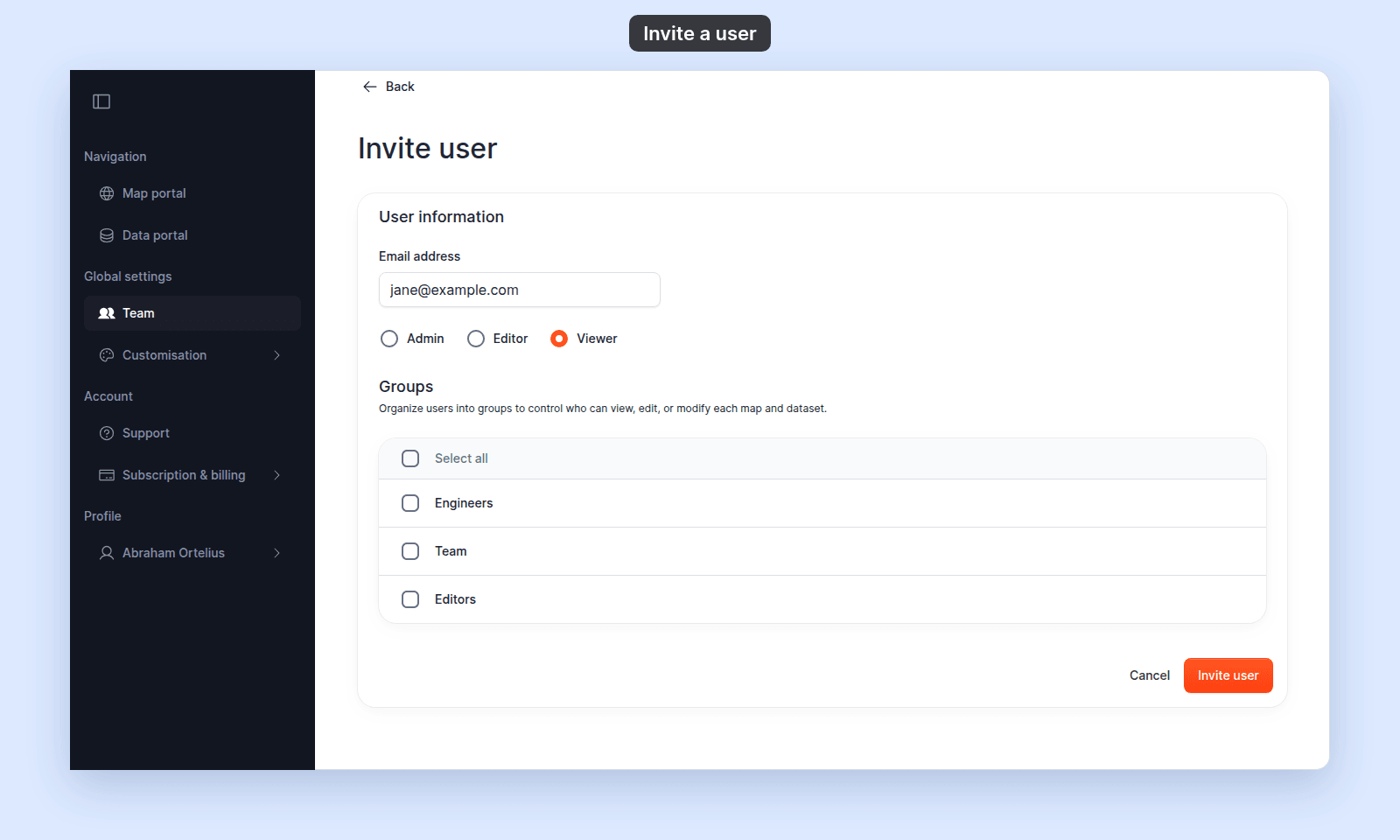
Enter user information
In User information:
- Enter the user’s email in
Email address. - Select a role:
Admin,Editor, orViewer.
Owner is not offered. There is one owner per account, set when the account was created.
Add the user to access groups
In Groups, the table lists every access group in your account. Tick the checkbox next to each group you want to add the user to.
Use the Select all column header to add the user to every group at once.
If your account has no access groups yet, the table shows No groups found. Cancel the invite, create an access group, and start the invite again. You can also assign groups later from Update user.
For details on what View and Edit access in a group means, see How dataset access works in MangoMap and How map access works in MangoMap.
Send the invitation
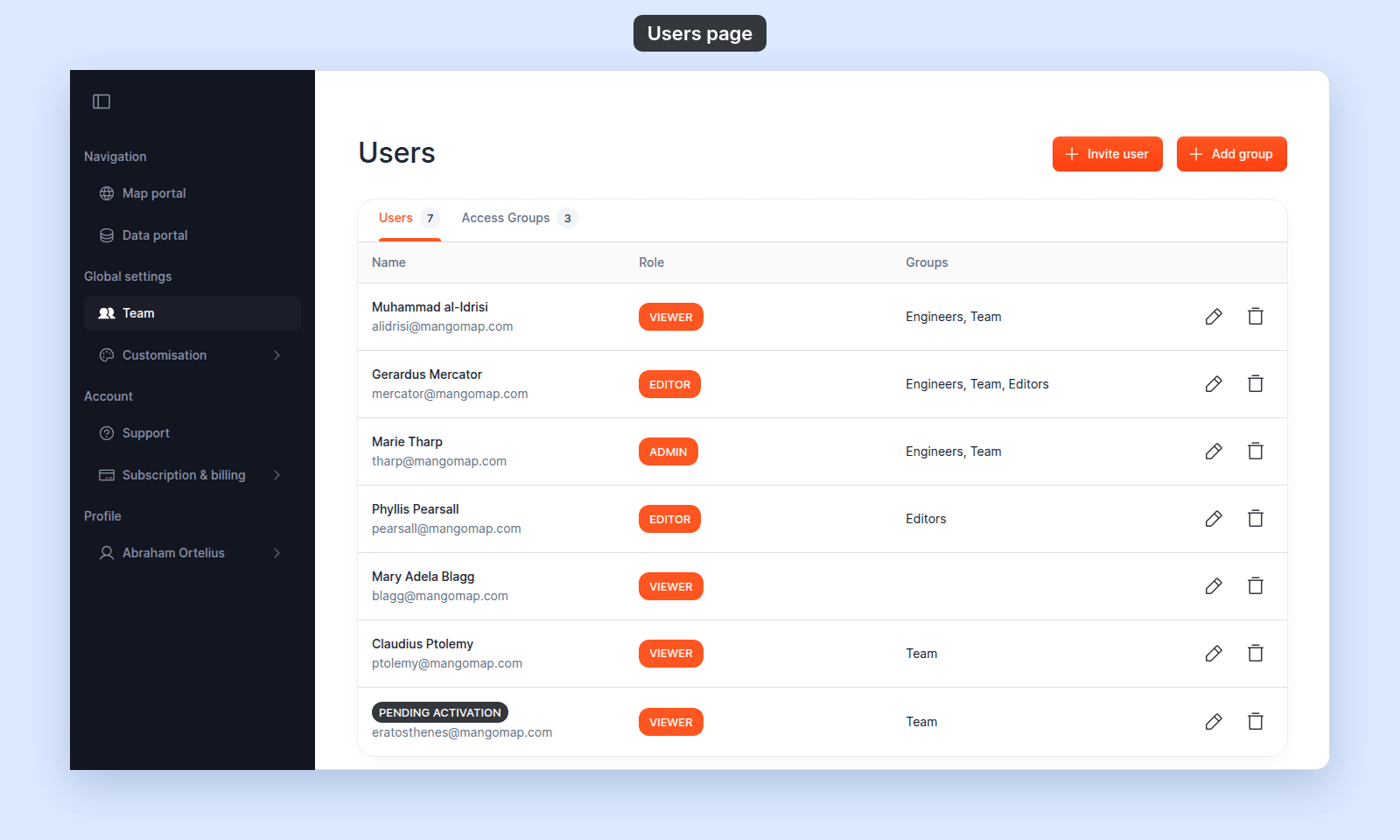
Click Invite user. The new user appears in the Users table at once, with a PENDING ACTIVATION chip in place of their name:
The invitee receives an email with a link to a Join page:
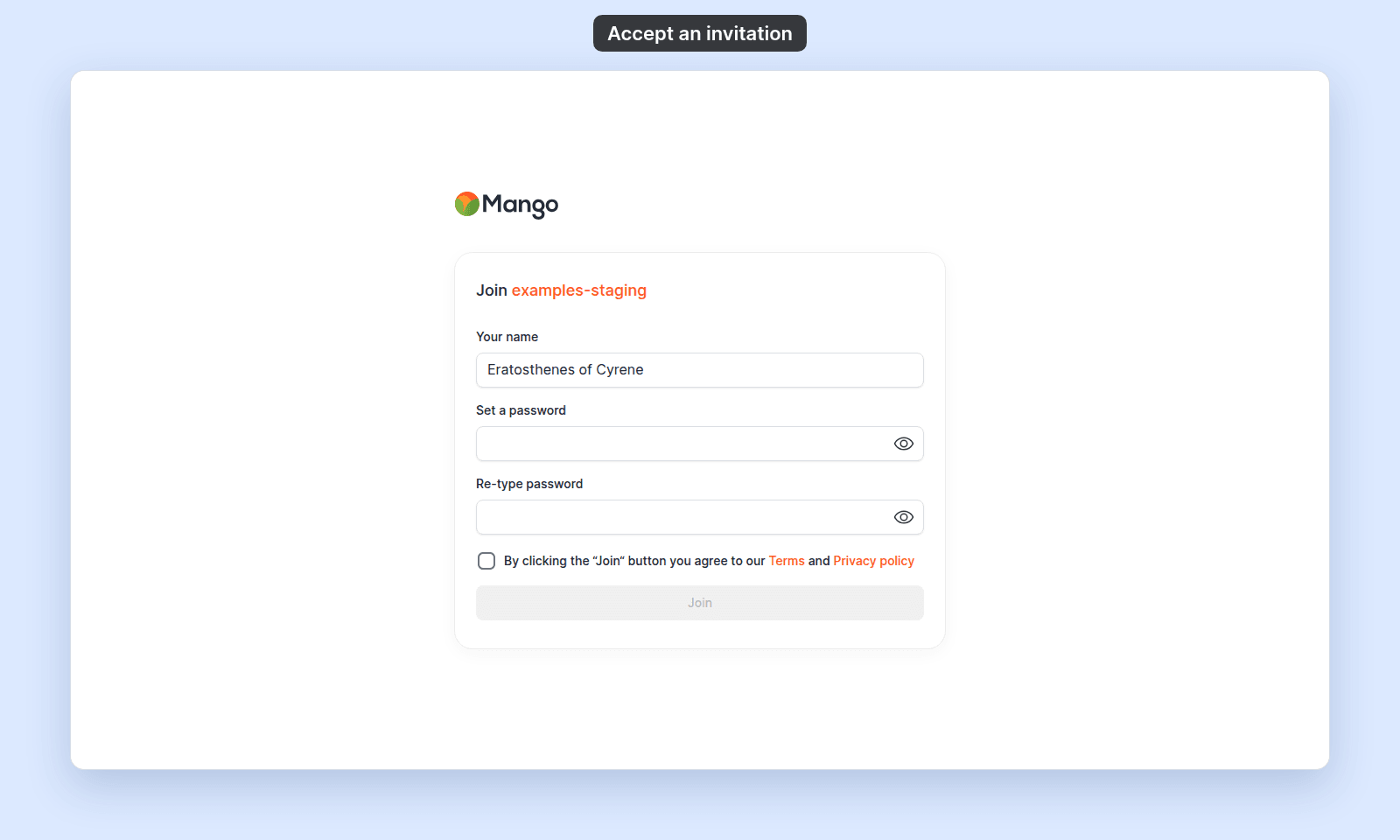
They fill in the form, tick the checkbox, and click Join. After that, the chip is replaced with their name and they can sign in. See How to accept an invitation.
What invited users can do right away
Once the invitation is sent, the new user counts against your seat limits. They cannot sign in until they activate, but their group access starts when they join.
You can add a pending user to more access groups. Use Update user, or tick their row in Create group or Edit group.
If the invite is rejected
| Symptom | Cause | Fix |
|---|---|---|
| The form shows an upgrade prompt instead of completing. | The role’s seat limit is reached on your subscription. | Upgrade the subscription or choose another suitable role with capacity, or change the subscription. |
| The submit button stays disabled. | A field is missing or invalid. The email must be a valid address; a role must be selected. | Check the form values; fix any error message and try again. |
Groups table shows the group you want but the checkbox does not stick. |
The access groups feature is not on your subscription. | The selection saves but does not take effect on maps or datasets until the feature is on your subscription. |
Troubleshooting
The invitee never received the email or shows PENDING ACTIVATION for a long time. See An invited user shows PENDING ACTIVATION. There is no resend button. Delete the user and invite them again.
The Users page is blocked. You are not the account owner. See The Users or Groups page is blocked.
Related
- Users page
- How team management and account roles work in MangoMap
- Account roles reference - look up what each role can do before picking one for the invitee.
- How to update a user
- How to accept an invitation
- How to create an access group