

How to delete an access group
Permanently delete an access group from the Access Groups tab. The group's View and Edit access on every map and dataset ends at once, and you cannot undo it.
Enterprise and Agency onlyDeleting an access group revokes every View and Edit permission it granted on every map and dataset. Use it when you no longer need the group. If you only want to revoke access on one map or dataset, edit that item’s access settings instead.
Before you start
- You need to be the account owner. Only the user with the
Ownerrole can delete groups. - The action starts at once and the UI cannot undo it.
- Audit which maps and datasets the group has
VieworEditon before deleting. Members lose that access the moment you confirm. - If your goal is narrower — for example, removing access on one map but keeping the group — open that map’s
Accesssettings and turn off the group’s switches there instead. See How to share a map with groups and How to share a dataset with groups.
Open the Access Groups tab
In the navigation, under Global settings, click Team, then click the Access Groups tab.
Delete the group
On the group’s row, click the trash icon at the right edge. A confirmation dialog opens:
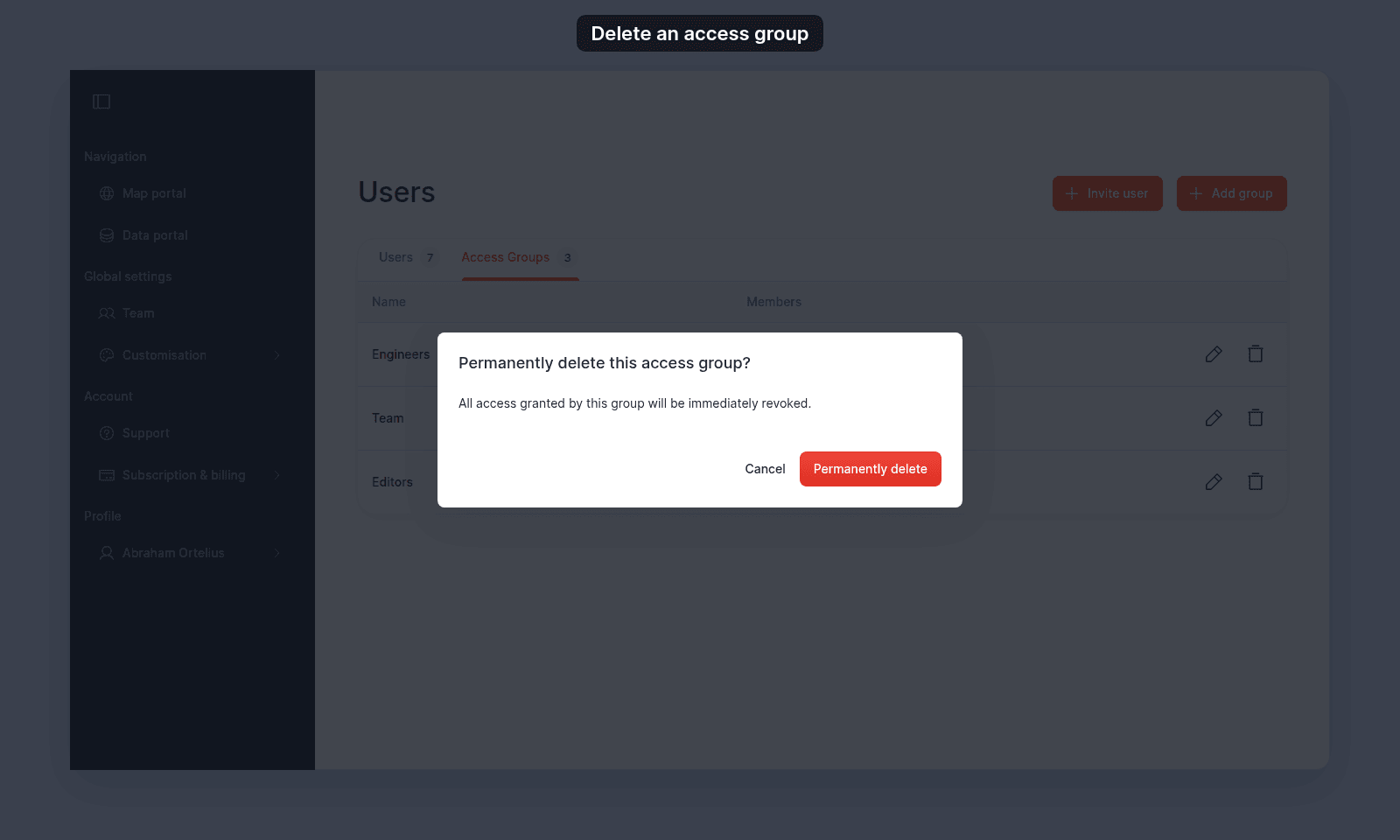
Click Permanently delete to confirm. The group disappears from the table.
To back out, click Cancel. Nothing changes.
What happens after deletion
- Every
ViewandEdittoggle the group had set on every map and every dataset is revoked. Members who were getting access through this group lose that access. - Members who are also in another group with overlapping access keep that access through the other group. Permissions add up across groups.
- The group’s name disappears from
Share with team(on maps) andInternal Access(on datasets) wherever it appeared. - Account users themselves are not deleted. Only their membership in this group ends.
- Maps and datasets owned by group members are not affected.
Troubleshooting
The Access Groups tab is blocked. You are not the account owner. See The Users or Groups page is blocked.
You deleted the wrong group. Re-create the group with How to create an access group, pick its members again, and re-grant View or Edit on each map and dataset that needs it.
A user still has access after the group was deleted. They are in another group that grants the same access, or they are the dataset/map creator, or they are the account owner. Open the relevant map or dataset’s Access settings to see which group is granting the access.