

How team management and account roles work in MangoMap
Understand account roles, access groups, and the Users page. One owner invites Admin, Editor, and Viewer users, and groups set which maps and data they reach.
Enterprise and Agency onlyA MangoMap account has one owner and the users that owner invites. Each user has an account role - Viewer, Editor, Admin, or Owner - that sets what they can do across the account. Access groups then set which maps and datasets they can see and change.
Manage both from the Users page: in the navigation, under Global settings, click Team. Only the user with the Owner role can open it.
The Users page
The Users tab lists every user in the account except the owner. The Access Groups tab lists every access group. Use Invite user and Add group at the top of the page to add either.
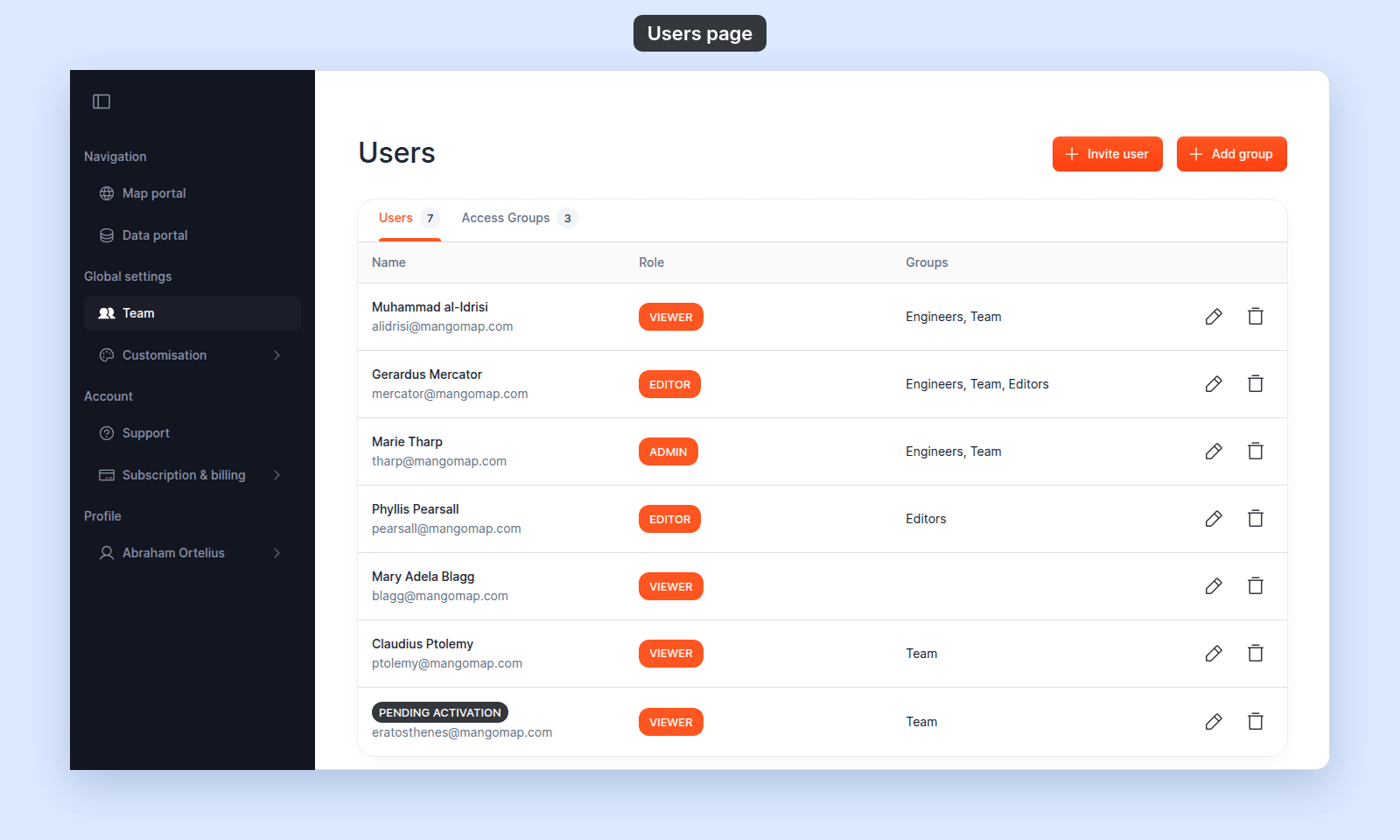
The UI also calls account groups “access groups” because they grant access to maps and datasets.
Account roles
Every user has exactly one account role. Roles follow this order:
| Role | Hierarchy | Can do |
|---|---|---|
Viewer |
Lowest | View maps and datasets they have access to. |
Editor |
View, plus edit the features of datasets they have access to, also from inside a map (subject to group access). Cannot edit a map’s configuration. | |
Admin |
View and edit, plus create new maps and datasets and import data. | |
Owner |
Highest | Everything Admin can do, plus invite, update, and remove users, create, edit, and delete access groups, and customise the account (logo, colours, custom domain, portal copy, analytics — see How customisation works in MangoMap). |
The order is Viewer < Editor < Admin < Owner. For the full “who can do what” matrix across every surface, see Account roles reference.
The account owner is the user with the Owner role. There is one owner per account. The owner’s role cannot be changed.
Why team management is owner-only
Only the user with the Owner role can invite, update, or remove users and create, edit, or delete groups. An Admin user can create maps and datasets, edit data, and use everything else MangoMap offers, but cannot invite a teammate or create an access group.
If you need to invite someone or create a group and you are not the owner, ask the account owner to make the change for you.
Roles vs. access groups
Roles and groups answer different questions:
- The role answers what a user can do across the account: view, edit, create, manage the team.
- A group answers which maps and datasets a user can do those things on.
A Viewer in an access group with View access on a map can open that map but cannot edit it, even if they’re also in a group with Edit access on the same map. A Viewer only ever views.
An Editor in an access group with Edit access on a dataset can change that dataset’s features, attributes, and configuration. An Editor not in any group with Edit access on the dataset can view it (if the group has View) but cannot edit.
A user can be in any number of groups. Permissions add up — if any of their groups grants View or Edit, the user has that access.
The toggles that grant a group View or Edit on a specific item live with the item:
- Map access: How map access works in MangoMap and How to share a map with groups.
- Dataset access: How dataset access works in MangoMap and How to share a dataset with groups.
Pending activation
A user you invite appears in the Users table at once. A PENDING ACTIVATION chip replaces their name until they open the invitation link and complete the Join form (Your name, Set a password, Re-type password, accept terms).
Pending users:
- Already count against the seat limit for their role.
- Cannot sign in or use any feature.
- Can be added to access groups, from
Update useror from the members table when you create or edit a group. The access takes effect when they join. - Can be edited or removed from the
Userstable the same way as activated users.
Once the user completes Join, the PENDING ACTIVATION chip is replaced with their name, and MangoMap signs them in.
There is no “resend invitation” button. If an invitation never reaches the recipient, remove the user and invite them again.
Group membership and the owner
When you create or edit an access group, the owner is pre-selected as a member and the row is locked. Every group includes the owner; this cannot be changed.
This means a group always has at least one member — the owner. Other members, pending users included, can be added or removed freely.
Seat limits and the access-control feature
Team management and access groups are available on Enterprise and Agency plans. See How subscription and billing work in MangoMap for plan and seat details.
Each role also has a seat limit on your subscription. When you try to invite a user whose role would exceed the limit, the invite form shows an upgrade prompt instead of completing the invitation.
Related
- Users page
- How to invite a user
- How to create an access group
- How profile and password settings work in MangoMap - the per-user surface that everyone (not just the owner) uses for their own name, email, and password.
- How map access works in MangoMap
- How dataset access works in MangoMap