

How to remove a user
Permanently remove a user from the Users tab. They can no longer sign in, they leave every group, and their seat is free. The content they made stays.
Enterprise and Agency onlyRemoving a user revokes their account access, map and dataset permissions, group memberships, and sign-in access. Use it when someone leaves your organisation or you invited the wrong person.
Before you start
- You need to be the account owner. Only the user with the
Ownerrole can remove users. - The action happens at once and cannot be undone in the UI. If you remove a user and want them back, you have to invite them again.
- You cannot remove the account owner. The
Userstable does not list the owner.
Open the Users page
In the navigation, under Global settings, click Team. Find the user’s row in the Users tab.
Delete the user
On the user’s row, click the trash icon at the right edge. A confirmation dialog opens:
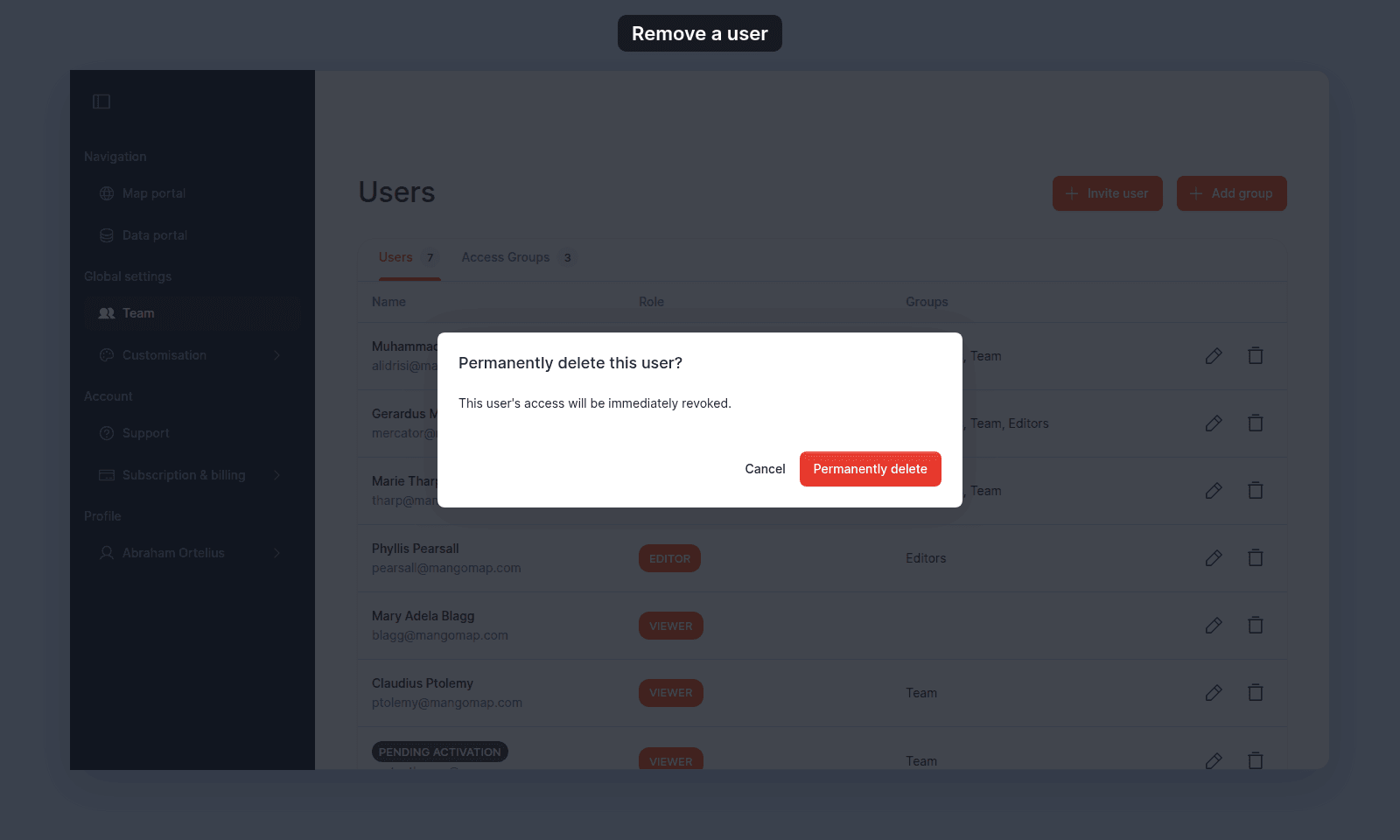
Click Permanently delete to confirm. The user disappears from the table.
To back out, click Cancel. Nothing changes.
What happens after deletion
- The user can no longer sign in.
- All of their access group memberships are removed. Maps and datasets that granted access through those memberships are no longer accessible to them.
- Any maps or datasets they created stay in your account; deletion does not remove their content.
- Their seat is freed. You can invite a new user in their place if your subscription allows.
Removing a pending user
A user who has not yet activated (PENDING ACTIVATION chip) can be removed the same way. The trash icon is available on their row.
Removing a pending user invalidates their pending invitation. To re-invite them, use Invite user with the same email.
When the owner is not in the table
The Users table lists every user except the account owner, so the owner has no row and no trash icon. The owner cannot be removed from the team UI.
Troubleshooting
The Users page is blocked. You are not the account owner. See The Users or Groups page is blocked.
You removed the wrong user. Open Invite user and re-invite them. Their previous group memberships are not restored automatically; add them back during the invite or update them afterwards.