

How to use feature permalinks
Create stable map URLs that open and select a specific feature. Build the link from the Feature Permalink dialog and a unique field, not from Share feature.
Create a map URL that opens and selects a specific feature when the map loads. Use a stable, unique value from the feature’s data table and create the URL from the Feature Permalink dialog in Manage layers; the Share feature copy action uses the feature’s gid, which can change after a data reupload.
Before you start
- You need access to the map and its layers.
- The layer must contain a field with a stable, unique value for each feature, such as a parcel number or asset ID.
- Keep that field and its values unchanged in future files that you upload to replace the dataset.
Create a feature permalink
- Open the map’s
Manage layerspanel. - Click the layer, then click the link button (
Get feature permalink) at the top of the layer’s panel. - In the
Feature Permalinkdialog, copy the URL. - In the URL, replace
{field}with the name of the stable unique field and{value}with the feature’s value. The field name is case-sensitive. URL-encode the value: a space becomes%20.
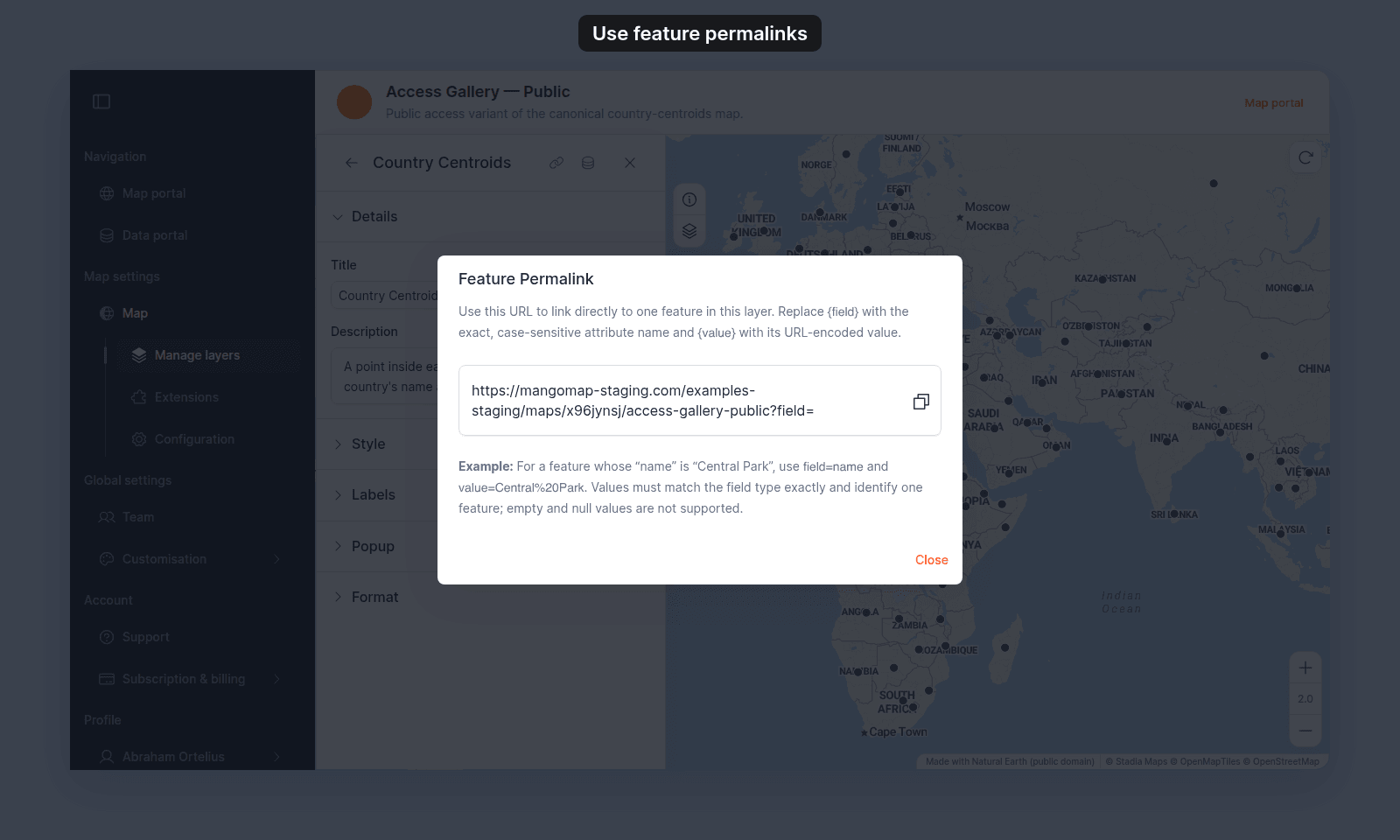
The URL includes the field, the value, and the layer ID. Keep the rest of the URL as the dialog gives it; do not remove the layer parameter. For example:
https://mangomap.com/your-account/maps/your-map-id/your-map-name?field=parcel_id&value=12345&layer=layer-idUse the URL in a button, email, report, external application, or other programmatic link. When a viewer opens it, MangoMap loads the map, selects the matching feature, and zooms to it. If the layer has a popup, the popup opens too. Here, a visitor opens a link with field=iso_a3&value=FRA (the map is zoomed out to show the area around the point):
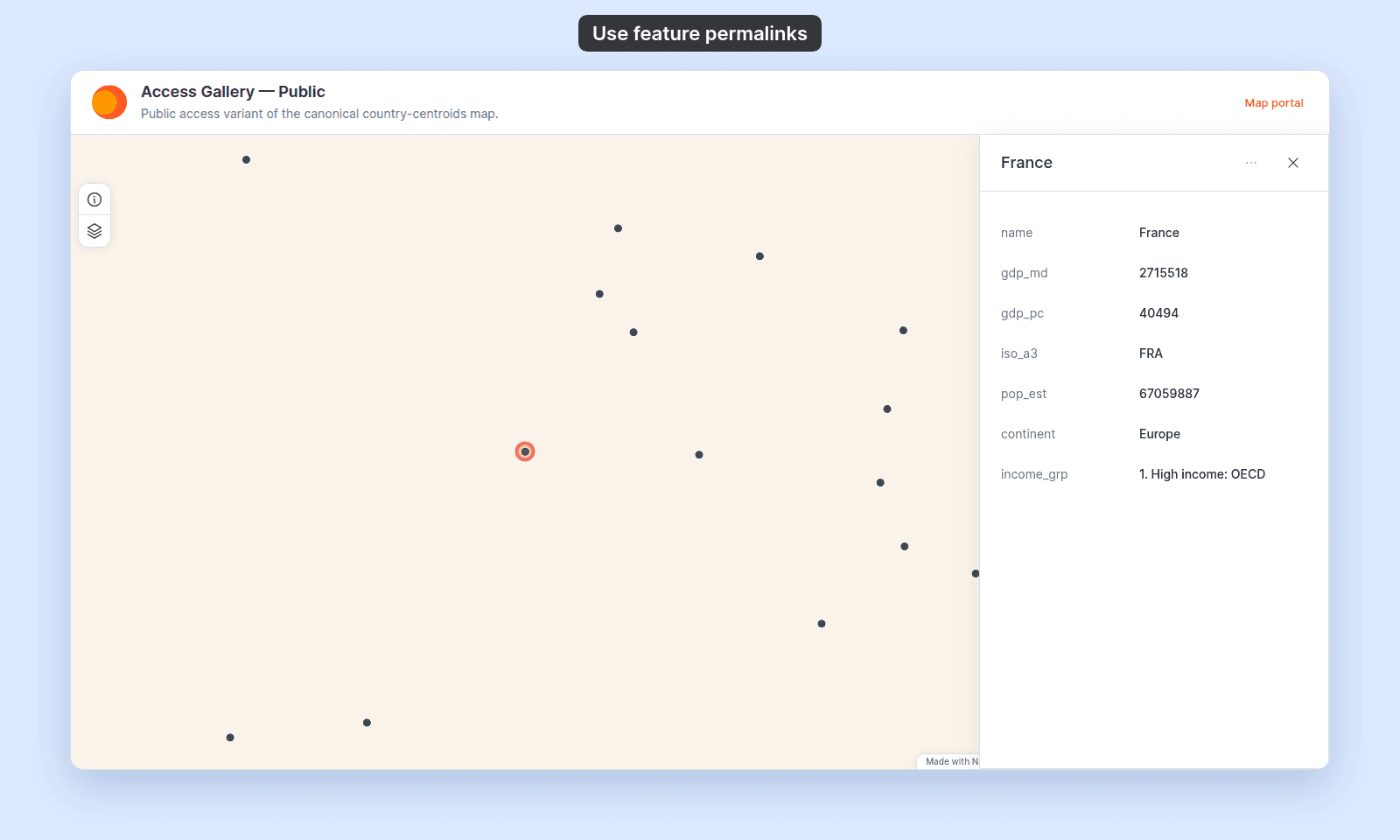
The zoom to the feature replaces the map’s saved initial view. The field, value, and layer parameters stay in the URL, so a page refresh selects the same feature again.
Choose a value that survives reuploads
The field must identify the same feature after the dataset is replaced. A database-generated or import-generated gid is not suitable because it can be reassigned during reupload.
Good choices are values that come from your source system and remain unchanged, such as:
- A parcel or property number.
- An asset or inspection ID.
- A permanent record key from your business system.
The field value must remain unique within the layer. If the value changes or is removed in a later upload, the permalink finds no feature. If two features share the value, the permalink selects neither and shows an error.
If the permalink stops working
When a permalink can’t select its feature, the map opens without a selection and a message appears:
| Message | What it means |
|---|---|
Feature not found |
No feature in the layer has that value. |
Feature link matches more than one feature |
Two or more features share the value. Use a field whose values are unique. |
Feature link references an unavailable layer |
The layer in the URL isn’t on this map. Create the permalink again from the map. |
Feature link is incomplete or malformed |
The URL is missing field, value, or layer, or one of them is empty. |
Feature ID in the link is invalid |
The link uses gid, and the value isn’t a valid feature ID. |
If the link finds the feature but its values don’t load, the panel shows Details could not be loaded instead of the popup. Click Try again in the panel. See A popup says “Details could not be loaded”.
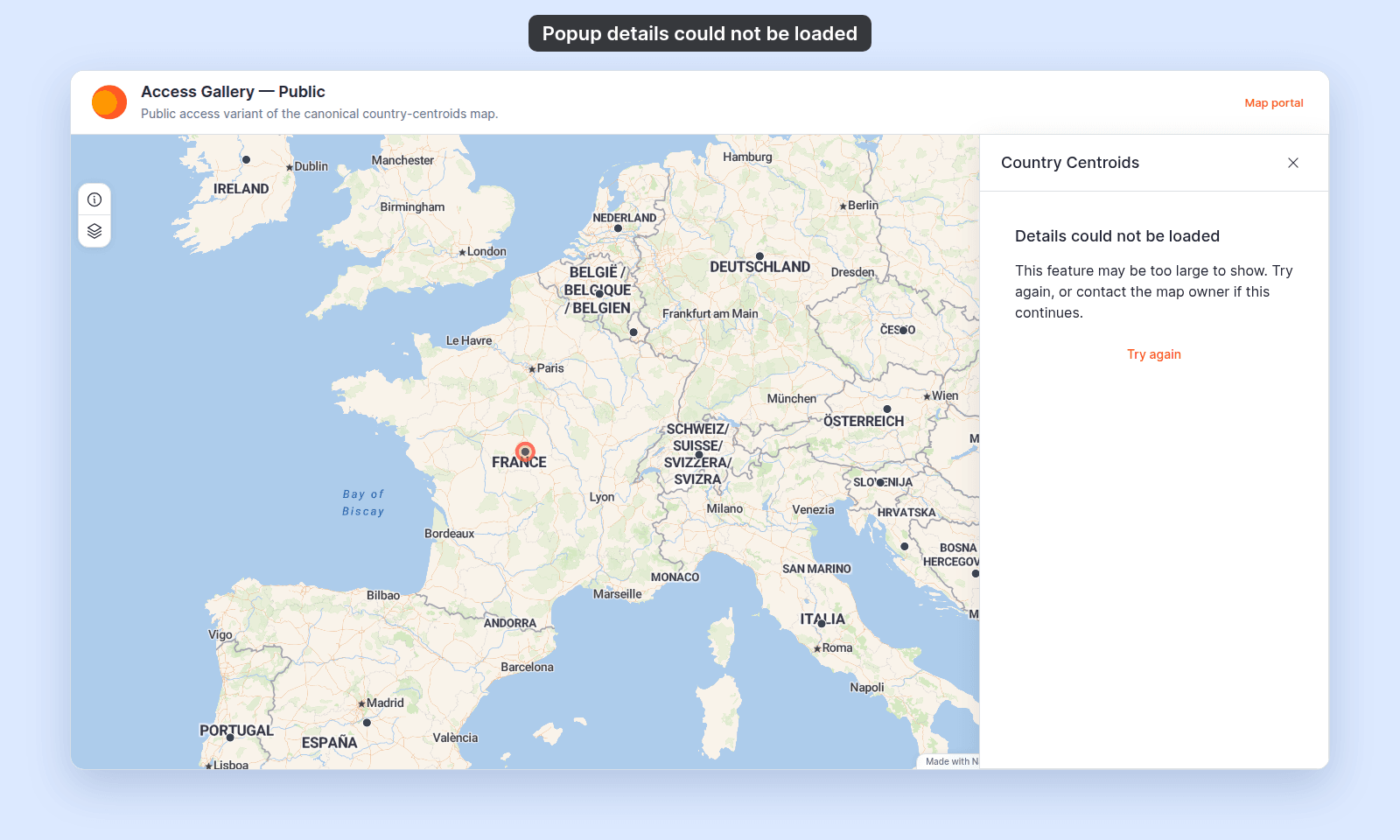
Check the URL’s field and value against the current dataset. If the dataset was reuploaded, confirm that:
- The selected field still exists.
- The field name has not changed.
- The value still exists and remains unique.
- The value was not replaced by a new
gidor another generated identifier.
If the link uses gid, create a new permalink from a stable data field instead. Existing gid-based feature permalinks and bookmarks are not remapped after a reupload.
Related
- How to enable Share and bookmark on a map — enable viewer sharing and bookmarks.
- How to publish a map to the web — set the access mode for viewers who open the URL.
- How to embed a map in another website — put a live map in an iframe.