

Map password is not working
Viewers see Invalid map password or cannot open a map. Check the current password, that Publishing mode is Password, and that it has 6 or more characters.
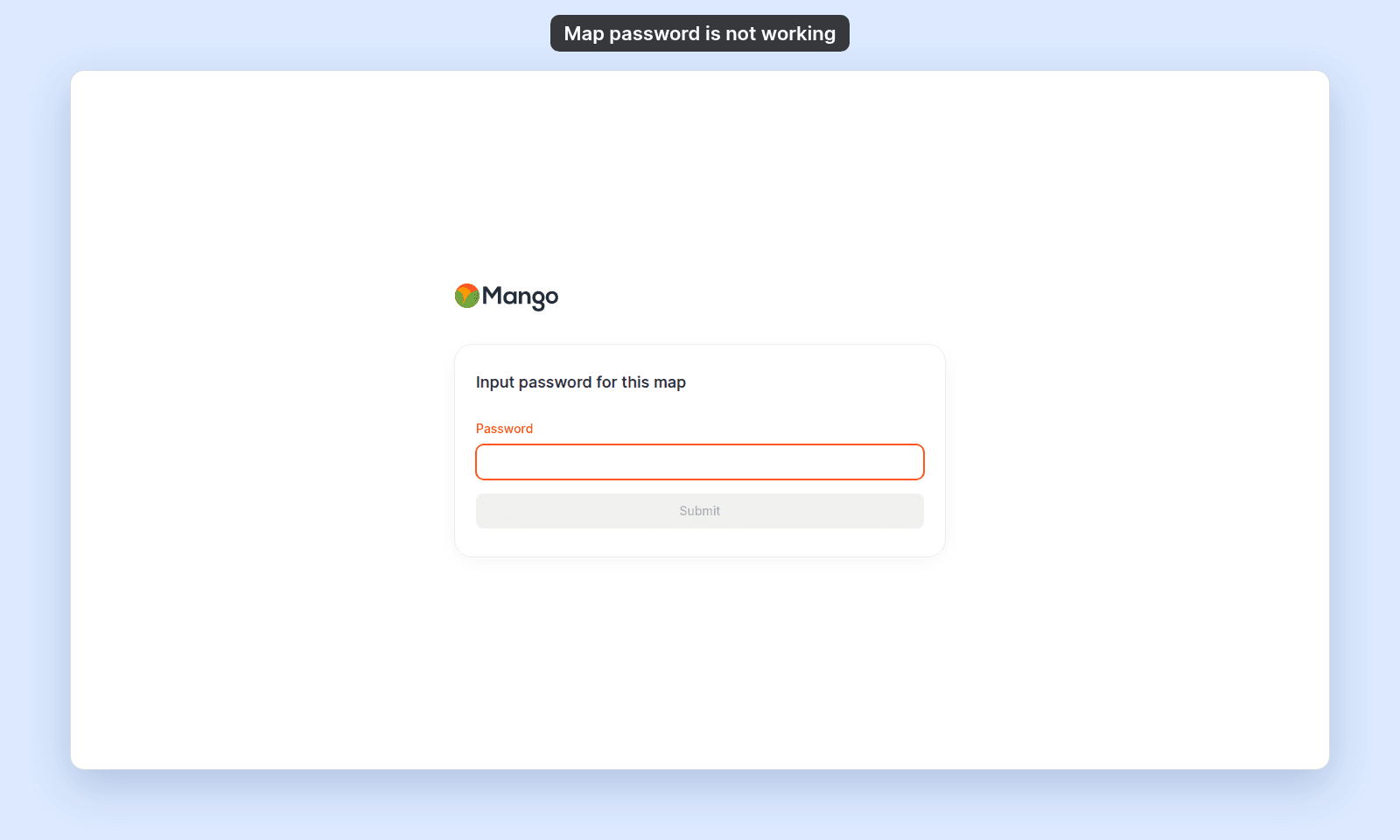
A map password works only in Password mode, when viewers enter the current password. Viewers enter it in this form, and MangoMap shows Invalid map password when it is wrong:
Most likely cause: the viewer has the wrong password
Ask a map admin for the current password.
If you manage the map, open the map. In the sidebar, under the map’s name, click Configuration, then click Access. In Publish to web, check that Password is selected, then click the eye button in the Password field to show the password.
If the map came from the old version of MangoMap, the field says Password carried over from your old map and cannot show the password. The old password still works. To share a password you know, enter a new one.
Less common: the map is not in Password mode
Passwords are used only when Publishing mode is Password.
Check the current mode:
Publicopens through thePublic linkwithout a password.Link-onlyopens through thePrivate linkwithout a password.Passwordopens through thePublic linkand requires the password.
Less common: the password is too short in settings
When you set a password manually, it must be at least 6 characters. If the password is shorter, MangoMap shows Password must be at least 6 characters in settings.
Enter a password with at least 6 characters and share the updated password with viewers.
If none of these checks
Ask support to check the map ID and password mode. Include the public link, but do not send the password unless support asks for it through a secure channel.