

Legacy map access modes and current settings
See how each legacy map access mode, such as Public or Standalone, matches the current map access settings in the Access section of Configuration.
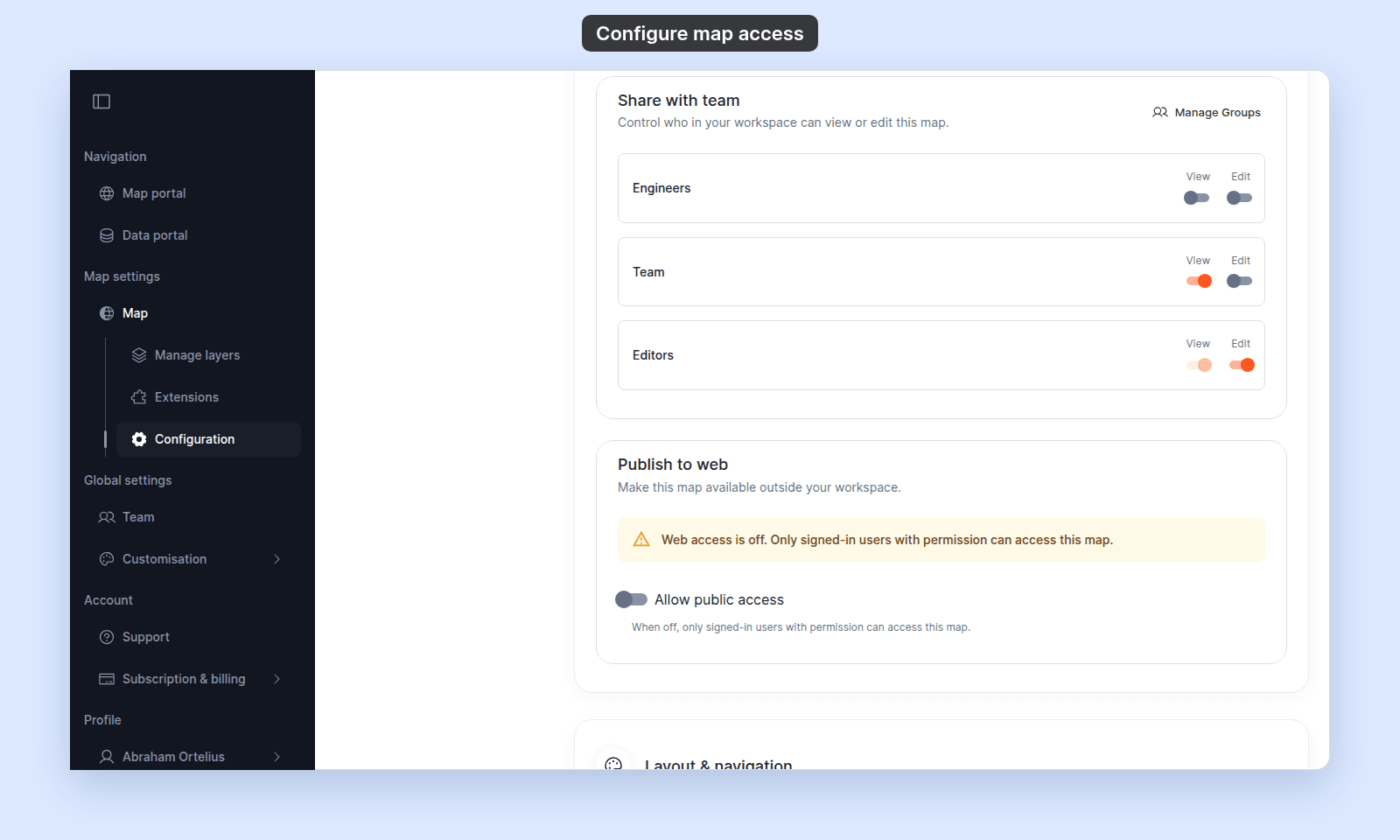
We moved your maps from the previous version of MangoMap. The access modes have new names, but every legacy mode is still possible. Each mode below has a matching set of settings in the Access section of the map’s Configuration page, and the screenshot under it shows those settings.
The new settings are also more flexible than the legacy modes. You can combine them: for example, a Public map can be listed in the public portal but kept out of search engines, which no legacy mode allowed. See What changed.
Each row pairs a legacy mode with the current settings that replace it.
For how access works in full, see How map access works in MangoMap and How dataset access works in MangoMap.
Public
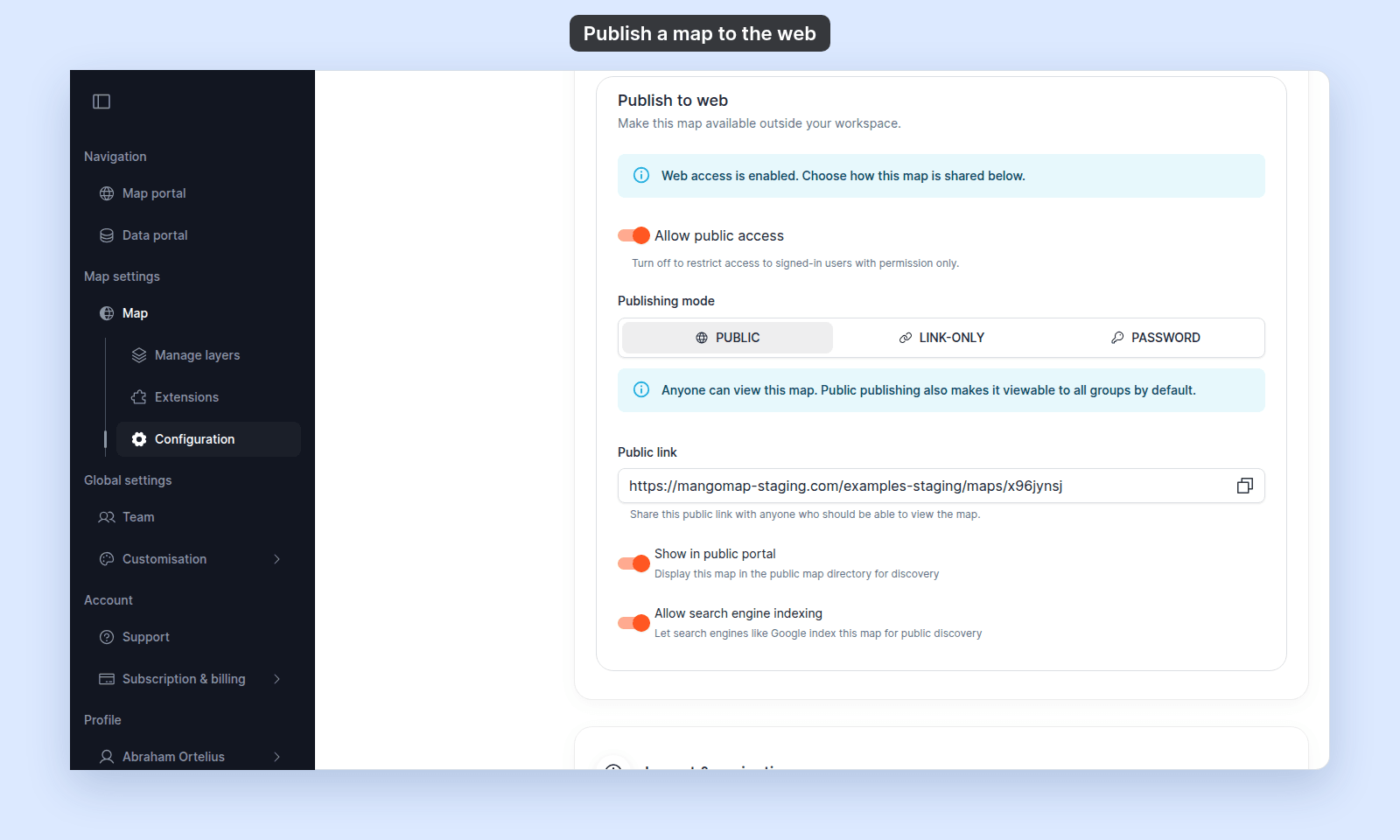
Turn on Allow public access, set Publishing mode to Public, and turn on Show in public portal and Allow search engine indexing. Anyone with the public link can view the map. It is listed in the public portal, and search engines can index it.
Standalone
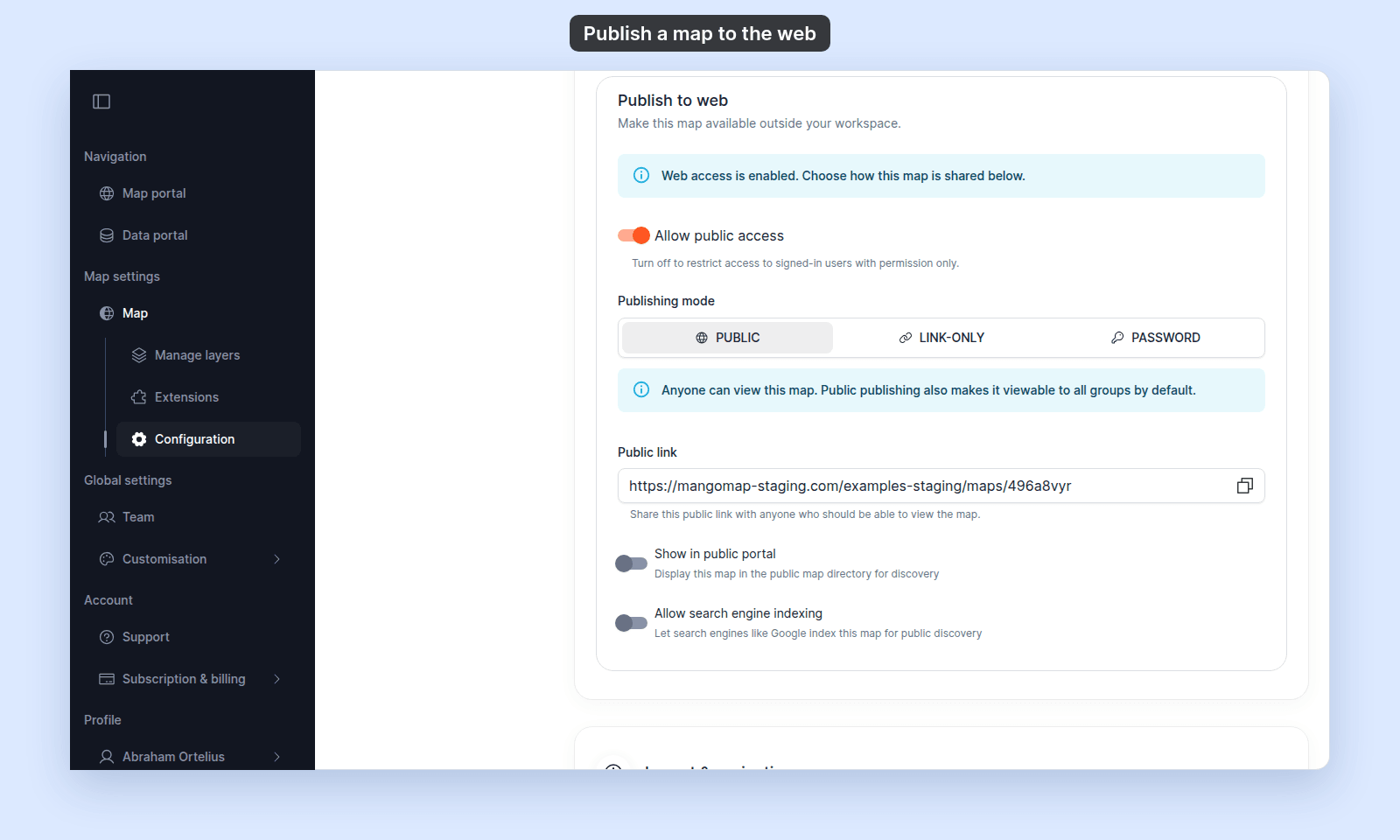
There is no Standalone setting. Use Public with Show in public portal and Allow search engine indexing turned off. Anyone with the public link can view the map, but it is not listed in the public portal and is not indexed.
Hidden
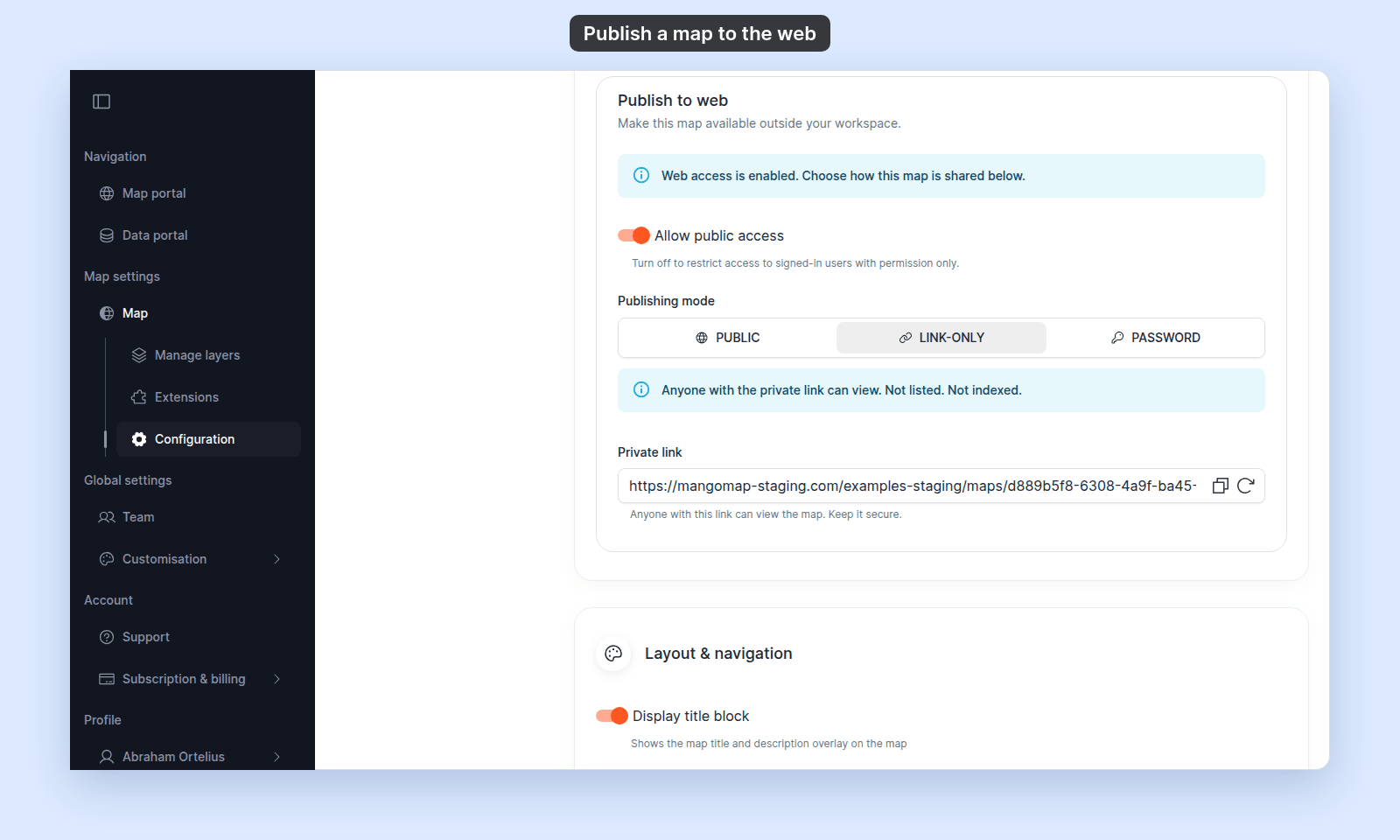
Turn on Allow public access and set Publishing mode to Link-only. Link-only is the current name for Hidden. Anyone with the private link can view the map. It is not listed in the public portal and is not indexed.
Password
Turn on Allow public access, set Publishing mode to Password, and set a password of at least 6 characters. Anyone with the public link and the password can view the map. It is not listed in the public portal and is not indexed.
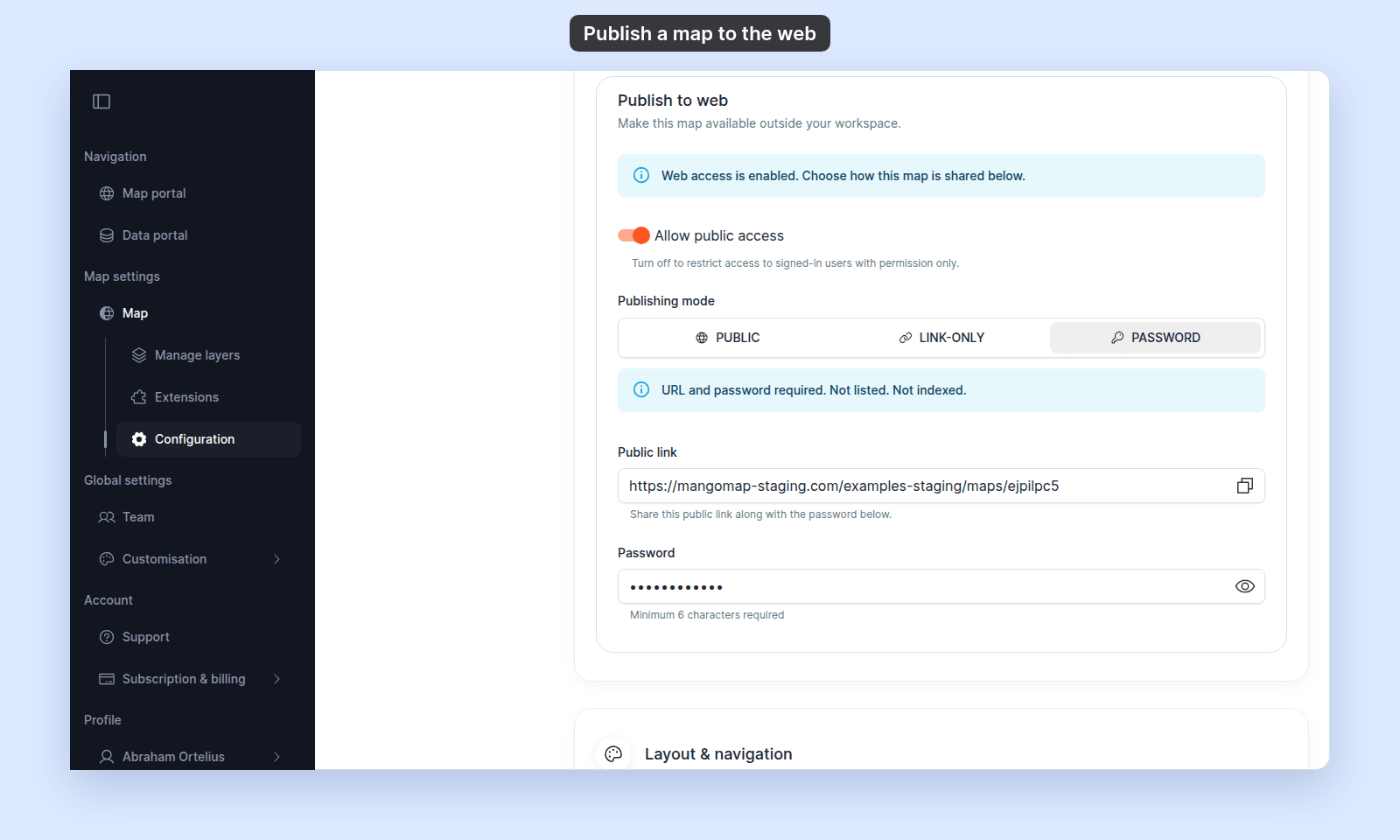
A password carried over from the previous version still works, but the Password field cannot show it. To see the password, set a new one.
Internal
Turn off Allow public access, and give access groups View or Edit in Share with team as needed. Only signed-in users with permission can open the map: the account owner, the map’s creator, and members of groups with access.
What changed
Allow public accessnow separates signed-in access from web access.Publishing modenow controls how outside viewers open the map.Show in public portalandAllow search engine indexingonly matter forPublicmaps.- Turning
Allow public accessoff also turns offShow in public portalandAllow search engine indexing. Show in public portalandAllow search engine indexingare separate switches. LegacyPublichad both on andStandalonehad both off, so a map that is listed but not indexed, or indexed but not listed, is new.- Group
Editstill works with every publishing mode, as it did with every legacy mode. - An offline map no longer opens for every team member. It moved with
Allow public accessoff and no group access, so only its creator and the account owner can open it until you give groups access. See How to share a map with groups.
When to use each current setting
- Use
Publicwhen you want anyone with the link to open the map and you want the map listed and indexable. - Use
Link-onlywhen you want a private link without portal listing or search indexing. - Use
Passwordwhen you want a shared password in addition to the public link. - Turn
Allow public accessoff when the map should stay inside the signed-in workspace audience.