

How to show or hide the title block on the map
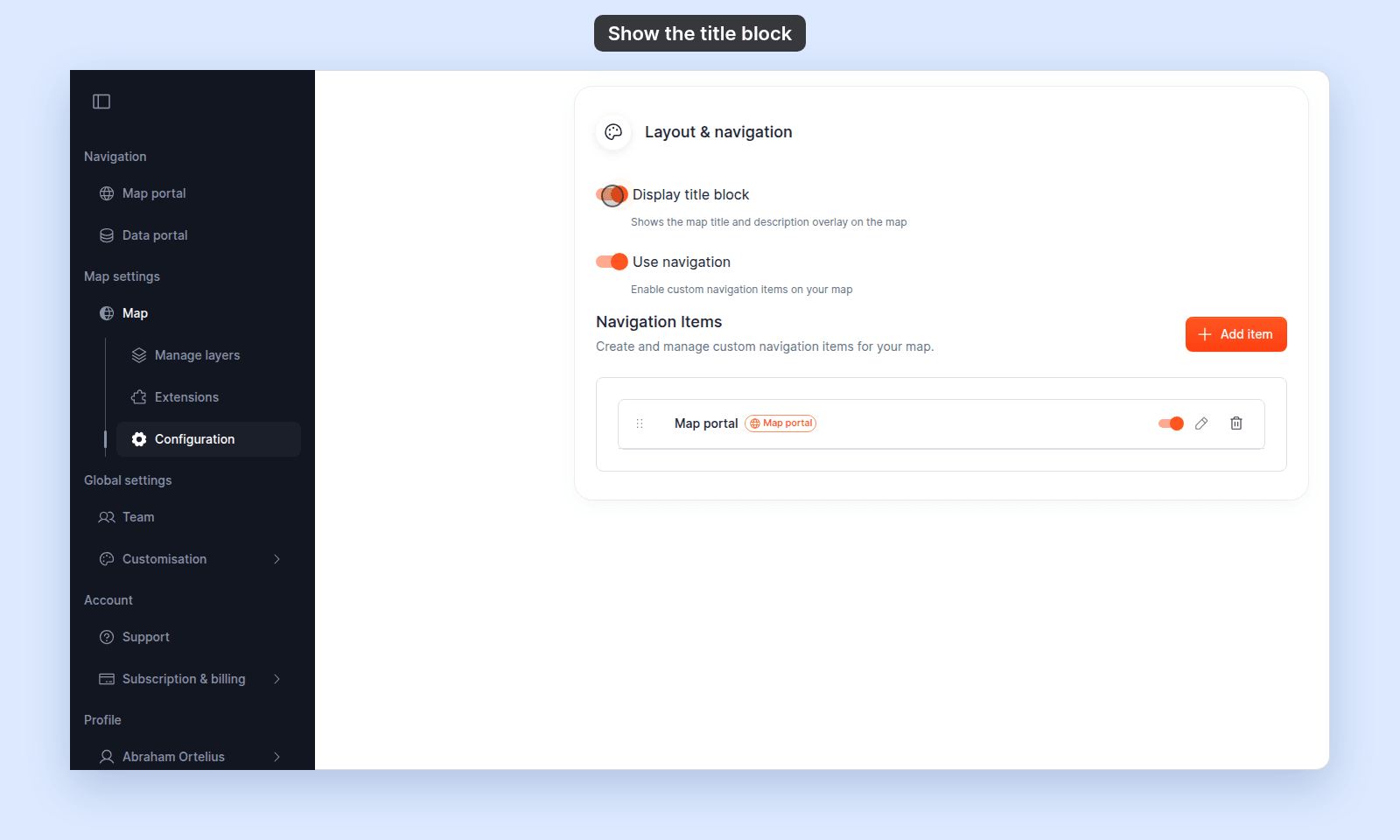
Show or hide the map title and description in the bar above the map with the Display title block switch. It is on for new maps.
Display title block shows or hides the Map title and Description in the bar above the map. It is on for a new map. The setting changes the map view only; the portal listing card, browser tab, and SEO snippets still use the title and description.
Before you start
- You need edit access to the map.
- The title block uses the
Map titleandDescriptionfromMap details. Set them first (How to set the map title and description).
Open the map’s Configuration page
Open the map and click Configuration in the sidebar. In the page’s side nav, click Layout & navigation.
Turn the title block on or off
Click the Display title block switch. The setting saves on click.
Verify the result
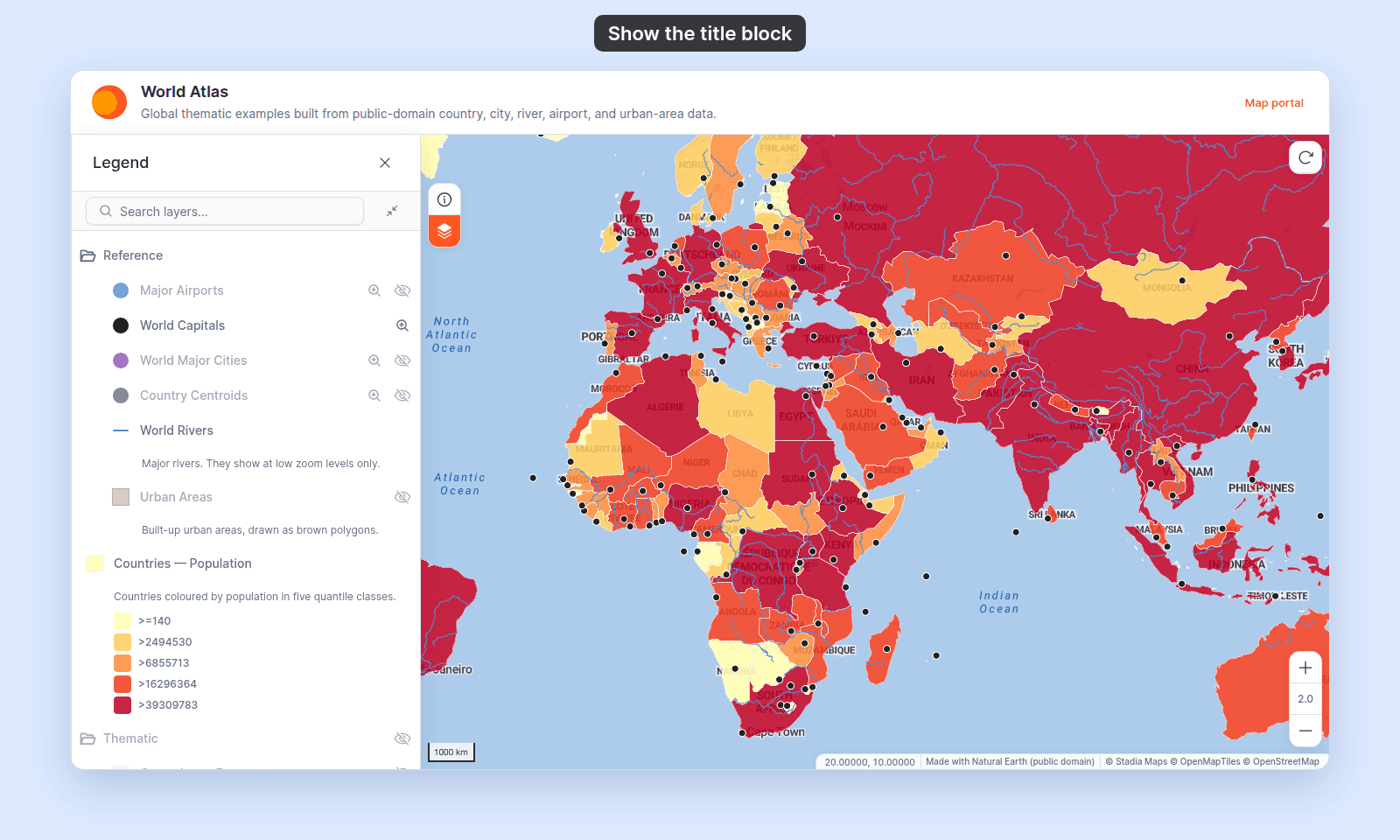
Open the map (or refresh it). With the title block on, the map title and description show in the bar above the map:
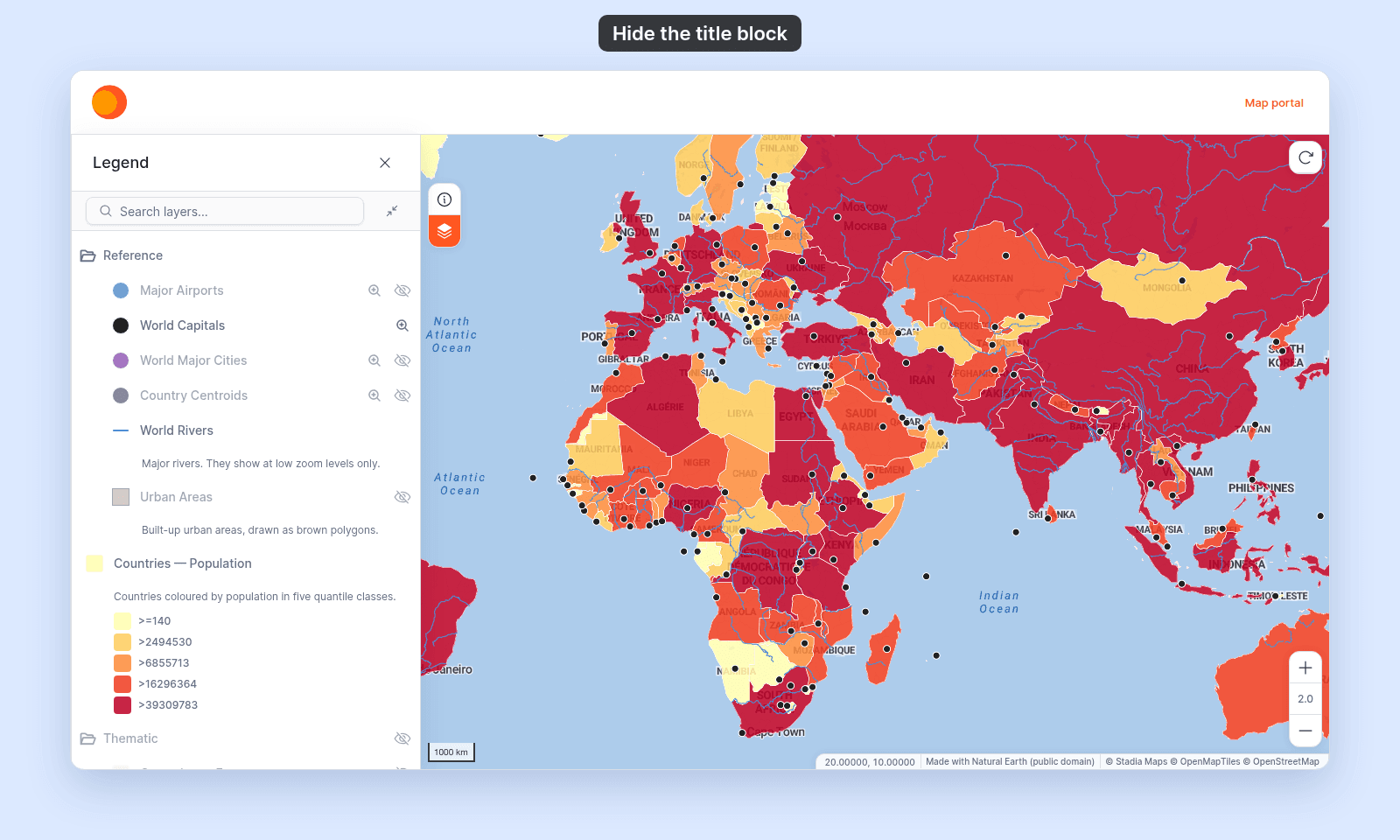
With the title block off, the title and description are gone. If the map has a navigation menu, the bar stays to hold it; with no navigation items, the bar goes too and the map fills the space:
When to hide the title block
Hide the title block when you want more room for the map, or when the map has no need for a title on screen. The portal listing and SEO snippets still carry the title and description, so portal visitors still see them.