

How to build a custom navigation menu
Build a navigation menu above the map with links, modals, other maps, and portal shortcuts. Items appear to viewers in list order.
A custom navigation menu appears above the map with up to seven link types: external URL, email, modal, terms modal, other maps, the map portal, or the data portal. Open the map’s Configuration page, go to Layout & navigation, turn on Use navigation, and add items to the list; every change saves at once, and items appear to viewers in the order of the list.
Before you start
- You need edit access to the map.
- Decide what each menu item should do. The type table below shows the seven options. You can edit or delete an item later.
- For
Mapsitems, you’ll pick from the maps that already exist in your account. ForMap portalandData portalitems, the link is auto-generated from the account’s portal URL.
Open the map’s Configuration page
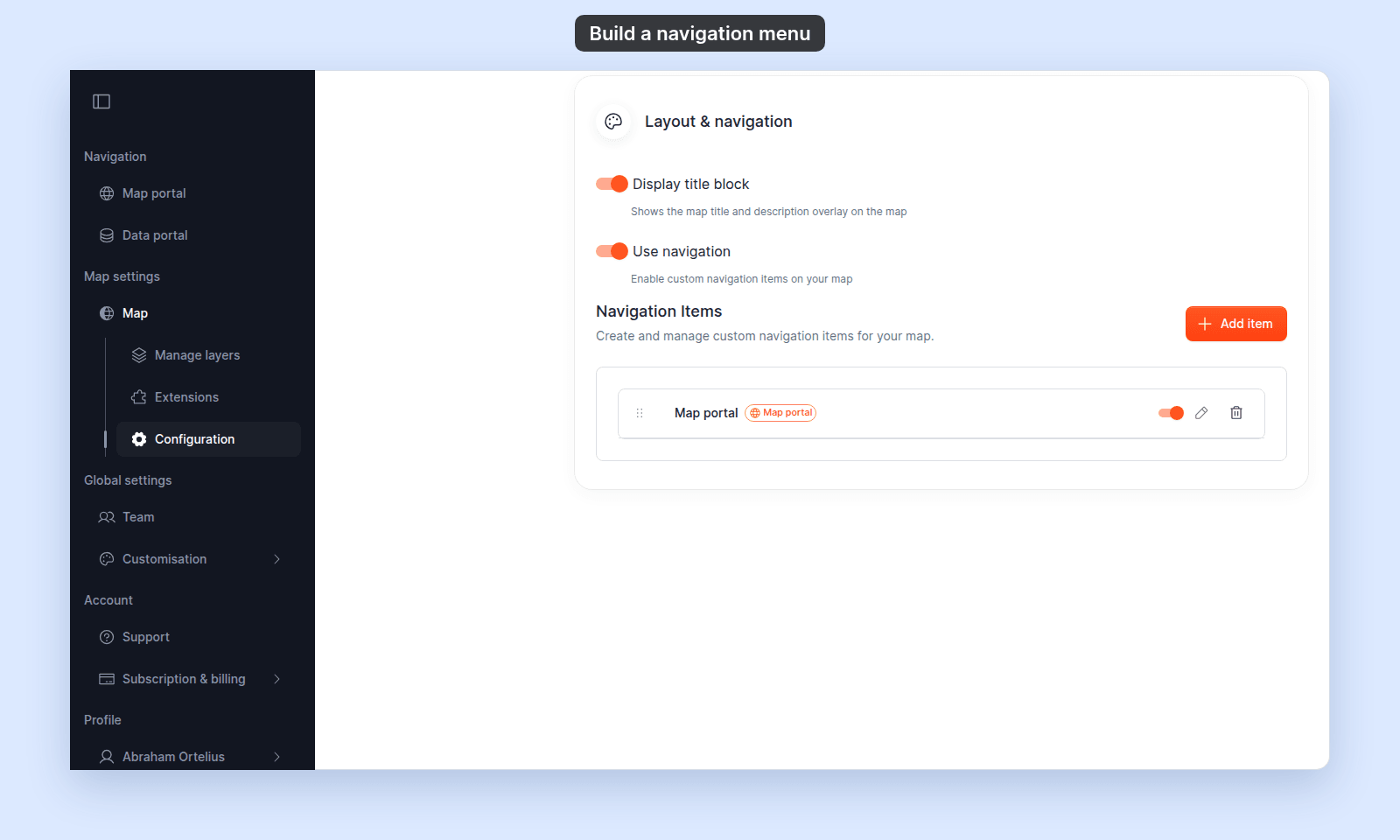
Open the map you want to configure, and click Configuration in the sidebar. In the page’s side nav, click Layout & navigation.
Turn on Use navigation
Turn on the Use navigation switch. The Navigation Items list and the Add item button appear below it.
Add a navigation item
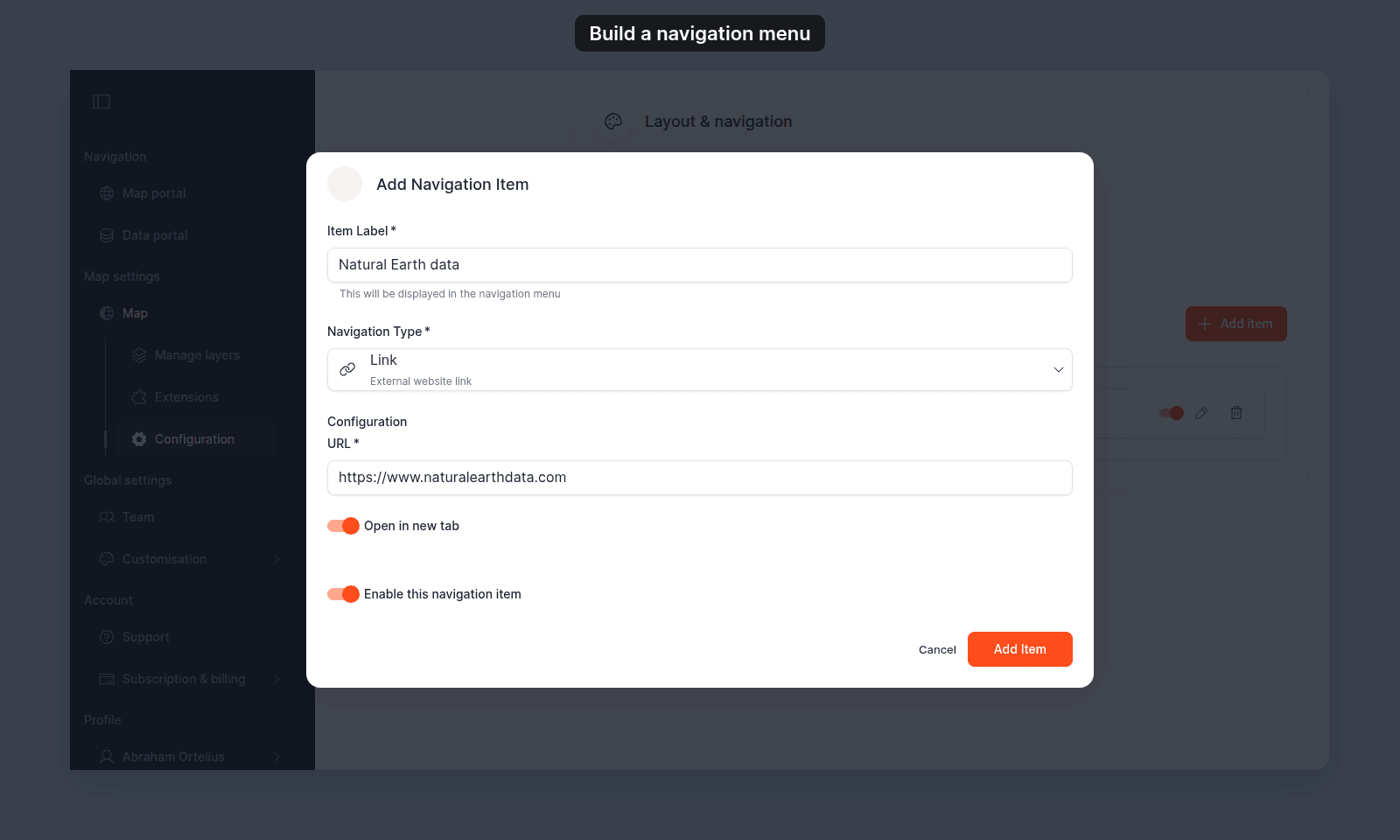
Click Add item. In the Add Navigation Item dialog:
- In
Item Label, type the text viewers see in the menu. - In
Navigation Type, choose one of the seven types (table below). TheConfigurationfields change to the ones that type needs. - Fill in the
Configurationfields. - Leave
Enable this navigation itemon to show the item to viewers, or turn it off to keep the item hidden for now. - Click
Add Item. The item appears at the end of theNavigation Itemslist.
Item types
| Type | Use for | What you configure |
|---|---|---|
Link |
An external website | URL, Open in new tab toggle |
Email Link |
A pre-filled email | Email address, subject, body |
Modal |
A custom dialog with rich text | Modal title, modal content (rich text editor) |
Terms Modal |
A terms-of-service or legal-notice dialog | Terms version, terms content (rich text editor) |
Maps |
Links to one or more other maps in your account | Pick maps from a multi-select |
Map portal |
A link to your account’s public map portal | None — auto-generated |
Data portal |
A link to your account’s public data portal | None — auto-generated |
Edit, reorder, enable, or delete items
Each row in the Navigation Items list (in the first image on this page) has these controls:
- Drag handle (the dots on the left) — drag the row to a new position. Viewers see the items in the list order.
- Switch — turn it off to hide the item from viewers without deleting it.
- Pencil — opens the item’s values for editing.
- Trash — deletes the item after you confirm.
Every change saves immediately when you confirm in the dialog or drop the row.
Verify the result
Open the map (or refresh it). On a computer, the enabled items show on the right of the bar above the map, in the order you set:
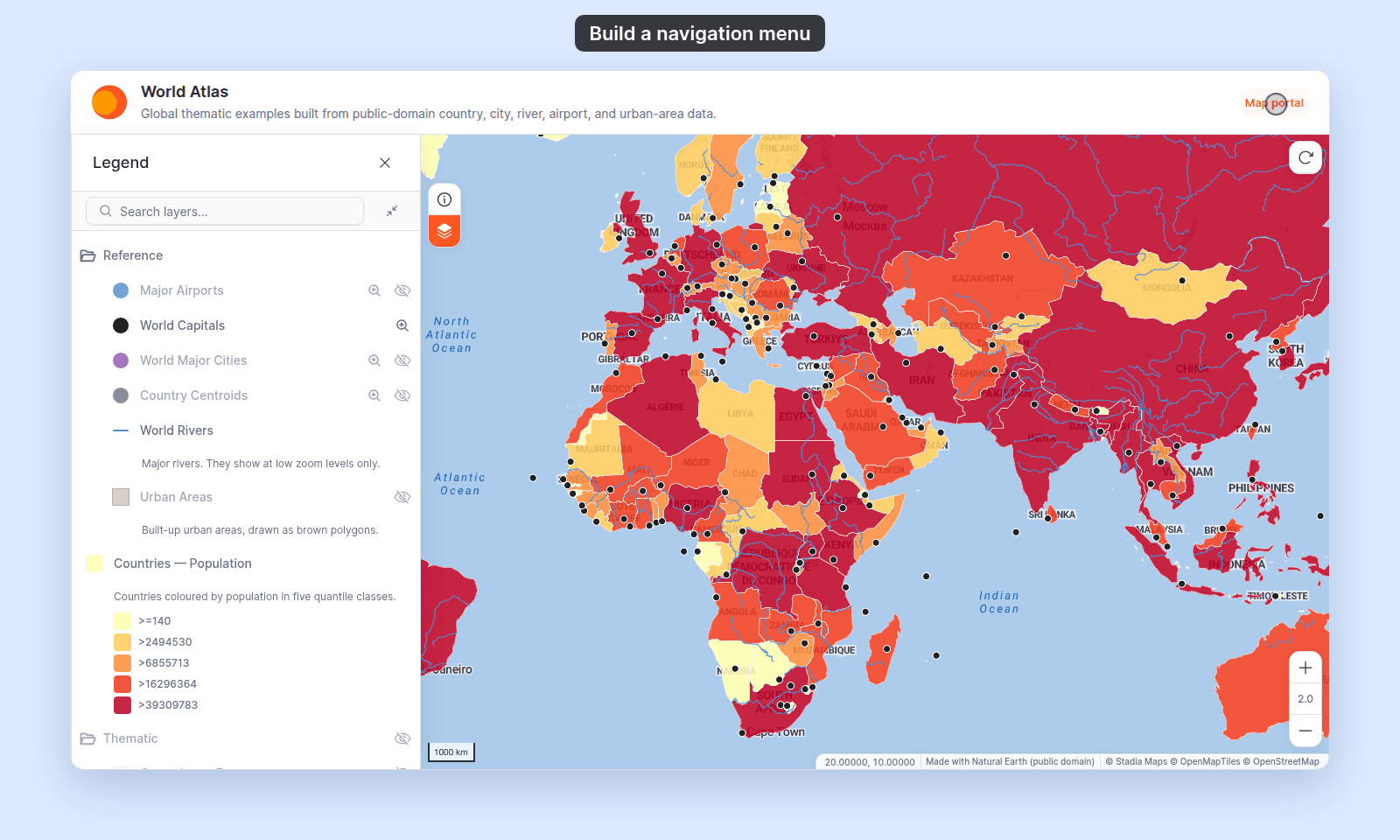
Click each item to confirm it does what you expect:
Linkopens the URL (in a new tab if you set the toggle).Email Linkopens the viewer’s email client with the address, subject, and body pre-filled.ModalandTerms Modalopen in-page with the rich text content.Mapsopens the picker / target map.Map portalandData portalsend the viewer to the corresponding account portal.
If an item doesn’t appear, check that its switch in the list is on and that Use navigation is on.
When to use which type
Link— for any external destination (your company website, a documentation page, a GitHub repo).Email Link— when viewers should be able to contact you about the map; pre-fill the subject so replies are easier to triage.Modal— for in-context information you don’t want to send viewers off-page for, like a legend explanation, methodology notes, or a contact form.Terms Modal— for the terms or legal notice viewers should accept before using the map. The version field is for tracking which terms a given map points to.Maps— to direct viewers between related maps in the same account (a collection of city maps, before/after pairs, or themed series).Map portal/Data portal— to give viewers a link to the account portal.