

How to set your brand logo and colours
Upload your company logo and set theme and accent colours on the Brand page. Changes save automatically and apply to every map and portal page.
Use the Brand page to set your company’s logo and colours in MangoMap. The settings apply to every map and portal page in the account. You cannot override them for one map.
Before you start
- You need to be the account owner. Only the user with the
Ownerrole can open theBrandpage. - Have your logo file ready. Accepted formats: PNG, JPG, SVG, WebP. Maximum size: 2MB. Minimum dimensions: 100×100px.
- Decide how you want to set colours: pick one of the ten preset themes, or enter a specific hex value for your
Primary Colour.
Open the Brand page
In the admin sidebar, open Global settings > Customisation > Brand.
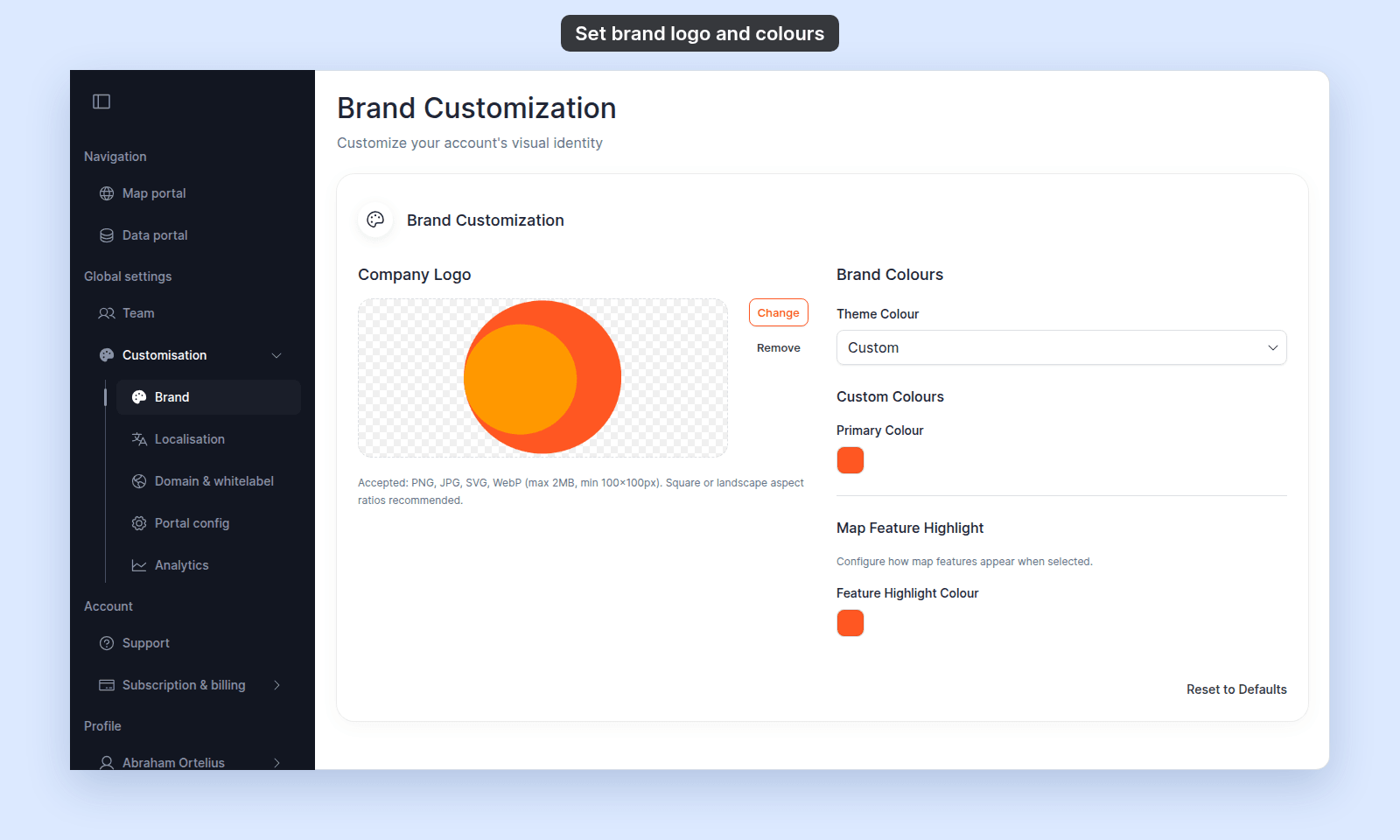
Upload a logo
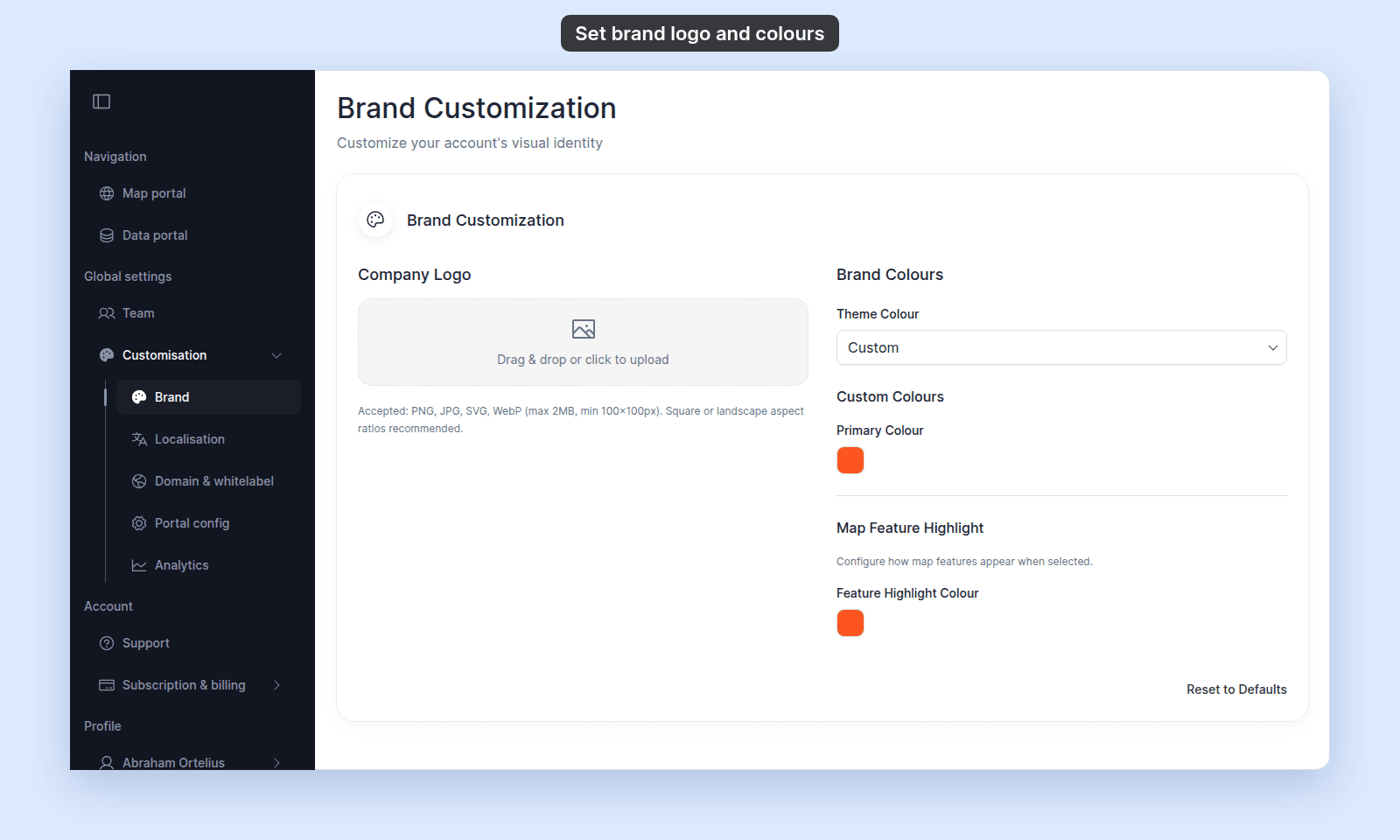
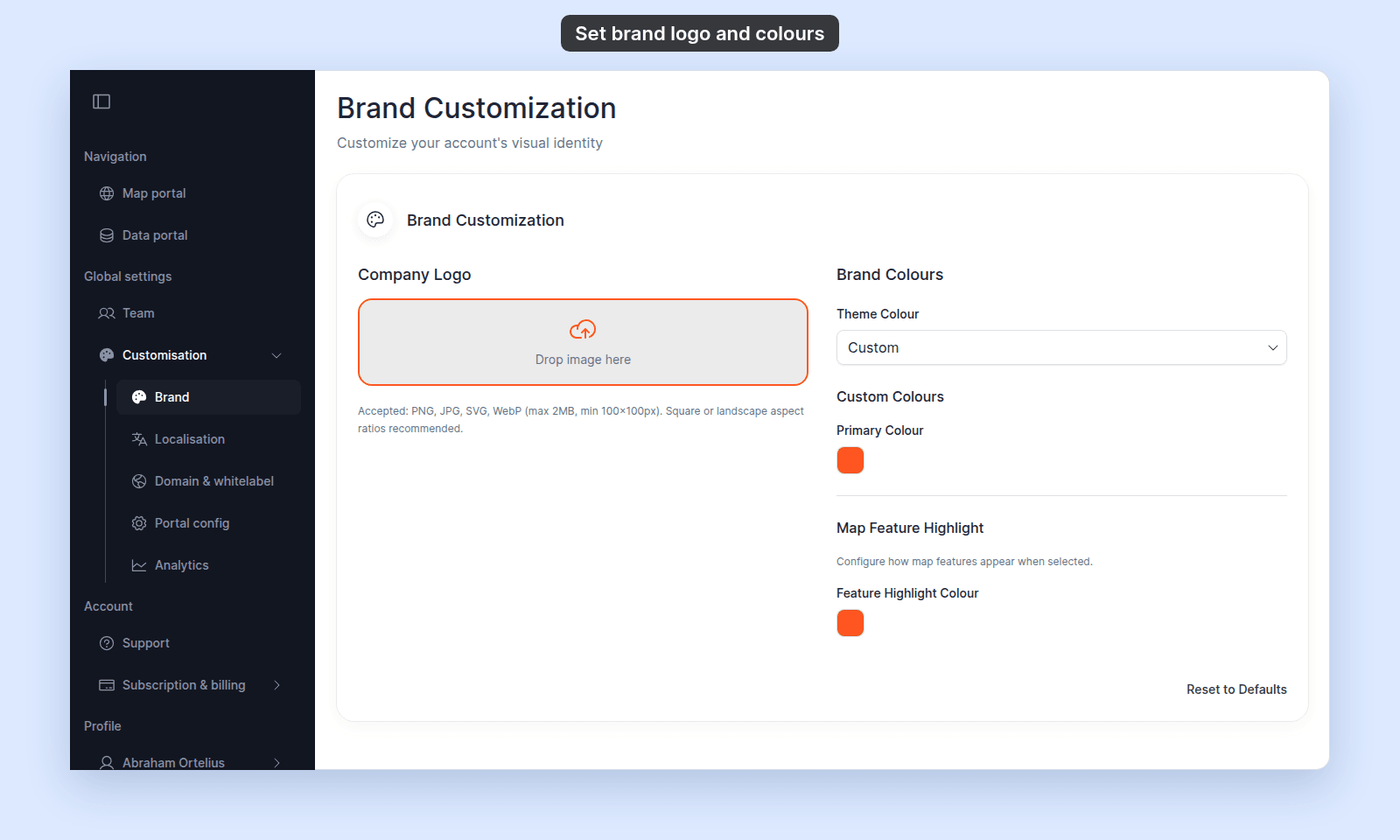
In Company Logo, drag your logo file onto the upload area, or click the area to open a file picker.
To replace an existing logo, click Change and pick a new file. To clear the logo without replacing it, click Remove.
If your file is the wrong format or size, MangoMap rejects it with one of these messages:
Logo must be at least 100×100px.File is too large. Maximum size is 2MB.Invalid file type. Please use PNG, JPG, SVG, or WebP format.Invalid image file.
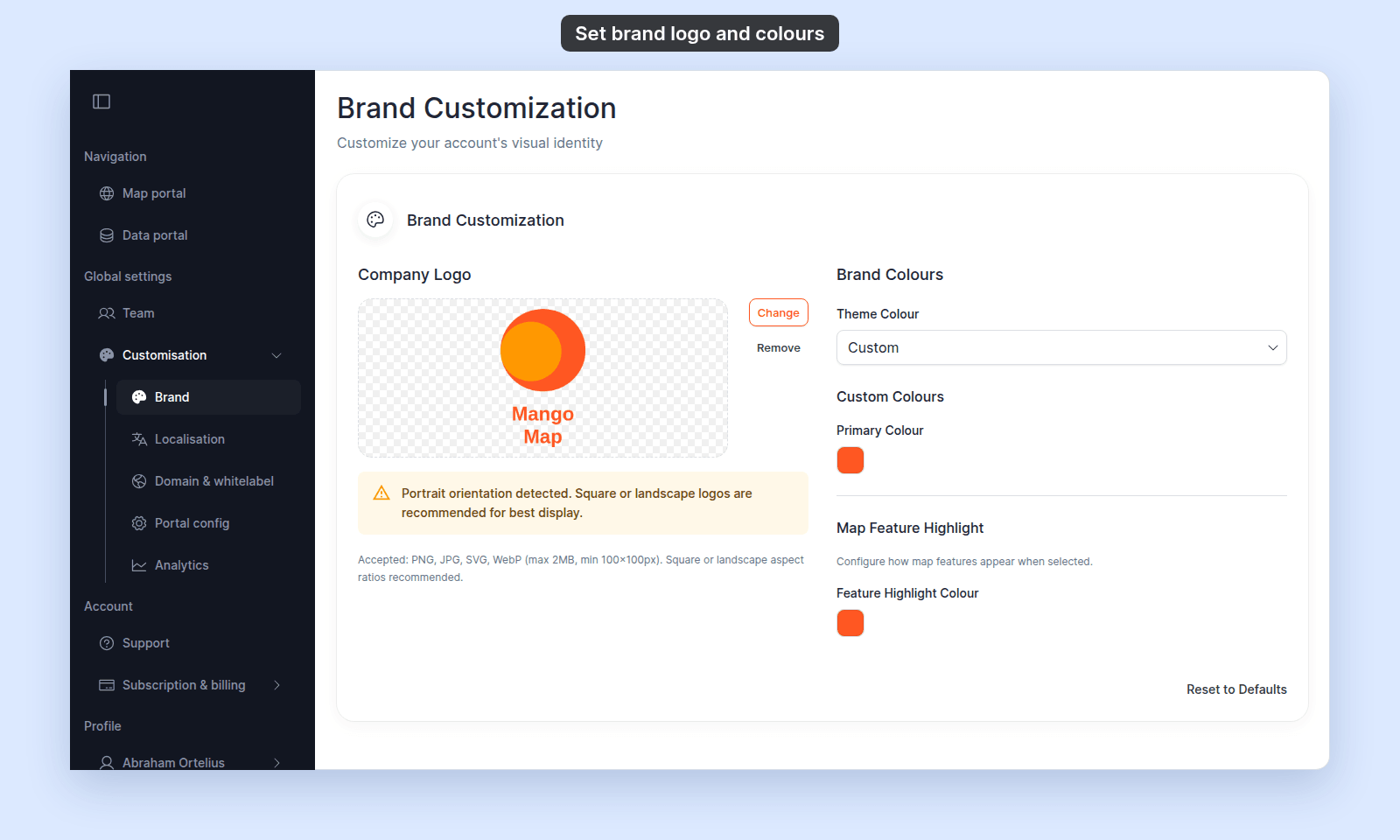
A portrait-orientation image uploads but shows a warning: Portrait orientation detected. Square or landscape logos are recommended for best display. The logo still applies; the warning is advisory.
When Remove Mango branding is on, your logo is also the browser tab icon. MangoMap crops it to a centred square, so keep the important part of the logo in the middle.
Pick a theme colour
In Brand Colours, open the Theme Colour select and pick one of the ten preset themes.
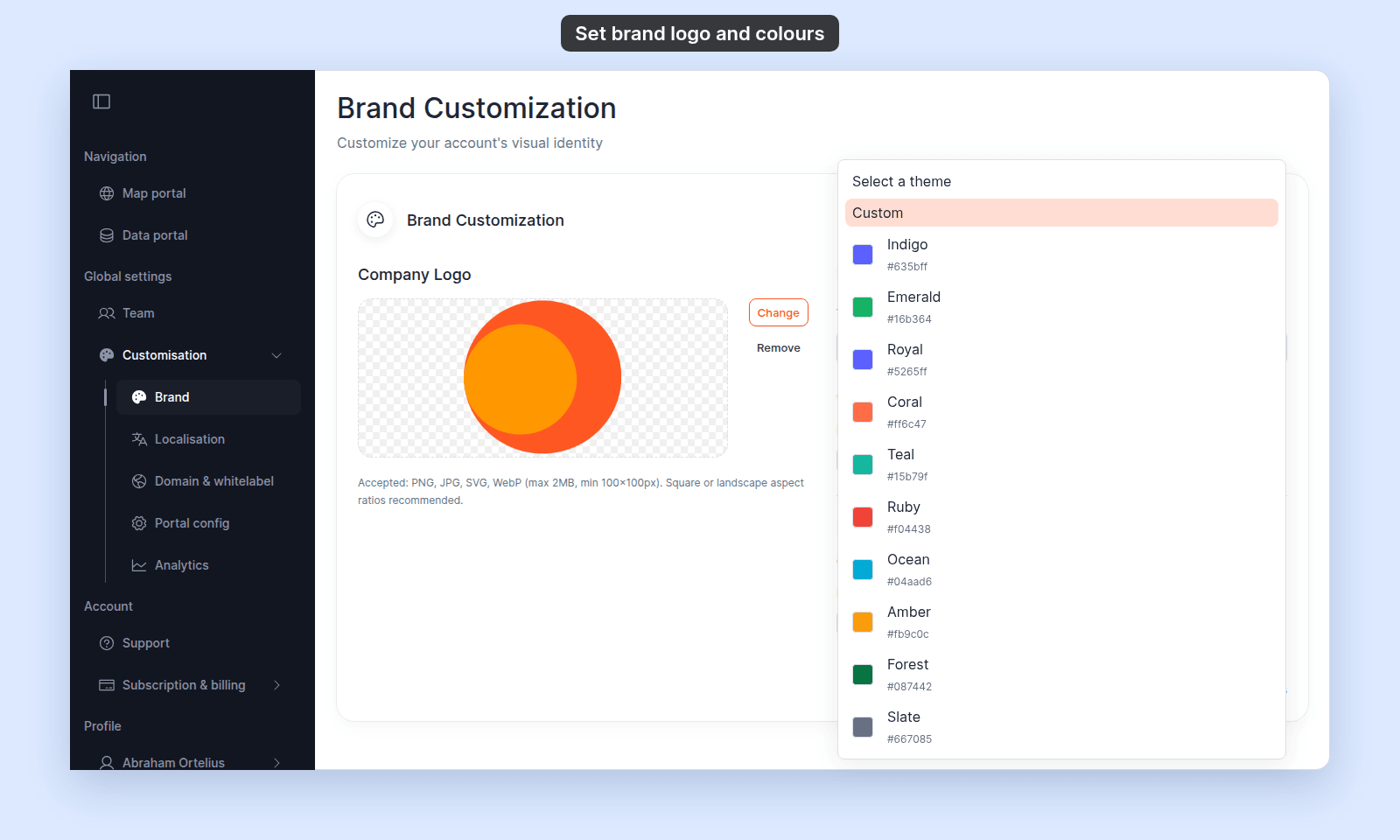
Picking a preset sets the Primary Colour field automatically to the preset’s colour. You can leave it there, or override it in the next step.
Set the primary and highlight colours
In Custom Colours > Primary Colour, type or paste a hex value (for example, #ff5621). The # is optional: ff5621 works too. The colour applies across the account immediately.
In Map Feature Highlight > Feature Highlight Colour, type or paste a hex value. The colour applies to selected features on every map immediately.
Pick a preset first if you want a starting point; type a hex if you have a brand colour to match.
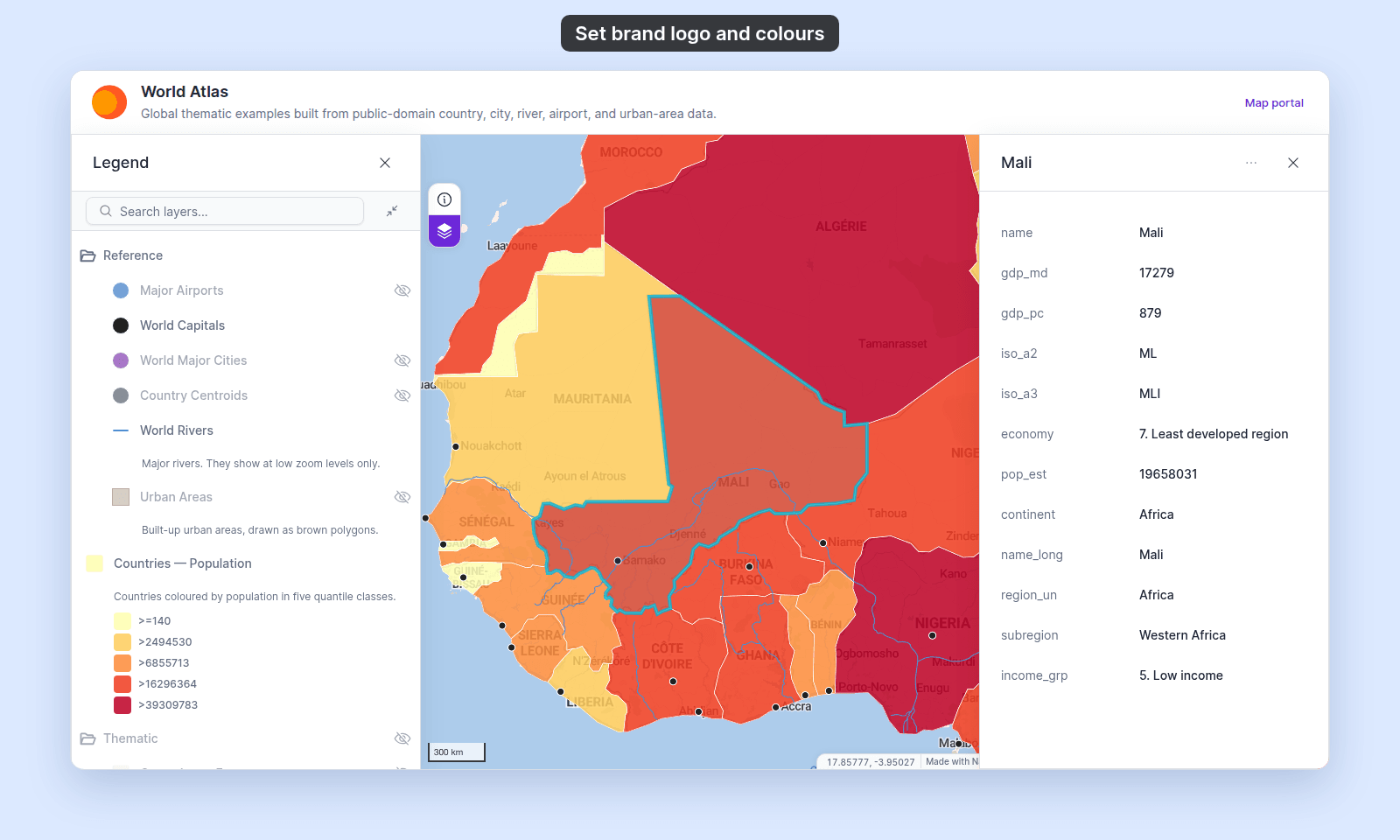
Here is a map with a violet primary colour and a cyan highlight colour, with one country selected:
Reset everything
Click Reset to Defaults to clear every brand setting on this page. The logo is removed, no preset is selected, and both colours fall back to the MangoMap default.
Troubleshooting
The Brand page is blocked
You are not the account owner. See The Customisation menu is blocked.
The logo uploads but looks distorted
The image’s aspect ratio doesn’t match the area where MangoMap renders it. Use a square or landscape image; portrait images trigger the warning above and may crop unexpectedly.
A colour change doesn't appear on a map
Reload the map.
Related
- Customisation menu reference - the canonical control list.
- How customisation works in MangoMap
- How to remove Mango branding
- How to configure the portal